



What is the black screen issue on the iPhone?
Have you ever found yourself in a situation where your iPhone displays the Apple logo and then shuts down automatically? If so, you're not alone.
This is a widespread issue reported by many users. In most cases, it occurs after jailbreaking your phone or when installing the latest iOS update.
Fortunately, the problem of your iPhone continuously showing the Apple logo and shutting down doesn't necessarily mean your phone is dead. In fact, it can be easily fixed. In the following sections of the article, we will discuss methods that may help you resolve the black screen issue on your iPhone, and one of the most important methods is using Tenorshare ReiBoot as it is the fastest and best solution among the suggested options. But first, let's understand the reasons that may lead to this screen issue.
Why does the black screen appear on the iPhone and iPad?
Here are the possible reasons for the black screen on the iPhone or iPad:
1. Hardware Issue
The most common reason for a black iPhone screen is a hardware problem. If there is a fault in the iPhone's hardware components, it may cause your iPhone to develop a black screen. This often happens when you accidentally drop your iPhone. Also, if your iPhone is not water-resistant, dropping it in water can lead to a black screen on the device.
2. Software Issue
If it's not a hardware issue, then it must be a software problem. Software issues like incomplete iOS updates can cause the black screen of death on your iPhone. If you recently downloaded the wrong iOS update or didn't complete the software update on the device, this could be the reason for the black iPhone screen.
Solution 1: Perform a Forced Restart
Issues with the iPhone screen freezing caused by simple software errors like random firmware crashes are often resolved by a forced restart. A forced restart works similarly to a soft reset but differs in how it's executed. It's a simulated battery removal procedure used to turn off an unresponsive device and force it to restart. This simple solution can yield positive results as long as there is no hardware damage. If you haven't done so already, follow these steps to force restart your iPhone:
- Press the Volume Up button and quickly release it.
- Press the Volume Down button and quickly release it.
- Finally, press and hold the Power/Side button until the Apple logo appears.
If it was a firmware crash, it may take about 20 seconds or more for the Apple logo to appear, so you might need to hold the Power/Side button a little longer than usual.
If your phone boots up and works properly after the forced restart, try to eliminate potential triggers including faulty apps and corrupted content.
Check for any pending app updates to implement on your device. App updates also provide fixes to keep app performance stable and bug-free. Just follow these steps to check for pending app updates and implement them on your iPhone:
- Open the App Store from your home screen.
- Scroll down and tap on the "Updates" tab. A list of apps with pending updates will then appear.
- Tap the update button next to the app name to update individual apps.
- Or tap the Update All button in the top right corner of the screen to update multiple apps at once. This option is only visible if multiple updates are available.
Restart your iPhone after updating your apps, then check if that resolves the issue. If your iPhone still succumbs to the black screen, you need to troubleshoot further and try the following options.
Solution 2: Charge Your Device and Perform a Forced Restart
Often overlooked, a completely drained battery may be the main reason your phone is stuck on a black screen. With that in mind, try plugging your iPhone into the charger and leave it to charge for at least 30 minutes. Make sure to use the original charger or the charger that came with your device. Otherwise, use a compatible alternative charger for your iPhone and let it charge.
If you don't see the charging indicator after connecting your iPhone to the charger, perform a forced restart while your phone is connected to the charger. Just refer back to the previous procedure to perform a forced restart on your iPhone.
This should fix the black screen issue if faulty apps and services are at fault.
Solution 3: Restore Your iPhone via iTunes
If none of the previous actions worked and your iPhone screen is still black, performing a restore to iOS via iTunes might do the trick. This process is among the advanced solutions used to correct complex system errors caused by software bugs and malware that have led your iPhone to get stuck on the black screen of death.
You will need to find a computer running Mac or Windows with the latest version of iTunes installed. Once the equipment is ready, connect your iPhone to the computer using the USB/lightning cable provided by Apple and allow iTunes to recognize it. If possible, try to back up all important files from your iPhone to iTunes beforehand. After creating backups, you can proceed and start restoring your iPhone in recovery mode. To begin, connect your iPhone to the computer. While your phone is connected, follow these steps:
- Press the Volume Up button and quickly release it.
- Press the Volume Down button and quickly release it.
- Press and hold the Power/Side button when you see the Connect to iTunes screen. Do not release the button when you see the Apple logo as you will need to enter recovery mode.
- You should see the option to restore or update on the next screen.
- Select Update first to update your phone's software to the latest version. If there is no software update available, select the restore option.
Wait for iTunes to reinstall iOS without erasing your data and then download the software for your device. Usually, your device will exit the Connect to iTunes screen if the download takes more than 15 minutes. If that happens, wait for the download to complete, then execute the previous steps to enter recovery mode again.
Solution 4 (the fastest and easiest): iPhone Black Screen Repair Software.
How to Fix iPhone Using Tenorshare ReiBoot?
Tenorshare ReiBoot offers an easy-to-use interface with accessibility. Even a beginner can resolve iOS issues with it. Due to this flexibility, it is very easy to fix your iPhone problems in just 3 simple steps, without requiring technical knowledge.
How does ReiBoot work to fix the black iPhone screen?
If the device is working but the screen is black on the iPhone, the first thing you should do is download a program like ReiBoot on your Windows device. Once the program is installed, you can connect your device to the computer using a USB cable. Once ReiBoot detects the device, you can click the "Repair Now" button available on the screen.
ReiBoot works by scanning the connected device and identifying all potential errors. In some cases, the application may fix the issue immediately. But in other cases, it may guide you through a step-by-step recovery process. Although the free version includes some features, the program detects all issues and gives you the option to upgrade to the premium plan only if necessary.
In the following video, there is a quick explanation of the program's great capabilities; follow the video to learn how to use the program.
Special thanks to the video source
Channel: Tenorshare Arabic on YouTube.
Explanation of how to solve the black screen issue on the iPhone
- Download the Tenorshare ReiBoot program and install it on your computer. Then click START.
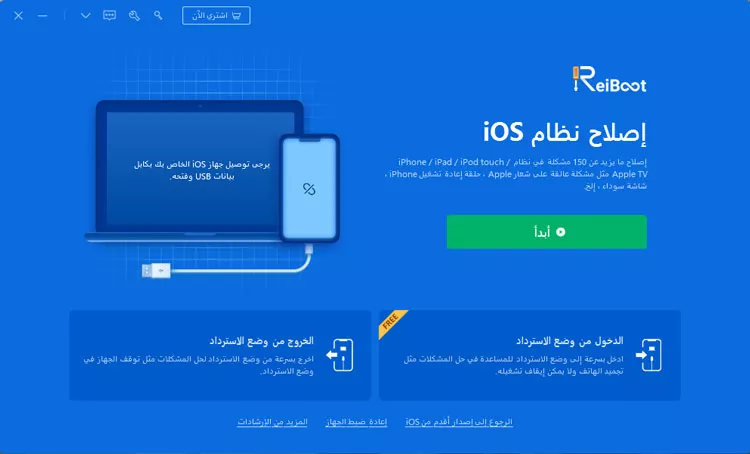
The first step when using Tenorshare ReiBoot for iPhone repairs
- Connect your iOS device to the computer. Select Standard Repair.

The second step when using Tenorshare ReiBoot for iPhone repairs
- Download the firmware package.

The third step when using Tenorshare ReiBoot for iPhone repairs
We also have a 30% discount for


