


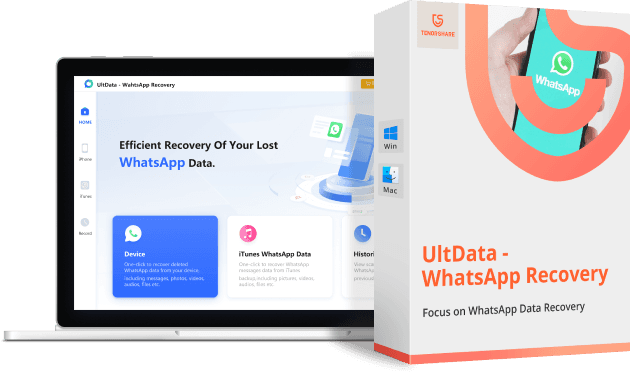
Overview of Tenorshare Ultdata WhatsApp Recovery for iPhone 2023
No matter the reason behind losing your WhatsApp data or the file format you wish to recover, including messages, photos, videos, documents, charts, PDFs, Word, Excel, Zip, and more, Tenorshare Ultdata WhatsApp Recovery will come to your rescue!
With multiple options for recovering WhatsApp chats without a backup, Tenorshare UltData WhatsApp Recovery allows you to recover WhatsApp data from both Android and iOS, as well as retrieve messages from iTunes backups. Additionally, Tenorshare iOS & Android WhatsApp Recovery will help you recover deleted or old WhatsApp messages in seconds without needing a backup.
Unlike the time-consuming WhatsApp feature that only allows users to restore a Google Drive backup during initial setup, Tenorshare WhatsApp Recovery can securely and easily recover WhatsApp data. You can perform selective recovery and preview data before restoring it, giving you complete control over the process.
- You might also like
iPhone Management Software for PC | TENORSHARE ICAREFONE
What is Tenorshare Ultdata WhatsApp Recovery?
When Should You Use Tenorshare Ultdata WhatsApp Recovery?
If you are a business owner with experience in product sales and always use WhatsApp Business to communicate with your clients or partners, losing important transaction details and product order messages can make the situation more difficult and desperate. How can you easily recover them? To recover deleted WhatsApp messages on your smartphone, try Tenorshare UltData WhatsApp Recovery, a powerful recovery tool for WhatsApp.
No matter the issue - a damaged screen, a malfunctioning system, a factory reset, accidentally deleted messages, jailbreaking, or a malware attack. This WhatsApp message recovery program can recover a variety of data from WhatsApp accounts on Android and iOS devices, including photos, videos, audio, and files. Furthermore, you can recover data not only from the device but also from an iTunes backup without resetting the device.
Why Choose Ultdata WhatsApp Recovery to Recover Deleted WhatsApp Messages for iPhone?
- Simple and user-friendly interface
- Supports all iOS devices, including the latest ones
- Offers three recovery modes to choose from
- Provides a free trial to preview recoverable data before purchase
- Allows selective data recovery
- Recovers WhatsApp data from any scenario
- Accidental deletion
- System crash
- Factory reset
- Virus attack
- Jailbreak
- Broken screen - Recovers various WhatsApp file formats
- Messages
- Photos
- Videos
- Documents
- Stickers
- PDF
- Word
- Excel
- Zip - Recovers device data
- Selective recovery
- Preview before recovery
- Secure data recovery
- Export to PC
- Recovers deleted WhatsApp data from both iPhone and Android
- Recovers WhatsApp data from iTunes (iOS only)
- Recovers various WhatsApp file formats
You can download Ultdata WhatsApp Recovery for free from the following link and test everything for yourself. This is the best way to get a firsthand experience of all the features.
Purchase or choose the free trial from the following links.
The software supports most Windows and Mac operating systems.
- "There are coupons and discounts for the 16th anniversary, which you can find below this paragraph"


Note: The program supports Arabic language 100% and you can switch between languages and select Arabic from the program settings
In the following video, there is a quick explanation of the program's great capabilities; watch the video to learn how to use the program.
Using the program explained with images
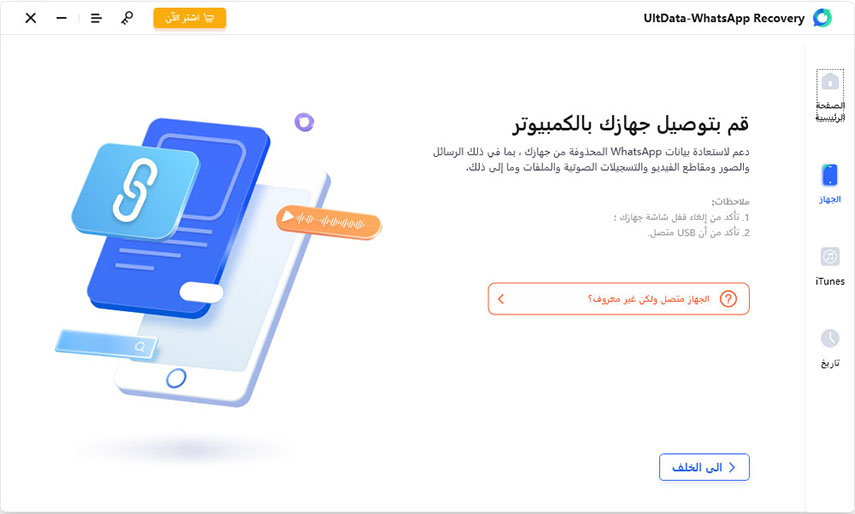
If you don't have UltData, download and install it on your computer. Now connect your iPhone to the computer using a medium, such as a USB cable. Then click on "Recover from iOS Device" and allow the program to detect your iPhone. All types of data on your iPhone will be displayed on the screen.
Step 2. Start the scanning process
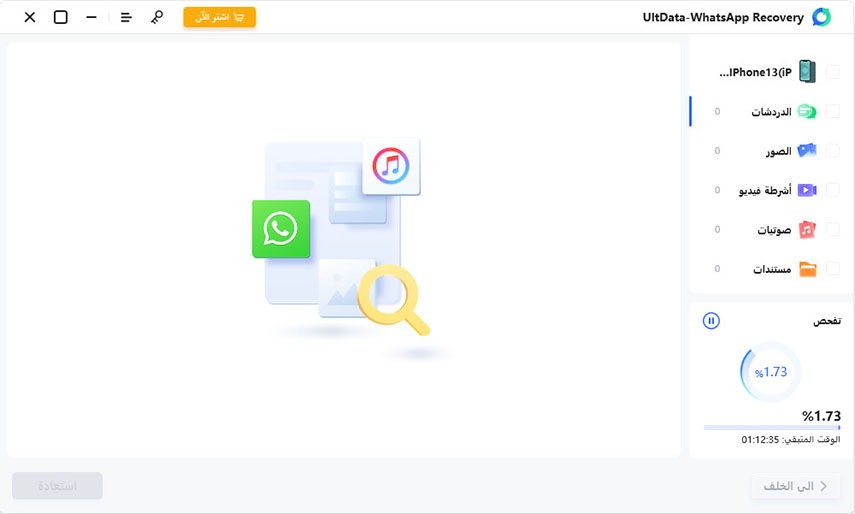
From the list of data types displayed on the screen, select and check the "WhatsApp & Attachments" category. This option allows you to recover deleted WhatsApp messages. Then scroll down the screen and click on "Start Scan" and the program will automatically begin the scanning process.
Step 3. Recovery
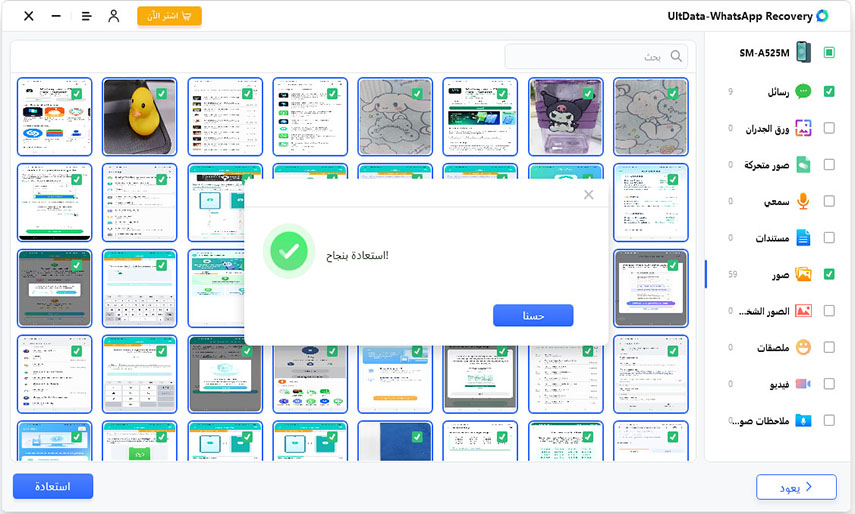
Once the scanning process is successfully completed, a list of deleted items will be displayed on the interface. Select the WhatsApp option on the left panel and then preview the deleted WhatsApp messages on the screen. Simply choose the targeted WhatsApp messages and click the "Recover to PC" button at the bottom of the screen.
The best time to purchase Tenorshare Ultdata WhatsApp Recovery is now (the company's 16th anniversary)

On the occasion of the 16th anniversary of the tech giant Tenorshare, users participating in the event can enjoy huge discounts, gifts, and surprises. Don't miss the opportunity; seize it now!
To access the promotional offers from Tenorshare for the anniversary, click on the following link.
Anniversary Discounts and Offers
And that's not all; for a limited time, we are offering our visitors an exclusive 30% discount if you purchase the program during the granted discount period (when purchasing, use the coupon PF007B to get a 30% discount on the program)
<h


