

Reasons for the issue of not saving passwords in Google Chrome and how to fix it: To save users from the hassle of remembering credentials, Google Chrome comes with a built-in password manager. Once you allow Google Chrome to save passwords, you can head to the website, and your credentials will be filled in automatically. However, for some users, things don’t go smoothly. Many users face the issue of Chrome not saving new or updated passwords. If this is your problem and you’re wondering why the autofill option for passwords isn’t working in Google Chrome, you’ve come to the right place.
What are the reasons for the issue of not saving passwords in Google Chrome and how to fix it?
If you are unable to save passwords in your Google Chrome, here are some possible reasons:
You haven’t updated your Chrome browser for a while.
The “Save Passwords” option might have been accidentally disabled.
You may have instructed Google Chrome not to save passwords for certain sites.
Corrupted cache and cookies are preventing Google Chrome from remembering passwords.
You have installed faulty extensions that interfere with the password manager function in Google Chrome.
Best ways to fix the issue of not saving passwords in Google Chrome
Solution 1 - Update Google Chrome
The first thing you can try is to check if your Chrome browser is up to date. To do this, follow the steps below -
Step 1 - Click on the three vertical dots on the right side of the interface.
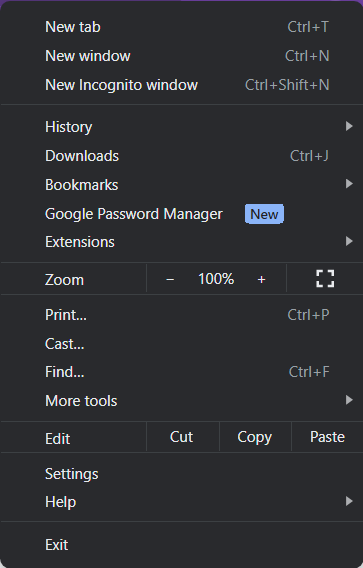
Quick access menu on Chrome
Step 2 - Click on Help and then click on About Google Chrome.
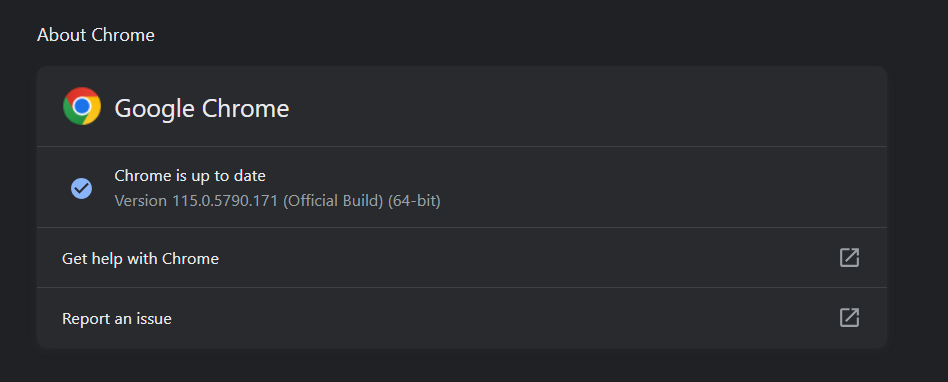
Step 3 - Wait for a moment while Google Chrome checks for updates.
Solution 2 - Ensure Password Saving is Enabled
If the password manager in Chrome isn’t working or if the autofill feature isn’t functioning, it’s likely that you haven’t enabled the password saving feature in your browser. Here are the steps to ensure that -
Step 1 - Click on the three vertical dots on the right side of the interface.
Step 2 - Click on Settings.
Step 3 - From the left side, click on the Autofill and Passwords option.
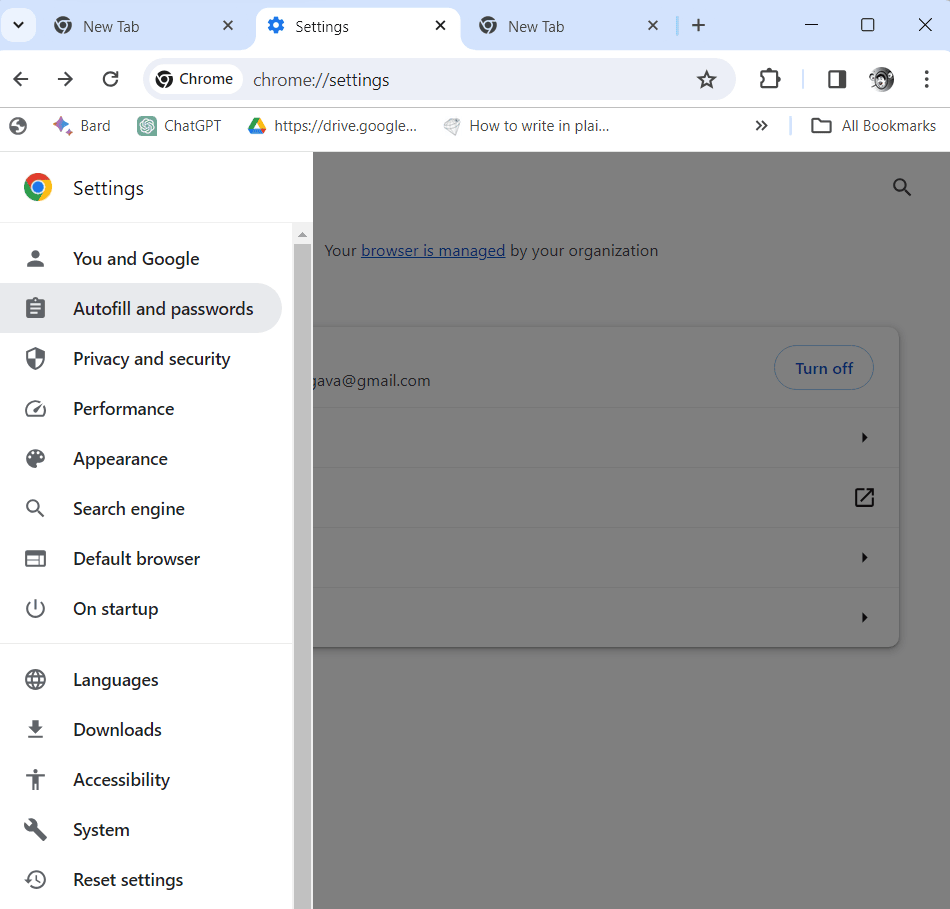
Autofill and Passwords option - Chrome settings
Step 4 - On the right, click on Google Password Manager.
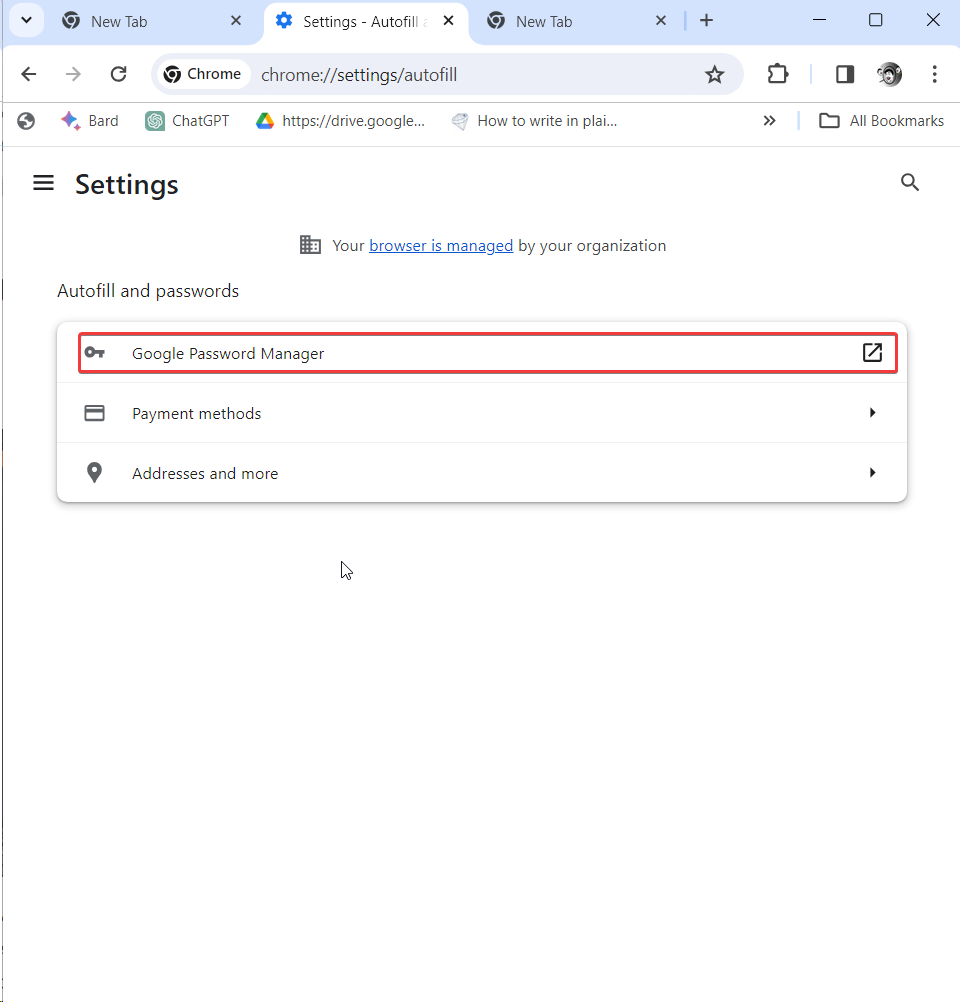
Google Password Manager - Chrome
Step 5 - Again, click on Settings from the left side.
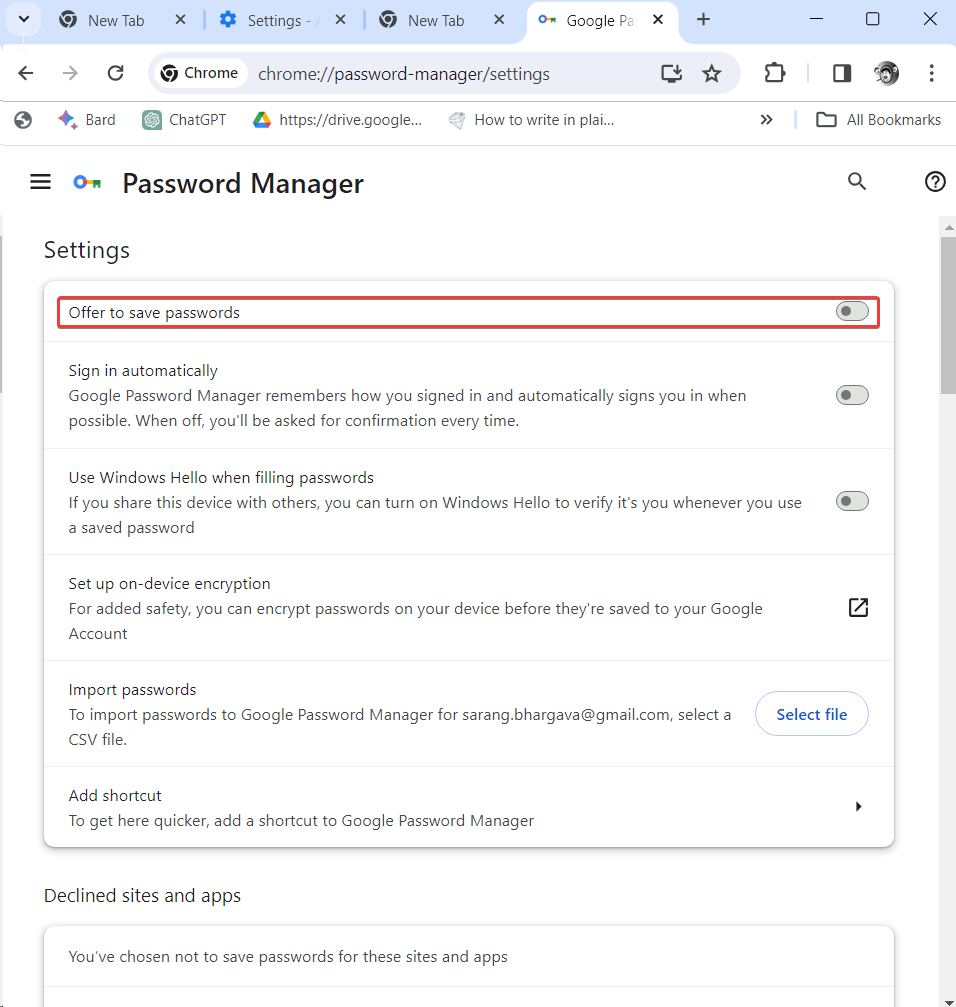
Step 6 - On the right side, toggle the switch next to Show Save Passwords. Show Save Passwords option Save Passwords Password Manager
Solution 3 - Use a Password Manager
When Google Chrome doesn’t save passwords for a while, a third-party password manager can be a great tool. Password management tools like TweakPass come with a Google Chrome extension. It not only helps you save your credentials but also generates strong passwords.
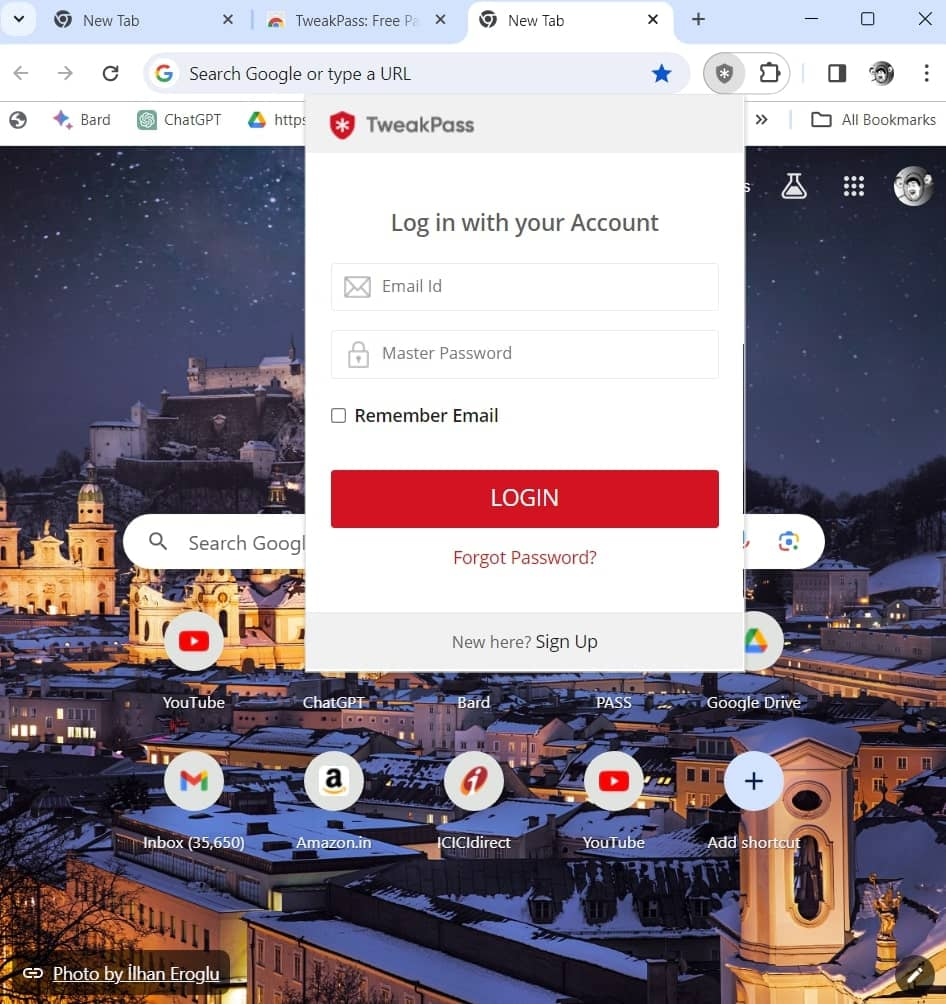
Solution 4 - Clear Cache and Cookies
Corrupted cache and cookies are often the main reason behind issues in Google Chrome. One of the best troubleshooting steps is to clear cache and cookies. To do this -
Step 1 - Open Google Chrome on your computer.
Step 2 - Click on Clear browsing data or press Ctrl + Shift + Delete on your keyboard.
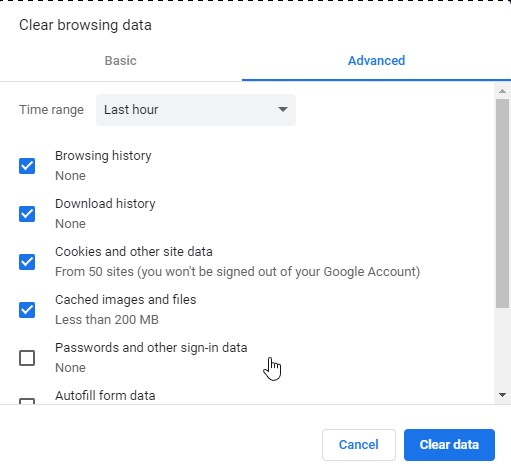
Clear browsing data
Step 3 - Click on the Clear data button.
Solution 5 - Use a Windows Optimization Tool
Since we’re talking about clearing cache and cookies, you can use an external tool that can remove all browsing history and other hidden traces.
Solution 6 - Reset the Browser to Default Settings
If you still can’t figure out why Chrome isn’t showing the save password option, you can try resetting Google Chrome to its default settings.
Step 1 - Open Google Chrome settings.
Step 2 - From the left side, scroll down and click on Reset settings.
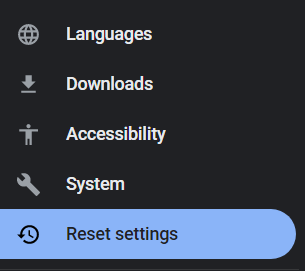
Select the Reset settings tab
Step 3 - Click on Restore settings to their original default.
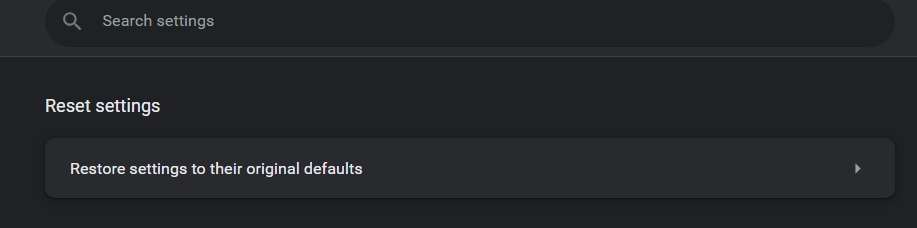
Reset settings page
Step 4 - Click on Reset settings.
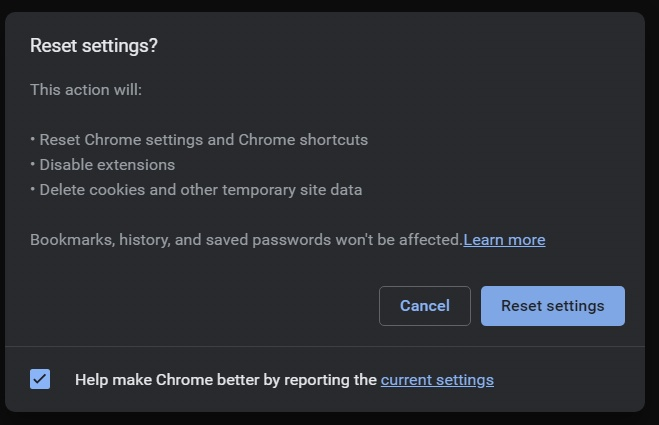
Click on the Reset settings option
Solution 7 - Log Out and Log Back into Your Google Chrome Profile
Although this isn’t a very common issue, a corrupted profile in Google Chrome might also be the reason you can’t save or autofill credentials using the Google Password Manager. The best solution here is to log out and then log back in. To do this -
Step 1 - Open the Google Chrome profile where you’re having trouble saving passwords.
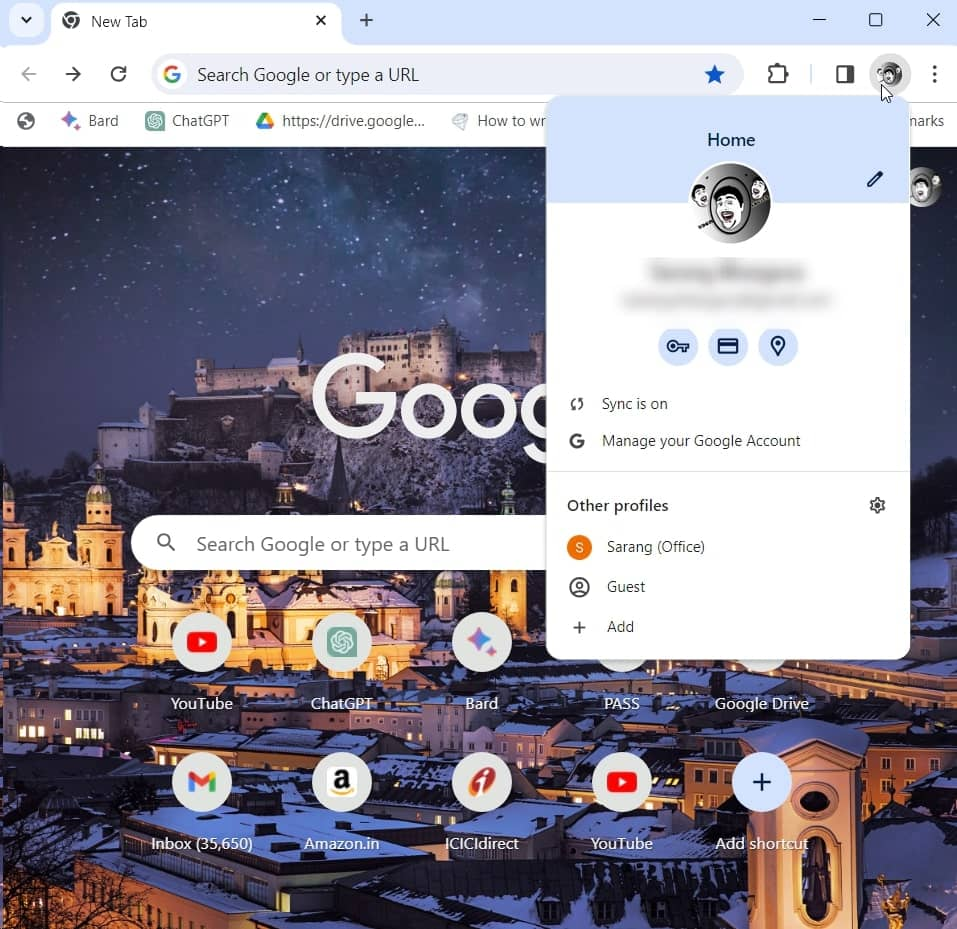
Google Chrome profile
Step 2 - Click on the profile icon in the top right corner below the tab section.
Step 3 - Click on the Sync is On button.
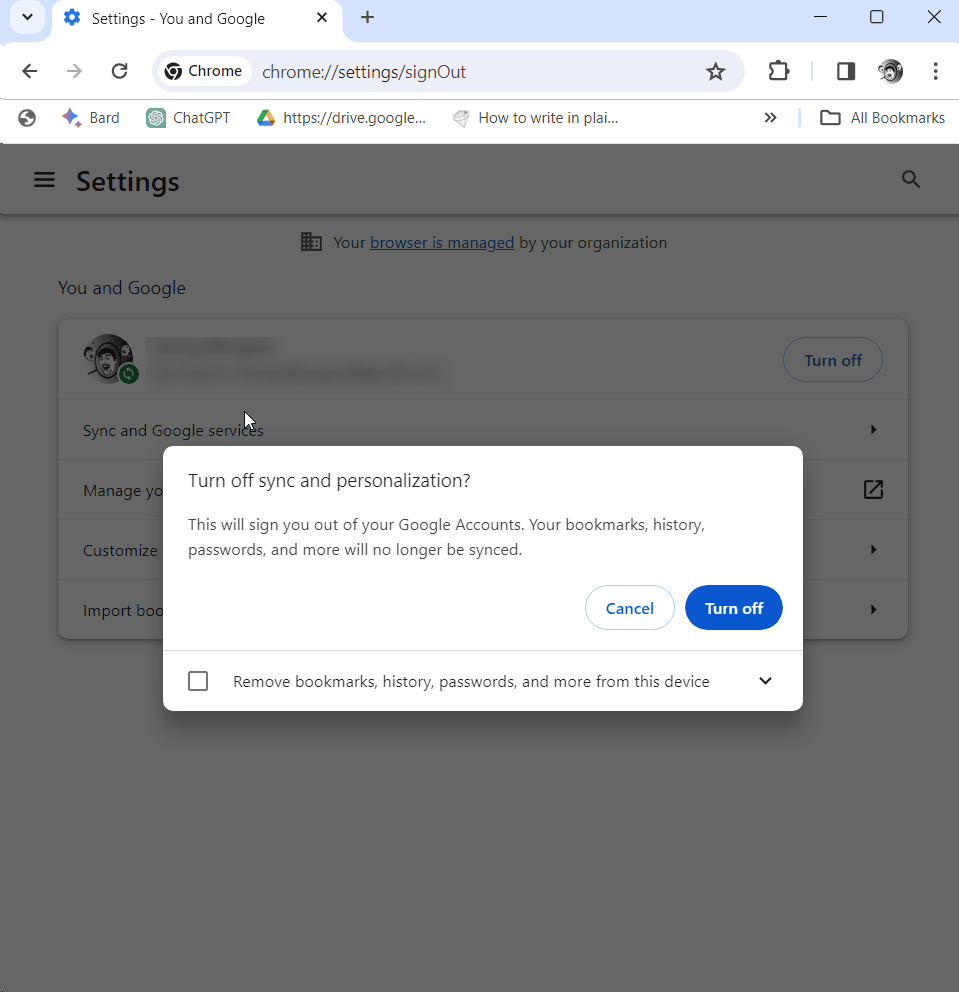
Turn off sync
Step 4 - On the next screen, click the Turn Off button.
Step 5 - Once logged out, log back in and


