


The best ways to recover deleted files from the Recycle Bin: This article outlines the most effective methods for recovering deleted files from the Recycle Bin, so stay with us.
Who doesn’t want a fast computer? Everyone does, of course. However, sometimes, rushing to delete files to improve computer speed can lead to accidentally deleting important files. Fortunately, Windows does not delete these files immediately and keeps them in the Recycle Bin for easy recovery.
Now, what if you accidentally emptied the Recycle Bin? Can you still recover the files? Fortunately, it is possible to recover deleted files from the Recycle Bin even after it has been emptied.
Yes, undoing the deletion from the Recycle Bin is very possible. Deleted files remain in storage until they are overwritten, so it is recommended not to use your computer to prevent new data from overwriting the deleted files, ensuring a smooth recovery. Additionally, you should act quickly and follow the methods outlined in this guide as soon as possible to recover your lost files. Let’s get started right away.
Best Ways to Recover Deleted Files from the Recycle Bin
Here are some simple methods you can use to recover files if you accidentally deleted them from the Recycle Bin.
Method 1: Restore from File History Backup
Recovering deleted files from the Recycle Bin after it has been emptied is straightforward if you have a backup from File History. If you previously enabled File History and created a backup of your files, here’s how to restore it on your computer.
The first step is to open the Control Panel. You can do this by typing Control Panel in the Windows search bar and selecting it from the results.
Once the Control Panel is open, you can change the view to Small icons using the view menu.
Next, all Control Panel items will appear on your screen; select File History to view it.
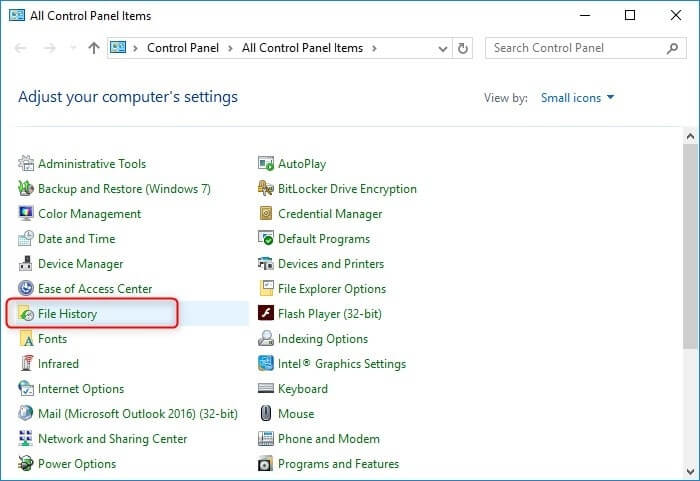
File History
Select the option to Restore personal files from File History.
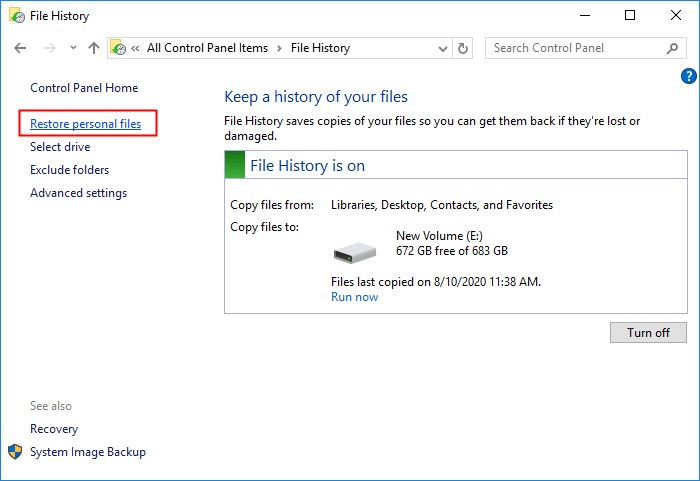
Restore personal files
You can now select the files you want to restore using the left and right arrows.
After selecting the desired files, click the green button to restore the selected files to their original location.
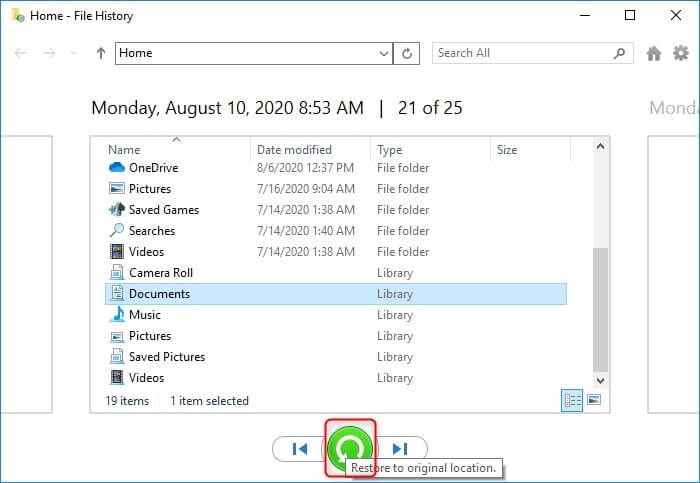
Click the green button to restore
Method 2: Try Restoring Previous Versions
You can undo the deletion of files from the Recycle Bin by restoring the folder that originally contained the deleted files to a previous version. Although the process is a bit lengthy, here’s how to do it.
First, right-click the Windows icon on the taskbar and select File Explorer from the context menu.
Next, navigate to the folder where you saved the files before deleting them.
You can now right-click on any empty space in the folder and select Properties from the menu that appears on your screen.
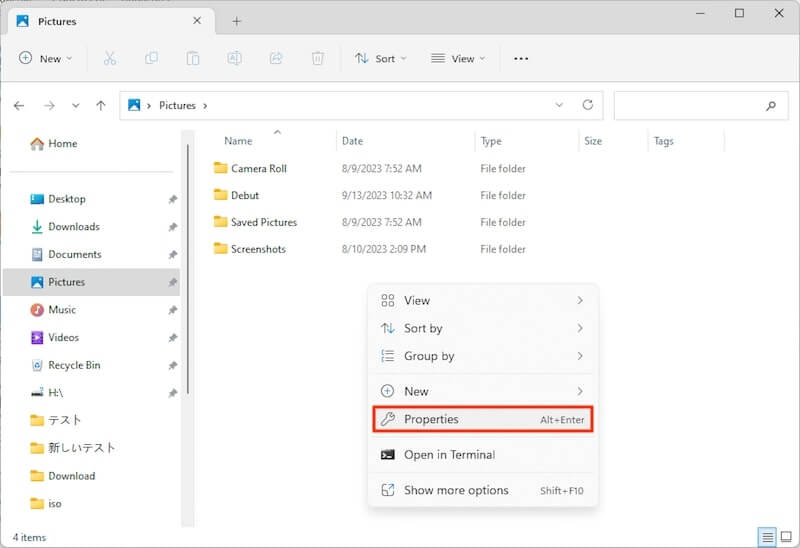
Select Properties
The folder properties will appear on the screen; click on the Previous Versions tab and select a version before the files you are trying to recover were deleted.
Finally, click the Restore button and wait for the restoration process to complete.
Method 3: Use Command Prompt to Recover Deleted Files from the Recycle Bin After Emptying
If a system crash caused the Recycle Bin to be emptied by mistake, you can use command lines to undo the deletion. Here’s a detailed step-by-step explanation of how to do this.
The first step requires you to open the Command Prompt on your computer. You can use Windows Search to find this tool and access it. Simply type Command Prompt in the search box, right-click the first search result, and select Run as administrator from the options that appear on the screen.
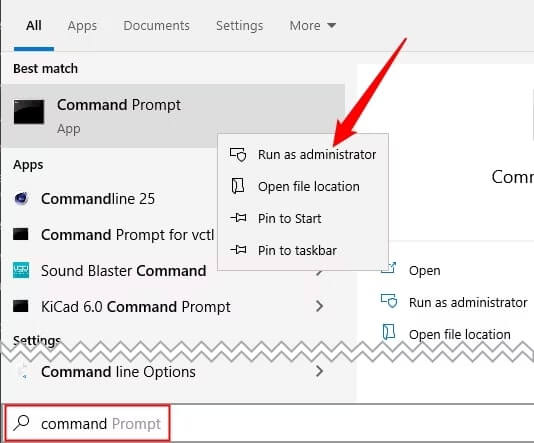
Run as administrator
After opening the Command Prompt window, enter chkdsk "your drive letter": /f in the command line and press Enter.
Next, press Y to get to the command line and enter your drive letter.
Press Enter and enter the command ATTRIB -HR -R -S /S /S /D D D:*.*.
Finally, press Enter and wait for the Command Prompt to display the folders that may contain the deleted files.
Method 4: Recover the Recycle Bin via Cloud Backup
Windows includes a tool called OneDrive, which is a cloud backup tool that, when enabled, creates a backup of all files on your computer. These file backups are available on Microsoft’s servers, allowing you to restore them whenever you need. Here’s a step-by-step guide to undoing the deletion from the Recycle Bin using OneDrive.
First, go to the official OneDrive website.
Next, you can log in using your Microsoft account credentials.
Once you’ve logged in, navigate to the folder that contained your files before deletion.
You can now hover over the required files to select them and click the checkbox in the upper right corner of the OneDrive window.
Finally, click Download to start the recovery process and wait for the deleted files to be restored to your computer.
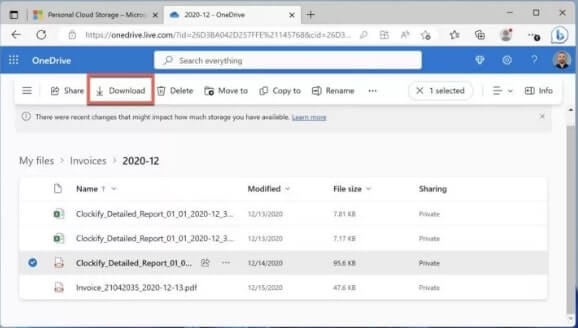
Download OneDrive
Method 5: Recover Deleted Files from the Recycle Bin Using Windows File Recovery Tool
Microsoft offers a data recovery tool known as Windows File Recovery, which you can download from the Microsoft Store to recover lost data. Here’s how to recover deleted files from the Recycle Bin after it has been emptied using this tool.
The first step is to download and install the Windows File Recovery tool from the Microsoft Store.
Next, you are required to open the Command Prompt as an administrator on your computer.
Type winfr in the command line to proceed to the next step.
After opening the Command Prompt as an administrator, enter winfr C: D: /regular /n \\$Recycle.Bin\%SID% in the window that appears on the screen and press Enter.
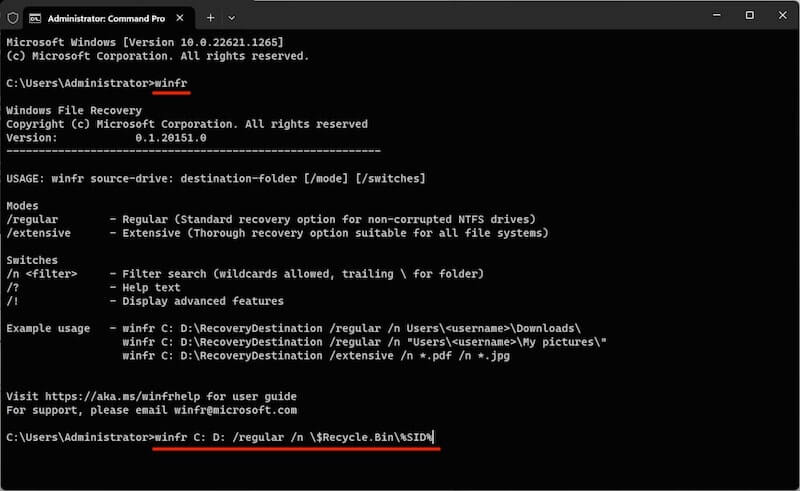
winfr
Finally, wait for the Windows File Recovery tool to restore the Recycle Bin files to your device's D drive.
Method 6: Use a Recovery Software
Although recovering files from the Recycle Bin after they have been permanently deleted is challenging, you can accomplish this task in a few simple steps using the best data recovery software that employs advanced algorithms to retrieve lost data.
Conclusion
Here, we discussed the best ways to recover deleted files from the Recycle Bin. This article guided you through the most effective methods for recovering deleted files from the Recycle Bin after emptying the folder. You can use the method that seems easiest for you. However, if you have any suggestions or questions, feel free to let us know in the comments section.


