


(The best ways to speed up Chrome browser) The best ways to speed up the Chrome browser: Chrome is a well-known browser that needs no introduction; it is one of the best and most popular web browsers on Windows, Android, and other platforms.
Chrome is a resource-intensive application, consuming a lot of system memory and CPU. However, nowadays, computers come with larger memory sizes (4GB/8GB/16GB, etc.), so this doesn't significantly impact system performance.
In this article, you will find some useful tips that can help you fix Chrome freezing issues and speed up the browser.
The best ways to speed up Chrome
1. Use an advanced system repair tool to speed up Chrome
2. Update Chrome
3. Clear cache and cookies
4. Disable unused extensions, apps, and themes
5. Kill unresponsive tabs and resource-hungry processes using Chrome Task Manager
6. Reset Chrome browser
7. Disable hardware acceleration
8. Check internet connection and speed
9. Install the Text Mode extension in Chrome
10. Restart Windows graphics
11. Restart Windows Explorer
Method 1: Use an advanced system repair tool to speed up Chrome
If your computer has missing system files, outdated drivers, pending updates, registry errors, or incorrect system configuration settings, you may experience various application freezing and lag issues.
You should repair common issues on your computer and optimize it for a better and smoother experience using an advanced system repair tool.
Windows consists of a large number of dll files, exe files, sys files, various types of services, databases, and so on, so it's not possible to constantly monitor all files. A great PC optimization tool quietly repairs damages, fixes errors, updates Windows and drivers, and removes various types of errors.
The Outbyte PC Repair Tool handles all the above tasks easily and provides you with a smooth and error-free Windows environment to work in so you can focus solely on your tasks.
3 steps to fix this error
Step 1. Download the Outbyte PC Repair Tool [File size: 16.4 MB]
Step 2. Scan your Windows computer
Step 3. Click the "Repair" button to fix the error
Method 2: Update Chrome
When you feel that the Chrome browser is running slowly, the first step you should take is to update it. Updating any application installs security patches, fixes bugs, and makes the application more compatible with your devices.
Step 1: Open Chrome. Click on the three dots (⠇) in the upper right corner ➜ Help ➜ About Google Chrome.
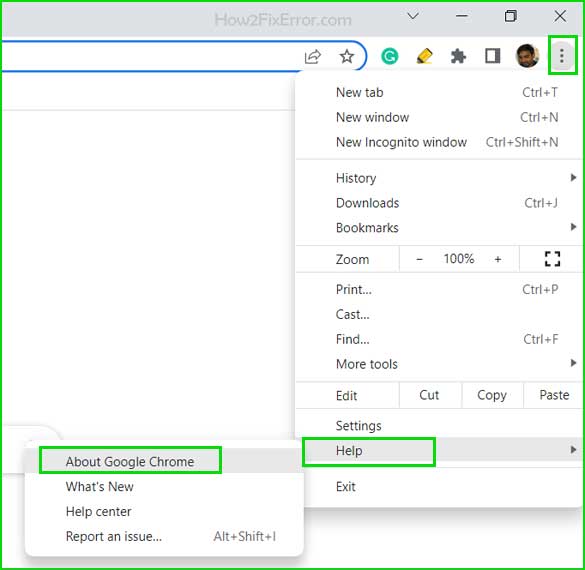
Open Chrome update settings
Step 2: Chrome will start looking for updates.
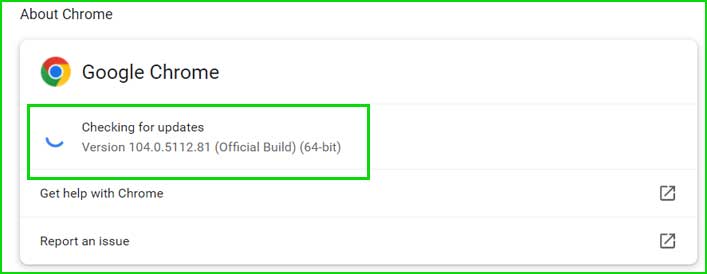
Checking for updates in Chrome
Method 3: Clear cookies and cache and browsing data
If you have been using Google Chrome for a long time, it stores a lot of unnecessary files and information in the browser. These bits of data start to bog down Chrome, consuming resources and slowing down the browser.
However, browsing history items like cached images, password data, autofill form data, and site settings provide a better Chrome experience and automate most tasks, but in return, they consume a lot of system resources and slow down Chrome.
If you want to speed up Chrome and make it more secure, you should regularly remove browsing details. You can either do this manually each time or automate it using the advanced system repair tool.
The best ways to speed up Chrome
Step 1: Open Chrome and press CTRL + H to open the browsing history page, then click on Clear browsing data in the left menu.
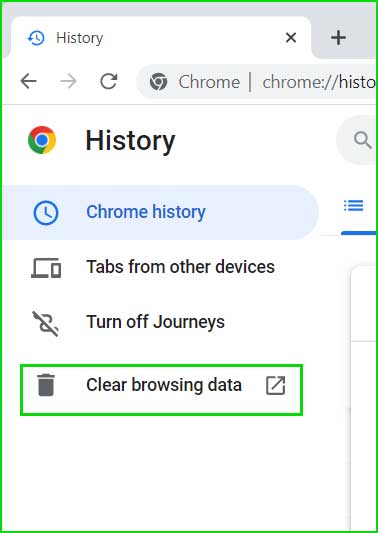
Open browsing history settings
Step 2: Select everything except passwords and other login data, then click the Clear data button.
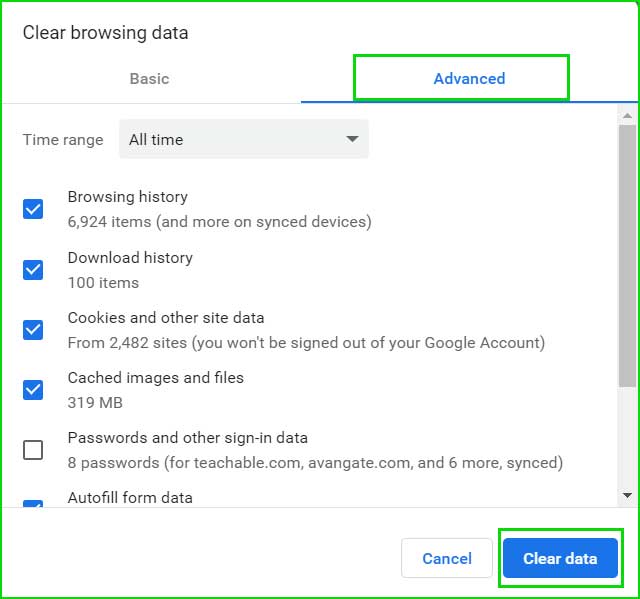
Clear browsing data in Chrome
Method 4: Disable unused extensions, apps, and themes.
Removing extensions
Extensions in Chrome are used to provide additional benefits and features. Sometimes, we install an extension to help with a specific task, and once the task is done, we forget to remove that extension.
It is essential to remove unused extensions from Chrome, as these extensions continue to run in the background and share Chrome's resources.
Step 1: Go to the upper right corner of the browser and click on the three dots (⠇) to open the menu. Select More tools ➜ Extensions.
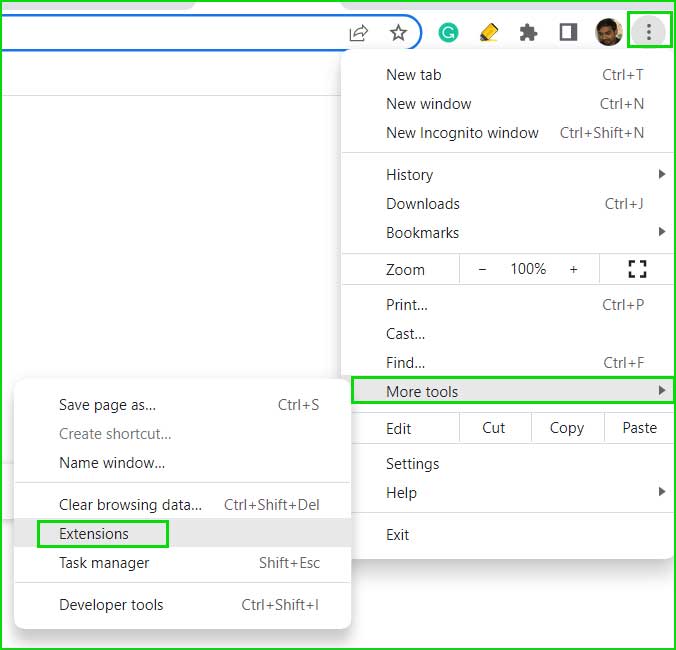
Open extension settings in Chrome
Step 2: The Extensions Manager will open, find the unused extension and click the Remove button to delete it from Chrome.
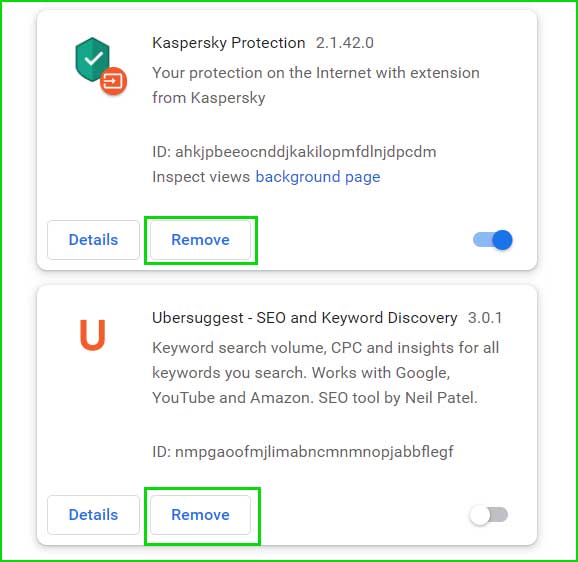
Remove the extension from Chrome
Removing apps
Step 1: Paste the following URL into the Chrome search bar and press Enter to open it.
chrome://apps/
Step 2: Right-click on the apps you do not use and select Remove apps.
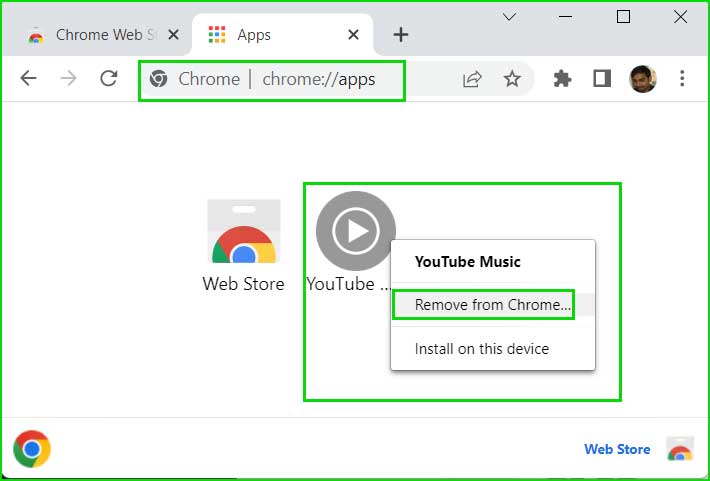
Remove apps from Chrome
Removing themes
Step 1: Open the Chrome menu by clicking on the three dots (⠇) in the upper right corner and then click on Settings.
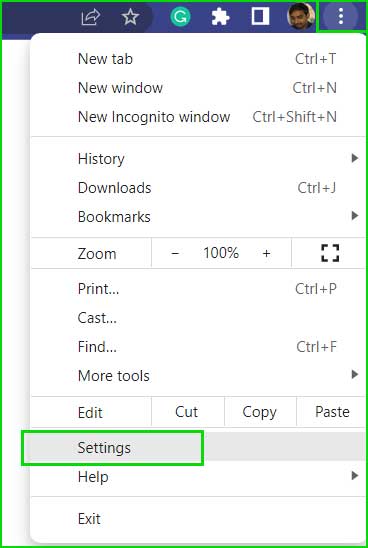
Open Chrome settings
Step 2: Select Appearance from the left menu, then click the Reset to default button next to the theme.
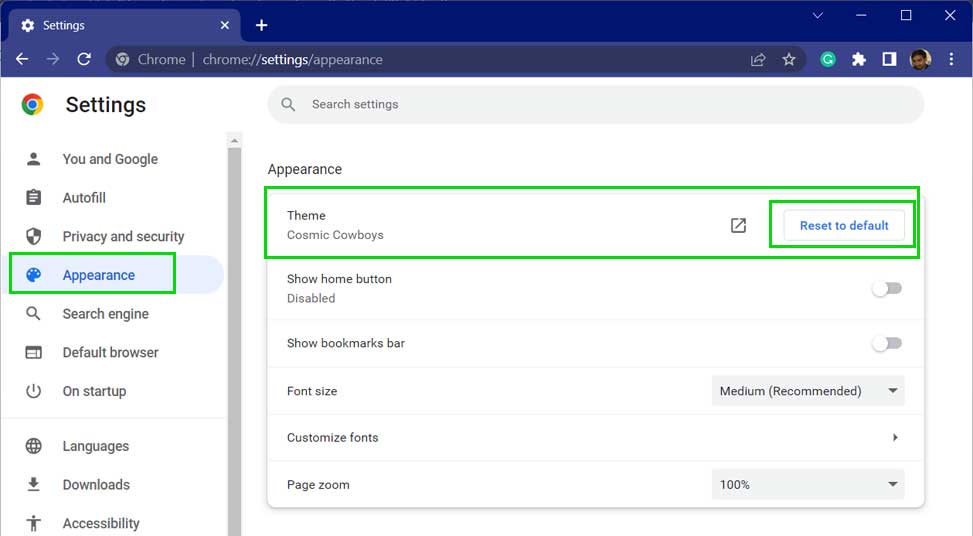
Reset Chrome
Method 5: End unresponsive tabs using Chrome Task Manager.
Chrome allows you to open multiple tabs and use them in one window. Each tab is like a full Chrome browser in terms of resource usage. Sometimes, some unresponsive open tabs can negatively affect the overall browsing experience.
You can find unresponsive tabs and processes and stop them in the Chrome Task Manager.
Step 1: Open the Chrome Task Manager. Press Shift + Esc to open the Chrome Task Manager. Alternatively, go to the Chrome menu (three dots ⠇) ➜ More tools ➜ Task Manager.
Step 2: Select the tabs that are using high memory and click the End Process button.
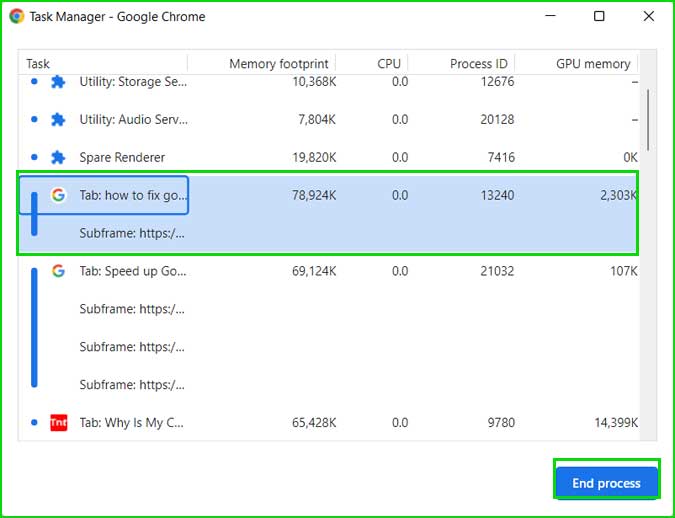
Chrome Task Manager
Method 6: Reset Chrome browser
Resetting Chrome will automatically restore the browser to its default settings, and your bookmarks, history, and saved passwords will not be affected.
Step 1: Open the Chrome menu (three dots (⠇)) ➜ Settings ➜ Reset and clean up ➜ Restore settings to their original defaults.
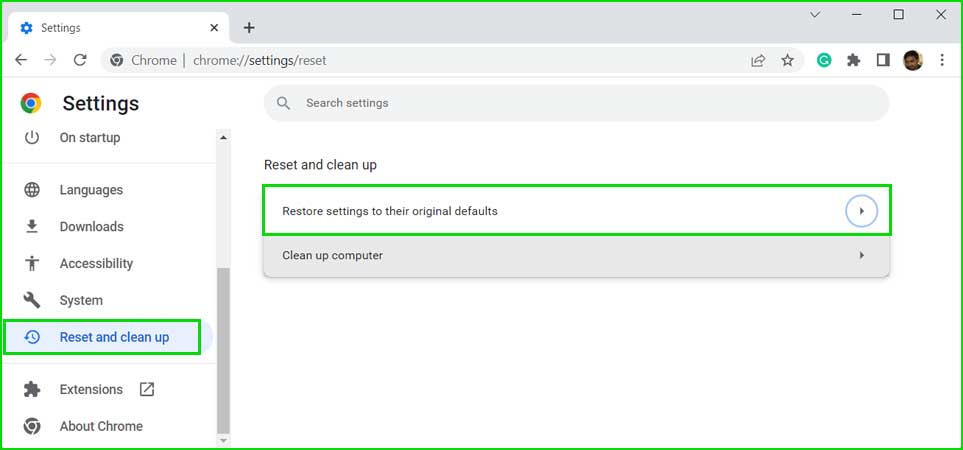
Restore Chrome settings to default
Step 2: Click Reset settings to reset Chrome settings.
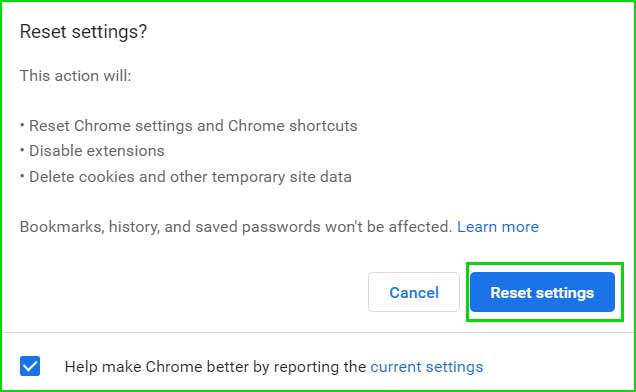
Reset Chrome to default
Method 7: Set up hardware acceleration feature.
The hardware acceleration feature in Chrome adds additional functionality to share resources between the CPU and GPU, but it depends on how powerful your computer is.
If your computer is powerful enough and has a dedicated graphics card installed, you should enable the hardware acceleration feature in Chrome.
If you have an older computer without a dedicated graphics card, disable this feature.
Step 1: Open the Chrome menu by clicking on the three dots (⠇). Go to Settings ← System.
Step 2: Enable or disable the "Use hardware acceleration when available" feature based on your computer's configuration.
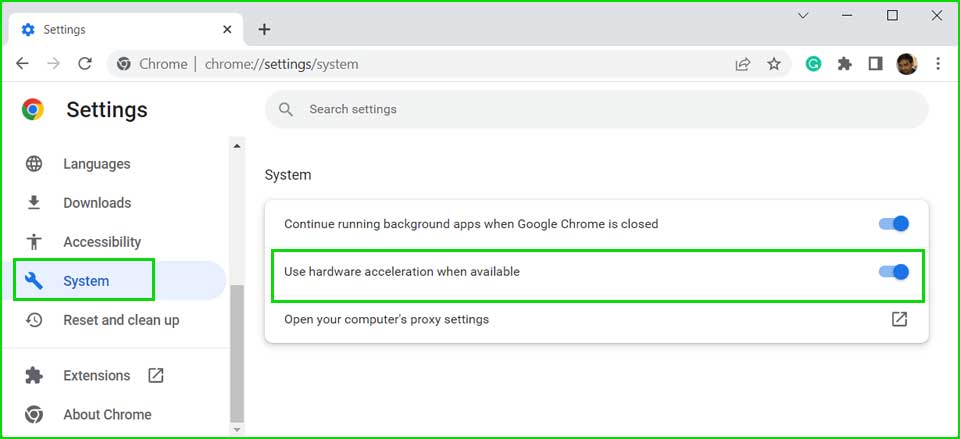
Enable or disable hardware acceleration in Chrome
Method 8: Check internet speed
Your internet speed is the key factor that determines how smooth your experience will be. If you do not have a faster internet connection, opening multiple tabs will hinder the overall performance of Chrome.
Either upgrade your internet plan to a higher speed or open a minimal number of tabs.
Method 9: Install Text Mode extension
If your internet speed is slow, install the Text Mode extension in Chrome.
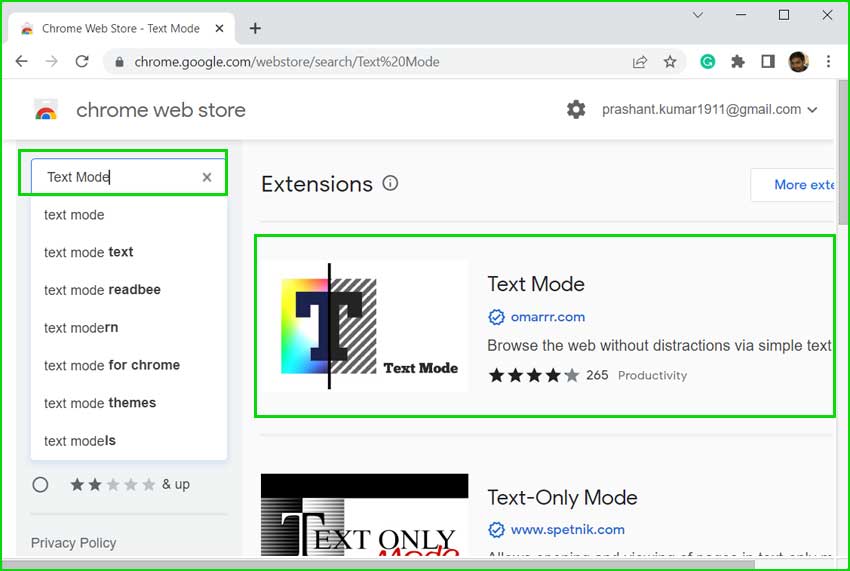
The Text Mode extension blocks images and videos and 99% of ads, providing you with text-only results. This improves page load speed.
Step 1: Open the Chrome Web Store.
https://chrome.google.com/webstore/category/extensions
Step 2: Search for Text Mode and install this extension.
<p


