

The best program to check the hard disk is crucial since the hard drive is one of the most important components of your computer. It stores all your essential data, programs, and applications, so you must always ensure that the hard disk is in good condition. There are many free hard drive testing programs available to help you verify the health of your hard disk. In this article, we have identified the best hard disk checking program and compiled a list of the top 7 programs.
- Download links are at the end of the article; click on View Download Links to access them.
Best Hard Disk Checking Program
When you purchase a new hard disk or if you suspect there might be an issue with your hard drive, you should immediately check its health. The best way to do this is by using a free hard disk checking program. Now, let's explore the best programs for checking hard drives. However, before you start using any program, it's advisable to use Microsoft's chkdsk tool, which is excellent for identifying most hard disk issues and is trustworthy, as it comes pre-installed with every Windows system.
1- Stellar Drive Monitor

This unique program allows you to check HDD, SSD, and USB drives that operate on Windows 11 and earlier versions. The program is 100% safe and user-friendly, featuring a simple interface. Here are some of the features of Stellar Drive Monitor for Windows.
+ Features
- Monitors the hard drive's temperature and performance efficiency.
- Provides a detailed report on the hard disk's status, with the option to save reports for reference.
- Allows you to specify certain partitions of the hard drive to be checked.
- Can identify damaged sectors on your hard drive.
- Works effectively with PATA/SATA and USB types.
- Enables you to clone data on the hard drive, a fantastic feature that protects your valuable data in case the hard drive suddenly fails.
- If the program detects any unusual activity on the hard drive, it generates instant alerts to notify the user immediately.
- Provides easy-to-understand detailed reports for users.
- Operates without affecting the hard drive's performance.
- Drawbacks
- The free version does not allow hard drive cloning.
2- Hard Disk Sentinel
Hard Disk Sentinel is an excellent program for checking HDD and SSD compatibility with Windows 11 and earlier versions. It helps you identify hard disk issues and assess performance efficiency. Here are some important features of this program.
+ Features
- Can identify hard disk issues and performance efficiency, as well as software problems.
- For professionals, the program provides access to its API interface, allowing them to create custom tools and query the hard disk's status.
- Offers a comprehensive report detailing hard disk problems with quick tips for fixing minor issues.
- Can analyze your hard drive's performance efficiency.
- Equipped with multiple alerts in case of hard disk problems or complete failure.
- Drawbacks
- The paid version is very expensive.
- Advanced features are only available in the Pro version.
- Does not include the ability to scan for damaged sectors on the hard drive.
- Does not allow cloning of the hard drive in case of failure.
- The user interface is complex and requires expertise to navigate.
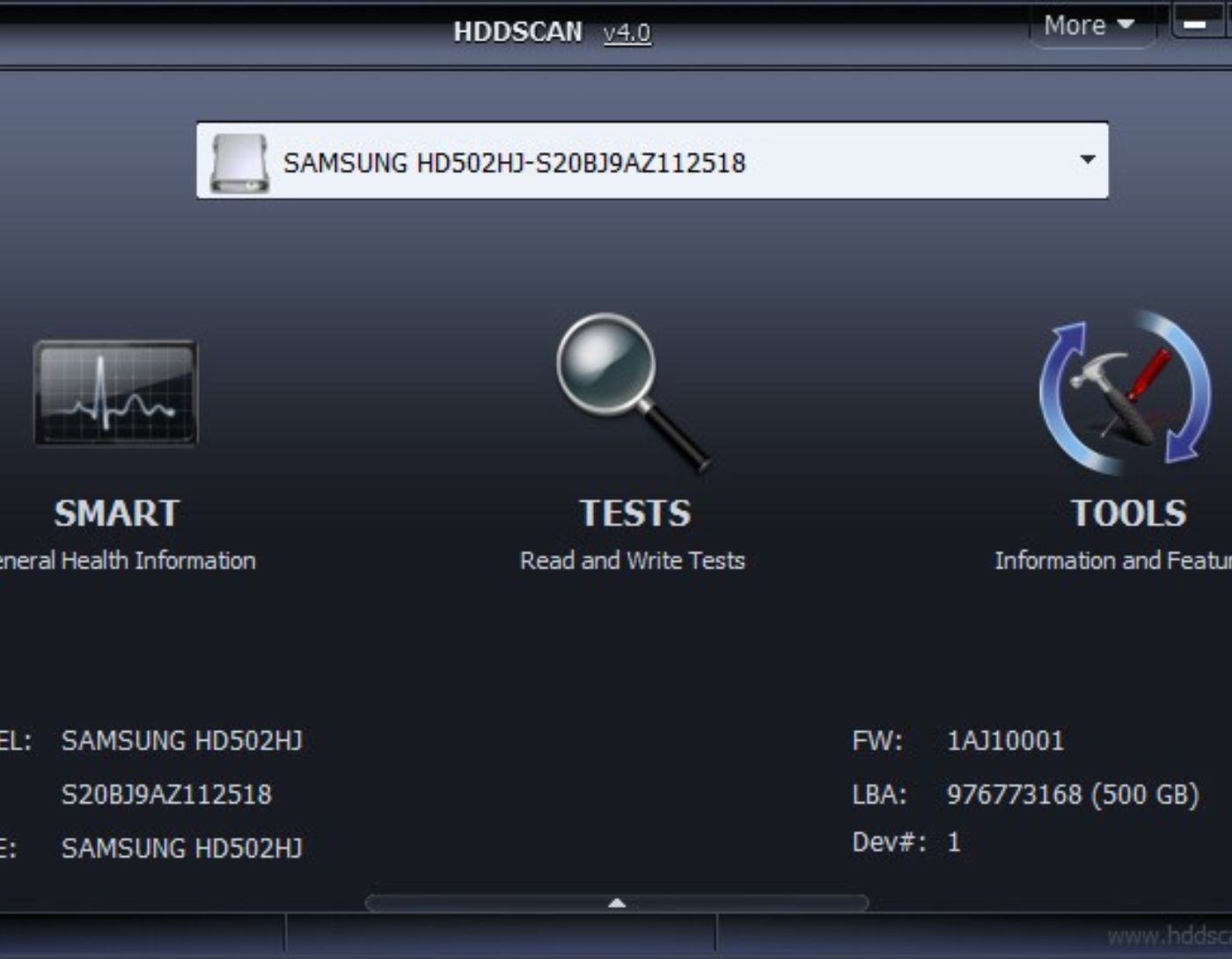
3- HDDScan

HDDScan is a hard disk checking program that can read and analyze S.M.A.R.T data. It allows professionals to change hard disk parameters such as AAM, APM, and PM, and can be used for regular checks on your hard drive.
+ Features
- The program can read and analyze S.M.A.R.T data.
- Monitors the hard drive's temperature and performance efficiency.
- Allows you to perform read/write tests on the hard drive.
- Compatible with SATA/ATA and USB types.
- Provides a report in case of SCSI errors.
- Available as a free program with the option to print generated reports.
- A simple program that includes all the great features and can also detect any issues on the hard drive.
- Drawbacks
- Cannot resolve hard disk issues.
- No automatic alerts or warnings in case of problems.
- Error reports can only be saved in MHT format.
- Not compatible with Windows 11.
4- Seagate SeaTools for Windows
Seagate SeaTools for Windows is a comprehensive program for checking hard drive efficiency, including various tests such as self-tests for hard drive efficiency. The program's name is associated with one of the leading hard drive manufacturers, Seagate.
+ Features
- Includes five tests to accurately identify hard disk issues.
- Supports Windows 11 and earlier versions of the operating system.
- Supports SATA, PATA, USB, 1394, eSATA, SAS, and SCSI.
- Tests all types of hard drives easily, regardless of the manufacturer.
- Provides information about various hard drive attributes such as serial number, capacity, firmware revision, etc.
- Perfectly suitable for beginners and casual users.
- Drawbacks
- You need to obtain SeaTools DOS for advanced features.
- Cannot scan for damaged sectors.
- It's just a testing program without data protection.
- Does not run in the background; you need to close all programs to run it.
5- GSmartControl
This program analyzes and controls SMART data. It not only allows you to monitor SMART data but also helps conduct specific tests to check hard drive efficiency.
+ Features
- Automatically detects any issues occurring on the hard drive and notifies you.
- SMART feature can be enabled or disabled.
- Includes SMART self-test procedures.
- Displays hard drive information such as capacity, serial number, etc.
- Available as a free program.
- Supports all major operating systems, including Windows, Linux, and macOS, etc.
- Draw


