


Fixing the white screen issue on Windows 11: Users of Windows 11 or Windows 10 often encounter various errors, such as the annoying blue screen of death. However, another issue that can arise is the white screen of death (WSOD), where the computer screen turns completely white and freezes. This problem can occur even while the system is running, leaving users with limited options to address it. Despite the challenging nature of this issue, don't worry; there are ways to troubleshoot and resolve this error.
What causes the white screen on Windows?
The white screen on a laptop or desktop running Windows can arise from several factors, often linked to a graphics hardware malfunction. Other potential causes include:
- Corrupted system files or display drivers.
- Issues arising from recent Windows updates.
- Hardware-related problems such as physical damage or dust accumulation on components.
Fixing the white screen on Windows 11
To resolve the white screen of death issue on Windows, follow these steps:
- Manually check the graphics card components
- Update or reinstall the graphics card driver
- Run the hardware troubleshooter
1] Manually check the graphics card components
- Inspect the physical condition of your graphics card and clean it if necessary.
- Use a small blower or a soft cloth to carefully remove dust from the graphics card and surrounding components.
- Ensure there is no moisture or damage to the circuits while cleaning.
- Check the hardware for any physical damage that may require replacement.
2] Update or reinstall the graphics card driver
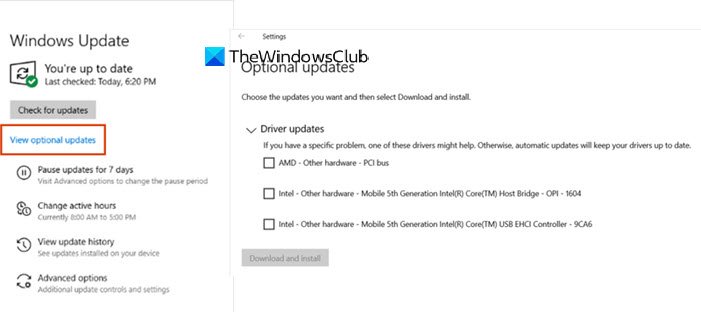
If you can boot into Windows normally:
- Press Win + I to open Settings.
- Go to Update & Security > Windows Update.
- Look for the clickable link to view optional updates under Windows Update.
- Check under Driver Updates for available updates.
- Select the relevant updates and install them manually.
- Restart your computer to apply the changes.
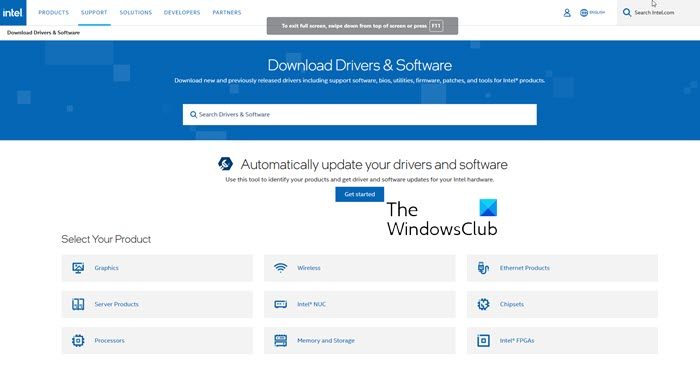
- If updating through Windows does not resolve the issue, download the appropriate display drivers from your graphics card manufacturer's website and install them manually.
3] Run the hardware troubleshooter
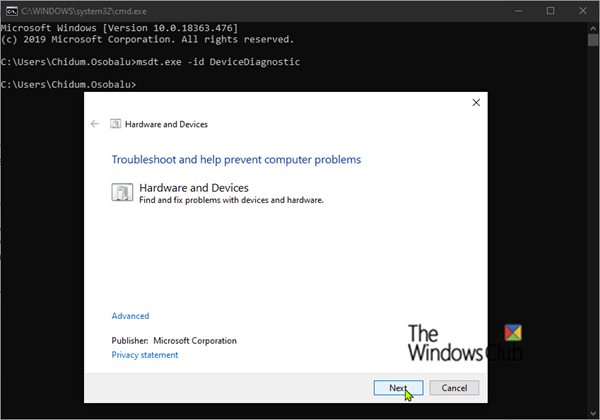
The hardware troubleshooter detects and resolves hardware-related issues.
If you can boot normally:
- Open Command Prompt.
- Type or paste the following command and press Enter:
- msdt.exe -id DeviceDiagnostic
- Follow the on-screen instructions to run the troubleshooter.
- If normal booting is not possible, boot into safe mode and repeat the steps.
Can the white screen of death be fixed?
Yes, the white screen of death can be fixed. The cause determines the necessary steps:
- Software-related issues: Boot into safe mode to troubleshoot driver or system file issues.
- Hardware-related issues: If the screen or any other component is damaged, professional repair or replacement may be necessary.
How can I fix the white screen after logging into Windows 11?
To resolve the white screen issue after logging into Windows 11:
- Boot into safe mode.
- Update or roll back your display driver.
- Run the hardware troubleshooter using the command: msdt.exe -id DeviceDiagnostic
- Scan your system with an antivirus program to rule out malware as a potential cause.
By following these steps, you can effectively troubleshoot and resolve the white screen of death on your Windows computer.
Frequently Asked Questions
What is the white screen of death (WSOD)?
It's a critical error where the screen turns completely white, causing the system to freeze and become unresponsive.
What are common causes of WSOD?
Common underlying causes include a graphics hardware malfunction, corrupted system files, problematic display drivers, and Windows updates.
Can I fix WSOD myself?
Yes, you can try various troubleshooting methods such as checking hardware, updating drivers, or running the hardware troubleshooter. However, specialized help may be necessary for hardware issues.
How can I safely clean my graphics card?
Use a small blower or a soft, dry cloth to remove dust. Avoid using moisture or pressure to prevent damaging the components.
What should I do if I can't boot into Windows?
Boot into safe mode or perform a safe boot to access troubleshooting tools and resolve the issue.
Where can I find updated drivers for my graphics card?
Visit the official website of your graphics card manufacturer to download the latest drivers compatible with your system.
What does the hardware troubleshooter do?
It detects and resolves issues related to device connections and their associated drivers.
Can malware cause a white screen of death?
Yes, malware can interfere with display drivers or system processes, leading to a white screen. Running antivirus scans is recommended.
What should I do if the screen remains white after troubleshooting?
If software fixes fail, it may indicate a hardware problem. Seek specialized repair services.
Is the white screen of death unique to Windows?
No, similar errors can occur in other operating systems, but the causes and solutions may vary.
Conclusion
In this article, we discussed how to fix the white screen issue on Windows 11. The white screen of death on Windows can be frustrating, but understanding its causes and applying the correct fixes can make a significant difference. Tools like the hardware troubleshooter provide an effective way to identify and resolve hardware-related issues, while safe mode offers a suitable environment for addressing software problems.
By following the outlined steps, you can regain control of your system and ensure it runs smoothly. Take a proactive approach, keep your drivers updated, and handle your hardware with care to reduce the chances of encountering such errors in the future!


