

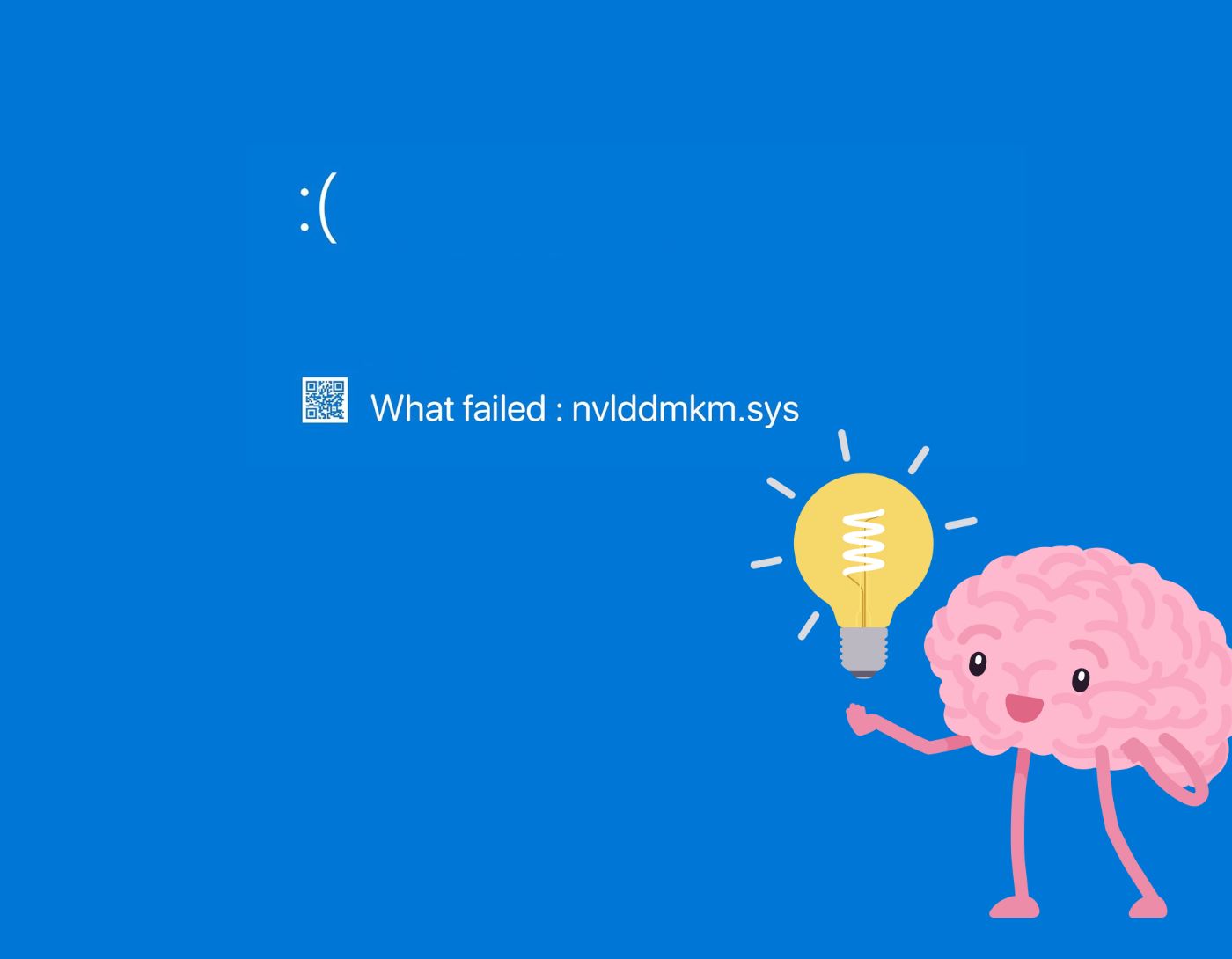
Fixing the nvlddmkm.sys error on Windows 11/10/7: Are you encountering the VIDEO_TDR_FAILURE nvlddmkm.sys error on your Windows computer? Don’t worry, you’re not alone; many Windows users are facing the same issue. While it can be quite frustrating, it’s also relatively easy to resolve. After reading this article, you’ll be able to fix the nvlddmkm.sys blue screen error on your own.
What Causes the nvlddmkm.sys Failure Error on Windows Computers?
This error may be caused by outdated or corrupted drivers, inaccurate memory timings, driver conflicts, an outdated version of Windows, or overheating. Whatever the reason, fortunately, this error is fixable.
In this article, we will explore some potential solutions to fix the nvlddmkm.sys error on a Windows computer. However, before trying them, you should attempt a basic fix by restarting your computer, as this may help resolve the issue. If that doesn’t work, you can move on to the other solutions.
Fixing the nvlddmkm.sys Failure Error on Windows 11/10/7
Here, we will present the top 4 methods to fix the NVIDIA nvlddmkm.sys blue screen error on Windows 11, 10, or earlier versions. Stay with us.
Solution 1: Update Your NVIDIA Graphics Driver
If your NVIDIA graphics card isn’t performing as expected, an outdated graphics driver might be the cause of the VIDEO_TDR_FAILURE nvlddmkm.sys error on Windows 10, 11, and 7. Therefore, it’s important to periodically update your graphics drivers to avoid such issues.
You can update your NVIDIA graphics card by visiting the official website and searching for the correct driver. Just make sure to download and install the driver that matches your current version of Windows.
This process requires time, patience, and a good understanding of technical details. If this process seems daunting, you can use Bit Driver Updater to automatically find and install the right drivers for your device. Bit Driver Updater is one of the best solutions that automatically detects your system and identifies the most suitable drivers for it.
Not only that, but the program also comes with a built-in scheduling feature that allows you to schedule driver scans at your convenience. To use the program, follow these simple steps:
Download Bit Driver Updater.
Windows download button
Run the downloaded file and follow the on-screen instructions to complete the installation.
After installing the program, launch it on your computer and click on Scan.
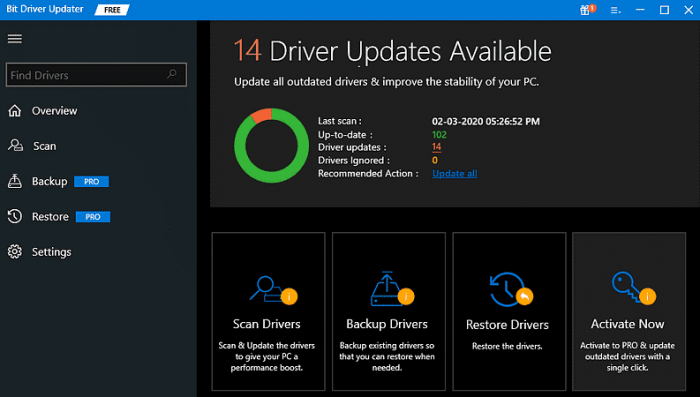
Bit Driver Updater - Scan your computer
Wait for it to complete. Check the scan results and locate your graphics card, then click the "Update Now" button next to it. Additionally, you can also choose the Update All button instead of Update Now.
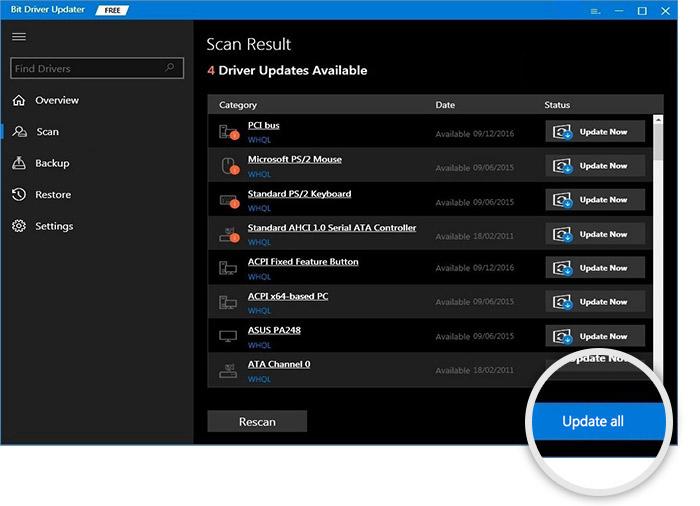
Update all drivers using Bit Driver Updater
With this button, users can update all drivers on their device with a single click.
After updating your NVIDIA graphics driver, check to see if the blue screen error on Windows 10/11 has been resolved. If not, proceed to the other solutions.
Solution 2: Install the Latest System Updates
Sometimes, an outdated or faulty version of Windows can lead to the nvlddmkm.sys error. Therefore, you should check if you are using the latest version of Windows.
Press the Windows + I keys on your keyboard to open Windows Settings.
Look for Update & Security and click on it.
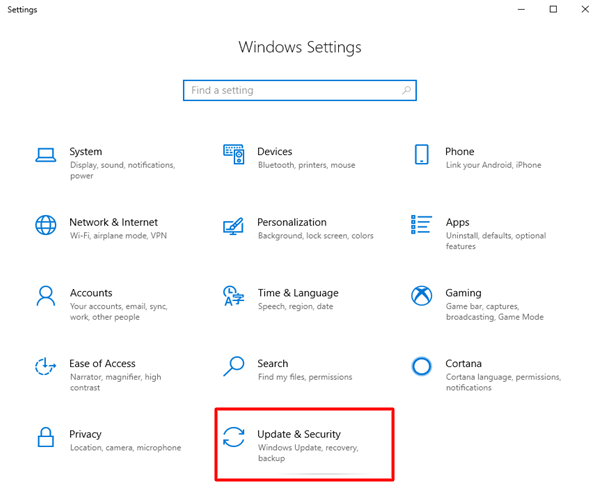
Click on Update & Security
Make sure to select Windows Update from the right pane of the next window, then click on Check for updates.
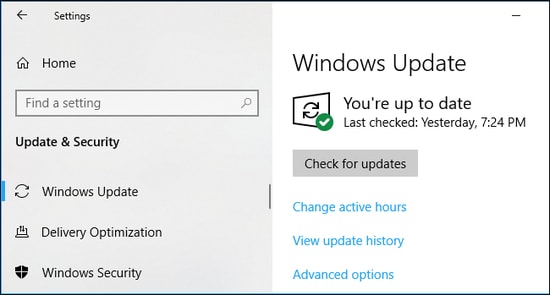
Check for updates in Windows settings
Now, wait and let Windows search for the latest system updates and patches. If Windows finds any recent updates available, they will be downloaded and installed automatically. Once that’s done, restart your computer to save the recent changes, then check to see if the VIDEO_TDR_FAILURE nvlddmkm.sys BSOD error has been fixed. If not, try another solution.
Solution 3: Run Disk and Memory Tests
Blue screen errors (blue screen of death) are generally related to the hard drive or RAM. Therefore, to fix the issue, you can run disk and memory tests. Here’s how:
Steps to Run Disk Check
Run Command Prompt as an administrator.
Click Yes if prompted by the confirmation box.
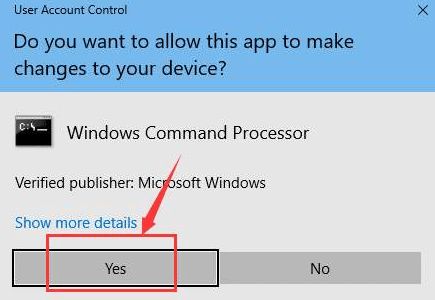
Click "Yes" in the confirmation prompt
Type the following command in the Command Prompt window and press Enter.
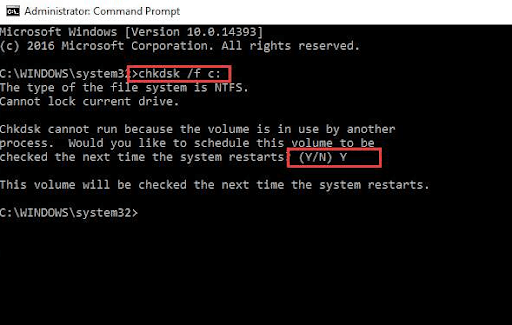
CHKDSK /F C: type the command in the Command Prompt window
Then, enter Y and restart your computer to start the disk check.
Steps to Run Memory Test
Open the Run dialog by pressing the Windows + R keys simultaneously.
Type mdsched.exe in the Run box and click OK.
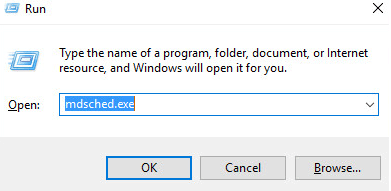
mdsched in the Run box
Now, click on "Restart now and check for problems (recommended)" to check the status of your memory card.
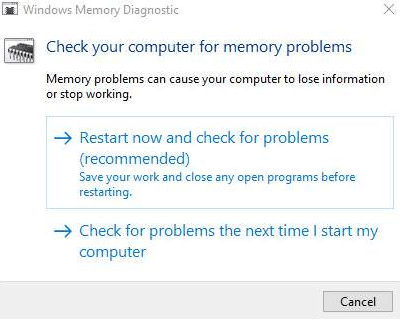
Restart now and check for problems
The next page will display the progress of the test and the number of passes that will be performed on the memory.
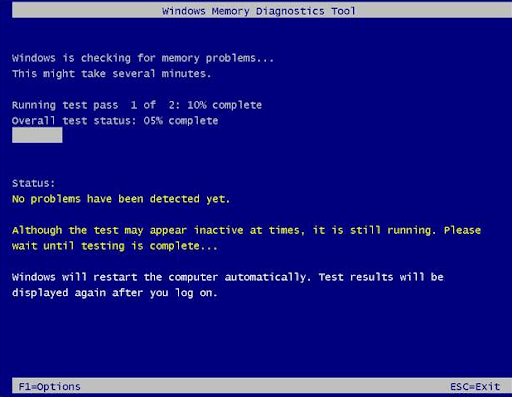
Number of passes that will be performed on the memory
If you don’t notice any issues or errors here, it’s likely that your memory card isn’t causing any problems.
Solution 4: Reinstall the NVIDIA Graphics Driver
Don’t worry, if none of the above suggestions worked, you can try reinstalling the NVIDIA graphics driver to fix the nvlddmkm.sys BSOD error on Windows 7 or later versions. To reinstall the drivers, you first need to uninstall the currently installed drivers from your computer. To do this easily, you can follow these steps:
On your keyboard, press the Win + R keys at the same time.
This will open the Run dialog, where you need to type devmgmt.msc and click OK.
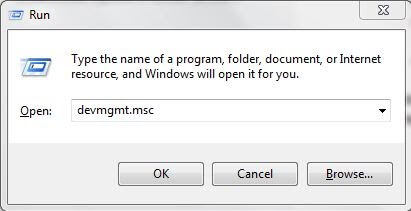
Enter devmgmt.msc in the displayed box
Once Device Manager opens, locate Display Adapters and double-click on it.
Right-click on your graphics card and select Uninstall device from the context menu.
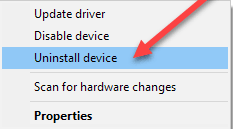
Uninstall device
Next, a confirmation window will appear; make sure to check the box next to Delete the driver software for this device.
Then, click Uninstall and OK.
Wait for the process to finish. Once the drivers are uninstalled, you can find the original driver file on the official NVIDIA website and download it. After downloading, run the executable file and follow the on-screen instructions to reinstall the drivers. Installing the latest and most compatible drivers will surely help you deal with this nvlddmkm.sys BSOD error.
Conclusion
With the above solutions, Windows PC users can fix the nvlddmkm.sys failure error on Windows 11/10/7 without any hassle. We hope you find this article helpful. Stay safe and take care.


