


Fixing the "Error loading operating system" issue: Encountering the "Error loading operating system" message on Windows 11 or 10 can be quite alarming.
Rest assured, your important files and the malfunctioning operating system are safe. There are several effective methods to troubleshoot the "Error loading operating system" on Acer, Lenovo, Asus, Dell, and other computers.
This article will guide you step by step to resolve this boot error.
Sometimes, attempting to boot from a USB device can trigger the above error. This startup issue can arise for various reasons.
The above error is a type of boot failure that occurs when trying to start your computer.
You may be greeted with a blue or black screen, displaying the error message "Error loading operating system".
Causes of the Error Loading Operating System
Invalid boot device - This issue often arises when you have multiple SSD/HDD drives installed on your computer, and the BIOS is set to boot from a non-Windows drive.
Corrupted Master Boot Record (MBR) - The MBR file is crucial for the Windows operating system, as it contains all the necessary information required during boot. If this file becomes corrupted, Windows will be unable to read it, resulting in the "Error loading operating system" message.
Bad sectors on the storage device - Bad sectors on your storage device can also prevent Windows from loading correctly during startup.
Incompatible Windows updates - Installing incompatible Windows updates can crash the operating system, leading to an error message.
Outdated or misconfigured BIOS - If your BIOS is outdated or incorrectly configured, it may hinder the proper operation of your computer.
Full Windows drive - If your Windows partition drive is full, there won't be enough space to store the necessary boot information and log files, resulting in errors when starting Windows.
Corrupted Windows partition - A corrupted Windows partition can also be a significant reason for encountering the "Error loading operating system" on Windows 11.
Sudden power outage - A sudden power loss during update installations or driver installations can cause boot issues and trigger the above error.
Hardware malfunction - It's possible that your hard drive (HDD) or SSD is failing or has reached the end of its lifespan. With a dead storage device, the BIOS cannot detect the boot device.
As you can see, there are many reasons that can cause issues during the startup of Windows 11. However, there's no need to worry. Just follow the provided solutions and apply them step by step to fix any issues you encounter when starting Windows 11.
Solution 1: Select the correct boot device in BIOS.
To resolve the issue, it's essential to check the storage device set as the primary boot device in the BIOS. Ensure that the storage device containing the Windows partition is set as the primary boot device. If another device is currently selected, you can change it by following these steps:
Select the boot device in BIOS/UEFI
Step 1: Open the BIOS settings. To access the BIOS settings, restart your computer and continuously press the F2/F8/Del/Esc key when you see the manufacturer's logo during startup. Keep in mind that different manufacturers may have different methods to access the BIOS settings. It's recommended to refer to the manufacturer's instructions to identify the specific key or key combination to enter the BIOS.
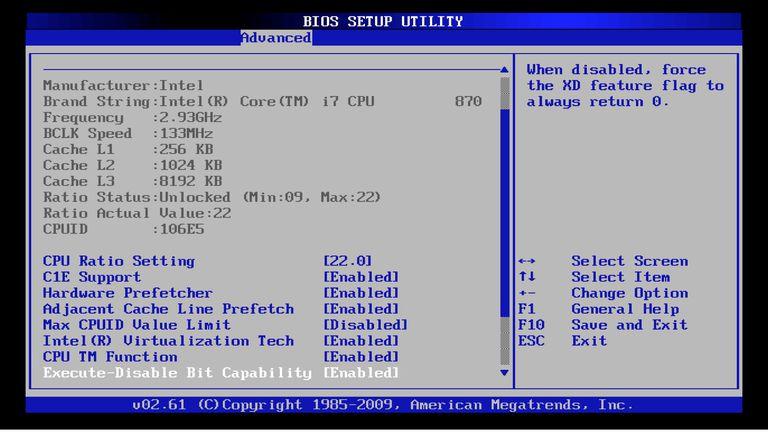
1_bios_settings
Step 2: Locate the boot option settings. The menu style in the BIOS may vary by manufacturer, so look for the boot option list and adjust the boot order to prioritize your primary hard drive where Windows is installed. Make sure to list the primary hard drive as the first boot device.
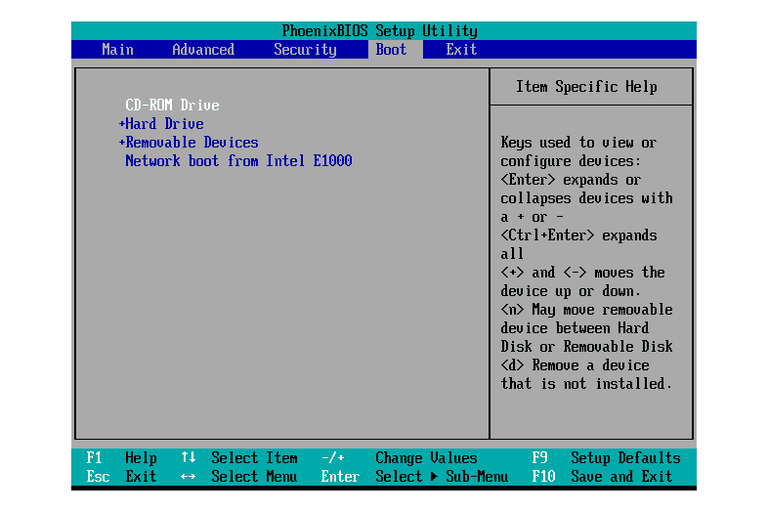
2_bios_boot_option
Solution 2: Repair the corrupted MBR file
Corruption in the Master Boot Record can lead to the "Error loading operating system" message. To repair the MBR, you can use the built-in recovery tools in Windows 11. Follow these steps:
Manually repair the MBR file - Step by step
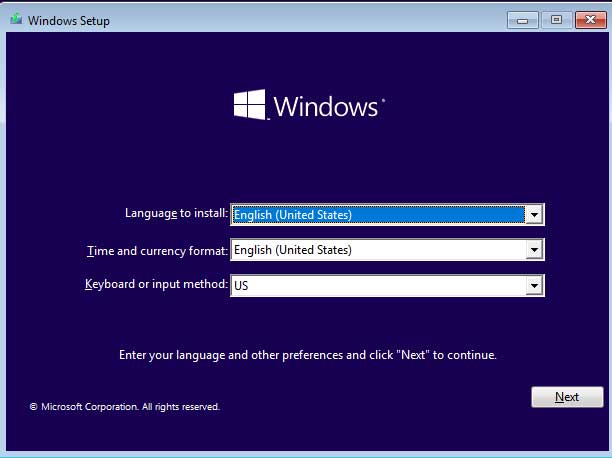
Step 1: Boot your computer using Windows installation media. The Windows installation wizard will open. Click Next.
Installing Windows
Step 2: Select Repair your computer.
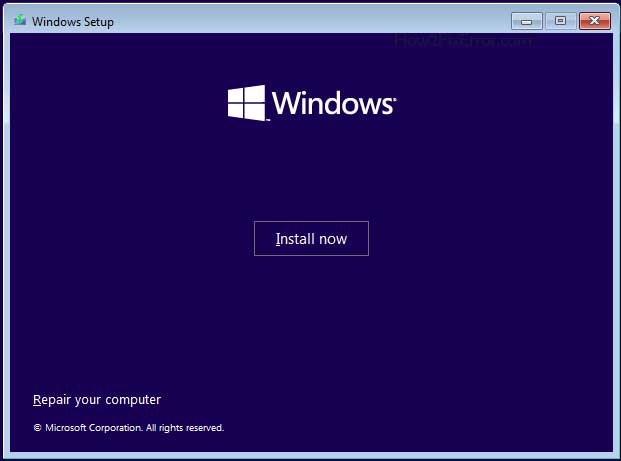
Repair your computer option for Windows 10 and 11
Step 3: The Advanced Startup Options or Windows Recovery Environment will open. Click on Troubleshoot.
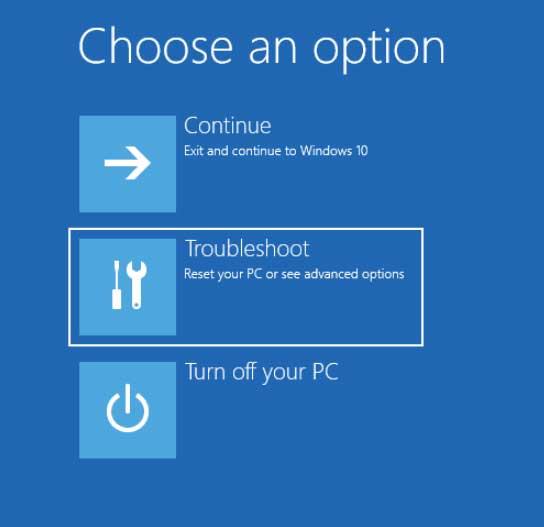
Troubleshoot in the Advanced Startup Options menu for Windows 10 and 11
Step 4: Select Command Prompt.
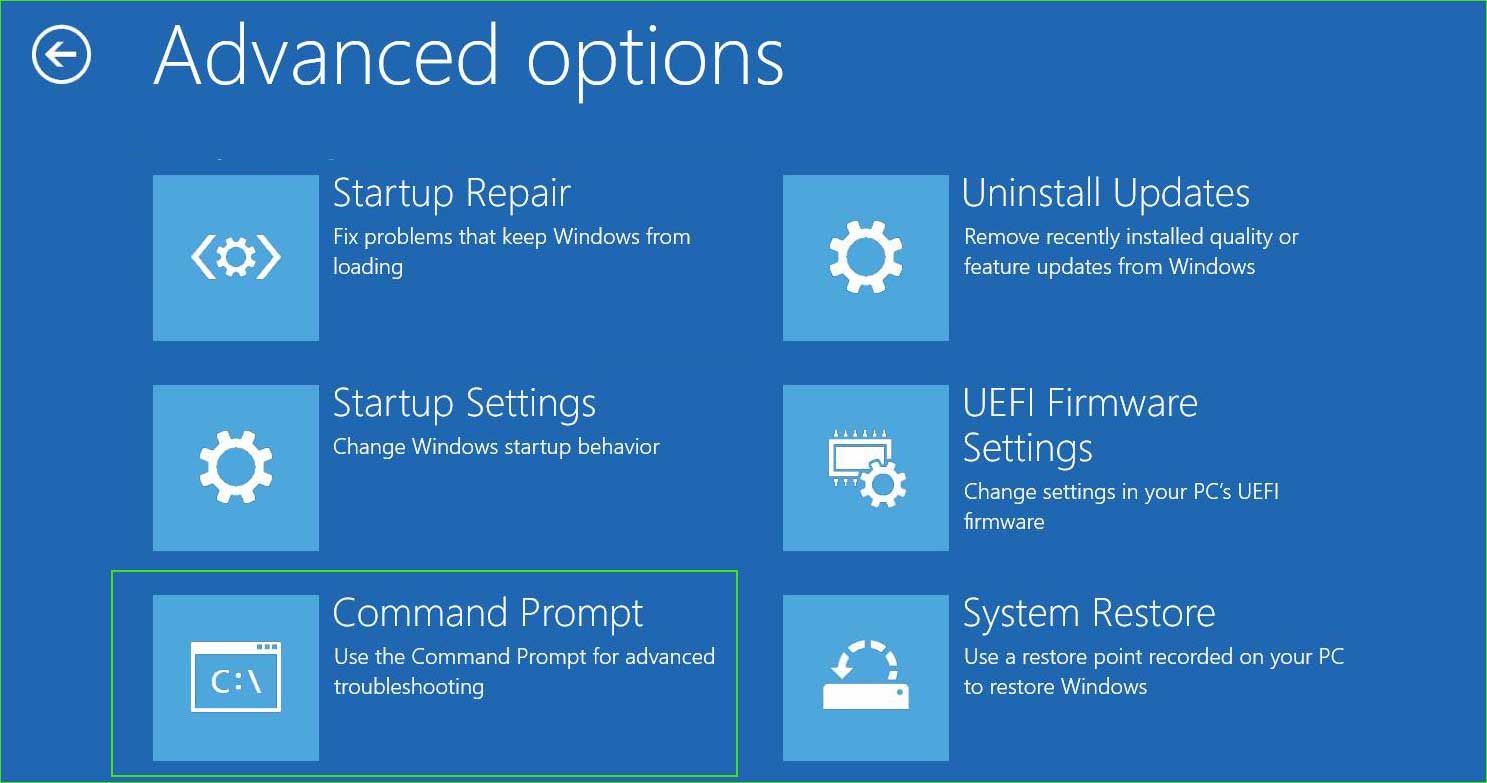
open_command_prompt in the Advanced Startup Options
Step 5: Type the following commands and press Enter to execute them.
bootrec /fixmbr
bootrec /fixboot
bootrec /RebuildBcd
Step 6: Now restart your computer, and you shouldn't see the "Bootmgr is missing" error message anymore.
If the MBR recovery command fails to execute for some reason or does not fix the MBR corruption, you can use EaseUS Partition Manager to repair the corrupted MBR file. This tool not only fixes MBR corruption but also allows you to repair the malfunctioning operating system and boot your computer effortlessly.
Repair MBR using EaseUS
Step 1: Create a bootable USB drive using EaseUS. Launch EaseUS Partition Master, click on "Bootable Media" on the toolbar. Select "Create Bootable Media".
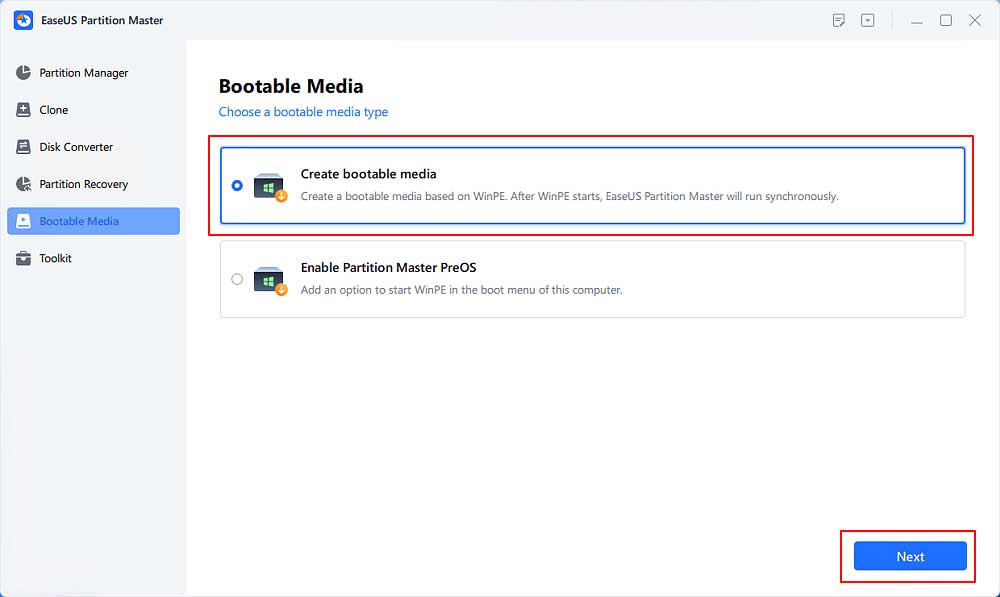
EaseUS - Bootable Disk-1
Step 2: Boot your computer using the bootable USB drive.
Step 3: Click on "Toolkit" and select "Rebuild MBR".
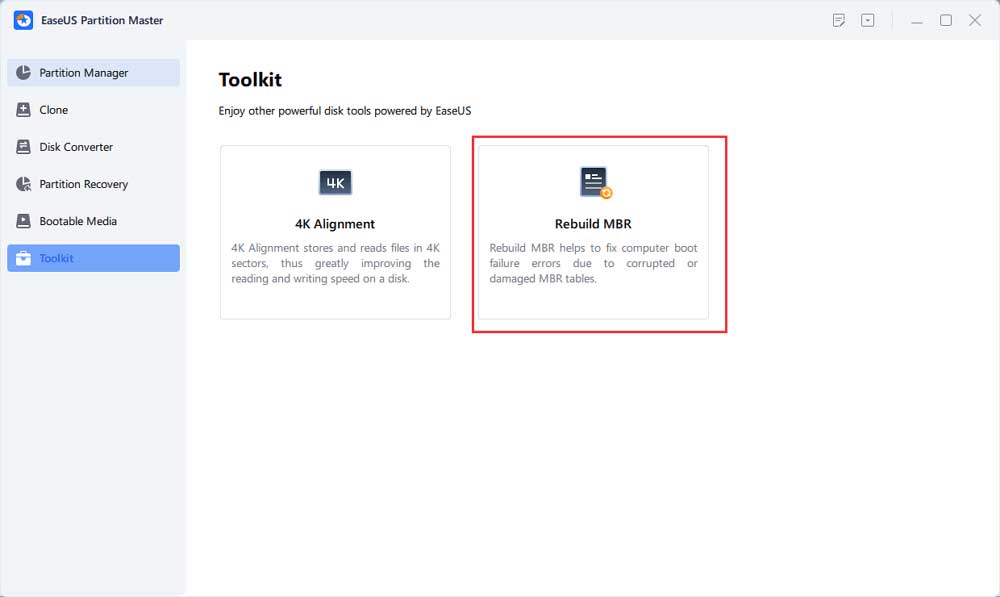
Repair EASEUS MBR
Solution 3: Fix bad sectors on hard drives/SSDs and repair system file corruption and Windows image
Fixing issues related to corrupted sectors in the Windows partition, missing system files, and corrupted Windows images is another crucial aspect of resolving the "Error loading operating system" on Windows 11, 10, 8, and 7.
These factors often play a significant role in causing boot errors. To resolve the issue, it's essential to address all these areas. The good news is that you can resolve these issues using built-in Windows commands.
Run SFC, CHKDSK, DISM commands
Step 1: Boot your computer using Windows installation media. The Windows installation wizard will open. Click Next.
Installing Windows
Step 2: Select Repair your computer.
Repair your computer option for Windows 10 and 11
Step 3: The Advanced Startup Options or Windows Recovery Environment will open. Click on Troubleshoot.
Troubleshoot in the Advanced Startup Options menu for Windows 10 and 11
Step 4: Select Command Prompt.
open_command_prompt in the Advanced Startup Options
Step 5: Now run the following commands one by one.
1. System File Checker tool
sfc /scannow
2. Run the Dism command
Dism /Online /Cleanup-Image /CheckHealth
Dism /Online /Cleanup-Image /ScanHealth
Dism /Online /Cleanup-Image /RestoreHealth
3. Run the disk checking utility.
chkdsk C: / f / x / r
Solution 4: Use Startup Repair
Startup Repair is an effective option to fix the "Error loading operating system" issue on Windows computers. To perform a Startup Repair, you will need a bootable USB drive of WinPE.
If you don't have a WinPE Bootable USB drive, you can create one using the following methods.
Create a bootable WinPE drive using EaseUS Partition Master
Step 1: Insert an 8GB+ USB flash drive into the computer.
Step 2: Launch EaseUS Partition Master and go to Toolkit → Win 7/8/10/11 ISO.
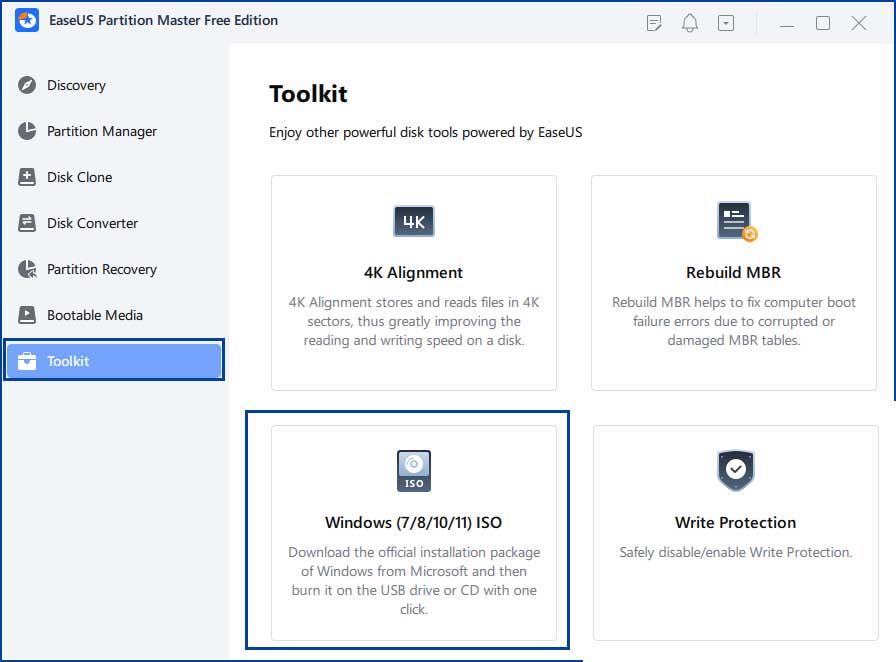
EaseUS Partition Master - Create Bootable USB Drive
Step 3: Browse for your ISO file and click Next.
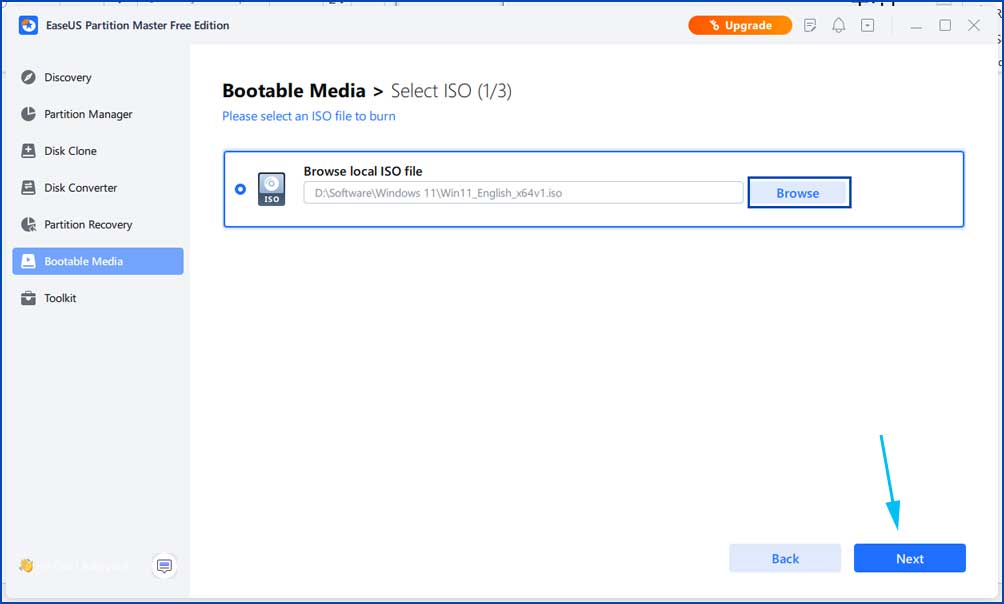
EaseUS Partition Master - Create Bootable USB Drive
Step 4: Select your USB drive and click the "Start" button to create a bootable USB drive for Windows 11/10/8/7 and Windows server.
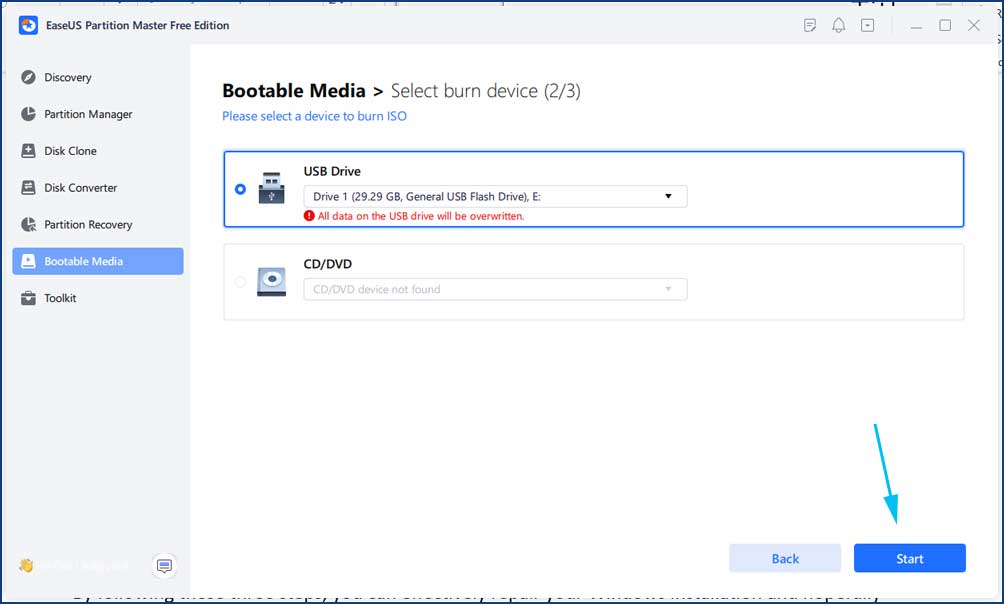
EaseUS Partition Master - Create Bootable USB Drive
How to perform Startup Repair
To perform a Startup Repair, you need to insert the bootable USB drive into your computer and then change the primary boot device in the BIOS. After booting your computer from the USB drive, open the advanced startup options and proceed with the Startup Repair process.
Startup Repair - Step by Step
Solution 5: Fix Windows Partition Drive Issues.
Fixing any issues with the Windows Partition Drive is equally important. You can manage the Windows partition by following these steps:
Manage the drive partition using EaseUS Partition Master
Resize/Move: This powerful feature allows you to adjust the size of the selected disk partition, making it easy


