

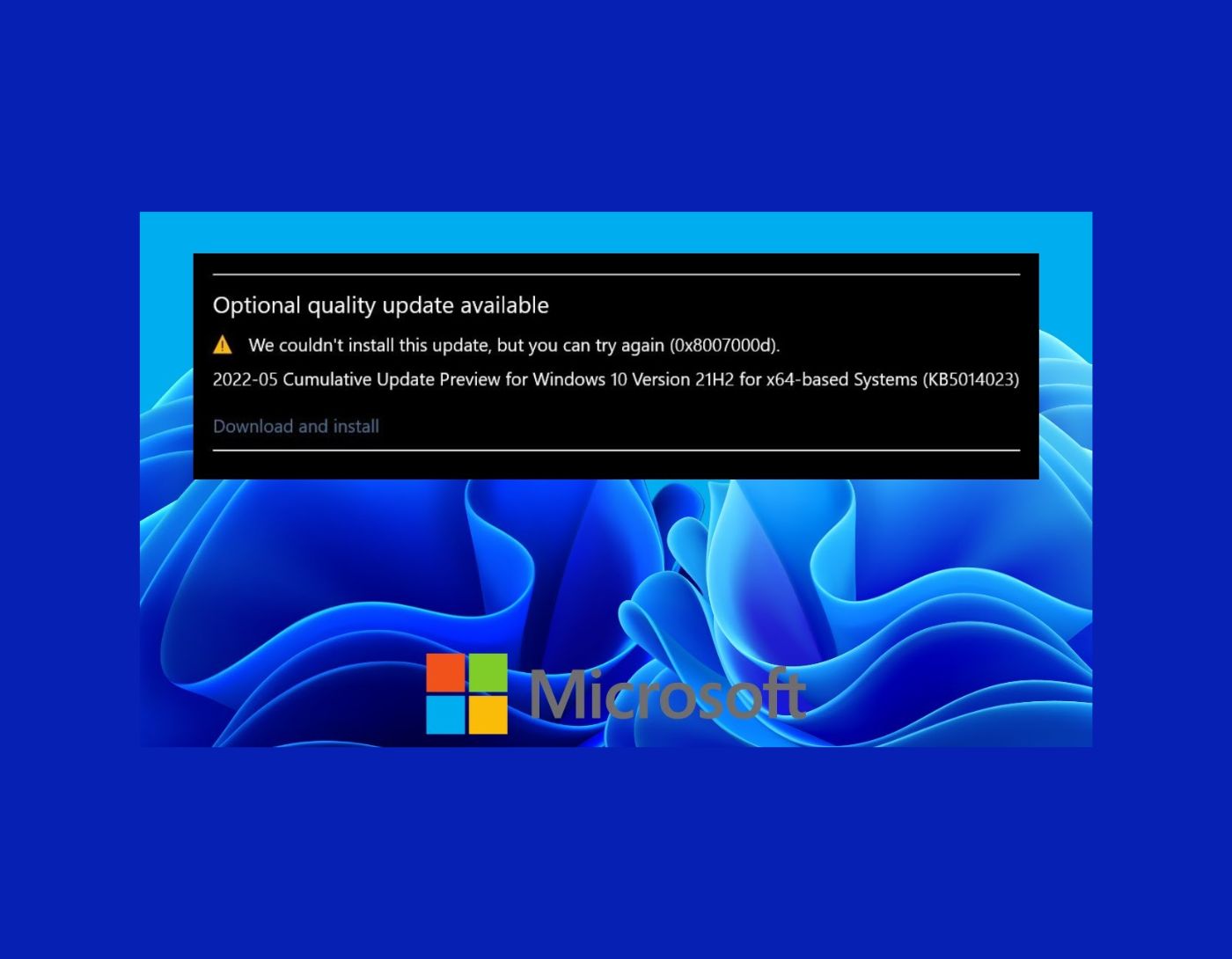
Fixing the error "We're sorry we couldn't install this update, but you can try again": Windows 11, the latest operating system from Microsoft, has garnered a lot of attention since its announcement. It offers a new and modern user interface, improved performance, and a range of new features, promising a fantastic experience.
However, like any software, it is not immune to occasional issues. Users may encounter the frustrating message, "Sorry, we couldn't install this update, but you can try again." In this article, we will explore some common reasons behind this error and provide troubleshooting steps to overcome the issue and successfully install the update.
Reasons for this error:
The error "We're sorry we couldn't install this update, but you can try again" can occur on Windows 11/10 for various reasons. Some common causes include:
Insufficient disk space:
Windows updates often require a certain amount of free space on your system drive for download and installation. If disk space is limited on your computer, the update process may fail, resulting in the error message. It is important to ensure that there is enough space on your system drive to accommodate the update.
Internet connection issues:
A stable and reliable internet connection is essential for downloading updates. If your internet connection is weak or intermittent, it may cause interruptions during the update process, leading to the error. Make sure you have a strong internet connection before attempting to install updates.
Software conflicts:
Sometimes, conflicts between existing software and the update process can prevent successful installation. This can happen if certain applications or drivers interfere with the update process. Antivirus software, firewalls, or other security programs may also block or interfere with updates. Temporarily disabling these programs during the update process can help determine if they are the cause of the error.
Corrupted system files:
Corrupted system files can disrupt the update process and lead to installation failures. If important system files are damaged or missing, Windows may struggle to install updates. Running the System File Checker (SFC) utility can help identify and repair corrupted system files.
Pending updates or restarts:
If there are pending updates or if you haven't restarted your computer after installing previous updates, this may interfere with the installation of new updates. Be sure to check for any pending updates and restart your computer before attempting to install the current update.
Windows Update service issues:
Problems with the Windows Update service can prevent updates from being installed correctly. If the Windows Update service is not functioning properly, it may result in the error message. Restarting the Windows Update service or clearing the Windows Update cache can help resolve such issues.
Hardware incompatibility:
Certain hardware configurations may not be compatible with specific updates. If your device does not meet the requirements for a particular update, installation may fail. Check the system requirements for the update you are trying to install and ensure that your device meets the necessary specifications.
It is important to note that these are just some common reasons for the error "Sorry, we couldn't install this update, but you can try again" on Windows 10. The specific reason for the error may vary based on your system configuration and circumstances.
How to fix the error "We're sorry we couldn't install this update, but you can try again" on Windows 8/10/11?
If you are encountering the above error on Windows 8/10 and Windows 11, there are several steps you can take to troubleshoot and resolve the issue. Here are some potential solutions:
Method 1: Repair using the PC Repair Tool
Windows consists of a large number of dll files, exe files, sys files, various types of services, databases, and so on, so it is not always possible to monitor all files continuously. A great PC optimization tool works to repair damage, fix errors, update Windows and drivers, and silently remove various types of bugs.
The Outbyte PC Repair Tool performs all the above tasks easily and provides you with a smooth and error-free Windows environment to work in so you can focus solely on your tasks.
3 steps to fix this error
Step 1. Download the Outbyte PC Repair Tool [File size: 16.4 MB]
Step 2. Scan your Windows computer
Step 3. Click the "Repair" button to fix the error
Method 2: Restart your computer:
Sometimes, a simple restart can resolve temporary issues and allow the update to install successfully. Restart your computer and try running the update again to see if the error persists.
Method 3: Check your internet connection:
Ensure that you have a stable and reliable internet connection. A weak or intermittent connection can cause interruptions during the update process. Try connecting to a different network or restarting your router to resolve any connectivity issues.
Method 4: Free up disk space:
Check if you have enough disk space on your system drive (usually the C: drive) for the update. Windows updates often require a certain amount of free space for download and installation. Delete unnecessary files or move them to external storage to free up more space. You can also use the built-in Disk Cleanup tool to remove temporary files and free up disk space.
Method 5: Disable antivirus and firewall:
Sometimes, third-party antivirus or firewall software may interfere with the update process. Temporarily disable your antivirus and firewall programs, then try running the update again. Remember to re-enable them once the update is complete.
Step 1: Right-click on the security program in the notification area.
Step 2: Select "Pause protection."
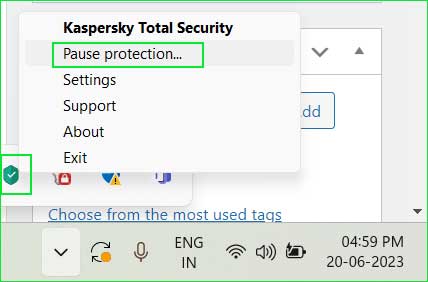
stop_protection
Method 6: Run the Windows Update Troubleshooter:
Windows 10 includes a built-in troubleshooter specifically designed to fix Windows Update issues. To run the Windows Update Troubleshooter, follow these steps:
Step 1: Search for the Windows Update Troubleshooter in Windows 11 and 10. Click on the "Start" menu and search for "Troubleshoot settings." Open the first search result as follows:
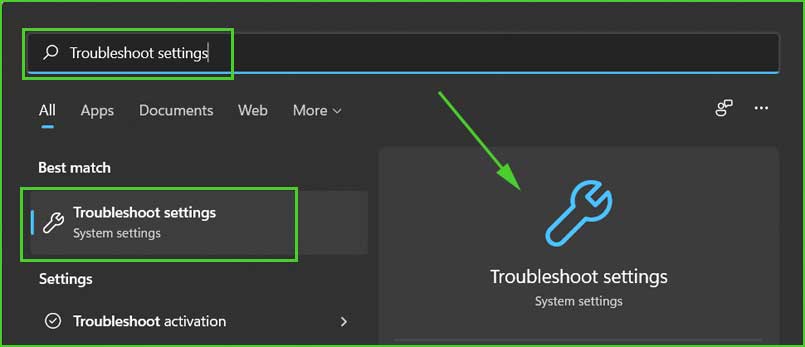
find_troubleshooter_settings
Step 2: Click on "Additional troubleshooters."
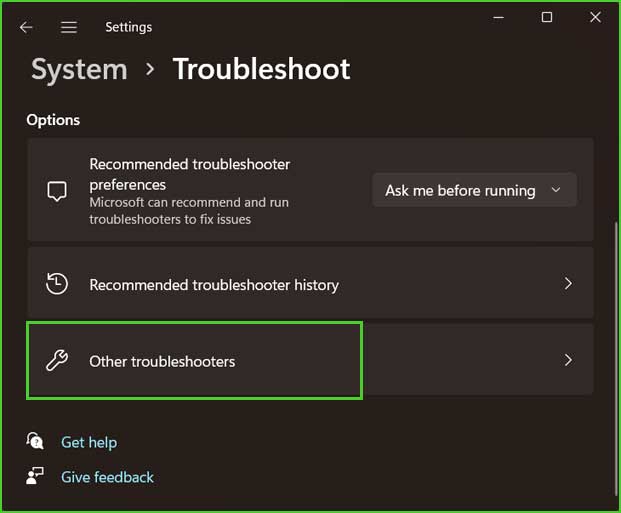
other_troubleshooter
Step 3: Locate Windows Update and click the "Run" button to start the troubleshooting process.
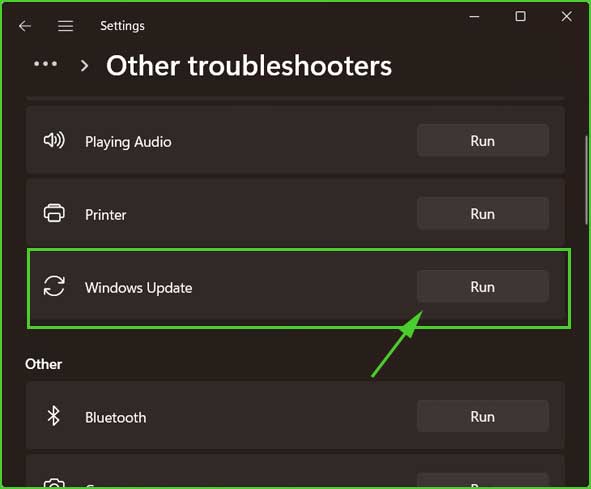
run_update_troubleshooter
Step 4: It will take a few minutes to complete and show the result. If the troubleshooter cannot resolve your issue, proceed to the next method.
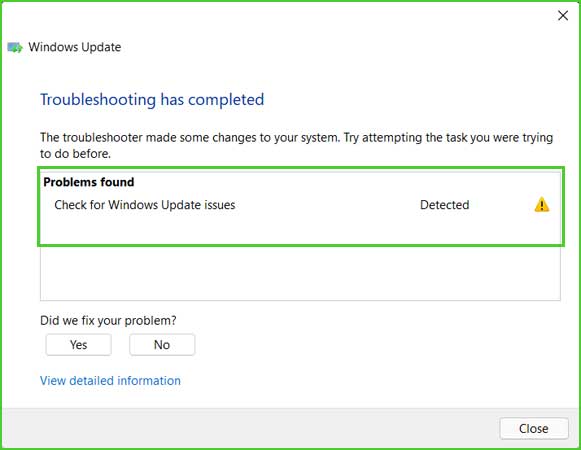
troubleshooter_failed
Method 7: Clear the Windows Update cache:
Clearing the Windows Update cache can help resolve update-related errors. To do this, follow these steps:
Step 1: Press Windows + R to open the Run dialog.
Step 2: Type "services.msc" and press Enter to open the Services window.
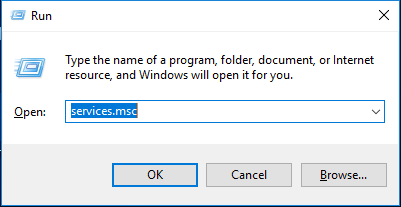
Open Services window in Windows 10 and 11
Step 3: Scroll down and locate the "Windows Update" service.
Step 4: Right-click on it and select Stop.
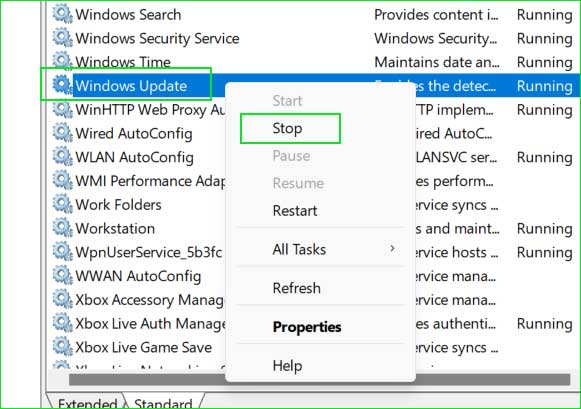
stop_windows_update_service
Step 5: Open File Explorer and navigate to the following directory:
C:\Windows\SoftwareDistribution
Step 6: Delete all files and folders inside the SoftwareDistribution folder.
Note: You may need administrative privileges to perform this action.
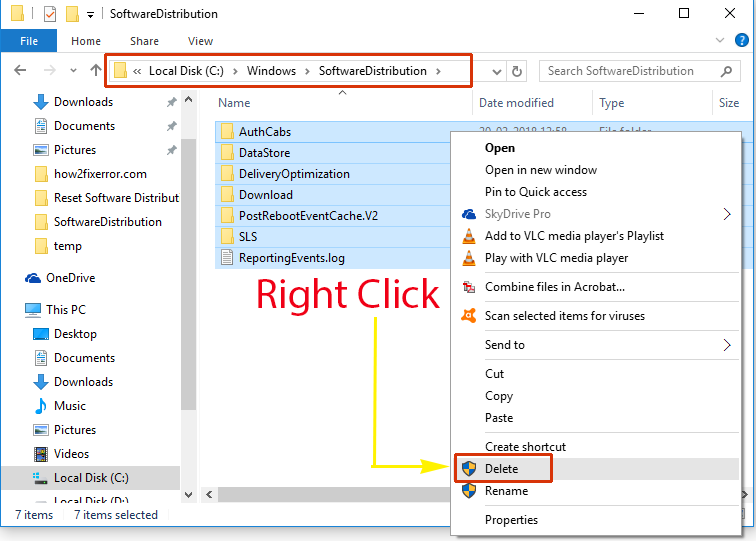
delete_distribution_folder_items
Step 7: Go back to the Services window, right-click on the "Windows Update" service, and select Start.
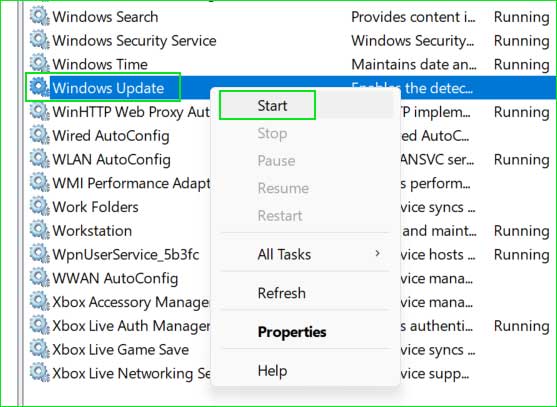
start_windows_update_service
Step 8: Try running the update again.
Method 8: Download and install the update manually:
If the above methods do not work, you can try downloading and installing the update manually from the Microsoft Update Catalog website. Visit the website, search for the specific update, download the appropriate version for your system, and follow the on-screen instructions to install it.
https://www.how2fixerror.com/additional-ways-to-install-updates-in-windows-10-11/
If none of these steps resolve the issue, you may want to consider seeking further assistance from Microsoft Support or visiting official forums for additional guidance.
Conclusion
In this article, we discussed how to fix the error "We're sorry we couldn't install this update, but you can try again."
If you encounter the error message "Sorry, we couldn't install this update, but you can try again" when updating Windows 8/10/11, you can follow the troubleshooting steps outlined in this article step by step.


