

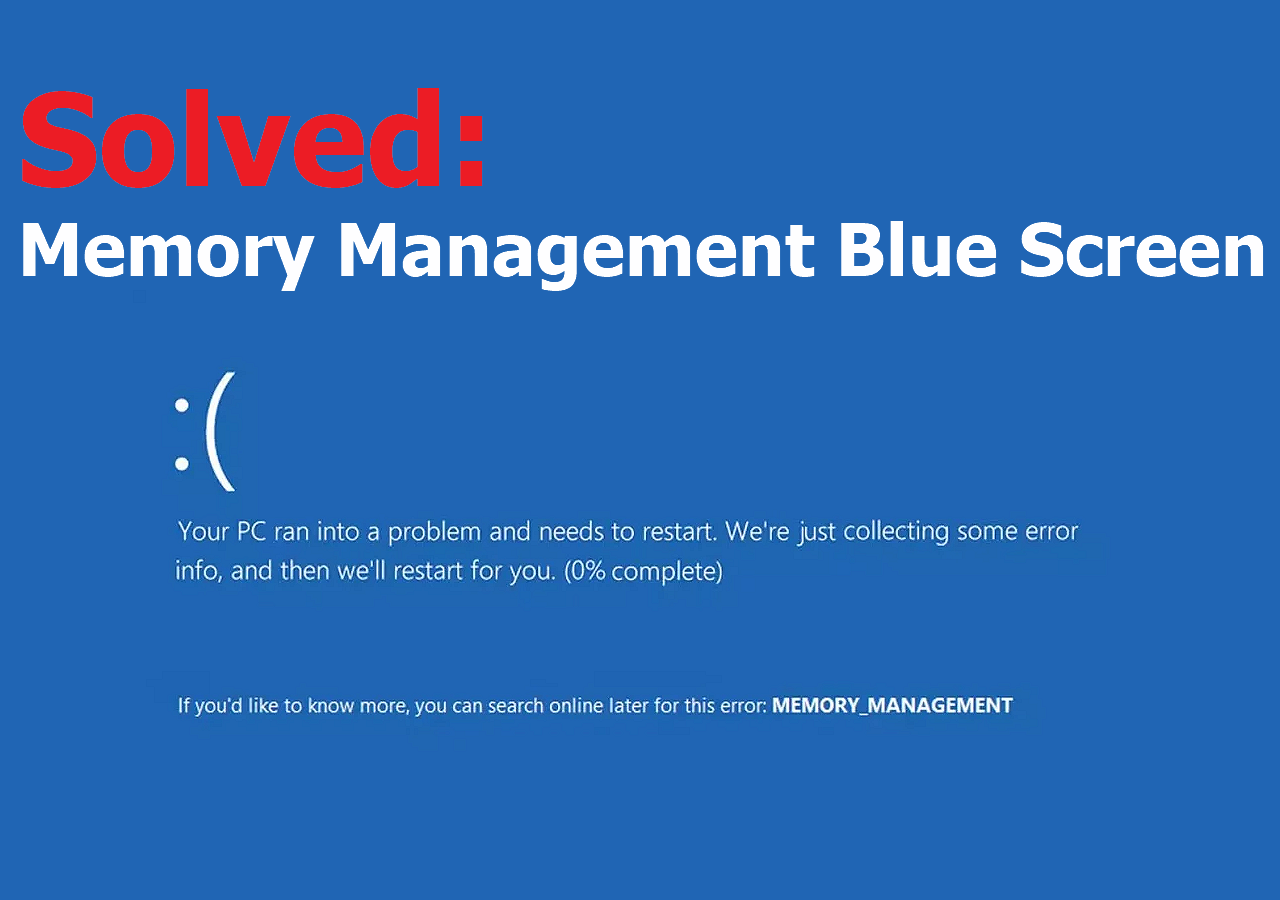
Fixing the "Out of Memory" Error in Windows: If you often open multiple programs and neglect to close background windows, or if you perform resource-intensive tasks simultaneously, you are likely to encounter the "Out of Memory" error.
Generally, when your memory is already allocated to running processes and there is no remaining memory available for upcoming tasks, your system displays the "Out of Memory" error.
This error can often be fixed on your own. Below are detailed step-by-step solutions to help you resolve the "Out of Memory" error in Windows. However, understanding the underlying causes of any error is half the battle in fixing it.
So first, let’s look at some strong reasons for this error before diving into the fixes!
Common Causes of the "Out of Memory" Error
Insufficient RAM: If your device does not have enough RAM to handle any application you want to run, any program you want to execute, or any file you want to access, the system will display the "Out of Memory" error.
Startup Programs: When you restart or boot up your system, it typically runs startup programs in the background. If these programs consume a significant portion of your system resources, including RAM, you may experience the "Out of Memory" error in Windows.
Old Hardware: Are you still holding on to that computer you bought 5 years ago or even longer without upgrading its hardware? Here’s the information: older systems often have resource limitations such as low RAM or a slow processor, and thus these specifications cannot handle current data or processing requirements, leading to many errors, including storage issues like the "Out of Memory" error.
Heavy Tasks: Running heavy computer games, creating 3D models, or even editing high-quality videos requires a lot of system resources. Consequently, this leads to the error when your system cannot provide the necessary memory.
Malware: Malware running in the background can consume your system memory, leaving no room for the applications that need processing. This can result in the "Out of Memory" error.
Memory Leaks: Some applications on your system may not release the memory they use, leading to a buildup of blocked memory segments that other applications cannot reuse, causing the "Out of Memory" error in Windows 10 or 11.
Fixing the "Out of Memory" Error in Windows
First, check your background processes and close any unnecessary applications running.
A simple restart can sometimes work wonders. So restart your Windows and see if the error has disappeared.
1- Increase Virtual Memory
 virtual memory
Corrupted, inaccessible, or low RAM is the main driver of all the reasons we've discussed above. So the first thing you should do is increase your RAM in some way.
When your RAM fills up, the operating system borrows some space from the SSD, which acts as virtual RAM. We can expand the limits of this virtual memory to avoid "Out of Memory" issues.
Here’s how to do it:
Step 1: Open your computer properties by searching for it in the Windows search bar.
Step 2: Click on Advanced system settings found on the right side.
Step 3: Make sure you are on the Advanced tab.
Step 4: Open the settings under the Performance section.
Step 5: Again, switch to the Advanced tab in your new window.
Step 6: Now, click on the Change button under Virtual Memory.
Step 7: Uncheck the option - Automatically manage paging file size for all drives. This will allow you to click on the custom size in the same window.
Step 8: Now, enter your preferred limits for virtual memory in the input fields specified in the image below.
Note that this memory acts only as your RAM but is not actual RAM, so increasing it too much does not always improve performance. Expanding it to 1.5 times the current RAM capacity at most is a good balance.
2- Disable Startup Programs
 disable startup programs
I mentioned startup programs in the causes of the error. So, disable startup programs that require a lot of resources to free up some space and allow your important applications to run smoothly by fixing the "Out of Memory" error.
Steps to disable high-impact startup programs
Step 1: Open Task Manager. To do this, you can simply search for it in the Windows search bar or press Ctrl + Shift + Esc together.
Step 2: Switch to the Startup tab to identify heavy tasks, then you can disable high-impact tasks.
Step 3: Select the program you want to turn off and click the Disable button you will find in the bottom right corner of the window.
3- Run Virus Scans
It’s common in troubleshooting to check for malware. Windows has a built-in feature to do this. However, you can also rely on third-party antivirus software like McAfee or Norton to detect any viruses hidden in your system that you may not be aware of.
Here’s how to use the built-in Windows feature to run a malware scan.
Step 1: Type Windows Security in the Windows search bar to open the Windows Security app.
Step 2: Choose Virus & threat protection
Step 3: Click on Scan options.
Step 4: Scroll down to select Full scan to check your entire system and click the Scan now button.
This comprehensive scan will display any potential risks in your system, if found. Follow the on-screen instructions to remove any detected malware.
4- Update Software
Updating old software can lead to potential memory errors, including "Out of Memory." Are you running a specific application, and suddenly the "Out of Memory" error appeared? Then update or reinstall the application you are currently working on.
In general, make sure to update the regular applications you use on your Windows system, including browsers, editing applications, or media players.
5- Restart Windows Explorer
Another fix for the Out of Memory error is to restart your Windows Explorer.
Step 1: Search for Task Manager in the search bar and open it.
Step 2: Right-click on Windows Explorer and select Restart from the dropdown menu.
6- Add More Physical RAM
This is the last physical fix you might want to try if none of the above methods have worked for you.
When the above fixes show temporary results and you still encounter memory errors like "Out of Memory," it’s time to upgrade your hardware, especially your RAM.
Many computers come with slots to add a few gigabytes of RAM yourself. Otherwise, you can hire a technician to expand your computer's physical memory.
This fix may cost you money, but it’s worth expanding your RAM if you want your device to run fast with error-free memory.
How to Prevent the "Out of Memory" Error?
Optimize your memory usage. Monitor your applications' memory usage and regularly free up system storage by deleting unnecessary or ineffective applications.
Limit Startup Programs. Deactivate high-impact startup programs yourself in Task Manager, or you can use an external program to manage startup programs on your behalf.
Keep your software updated. Old software on your device can have poor memory management capabilities and lead to errors. So, timely update your operating system, browsers, and applications on your device.
Use a 64-bit Operating System. The old 32-bit operating system struggles with fully utilizing your device's memory.
Conclusion
In this article, we discussed how to fix the "Out of Memory" error in Windows. Memory issues can cause serious problems and affect your system's overall performance. Additionally, it can even prevent you from working on your device. Therefore, you should address the error. I hope this article has provided an ideal way to resolve the "Out of Memory" error.


