

If you're using an Android device, WhatsApp backs up your chats to Google Drive. Here’s how to resolve common backup issues.
Fixing WhatsApp Backup Issues on Google Drive
1. Check Your Internet Connection

A stable internet connection is essential for backups to work properly. Make sure you're connected to a strong Wi-Fi network, or if you're using mobile data, ensure you have enough data available.
Steps to follow:
Switch networks: If your Wi-Fi is slow, try switching to mobile data or another Wi-Fi network.
Restart your router: If you're at home, restarting your router can sometimes fix connection issues.
Test your connection: Open a browser and try loading a webpage to check if your internet is working properly.
2. Ensure You Have Enough Storage on Google Drive
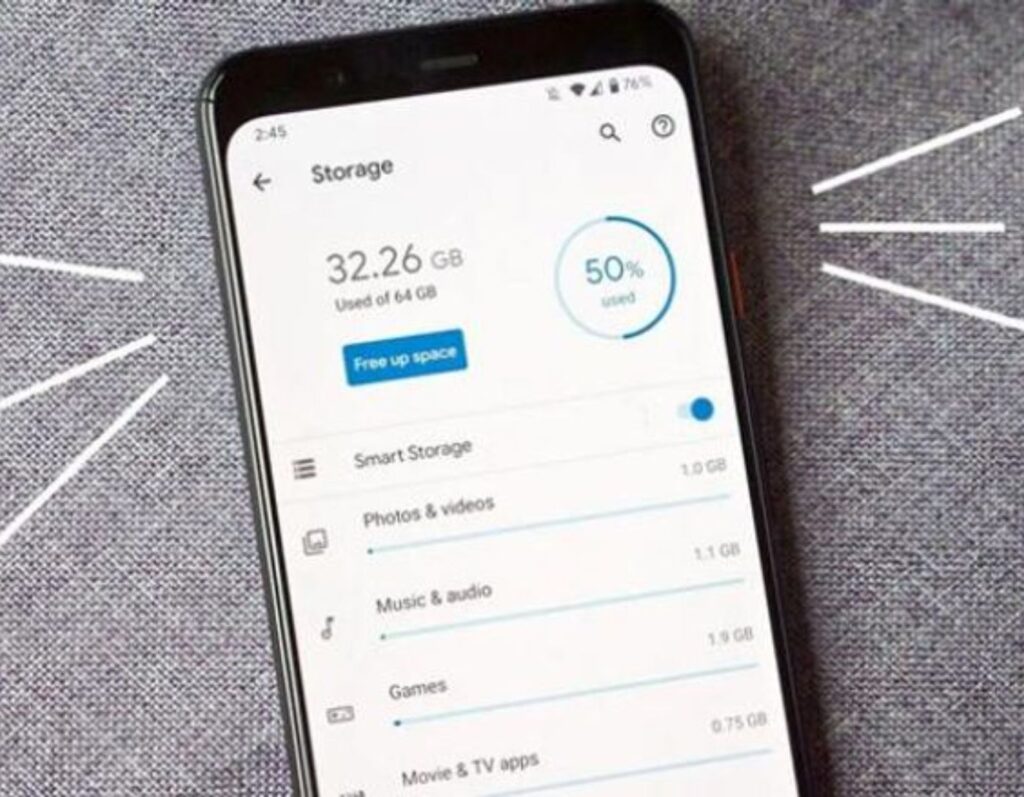
Google Drive needs sufficient storage space to save WhatsApp backups. If your storage is low, the backup may fail.
Steps to follow:
Check storage: Open the Google Drive app, tap the menu (three horizontal lines), and select “Storage.” This will show you how much space is available.
Free up space: If your available space is low, consider deleting unnecessary files or moving them to another storage option.
Upgrade storage: If needed, you can purchase additional storage from Google.
3. Check Your Google Account Settings
Make sure WhatsApp is linked to the correct Google account and that Google Drive is set up properly.
Steps to follow:
Check your Google account: Open WhatsApp, go to “Settings,” then “Chats,” and tap on “Chat Backup.” Ensure that the listed Google account is the one you want to use for backups.
Re-link the account: If the wrong account is listed, tap on it and select the correct account.
Update Google Drive: Make sure the Google Drive app is updated by visiting the Google Play Store and checking for updates.
4. Grant Necessary Permissions
WhatsApp needs permission to access Google Drive for backups to work.
Steps to follow:
Check permissions: Go to “Settings” on your phone, then “Apps,” find WhatsApp, and tap on “Permissions.”
Enable permissions: Ensure that WhatsApp has permission to access storage, contacts, and Google Drive.
Reset permissions: If permissions are already enabled, try disabling and then re-enabling them.
5. Update WhatsApp
An outdated app can cause backup issues due to compatibility problems.
Steps to follow:
Update the app: Go to the Google Play Store, search for WhatsApp, and tap “Update” if an update is available.
Restart WhatsApp: After updating, restart the app and try backing up your chats again.
Fixing WhatsApp Backup Issues on iCloud (For iPhone Users)
For iPhone users, WhatsApp backups are stored on iCloud. If you're having trouble with backups, here’s how to fix it:
1. Check Your Internet Connection
Just like on Android, a stable internet connection is crucial for backups.
Steps to follow:
Connect to Wi-Fi: Ensure you're connected to a strong Wi-Fi network, as large backups may not work over mobile data.
Test your connection: Open Safari and try loading a webpage to ensure your internet is working.
Restart your router: If you're at home, restarting your router can help resolve connection issues.
2. Ensure You Have Enough Storage on iCloud
iCloud needs sufficient storage space to save WhatsApp backups. If your iCloud storage is full, the backup will fail.
Steps to follow:
Check iCloud storage: Go to “Settings,” tap your name at the top, then “iCloud,” and check how much storage is available.
Manage storage: If your available space is low, consider deleting old backups, photos, or files you no longer need.
Upgrade storage: If necessary, you can purchase more iCloud storage.
3. Check Your Apple ID Settings
Ensure WhatsApp is linked to the correct Apple ID and that iCloud Drive is enabled.
Steps to follow:
Check your Apple ID: Go to “Settings,” tap your name, then “iCloud,” and make sure iCloud Drive is turned on.
Re-link your Apple ID: If there’s an issue, sign out of iCloud and sign back in with the correct Apple ID.
Update iCloud: Ensure your iCloud settings are updated and that iCloud Drive is functioning properly.
4. Grant Necessary Permissions
WhatsApp needs access to iCloud for backups to succeed.
Steps to follow:
Check permissions: Go to “Settings,” scroll down to WhatsApp, and ensure it has permission to use iCloud.
Enable permissions: If iCloud Drive is not enabled for WhatsApp, turn it on.
Reset permissions: If permissions are already enabled, try turning them off and on again.
5. Update WhatsApp
Using an old version of WhatsApp can lead to backup issues.
Steps to follow:
Update the app: Open the App Store, search for WhatsApp, and tap “Update” if an update is available.
Restart WhatsApp: After updating, restart the app and try backing up again.
Frequently Asked Questions
1. Why is my WhatsApp backup stuck on Google Drive or iCloud?
This may happen due to slow internet speed, insufficient storage space, or an app-related glitch. Try restarting your device, checking your storage availability, and ensuring a stable internet connection.
2. How can I fix a slow or stalled WhatsApp backup?
Clear the app's cache, update WhatsApp, disable low power mode, and restart your phone. For Google Drive, check backup permissions; for iCloud, ensure you have enough space and that iCloud Drive is enabled.
3. Why does WhatsApp show a "backup failed" message on Google Drive?
This could be due to selecting the wrong Google account, lack of permissions, or connection issues. Ensure WhatsApp is linked to the correct Google account and that backup permissions are allowed in Google Drive settings.
4. How can I restore a WhatsApp backup from Google Drive?
<!-- /wp:paragraph --


