


Fixing the issue of a laptop stuck in hibernation: Windows 10 is a robust and popular operating system, preferred by users over the problematic Windows 11. However, some users have recently reported their devices freezing in hibernation mode. If you're facing a similar situation, here’s what you can do to resolve the issue of a Windows laptop stuck in sleep mode.
Causes of Laptop Stuck in Hibernation
*Battery drain
*Outdated drivers
What is Hibernation in Windows Laptops?
Hibernation is available only for laptops and is a combination of sleep mode and shutdown. Unlike sleep mode, where running applications and files are stored in RAM and consume more power, in hibernation, they are saved to the hard drive. This means that the laptop will resume from the previous state as it was before entering hibernation.
However, sometimes a laptop may take longer to boot up, which means that Windows 10 gets stuck in hibernation. Fortunately, there are various ways to fix Windows 10 freezing, and this article explains how to do that.
How to Fix a Laptop Stuck in Hibernation?
When your laptop is stuck in hibernation, restart the computer to see if it can boot up normally. If not, follow the steps below:
Method 1 - Drain Power from Laptops with Removable Batteries
Turn off the laptop.
Unplug the power cord and disconnect all connected devices.
Next, remove the laptop battery.
Now, press and hold the power button for 30 to 60 seconds. This will drain any remaining power from the laptop.
Reinsert the battery into the laptop.
Plug it into a power source and turn on the laptop.
This step should help bypass the hibernation screen and fix the laptop.
Method 2 - Drain Power from Laptops with Non-Removable Batteries
If you are using a laptop with a non-removable battery, follow these steps to drain the battery power:
Force shut down the laptop by holding the power button.
Disconnect the power source by unplugging it from the outlet.
Next, disconnect all peripheral devices.
Press and hold the power button for up to 60 seconds.
This will drain the battery.
Then, turn on the laptop by plugging it into a power source.
You should now be able to see the login screen.
If the above technique didn’t help, try the following steps to bypass the hibernation screen.
Force shut down the laptop by holding the power button.
Remove the battery > Connect the charging cable and turn on the laptop without the battery connected.
You will now see the hibernation screen.
Now, force shut down the laptop as in step 1.
When it is completely off, reconnect the battery and see if that helps. You should be able to log in normally.
Method 3 - Disable Fast Startup
Some users have reported that disabling fast startup helped resolve the hibernation issue on Windows. To disable it, follow these steps:
In the Windows search bar, type power and sleep settings.
Click on Additional power settings.
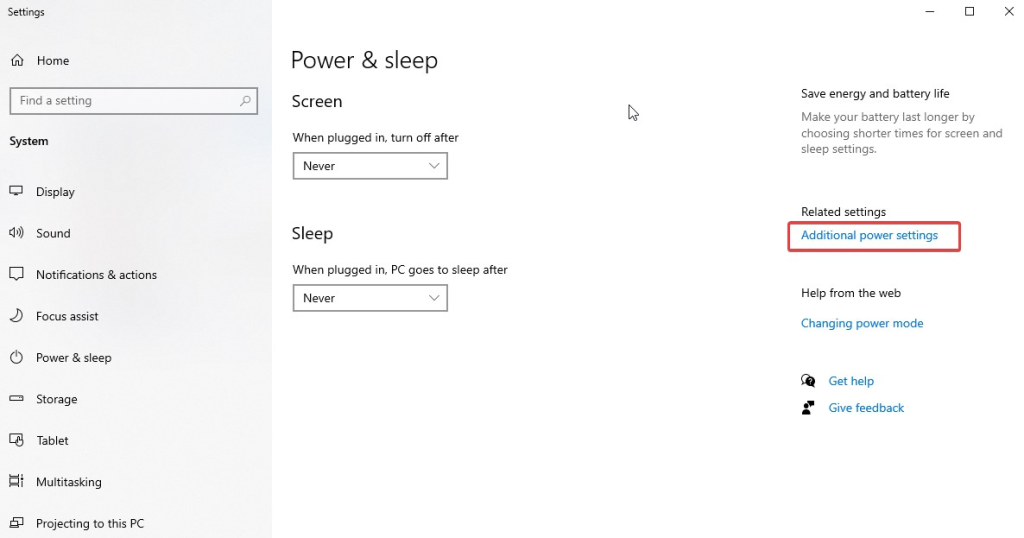
Windows power and sleep
From the right panel, click on Choose what the power buttons do.
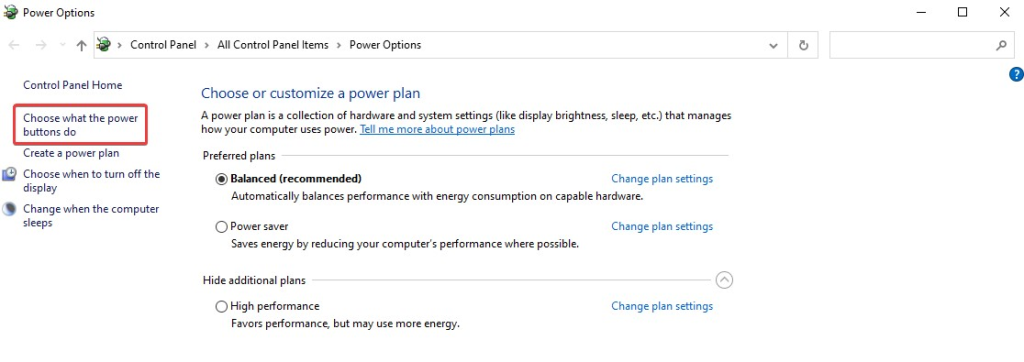
Windows power options
Uncheck the box next to Turn on fast startup (recommended) > Click the Save changes button.
Shut down the computer, and wait for 20 to 30 seconds.
Restart the computer; it should not enter hibernation now.
Method 4 - Run the Power Troubleshooter
To fix issues related to Windows, Microsoft provides a built-in troubleshooter. Using it, run the Power Troubleshooter and see if it helps you.
Press Windows + I to open Windows Settings.
Click on Update & Security.
Select Troubleshoot from the left panel > Click on Additional troubleshooters.
Click on Power > Run the troubleshooter.
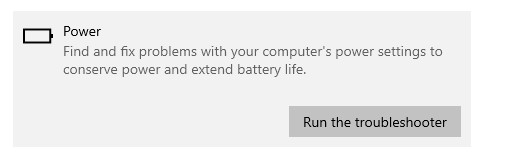
Run the troubleshooter
Follow the prompts on the screen to complete the process.
Method 5 - Restore Power Settings
The issue of Windows freezing on the hibernation screen may occur due to power setting problems. To resolve it, reset the power plan to default settings.
Press Windows + R to open the Run window.
Type control panel and press Enter.
Select Power Options.
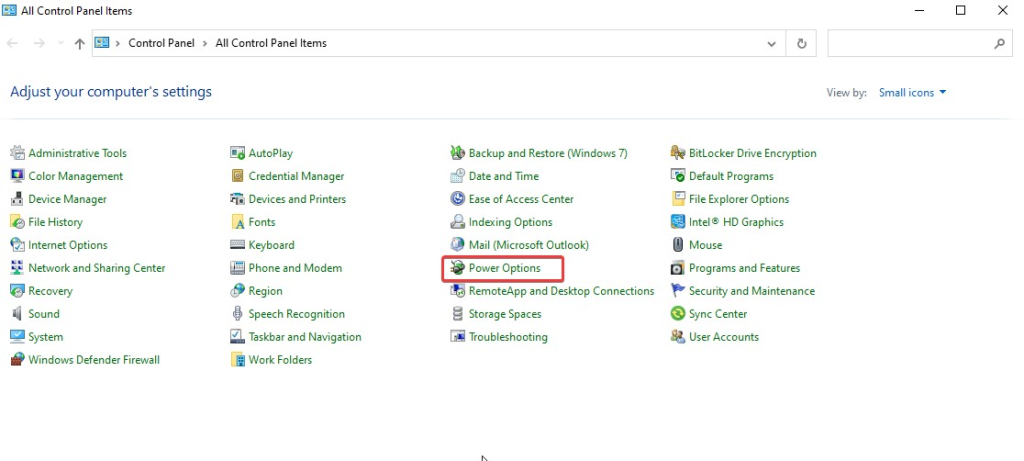
Windows power options
Click on Change plan settings for the selected plan.
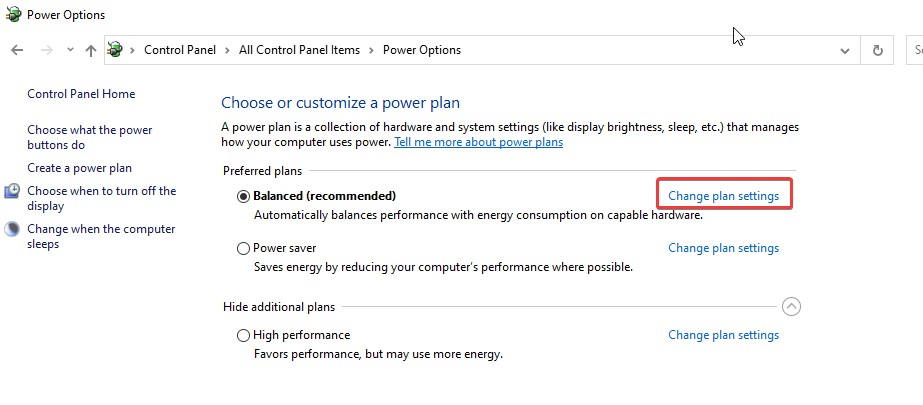
Select power plan
Click on Restore default settings for this plan > Save changes.
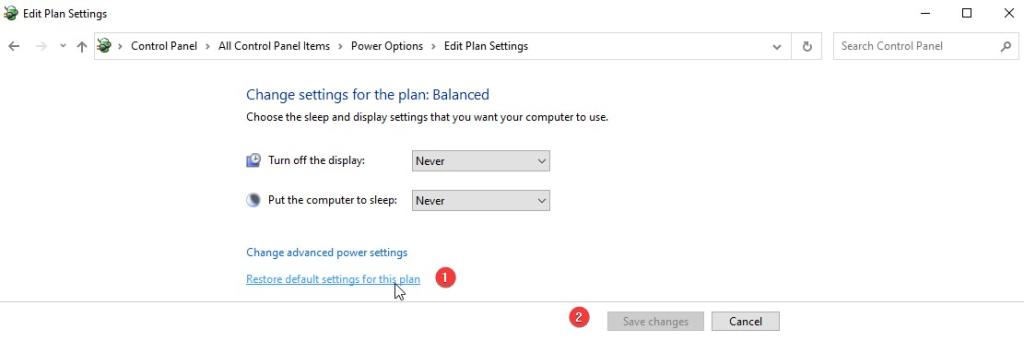
Click on Power settings
Method 6 - Disconnect External Devices
Sometimes, connected external devices can be the reason behind Windows 10 freezing. Therefore, it’s worth disconnecting them to see if that helps resolve the hibernation issue.
Turn off the laptop.
Remove the power cable and disconnect all connected peripherals - USB, mouse, external hard drives, etc. Also, remove any CD/DVD discs.
Turn on the laptop and see if this works.
Method 7 - Update Display Driver
To keep Windows and connected devices functioning properly, drivers must be up to date. You can use Device Manager, Windows Update, visit the manufacturer's website, or use a third-party tool. The last option is an automated way to update drivers, while the others are manual methods.
<!-- /wp:paragraph


