

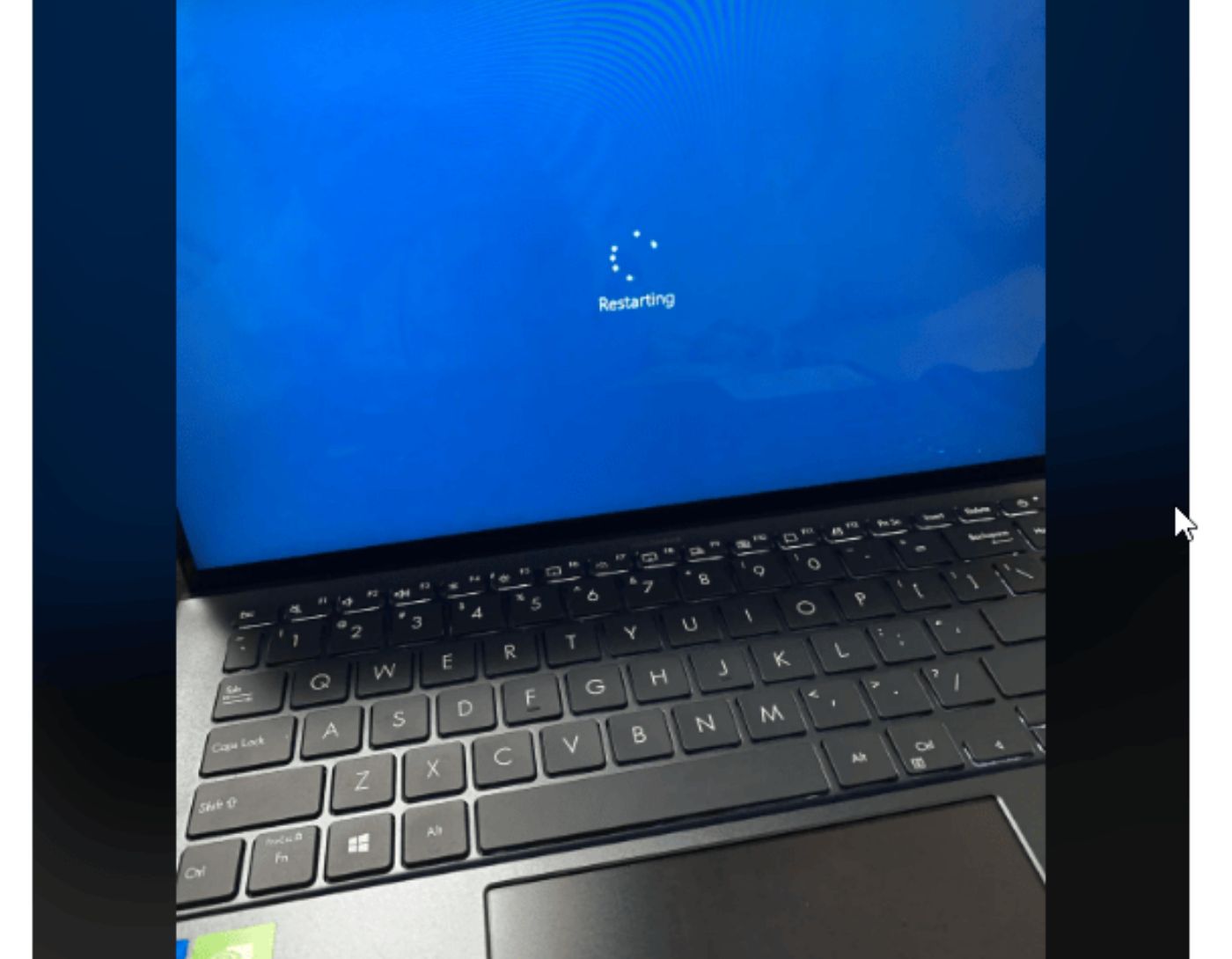
Fixing the issue of the computer freezing during reboot: When any error occurs on a computer or it runs slowly, experts usually recommend restarting it first. However, things get more complicated if Windows fails to reboot or, worse, if the device completely crashes. If you, like many others, are dealing with a PC stuck in boot mode, you’re in the right place. This article explains how to fix the problem of the computer freezing during reboot.
Possible Causes of the Computer Freezing During Reboot
The computer was not shut down properly last time.
Unresponsive processes running in the background.
Software, drivers, and hardware were not installed correctly.
RAM malfunction.
Fast startup is enabled.
Issues with Windows updates.
There is a conflict between new and old update files.
Connected peripherals are conflicting with the PC.
Startup settings are not configured correctly.
Why Does the Computer Restart Randomly?
Several reasons can cause this behavior:
Overheating - When the system temperature reaches a certain level between 70-100 degrees Celsius to prevent damage, the computer restarts.
Power outages - If there are fluctuations in power or the power source is unstable, you may experience recurring issues with the PC restarting.
Hardware issues - When RAM and CPU fail, the computer restarts automatically.
Malfunctioning driver or application - If there’s an issue with any of these, the PC restarts.
Problems with the installed operating system updates - Generally, Windows updates are only released after thorough testing; however, many users face issues after updating. If your computer starts restarting after an update, it indicates a problem with the update, and you need to roll it back.
Best Ways to Fix the Computer Freezing During Reboot
Before diving into more technical solutions to fix the issue, let’s try some basic fixes and see if they help.
Method 1 - Force Shutdown
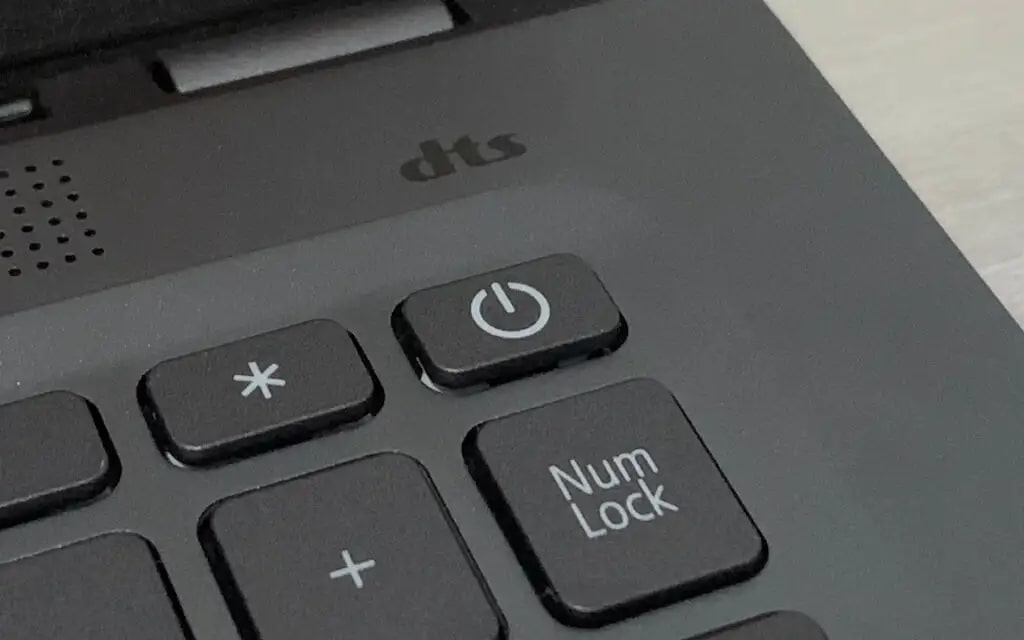
Keyboard
The issue can be resolved by a simple force shutdown. To turn off the computer, press and hold the power button (for at least 6 seconds) until the fan stops running. Now restart the computer. You should not face this issue again. If you are using a desktop, unplug the power cable after shutting down the computer. Wait for 10 seconds > plug it back into the power source and restart the computer.
Method 2 - Disconnect All Peripherals and Restart the Computer
Sometimes connected peripherals and USB devices can interfere with the reboot process. To ensure this isn’t the case, force shutdown Windows. Disconnect the USB drive, external hard drive, smartphone, or any SD card or SSD; you can even unplug the keyboard and mouse. If everything works smoothly, reconnect each device one by one to find the culprit.
Method 3 - Check the CPU
Often, CPU overheating goes unnoticed. However, when facing Windows 10 reboot issues, it’s best to check the CPU fan and reduce overheating. Manually configure the CPU fan and uninstall any software used for overclocking the CPU. Once done, restart the computer.
If these basic fixes don’t help, don’t worry. We have advanced fixes that will help resolve the issue. Try the fixes individually to find the one that works for you.
Advanced Methods to Fix the PC Boot Loop
Method 4 - Update Old Drivers
When none of the basic fixes work, update old drivers, as they are a common cause behind Windows freezing on the reboot screen. To do this, follow these steps:
Press Windows + X to access the quick menu.
Select Device Manager from the options.
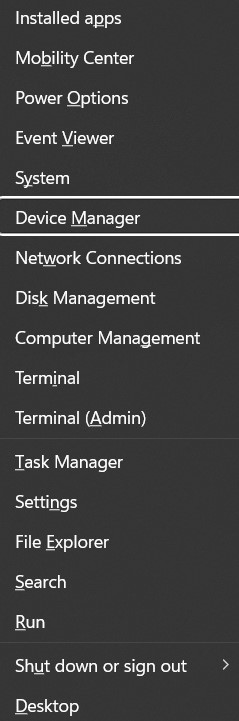
Device Manager
Double-click on a category to see the names of the devices under it.
Right-click on the driver you think is outdated and causing issues.
Select Update Driver.
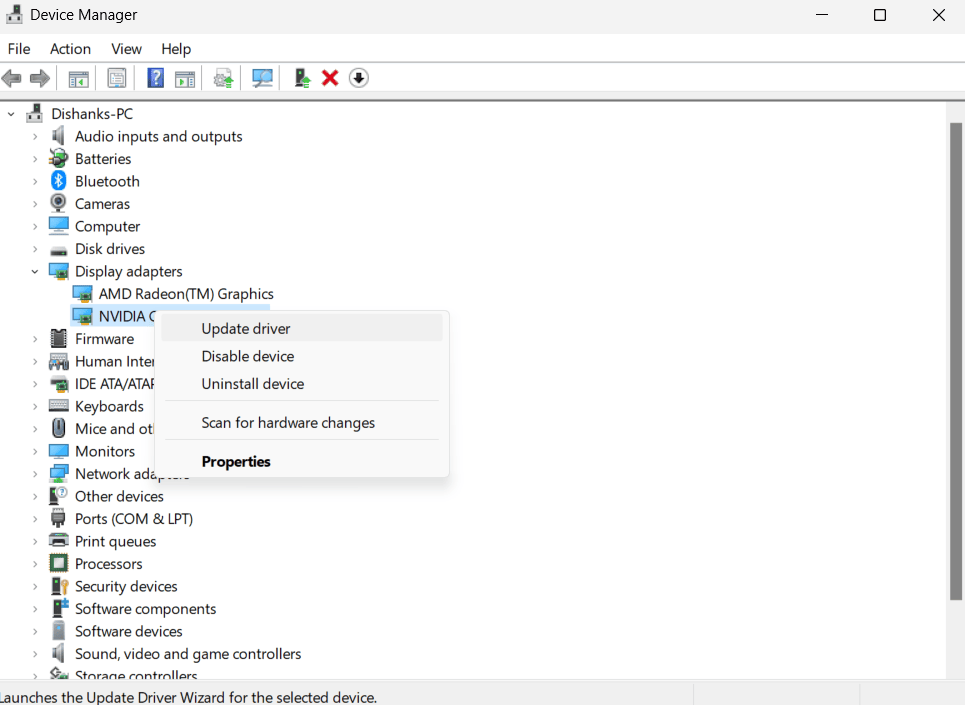
Update Driver using Device Manager
In the window that appears, click on Search automatically for drivers. Windows will now automatically search for the latest available update and install it.
Automatically search for drivers
Follow the on-screen instructions to update the driver.
Similarly, update all outdated drivers.
We understand that browsing each category and searching for driver updates for each device can be time-consuming and tedious. Therefore, we suggest using an external driver update tool.
Method 5 - Uninstall and Reinstall the Problematic Driver
Press Windows + R to open the Run window.
Type devmgmt.msc and press Enter.
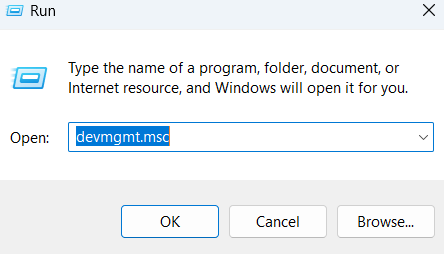
If you see any device with a yellow exclamation mark, right-click on it and choose Uninstall device.
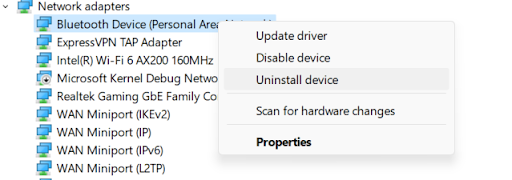
Find the uninstall driver option in Device Manager
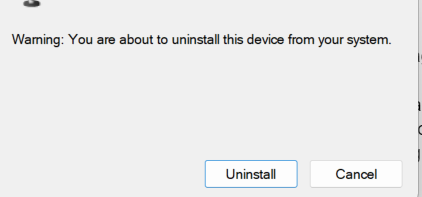
Confirm the action and restart the computer.
Method 6 - Update Windows
We often think that Windows is up to date, but updates can get stuck, causing a reboot loop. To fix this, follow these steps:
Press Windows + R to open the Run window.
Type cmd and press Ctrl + Shift + Enter. This will open the command prompt in administrator mode.
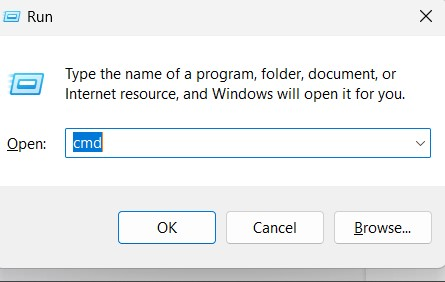
Run cmd
If prompted for User Account Control, click Yes.
Copy and paste the following command and press Enter.
Net stop wuauserv
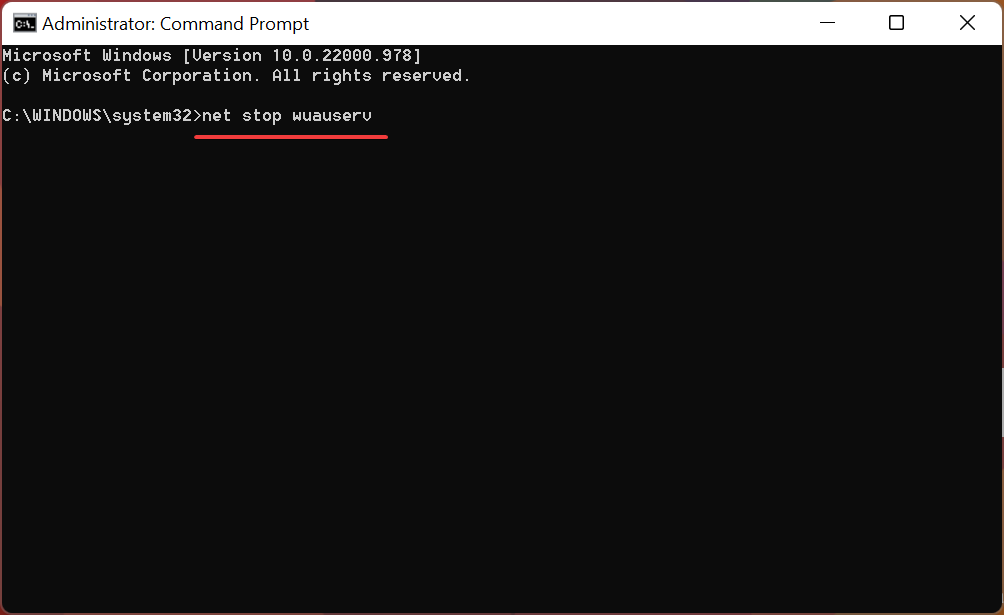
Next, copy and paste the following commands one by one. (Press Enter after each command.)
cd %systemroot%
ren SoftwareDistribution SD.old
net start wuauserv
This will restart the Windows update process and should help.
<!-- /


