


(Fix Error Unreadable content was found in Excel) Fixing the error "Unreadable content found in Excel": When trying to open a specific Excel file, you may encounter an error message stating that "Excel found unreadable content in filename.xls." This error message often appears with Office versions like 2007, 2010, and 2013. However, it's also important to note that this error message can occur with other versions of Microsoft Office as well.
Error message:
Excel found unreadable content in filename.xls. Do you want to recover the contents of this workbook? If you trust the source of this workbook, click Yes.
If you click "Yes" to open the workbook, you will then receive the following warning message:
"Excel was able to open the file by repairing or removing the unreadable content."
"Excel recovered your forums and cell values, but some data may have been lost."
Click to view the list of repairs in the log file: error.xml
Your file will open, but you may need to forfeit some data and Excel formatting.
In this article, we will explain why this error message appears and provide step-by-step guidance on how to resolve it.
What causes the error "Excel found unreadable content in filename.xls"?
There are several reasons that can cause the above error.
Compatibility issues between different versions of Microsoft Excel: Trying to open an older version of an Excel file in a newer version of Excel, such as 2007, 2010, or 2013, can lead to compatibility problems and trigger the error message.
Corrupted file: The Excel file itself may be corrupted, possibly due to issues during saving, transferring files, or storage.
Missing external files: If the spreadsheet relies on external files or references, such as add-ins, linked files, or formulas, and these files are missing or corrupted, it can lead to the error message.
System resource issues: Insufficient system resources, such as memory or processing power, may cause Excel to encounter problems when opening or reading a file, resulting in the error message.
How to fix the error "Excel found unreadable content in filename.xls"?
We will provide you with some useful methods to fix this issue and open an old Excel file without losing any data or formatting.
Method 1: Repair using the repair tool
There is a tool available that can be used to fix Excel file errors.
The following advanced PC repair tool for Windows scans your computer for issues and fixes them with just one click. Whether it's an Excel workbook error or another Windows error, it does its job perfectly.
Windows consists of a large number of dll files, exe files, sys files, various types of services, databases, and so on, so it's not possible to constantly monitor all files. This excellent PC optimization tool repairs damages, fixes errors, updates Windows and drivers, and silently removes various types of errors.
The Outbyte PC Repair Tool performs all of the above tasks easily and provides you with a smooth and error-free Windows environment to work in so you can focus solely on your tasks.
3 steps to fix this error
Step 1. Download the Outbyte PC Repair Tool [File size: 16.4 MB]
Step 2. Scan your Windows computer
Step 3. Click the "Repair" button to fix the error
Compatible with Windows 11/10/8/7
Method 2: Use compatibility mode to open the file.
If you encounter issues when opening an older version of an Excel file using Excel 2007, 2010, or 2013, you can adjust the file's compatibility mode before attempting to open it.
Step 1: Go to the location of the Excel workbook → right-click → Properties.
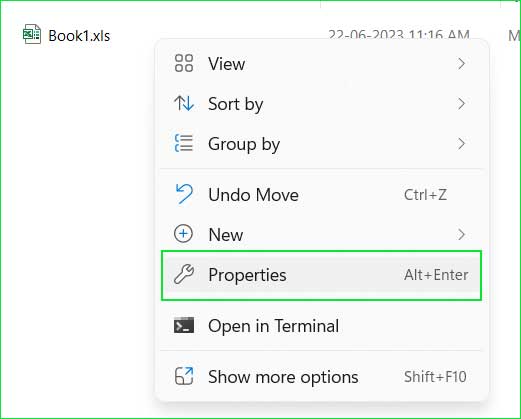
Workbook_properties
Step 2: Go to the "Compatibility" tab → check the box that says "Run this program in compatibility mode for" and then select the desired version of Office.
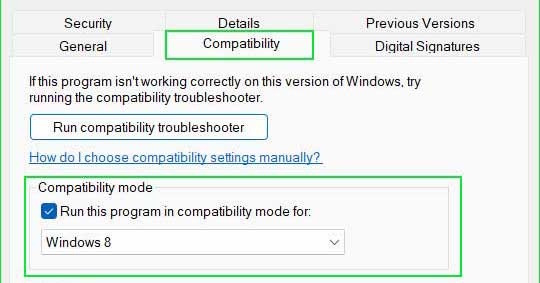
Compatibility mode
Step 3: Try to open the older workbook again.
Method 3: Open the Excel workbook in safe mode.
Sometimes, third-party add-ins that you have installed may become corrupted and start to malfunction. In such situations, they can cause various issues, including the error "Excel found unreadable content in filename.xls."
When attempting to open an Excel workbook in safe mode, this method simply bypasses loading third-party add-ins, thus preventing any potential data loss. If you successfully open your workbook in safe mode, it is advisable to consider removing all third-party add-ins.
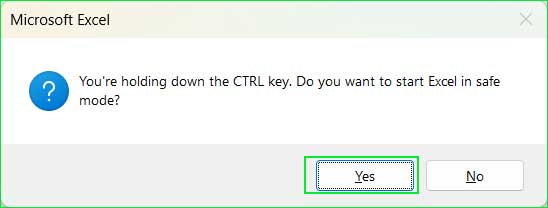
Step 1: Go to the location where the Excel workbook is stored. Press Ctrl + Click to open the file. Make sure to hold down the CTRL key while double-clicking the Excel file to open it.
Step 2: You will be prompted with "You are holding down the CTRL key. Do you want to start Excel in safe mode?" Click Yes.
Method 4: Repair the Excel workbook using the built-in repair tool in Excel.
Microsoft Excel has a built-in feature to repair and extract data from a corrupted Excel file. You can use this tool to recover damaged Excel files. Here is a step-by-step guide to repairing corrupted Excel files.
Step 1: Open Excel → click on the Open button → choose Browse.
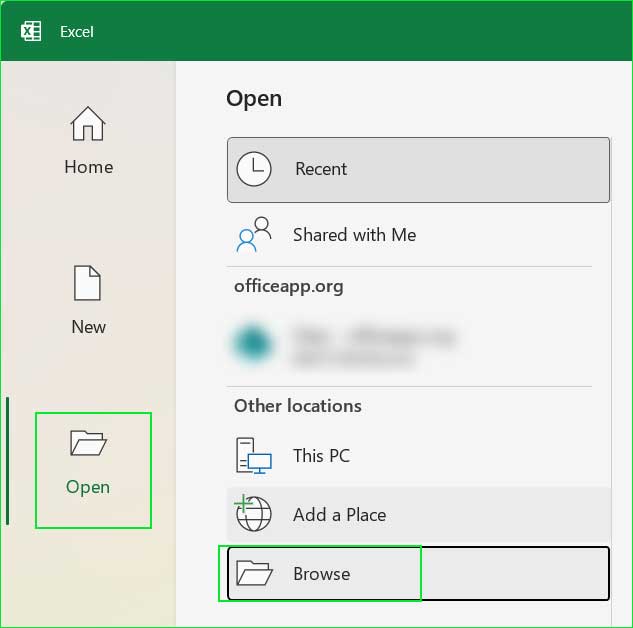
Step 2: Browse to the corrupted Excel workbook. Expand the "Open" button and select the "Open and Repair" option.
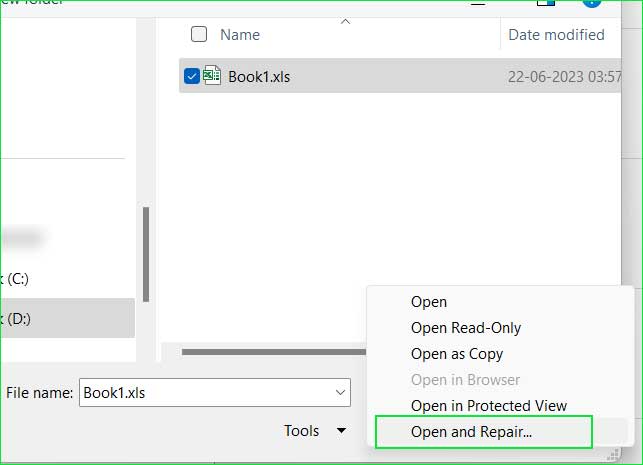
Step 3: Now choose whether you want to repair the workbook or extract the data.
Conclusion
In this article, we discussed how to fix the error "Unreadable content found in Excel" and the top 3 methods.
Encountering the error "Excel found unreadable content" in Excel 2007, 2010, or 2013 can be concerning, but effective solutions are available. By following the methods outlined in this article, you can resolve the error and regain access to your important data. Always remember to keep backups of your Excel files to mitigate the risk of data loss and regularly update Excel for compatibility and optimal performance.


