


3 Best Free Video Editing Software for PC
Are you also planning to start a YouTube channel? If so, you’re likely on the lookout for a free video editor.
We have some good news and some bad news for you. The good news is that there are many free video editing tools available online. The bad news is that these free tools often come with a watermark on the edited videos.
Annoying, right? Don’t worry, readers, this post will introduce you to the 3 best free YouTube video editing software without watermarks. Let’s dive in.
Part 1: Olive Video Editor - Free Video Editing Software {for Windows}
The Olive Video Editor was initially launched in 2018. However, its better and more efficient version, Olive 0.1.2, hit the market in 2019. The alpha version is available and ready for use on Windows, Mac, and Linux operating systems. It’s popular among users for the following features:
⦁ Professional
⦁ Open source
⦁ Non-linear
⦁ Free
The software is still in active development, so new and advanced features are frequently added. Let’s take a look at its appealing features.
Features of Olive Video Editor:
- Olive Video Editor has a simple and user-friendly interface.
- It offers great audio and visual effects options.
- It allows for editing clips; adding effects and transitions, resizing clips, etc.
- It enables users to create sequences, import media, link and unlink video and audio layers.
How to Use Olive Video Editor to Edit YouTube Videos:
Step 1: Open Olive Editor on your computer.
Visit the online website and open the editor on your system to start editing.
Step 2: Go to the "File" menu and click on "Import".
At the top of the interface, you will see the File menu; click on it to import the YouTube video you want to edit.
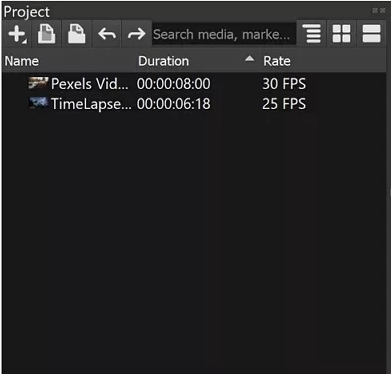
Step 3: Add or drag the video to the "Timeline".
Once you import the file, it will appear in the project panel. Drag and drop the video file into the "Timeline".
Step 4: Edit your video using various options in Olive Editor.
Now, you can start editing. Basic editing includes trimming/cutting/cropping or adjusting duration options. For more professional editing, you will find tools in the left menu, such as the Razor tool.
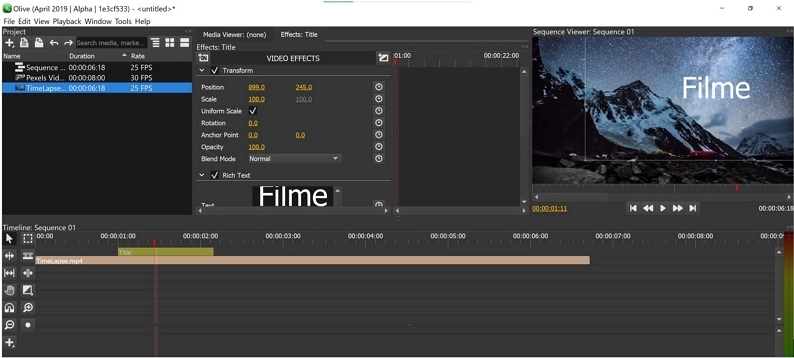
Step 5: Use the "+" button to apply editing options.
Click on the "+" tab to add titles, bars, solid colors, and other elements to your video, making it stunning with effects and transitions.
Step 6: Export the file in the desired format.
Once you finish editing, click on "Export" from the "File" menu, and now export and download the edited video in the desired format.
Part 2: iMyFone Filme - Video Editing and Production Software [for Windows/Mac]

Introduction:
iMyFone Filme Video Editor is a product from iMyFone that was released in 2015. Filme is the best online video editor available, encompassing all the essential tools needed for basic to professional editing. Why is Filme better than others?
⦁ Free
⦁ User-friendly interface
⦁ Best for both basic and professional editing
⦁ Supports almost all audio and video formats
Downloading and running Filme is easy. Editing becomes simple and exciting once you explore the video editing features in Filme.

Features of iMyFone Filme Video Editor:
- : Filme is an easy, user-friendly, and time-saving video editor.
- It offers its own fast video mode with many built-in templates and slideshows.
- It provides over 110 transitions, more than 170 video effects, over 20 instant modes, and more than 50 audio tracks.
- It allows users to split, merge, trim, rotate, crop, adjust, and zoom videos easily.
- It enables users to add custom texts, such as telops, speech bubbles, and captions on images.
How to Use iMyFone Filme to Edit YouTube Videos:
Step 1: Add or import a media file:
Click the "+" tab to add the video or simply drag the video file onto the Filme program.
Step 2: Send the video to the Timeline:
To edit your YouTube video, drag and drop it into the timeline manually or use the "+" tab in the timeline to add the video there.
Step 3: Use the basic editing features of Filme:
In the Timeline bar, users can find all the basic editing functions such as cutting, cropping, splitting, adjusting, zooming, etc., to edit the video and make it perfect.
Step 4: Use the professional editing features of Filme:
On the interface, next to the "Media tab," you will find seven tabs that can make your boring videos exciting. Use tabs like Filter, Effects, and Elements to give your video a professional touch.

Step 5: Export the file and set the details.
Click on the "Export" tab to set the details of the edited video, then save it on your system.
- Download Link: Download Here
Part 3: Openshot - Free Video Editing Software [for Beginners]
Introduction:
Initially introduced in 2008, Openshot released its most stable version recently in August 2021. It works best on Windows, Mac, and Linux operating systems. It’s popular for the following qualities:
⦁ Free
⦁ Open source
⦁ Supports over 70 languages.
The program’s uncomplicated interface and specific features make it a good choice for beginners. With images, videos, and audio, it allows you to create a fantastic film to impress everyone around you.
Features of Openshot:
- Openshot is a cross-platform tool accessible for beginners.
- It offers various effects and transitions along with 3D animations.
<li style


