


Download and Install Free Photoshop Brushes 2020
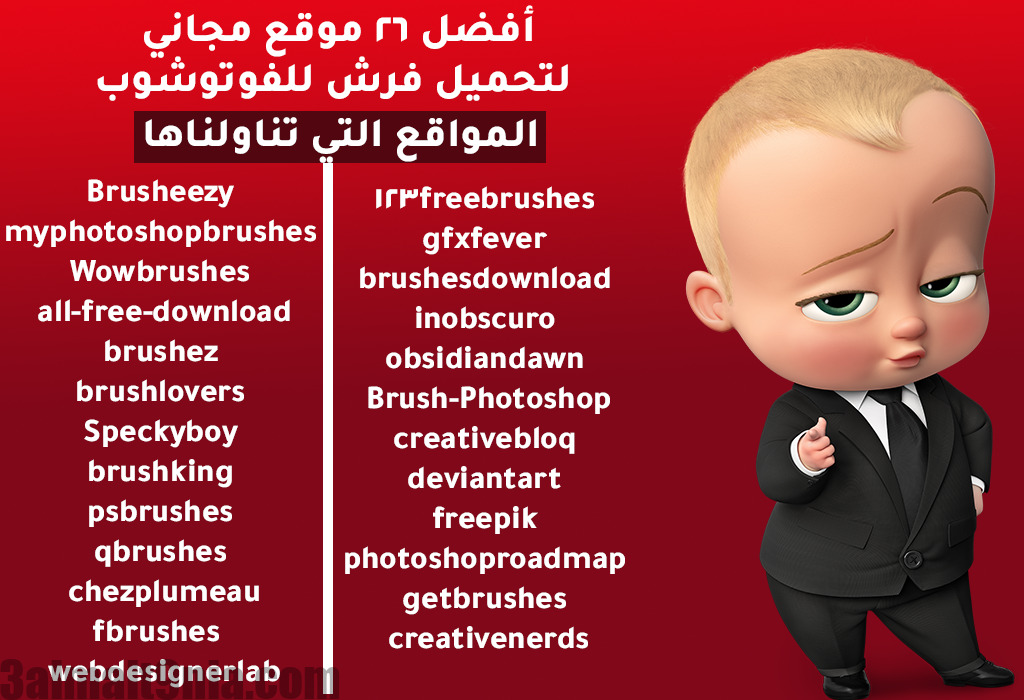
In this article, we present to you the best sites to download brushes for Photoshop that allow you to enhance your artwork and designs using custom styles and features. There is an abundance of free brushes available online, but the vast array of internal links makes it challenging to find exactly what you're looking for. In this article, we aim to compile the best sites for Photoshop brushes, all in one sleek page. Here, you'll find the most comprehensive source to build your Photoshop brush collection.
Adobe Photoshop brushes can easily enhance your images and fix imperfections. However, some images require different types of brushes, and not everyPhotoshop always has the right brush for the job. You don't have to rely on Photoshop to find the perfect brush.
How to Install Brushes in Photoshop CC 2020
Whether you're a designer or a digital artist, the Brush Tool is a fantastic feature you should know about. With the option to create or download custom brushes, you'll want to expand on the existing brush presets available.
First, navigate to the partition C or the partition where Photoshop is installed, and go to the Program Files folder. Place the brushes in the Photoshop / Presets / Brushes folder. If you're using a Mac, place them in Applications.
Let's see how this is done by learning how to install and load brushes in the video below.
How to Install Brushes in Photoshop CC 2019
By default, Photoshop uses the .ABR file extension for its brushes. The issue is that with the new update, the process of loading them into the program has changed slightly, which is why I will provide you with both methods so that if you're using an older version, you can install them without any issues.
First, download the required brush(es), then move them to the
Brush Presets Folder – follow the path below to access this folder
(Program Files > Adobe > Adobe Photoshop CC 2019 > Presets > Brushes)
or place them anywhere on your device, and when Photoshop opens the brush selection window, select them from the location where you placed the brushes.
Follow the images below

How to Install Brushes in Photoshop CS6
First, download the required brush(es), then move them to the
Brush Presets Folder – follow the path below to access this folder
(Program Files > Adobe > Adobe Photoshop CS6 > Presets > Brushes)
or place them anywhere on your device, and when Photoshop opens the brush selection window, select them from the location where you placed the brushes.
Follow the images below

Best Sites to Download Free Photoshop Brushes 2020
The appeal of Photoshop brushes is that they save you time, allowing you to quickly and easily create your unique work. Using brushes that others have already created means you don't have to design elements from scratch; you simply need to select your favorite Photoshop brush and start using it.
If you're just starting out, searching for the perfect Photoshop brush can seem overwhelming due to the wide range available. Brushes range from those that mimic traditional mediums like pen and pencil to grunge and experimental brushes, to those that help you achieve clouds and sun or even lightning effects, assisting you in recreating fur and grass. While Photoshop comes with a set of pre-installed brushes, they may not always meet our efficiency needs.
Among the many elements you can add to your Photoshop are brushes that come in a full range of styles, shapes, and sizes.
There are hundreds of possibilities for using brushes in your designs, but they only work if you know where to find the right brushes for your specific needs. Therefore, this post liststhe best free Photoshop sites for your designs.
<p class="has-text-align-center" style="box-sizing: inherit; margin-bottom: 1.5em; margin-top: 0px; color: #000000; font-family: Tajawal; font-size:


