

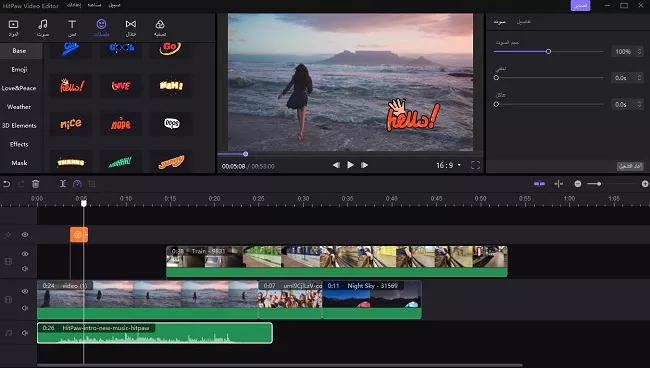
Are you looking for a free video editing program? Whether you're sharing video content on YouTube, TikTok, or any other platform, this article presents the best free video editing software available. Stay with us.
You can use free video editing programs to add subtitles, create DVD menus, merge video files, extract or add different audio, apply special effects, and trim parts of the video. Therefore, most video bloggers need some form of video editing software.
Since most free video editing programs offer limited features to promote their professional versions, you may encounter barriers that prevent you from making advanced edits. In this article, we've compiled a list of the best free programs with fairly satisfactory features.
Best Free Video Editing Software
1. iMovie

iMovie is a free program for macOS users that provides numerous options for editing video and audio, allowing you to add images, sound effects, and narration to your videos. It's easy for beginners to start using.
One of the best features of iMovie is its ability to produce films in 4K resolution, and you can also start editing on your iPhone or iPad and finish on your Mac.
What We Like
User-friendly interface.
Many tools to enhance video and audio quality.
Supports 4K.
What We Don't Like
Limited features available.
No output controls.
Download iMovie
2. Movie Maker
Movie Maker is a free video editing program that used to be installed on Windows, although it is no longer available starting from Windows 8. You can still download this application from Microsoft and use it to create and share high-quality videos.
It’s included in this list because it’s found on many Windows computers, meaning you might not need anything to start using it.
What We Like
Easy to use with a classic Microsoft feel.
Very suitable for beginners.
What We Don't Like
Limited functionality.
3. OpenShot

OpenShot is a free and flexible program that allows you to create and edit videos. It enables you to produce professional-looking videos from your photos and clips, and you can easily add subtitles, special effects, and transitions. The videos created can be exported to DVD, Xbox 360, Vimeo, YouTube, and various other formats.
Editing videos with OpenShot is amazing, especially when you see everything you can do with it. You can download it for free for Windows, Mac, and Linux.
Features include desktop integration for drag-and-drop, support for images and audio, unlimited tracks and layers, and 3D animated titles and effects.
OpenShot is also useful for resizing, trimming, capturing, and rotating clips, as well as mixing audio and real-time previews.
Getting all of this for free is a good enough reason to download it and try it out yourself.
What We Like
User-friendly interface.
Open source.
Great user forum.
What We Don't Like
The application has multiple layer settings.
Can lag sometimes.
4. VideoPad
Another video editing program for both Windows and Mac is VideoPad from NCH Software, free for non-commercial use. VideoPad supports drag-and-drop, effects, transitions, 3D video editing, text overlay, captions, video stabilization, easy narration, built-in free sound effects, and color control.
VideoPad can also change video speed, reverse videos, burn DVDs, import audio, and export videos to YouTube and similar sites in various resolutions including 2K and 4K.
What We Like
Supports a range of video formats.
Easy to use.
What We Don't Like
Lacks advanced features.
No Linux version.
5. Freemake Video Converter
Freemake Video Converter is a free video converter with simple and easy-to-use editing features that set it apart from some more complex and confusing editing programs. The ability to make light edits to your videos using the same tool you use to convert files to various other formats, or even burn files directly to a disc, is very convenient.
Some of the video editing features in this program include adding subtitles, trimming unwanted sections from the video, removing or adding audio, and merging videos.
What We Like
Supports many input formats.
Easy-to-use editing features.
What We Don't Like
Some required features may require a purchase.
Can be slow in making conversions.
Limited output formats.
6. VSDC
VSDC is a fully-featured free video editing tool that you can install on Windows. However, we must warn that using this program can be a bit challenging for beginners due to the number of features and menus. But if you spend some time exploring and running your videos within the program, you'll find that it's not as intimidating as it seemed at first glance.
There’s also a wizard you can run to simplify things, allowing you to add fonts, text, shapes, as well as charts, animations, images, audio, and subtitles. Additionally, VSDC can export videos to a variety of file formats.
The setup of VSDC Video Editor allows you to easily install the company's video capture and screen recording software, which is optional but can be useful for some projects.
What We Like
Features you won't find anywhere else.
Exports to a variety of file formats.
Includes an optional screen recorder.
What We Don't Like
Not very user-friendly.
Video lag with the free version.
7. Shotcut
Shotcut is an open-source, cross-platform video editor with a smooth and intuitive interface. You can view recent files and playlists using a thumbnail view and check the recent search history, and it has a drag-and-drop function from your file manager.
Shotcut supports numerous audio and video formats, thanks to FFmpeg. Working with Shotcut is very easy; you have all the information, tools, and functions necessary to create high-quality content.
What We Like
The interface is intuitive and easy to use.
Allows exporting videos in all formats at up to 60 frames per second in full HD quality.
Works across all three major platforms.</


