

The best hard drive cloning app: Managing disk partitions can be a daunting task, especially if you're not technically savvy. Sometimes, you may need to repartition your drive to allocate space, and at other times, you might need to transfer an existing partition to a new drive.
Handling these tasks can be challenging without the right tools, which is why 4DDiG Partition Manager is an excellent choice. It provides users with an easy and straightforward way to manage their disk partitions.
Download the software now, as there's a fantastic opportunity with a 30% discount available for all users.
4DDiG Partition Manager is the perfect tool to address any disk-related issues you may encounter. Whether you're dealing with improper partition space allocation or running out of disk space, 4DDiG Partition Manager is here to help.
It allows you to easily reconfigure your hard drive partitions and free up reasonable space on your disk. With this versatile program, you can resize partitions without compromising data integrity, create and delete partitions using different file systems, and format partitions according to your needs. In short, say goodbye to disk problems and enjoy smooth disk management with 4DDiG Partition Manager.
With the best cloning app, 4DDiG Partition Manager, enjoy a one-click experience for migrating your Windows operating system to an SSD without the need to reinstall the system.
What is the best cloning app, 4DDiG Partition Manager?
4DDiG Partition Manager by Tenorshare is a comprehensive tool for computers that helps users manage their disk partitions. The application enables them to resize, split, delete, create, or format disk partitions effectively to optimize disk space.
Additionally, it offers one-click Windows OS cloning to SSD, MBR to GPT conversion, hard drive cloning for easy backup, and much more.
System Requirements for 4DDiG Partition Manager
To ensure that 4DDiG Partition Manager installs and runs smoothly on your computer, it should meet the following technical specifications:
Operating System: Windows 11, 10, 8.1, 8, and 7
File System: NTFS, FAT16/FAT32, and exFAT
CPU: 1 GHz (32-bit/64-bit) or higher
RAM: 512 MB or more
Disk Space: 200 MB or more
Therefore, make sure to check the above requirements for a seamless experience.
How to Use 4DDiG Partition Manager?
Here are the steps to use 4DDiG Partition Manager:
Step 1:
First, download and install 4DDiG Partition Manager on your device from the following link:
Step 2:
Launch the program and select “Clone Disk.”

Step 3:
Select the partition you want to resize or manage.

Step 4:
Choose the action you want to perform on the partition, such as resizing, deleting, or moving.
Step 5:
Follow the prompts on the screen to complete the process.
How to Migrate Windows OS to SSD in 3 Easy Steps?
Step 1: Choose the Target Disk
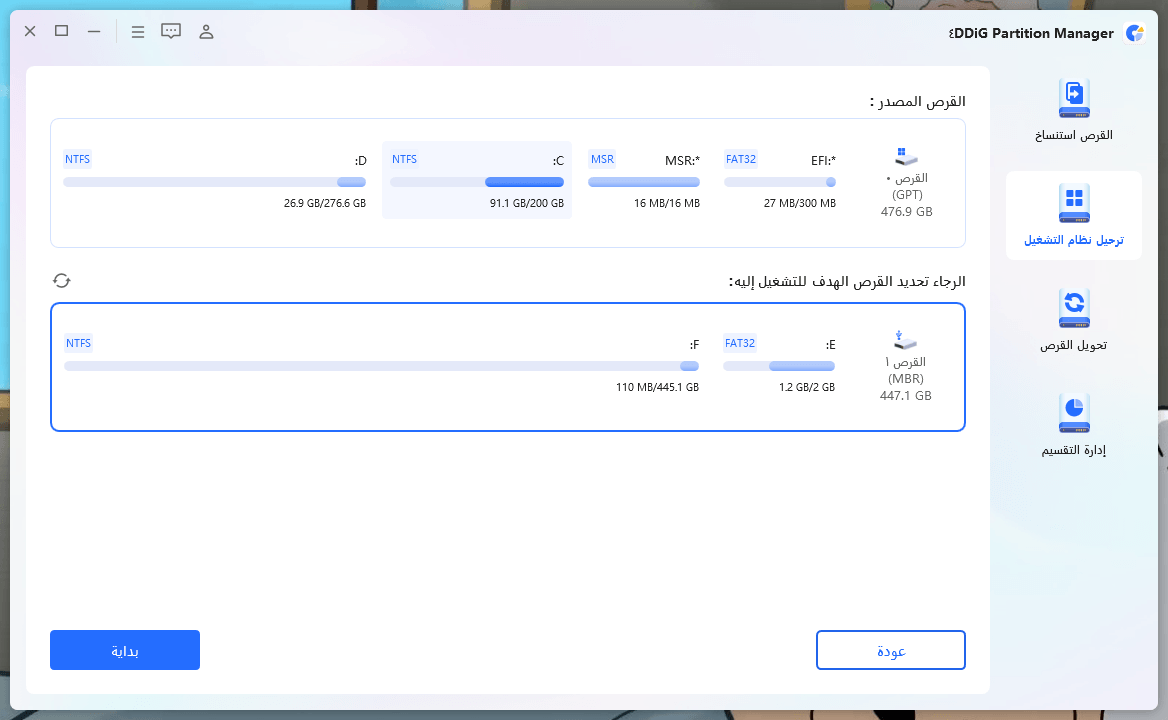
Select the SSD as the target disk to which you want to migrate your operating system.
Step 2: Start OS Migration
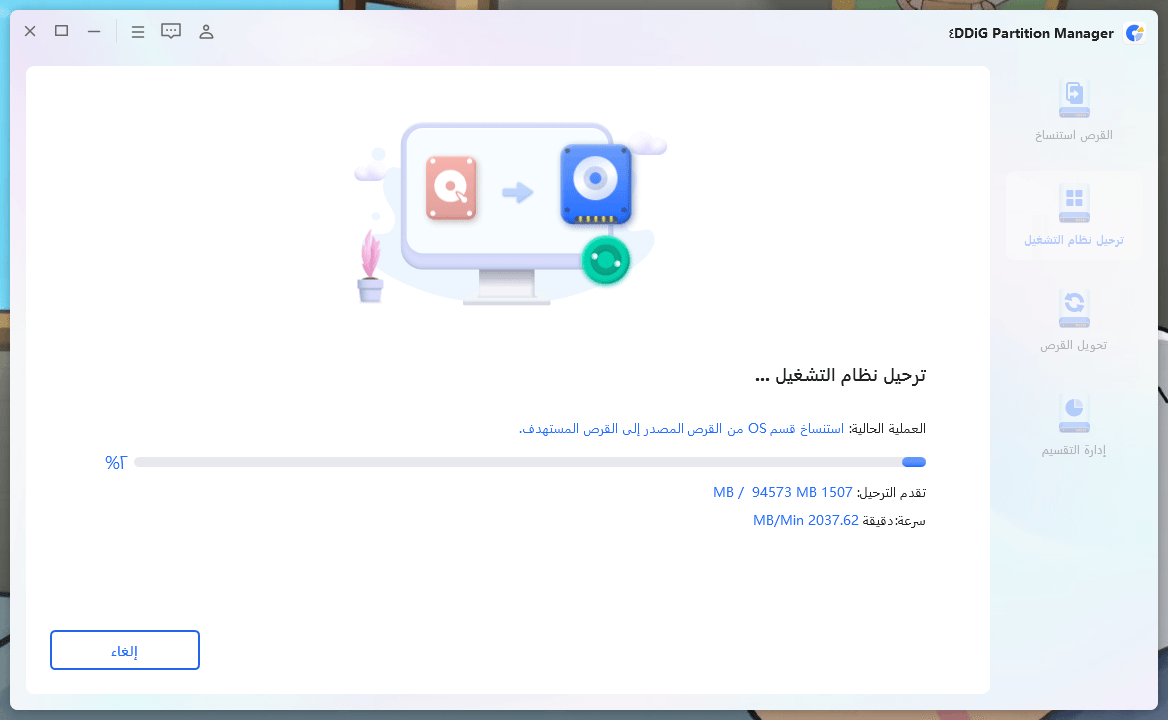
Click the "Start" button to begin the migration process for your Windows operating system.
Step 3: Successful Migration
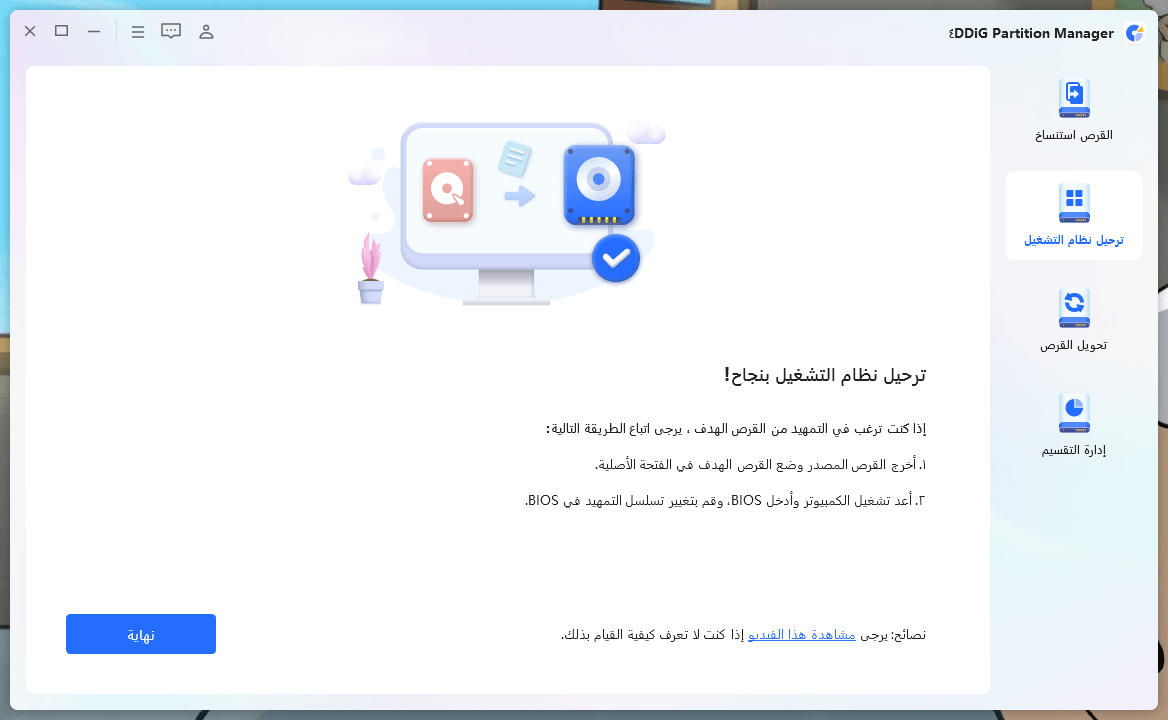
Wait and allow the application to complete the migration of your system to the SSD smoothly.
Key Features of 4DDiG Partition Manager
1- OS Migration to SSD: Enhance your system speed and boot time by easily migrating your operating system from the hard drive to SSD without the need for reinstallation.
2- Smooth Disk Upgrade: Upgrade to a larger hard drive without worrying about data loss. Choose to clone the system or the entire disk, ensuring all your files are preserved during the upgrade process.
3- Data Backup: Protect your valuable data by cloning your hard drive with the software, keeping your programs, files, and preferences intact, thus avoiding data loss in case of hard drive failure.
4- Efficient Disk Cloning: Easily transfer data from an old, damaged, or slow hard drive to a new, larger, or faster drive with just one click, enjoying improved performance without compromising your data.
5- User-Friendly Interface: Guides you through system migration, partition management, and disk cloning, eliminating the need for technical expertise.
6- Time-Saving Performance: Save valuable time with 4DDiG Partition Manager, as it executes tasks at speeds up to twice that of traditional methods, saying goodbye to tedious application installations.
7- Data Security Assurance: Maintain a high level of data security during OS migration, partition reallocation, and disk cloning, ensuring your data remains protected throughout the entire process.
8- Multi-Language Support: Choose from 14 supported languages, ensuring ease of use.
Pros
- - User-friendly interface.
- - Supports various file systems.
- - Provides a built-in recovery module.
- - Upgrade to a larger hard drive effortlessly while keeping your valuable data.
- - Optimize your disk space by easily resizing, splitting, creating, deleting, and formatting partitions.
- - Efficiently clone the entire disk or partition, ensuring smooth disk upgrades and data backups.
- - Safely transfer applications, programs, system updates, drivers, and custom settings between computers.
What Can You Clone Using 4DDiG Partition Manager?
Operating System and Applications
With 4DDiG Partition Manager, you can easily migrate not only the operating system but also all installed programs from the old disk to the new one, saying goodbye to the hassle of downloading and reinstalling applications.
All Documents
Transfer all your important files and folders, including photos, videos, audio, emails, office documents, and more, keeping your valuable data safe during the migration process.
Accounts and Personal Settings
Seamlessly transfer your Windows account and customize settings without starting from scratch, keeping your preferred account settings and configurations intact.
Frequently Asked Questions
Q1: Can I migrate Windows 10 to SSD?
Yes, you can easily clone Windows 10 to SSD using readily available cloning tools.
Q2: Is it possible to migrate the operating system without data loss?
Absolutely! With 4DDiG Partition Manager, you can smoothly transfer the operating system from the hard drive to SSD without losing any data.
Q3: How can I migrate to SSD without reinstalling Windows?
Migrating the operating system to SSD without reinstalling Windows is easier than you think. By using reliable third-party software like 4DDiG Partition Manager, the process becomes straightforward.
Q4: What preparations should I make before cloning a disk?
Before cloning a disk, ensure that the target disk has a capacity equal to or greater than that of the original disk. Additionally, be aware that the data on the target disk will be erased, so it's essential to back up any important data beforehand.
Q5: Why do I need to resize a partition?
There are many reasons why resizing a partition is necessary. For example, when installing a new operating system or upgrading an existing one, resizing the partition creates space for new system files. Similarly, resizing a partition can prevent data loss by increasing the capacity of a partition that is running low on space.
4DDiG Partition Manager is a comprehensive software solution that simplifies disk partition management on Windows systems. It provides users with various tools and features to easily handle partition-related tasks, ensuring disk organization and optimal performance. Thanks to its intuitive interface and advanced capabilities, this software empowers users to have complete control over their disk space.
Conclusion
In this article, we discussed the best hard drive cloning software, 4DDiG Partition Manager. In today's world, data loss is a significant concern for most people. Unwanted issues such as malware, viruses, hardware or software failures, or PST corruption can lead to the loss of your valuable data. Therefore, 4DDiG Partition Manager can assist you in partitioning your hard drive and resolving this issue. As long as you have separate partitions for your personal data and operating system, you can reinstall your operating system if necessary without losing any personal data.
It can help you run multiple operating systems on your computer by allocating an independent partition for each operating system. Download the software now, as there's a fantastic opportunity with a 30% discount available for all users.


