


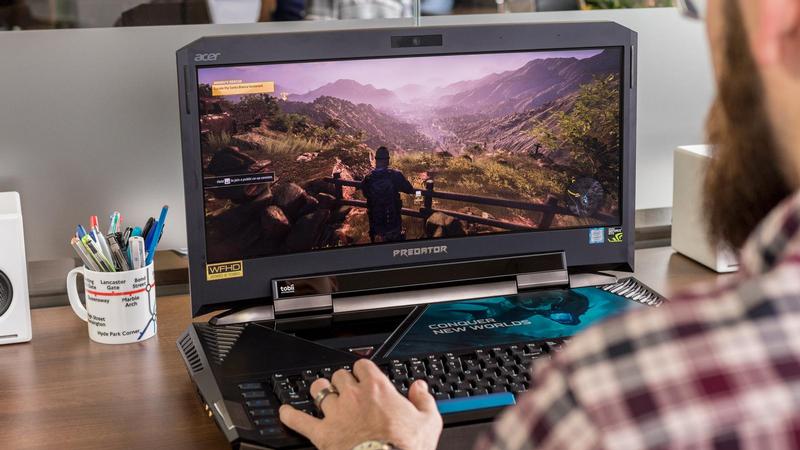
The Easiest and Best Way to Speed Up Gaming on Windows 10 - Activating Game Mode
How to Use Game Mode on Windows 10
Game Mode in Windows 10 disables many background activities to ensure maximum performance for your games. Here’s how to use it.
If you play most of your games on a computer, it's very likely that you're using a Windows device.
Many PCs and laptops today claim to be good for gaming as well as general productivity, although that’s not always the case. However, the built-in Game Mode in Windows 10 can help bridge the gap by allocating more resources while gaming and shutting down background processes.
How to Enable Game Mode on Windows 10
Activating Game Mode is very straightforward:
- Open the Settings menu, either by searching for it or clicking the gear icon in the Start menu
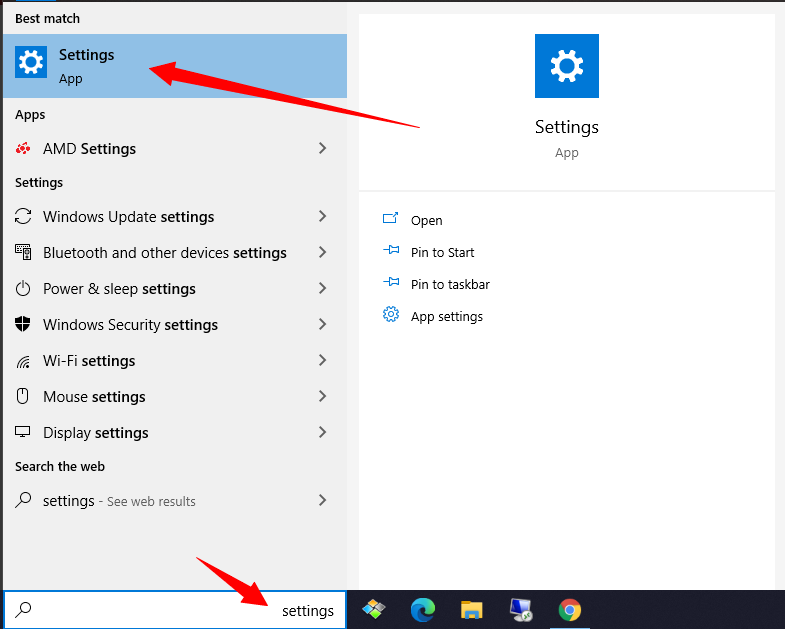
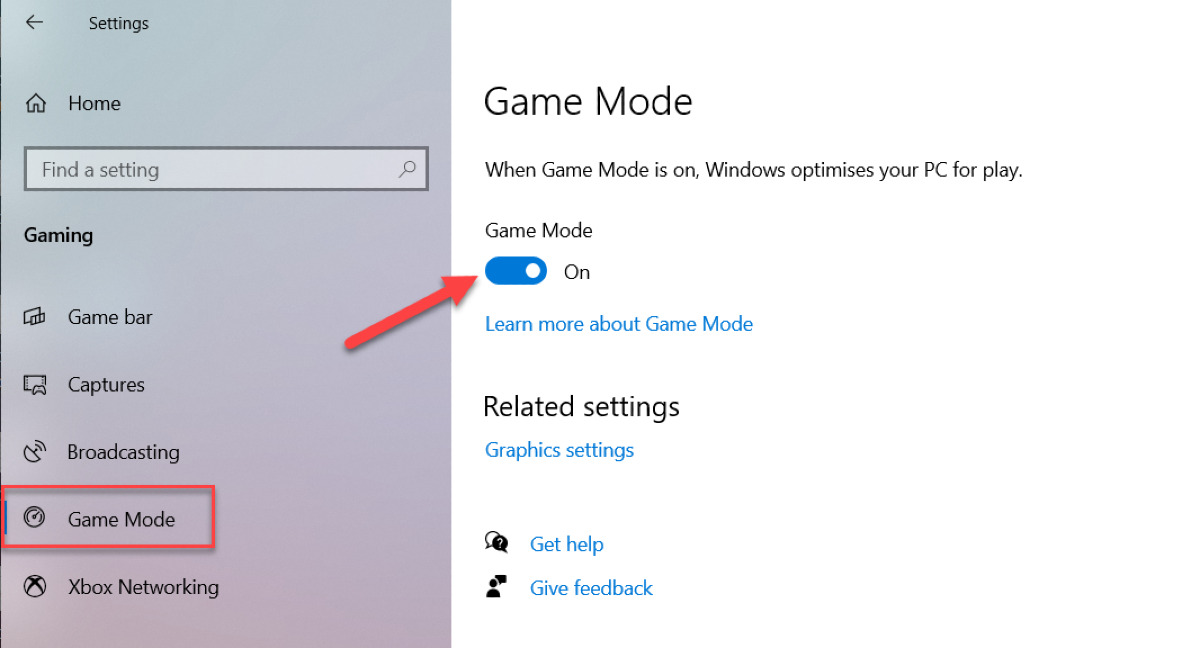
- In the window that appears, select "Gaming" and then choose the "Game Mode" tab
- Make sure the toggle under "Use Game Mode" is set to On.
How to Activate Game Mode from Within a Game
Once Game Mode is activated in the settings, it can then be turned on for most games as you see fit. This means you don’t have to be in the main game to activate it, but it can be helpful if you're struggling with something more demanding.
- Launch the game you want to use Game Mode with
- You should now be prompted to press the Windows Key + G keyboard shortcut, or the Xbox button if you have a controller connected. If not, it usually means the game isn’t supported, but it’s worth a try anyway.
- In the game bar that opens, click the settings icon at the far right of the screen
- A separate window should open, and here simply check the box labeled 'Use Game Mode for this game'
What Difference Does Game Mode Make?
It makes a significant difference, especially if you don’t have dedicated gaming hardware. These devices likely handle graphically intensive games well, but you will definitely see benefits on budget or mid-range systems.
Game Mode works by limiting background activities to maximize gaming performance. This means that things like updates and notifications are temporarily disabled, ensuring that the maximum resources are allocated to the game you are playing.
Microsoft has specifically stated that Game Mode will lead to "a more consistent gaming experience." This means that the frame rate will remain more stable, avoiding stutters and large fluctuations that can cause lag.
This video, released when the feature first appeared in Windows 10 in 2017, illustrates this.


