

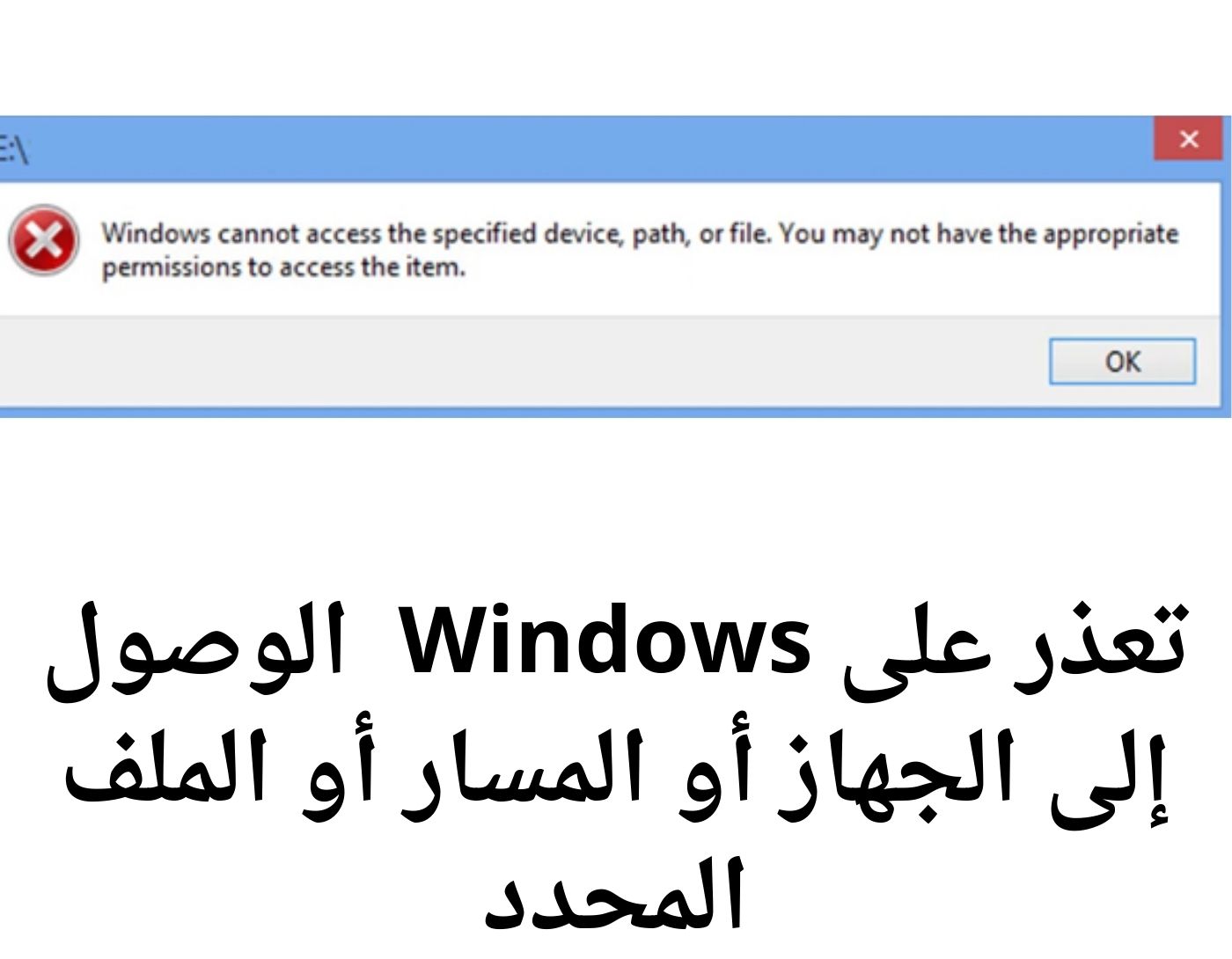
Windows was unable to access the specified device, path, or file: Error message:
Windows cannot access the specified device, path, or file. You may not have the appropriate permissions to access the item.
The above error message appears when you try to access or open a file on your computer. Whether you double-click the file or try an alternative method, you will encounter the message "Windows cannot access the file." This article aims to provide you with comprehensive solutions to address these issues on Windows 11/10/8/7 and Windows Server 2010/2013/2016/2019.
How to Fix Windows Cannot Access the Specified Device, Path, or File
You may not have the appropriate permissions to access the item.
Resolving the above issues requires a series of troubleshooting steps on your computer.
Carefully review the following comprehensive troubleshooting guide and apply it diligently to effectively address these concerns.
Method 2: Restore Permissions for Affected Files
The process of restoring permissions for affected files has been significantly simplified in Windows 11.
For Windows 11 users, the process involves a straightforward procedure.
Simply press Shift + right-click on the affected files and select the option to take ownership.
For other versions of Windows, follow the steps to allow permissions.
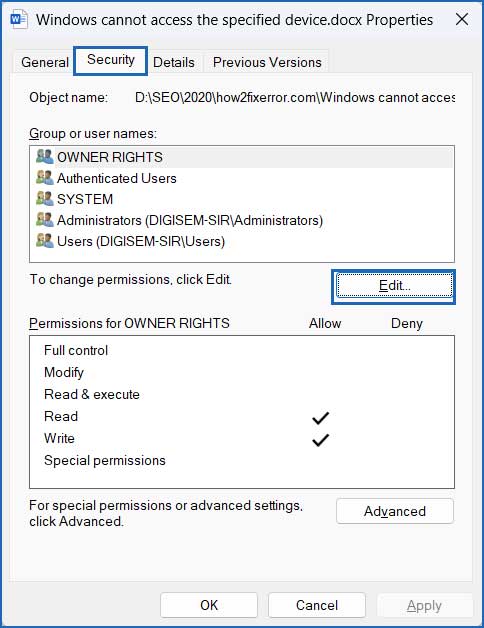
Step 1: Right-click on the files and select Properties. Go to the Security tab and click the Edit button.
Step 2: Select your username and allow full control.
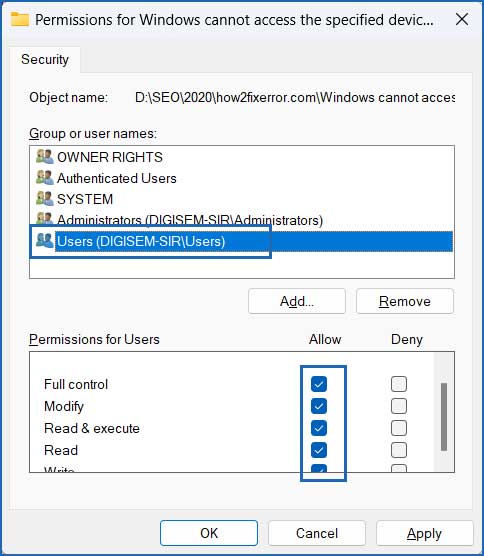
Click "Apply" and "OK" to save the settings.
Once you grant full control over the affected files, try to access or open them. It is highly likely that you will no longer encounter the "Windows cannot access the specified device, path, or file" error.
Method 3: Check for the File
Make sure to check the file location to determine whether the file exists or not. Sometimes, factors such as renaming, uninstalling, or malware infection can make files inaccessible through File Explorer. If you encounter this error when clicking on file shortcuts, it is advisable to check the original location of the files.
Method 4: Decrypt the File
Encountering the error message "Windows cannot access the specified device, path, or file" may occur if the file is encrypted.
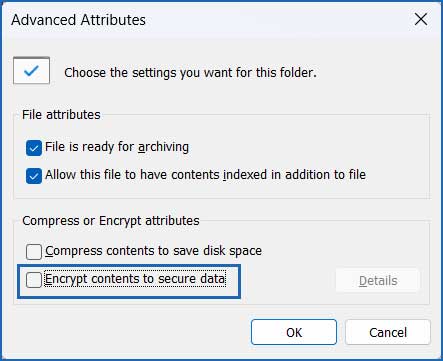
You may not have the appropriate permissions to access the item if the file is encrypted. To resolve this issue, decrypt the file using the following steps:
Step 1: Right-click on the file and select Properties.
Step 2: Select the General tab and click the Advanced button.
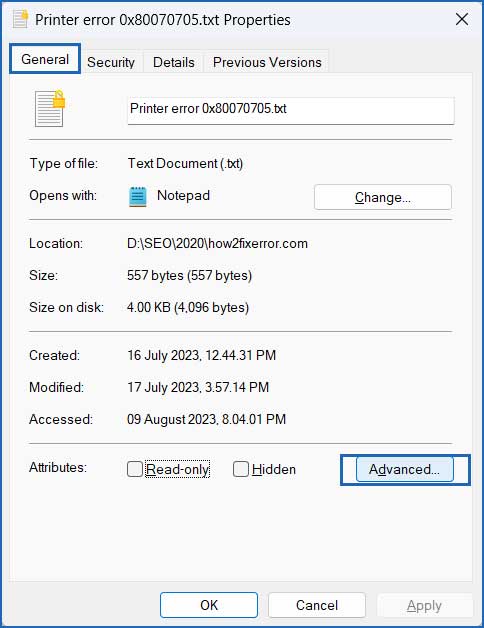
Step 3: Uncheck the option "Encrypt contents to secure data."
Method 5: Temporarily Disable Security Software
Sometimes, security software on Windows can pose challenges when trying to access certain files, folders, or applications.
A potential solution involves temporarily disabling the security software, which may effectively resolve the issue.
Disabling Security Software - Step by Step
1: Disable Antivirus Software:
Conflicts with third-party software, such as antivirus programs or firewalls, can sometimes interfere with the Windows Update process.
The security software may block or disable the installation of updates, leading to the error code.
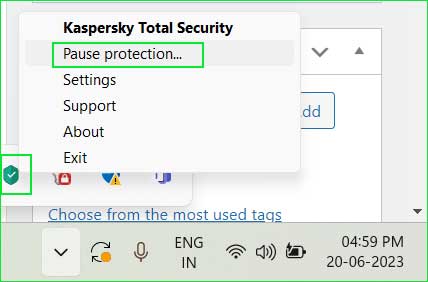
Step 1: Right-click on the security software in the notification area.
Step 2: Select "Pause Protection."
Pause_Protection
2: Disable Windows Defender:
You can follow the steps to temporarily disable Windows Defender.
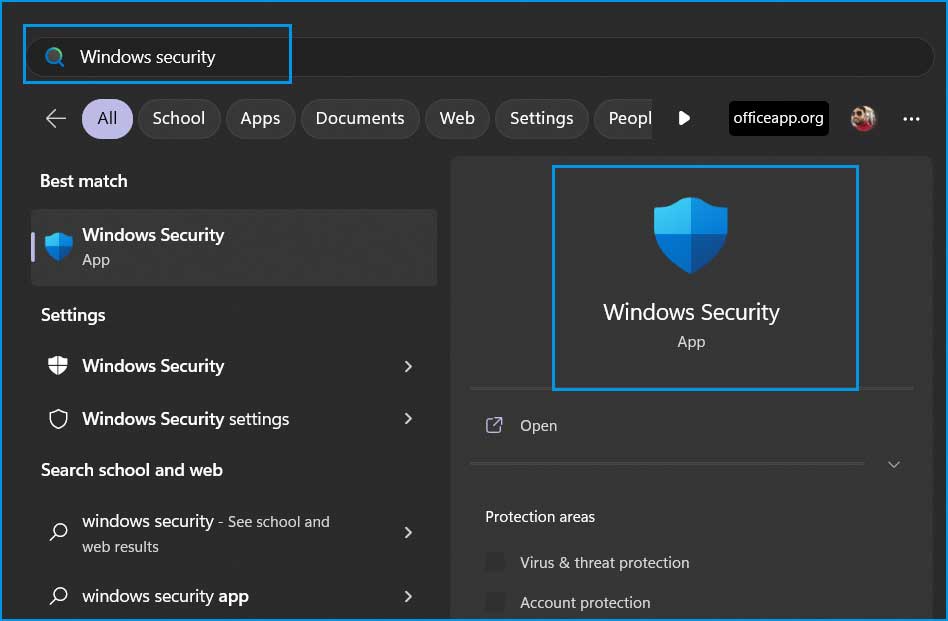
Step 1: Click on the Start menu and search for Windows Security and open it.
1_open_windows_security
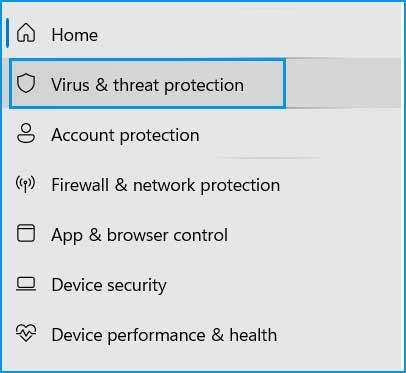
Step 2: Click on Virus & threat protection in the list on the left side.
2_open_virus_threat_protection
Step 3: Scroll down to find Virus & threat protection settings and click on Manage settings.

3_virus_threat_protection_setting
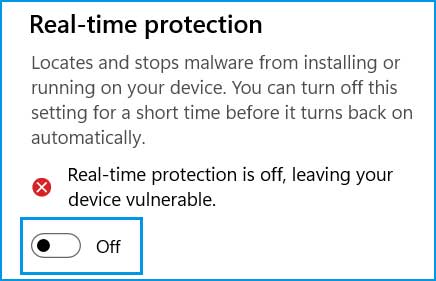
Step 4: Turn off real-time protection.
4_turn_off_real_time_protection
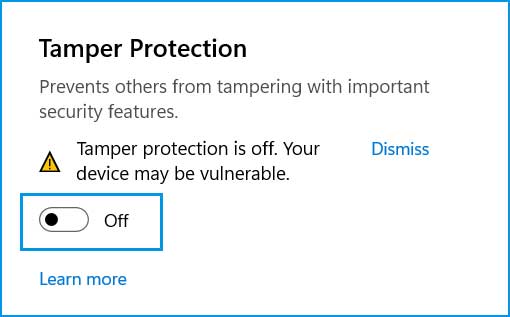
Step 5: Scroll down to find Tamper Protection and turn it off.
5_turn_off_real_tamper_protection
Note: You should manually turn these services back on; otherwise, your device will be at risk.
Method 6: Run the SFC and CHKDSK Utilities
The error "Windows cannot access the specified device, path, or file" can also stem from disk errors or corruption within system files. To address this issue, you can fix disk errors and corrupt system files by using the following command line utilities:
SFC and CHKDSK - Step by Step
Step 1: Open Command Prompt as an administrator.

Open Command Prompt as an administrator in Windows 8, 10, and 11.
Step 2: Now run the following commands one by one.
First. System File Checker tool
sfc /scannow
Second. Run the disk checking utility.
chkdsk /f c:
You will see the message:
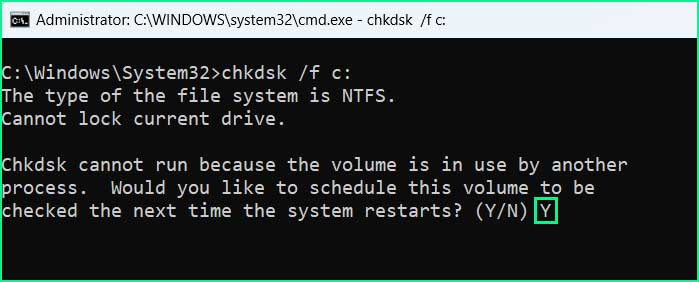
Chkdsk cannot run because the volume is in use by another process.
Would you like to schedule this volume to be checked the next time the system restarts? (Yes / No)
Press Y and hit Enter. The disk check will start the next time you boot your computer.
Conclusion
If you encounter "Windows cannot access the specified device, path, or file," you may not have the appropriate permissions to access the item on your Windows 11/10/8 or Windows Server computer. Just follow the guidelines outlined in this article. By doing so, you can effectively navigate and resolve this issue.


