

Solutions to Fix the iMessage Activation Error: iMessage is the primary messaging platform on iPhone that allows you to send text messages to others and use FaceTime on your smartphone. However, to use the messaging and video calling services on your device, you need to activate iMessage. The activation process for iMessage is very straightforward and begins automatically when you open the messaging app on your iPhone or attempt to use FaceTime with another user.
Creating an Apple ID gives you unrestricted access to both iMessage and FaceTime at no additional cost. With these apps, you can chat via text or video with anyone, and you don’t need a mobile phone plan to do so. All you need is an internet connection.
It is essential for you to enable iMessage & FaceTime on your Apple devices before you can continue using them. In most cases, they will become active as soon as you finish setting up your device. Sometimes, it may take up to a day, and in very rare cases, the apps may continue to display a “Waiting for Activation” or “iMessage Activation Unsuccessful” message.
If you are unable to use iMessage and FaceTime for more than a day, there are some simple steps you can take to resolve the “Waiting for Activation” issue. In this article, we will look at these measures.
Solutions to Fix the iMessage Activation Error
The sections below of this writing are dedicated to fixing the iMessage activation error. You can implement these solutions in chronological order until the issue is resolved.
Fix 1: Check the Current Status of Apple’s System
If you are constantly stuck in a situation where iMessage activation fails, there is a possibility that the issue lies with Apple’s server. This is because iMessage is a service provided by Apple. Check the system status page on Apple’s website to see if the iMessage service is experiencing an outage.
A green dot next to the iMessage setting may indicate that the app is functioning without any issues, but there may be a problem on your end. Now that you’ve discovered this, let’s fix the iMessage activation waiting issue from your side.
Fix 2: Switch to Apple ID
When you are unable to resolve the activation issue occurring with iMessage, you have an alternative option that allows you to send iMessages using your Apple ID. You can follow the steps below to proceed:
On your iPhone, open the Settings app
Scroll down until you find Messages, then tap on it.
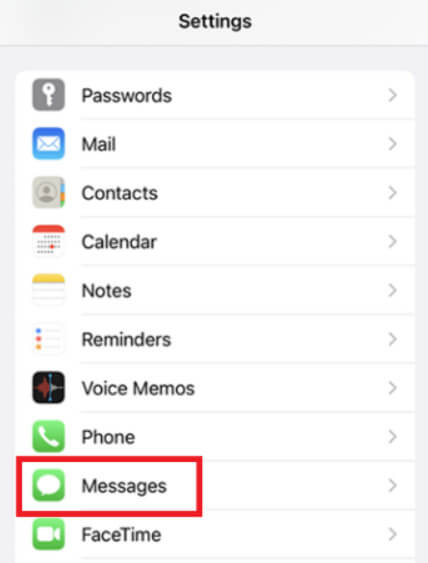
Select the Send & Receive area from the iMessage toggle list.
If you want to send and respond to messages using your Apple ID, you will need to tap on your Apple ID and then uncheck the box next to your phone number.
This is a simple alternative you can try if iMessage is waiting for activation. Let’s move on to the next fix if this one fails.
Fix 3: Check Your Internet Connection
If you are facing the iMessage activation failure issue, checking your internet connection is one of the potential fixes you can try. It is also the most important remedy to attempt. Compared to regular connections, iMessage relies on an active internet connection.
Fix 4: Try Restarting Your iPhone.
It is essential to restart your iPhone before attempting to address any technical issues related to the iMessage activation failure error. In most cases, this will resolve most problems you are experiencing with your iPhone. Following these steps will clear data, resume your network connections, and refresh your messages.
Simply turning off your device, waiting for thirty seconds, and then turning it back on is all that is required to restart it and fix the iMessage activation waiting error. We hope this resolves the issue you were facing. If not, please proceed to the next fix.
Fix 5: Check the Date and Time on Your iPhone.
An error in the date and time can lead to the iMessage activation failure error. When you send an iMessage from your iPhone, the time and date are crucial factors to consider. You may encounter activation issues if the date and time settings on your smartphone are incorrect. Follow the steps below to check and adjust the date and time settings to be set automatically:
Go to the Settings app
Select General, then choose Date & Time from the list that appears.
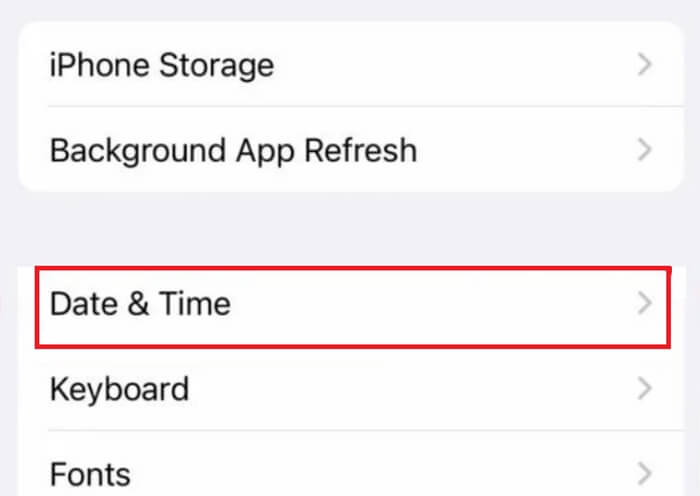
Date and Time
Turn on the switch next to the Set Automatically option if it is not already enabled.
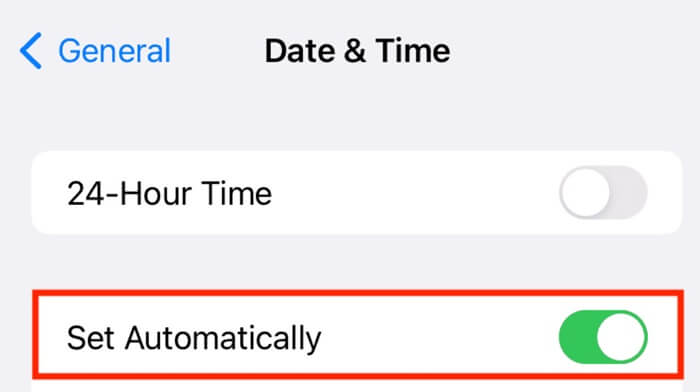
Set Automatically
You are likely to avoid the iMessage activation waiting error if you try sending an iMessage now. However, if it still occurs, follow the next fix.
Fix 6: Sign Out of Your iPhone
Here’s a smart fix for the iMessage activation failure error. Through your Apple ID account, you can use iCloud and other Apple services that require identification. iMessage and FaceTime are also linked to this account. Resetting the Apple ID associated with your device may resolve the issue. Follow the steps below to learn more:
You should open the Settings app on your smartphone.
Tap on the name displayed at the top of the screen.
Tap the Sign Out button at the bottom of your Apple ID page. To fully sign out, you may be prompted to enter your password.
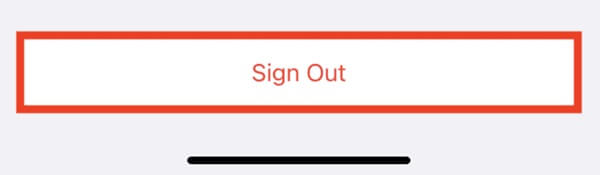
Restart your device after you finish signing out
Upon restarting, open the Settings app on your device.
At the top of the page, you will see an option to sign in.
Access your Apple ID account by signing in and then try to activate iMessage. You may not encounter the iMessage waiting for activation error.
Fix 7: Disable iMessage and Then Enable iMessage
If the above solutions did not help you fix the iMessage activation failure error, it is now essential to go to your iPhone settings to resolve the issue. Follow these steps to disable and then enable iMessage:
On your iPhone, open the Settings app
Scroll down until you find Messages and tap on it.
In this location, you will find the toggle button for iMessage. If you have already enabled it, you can turn it off by tapping it. After waiting for five minutes, you should enable the toggle button again.
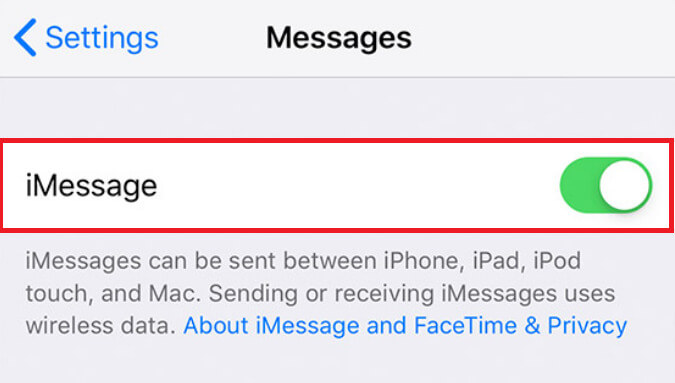
A pop-up window will appear on your iPhone when enabling iMessage. It will read something, but to start using iMessage, choose the OK button.
Frequently Asked Questions
1. Why does iMessage show the message "Activation Failed"?
This error can occur due to several reasons, such as network issues, incorrect date and time settings, or problems related to your Apple ID. It may also result from issues with your carrier or insufficient SMS balance for activation.
2. How can I troubleshoot the "iMessage Activation Failed" issue?
Start by ensuring that your device has a stable internet connection (Wi-Fi or cellular data). Check that the date and time settings are set to "Set Automatically" under Settings > General > Date & Time. You should also sign out and sign back into your Apple ID under Settings > Messages.
3. Do I need a SIM card to activate iMessage?
Yes, a SIM card with an active phone number is typically required to activate iMessage, especially if you want to use it with your phone number. Some regions may also require SMS verification, which may incur charges from your carrier.
4. How long does it usually take to activate iMessage?
The activation process typically completes within a few minutes, but it can sometimes take up to 24 hours. If the process takes longer, try restarting your device and checking for any software updates under Settings > General > Software Update.
5. Why does activating iMessage require sending an SMS?
Apple may send you a silent SMS to verify your phone number as part of the activation process. That’s why it’s important to have sufficient balance or SMS credits in your phone plan.
6. What should I do if iMessage is not activated after 24 hours?
If the issue persists, try resetting your network settings under Settings > General > Reset > Reset Network Settings.
Note that this will remove all saved Wi-Fi networks. You should also contact your carrier to ensure there are no restrictions on SMS service.
7. Does activating iMessage require an Apple ID?
Yes, an Apple ID is required to activate iMessage. Make sure you are logged into your Apple ID under Settings > Messages > Send & Receive.
8. Can I use iMessage with a Wi-Fi connection?
Yes, you can use iMessage with a Wi-Fi connection if it has been activated using your Apple ID or email address.


