


Fixing Windows 10 Login Issues: If you're also experiencing problems logging into your Windows computer, here’s an effective guide to help you resolve login issues on Windows 10.
Windows operating system relies on various devices, software, services, and other components to function. When a critical component fails, it can lead to serious issues, some of which may be too severe to resolve. Fortunately, this is not the case with login issues on Windows 10.
Login issues on Windows 10 are quite common and can prevent you from accessing and using your computer. However, there’s no need to worry as this problem is fixable. In this article, we will explore the best tested methods to resolve login issues on Windows 10.
Fixing Windows 10 Login Issues
Below, you will find several solutions that can help you resolve Windows 10 login issues. Just follow each solution one by one until you can log into your Windows 10 computer smoothly.
Fix 1: Check Your Device's Connection
Windows 10 may require an active internet connection in certain situations to verify your password, especially when using a Microsoft account for authentication. If you're facing login issues on Windows 10 and are currently offline, follow these steps:
Look for the "Network" icon in the bottom right corner of the screen and click on it.
Select the Wi-Fi network you want to use, then enter the password for that network.
After that, try logging into Windows 10 again.
This simple solution can help resolve login issues on Windows 10; if it doesn’t work, proceed to the next solution.
Fix 2: Restart Your Computer Multiple Times
Restarting your computer several times and checking if you still face login issues on Windows 10 with your password is a helpful solution often employed by many PC users when glitches occur. This step can easily fix login issues on Windows 10; if it doesn’t, follow the next solution.
Fix 3: Use the Force Boot Feature
If you need to take quick action against login issues on Windows 10, simply restart your computer. Select "Restart" from the menu that appears after clicking the power icon in the bottom right corner of the screen if you can access the login screen.
This will reboot your computer and help you determine if the login issue persists. You should use the actual "reset" button on your computer; you can press the "power" button you use to turn on your PC if you don’t have this button. If the problem continues, proceed to the next solution.
Fix 4: Execute the Startup Repair Option
The login issue on Windows 10 will persist until you take action. Therefore, you should be cautious when dealing with this solution as it may lead to data loss on your system. You can resolve the issue using the "Startup Repair" feature in the Windows Recovery Environment (Windows RE). Follow these steps:
Hold down the Shift key while restarting the system to access WinRE.
Search your system and open the boot menu by pressing the required key.
Then, select the option to Repair your computer by navigating to Troubleshoot, clicking on Advanced options, and finally choosing Startup Repair from the available options.
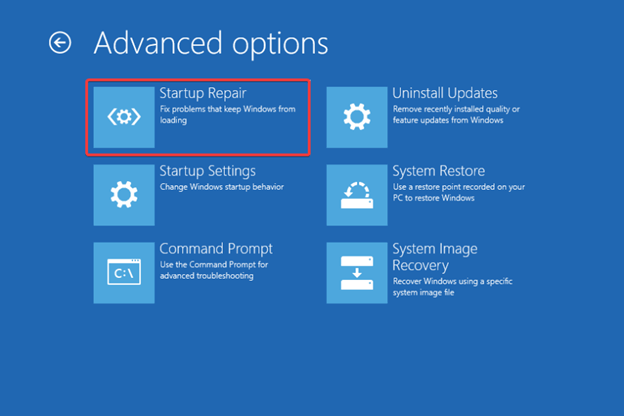
Start Repair
Click the button labeled "Next."
Follow the on-screen instructions.
Using this solution will simply resolve the login issue; if the problem persists, move on to the next solution below.
Fix 5: Boot the System in Safe Mode
You can try to resolve the login issue on Windows 10 by booting your system in Safe Mode, which allows your system to bypass various restrictions and operate smoothly.
The procedure to execute Safe Mode is outlined below:
While holding down the Shift key, restart your device.
You will be able to select Troubleshoot from the options that appear on your screen after Windows starts in recovery mode.
Now, from the Troubleshoot menu, you have the option to choose Advanced options.
Next, select Startup Settings from the list of advanced options that appear on your current screen.
Choose the Restart option located in the bottom right corner of the screen.
You can now boot your computer in Safe Mode by pressing the F6 key or 6.
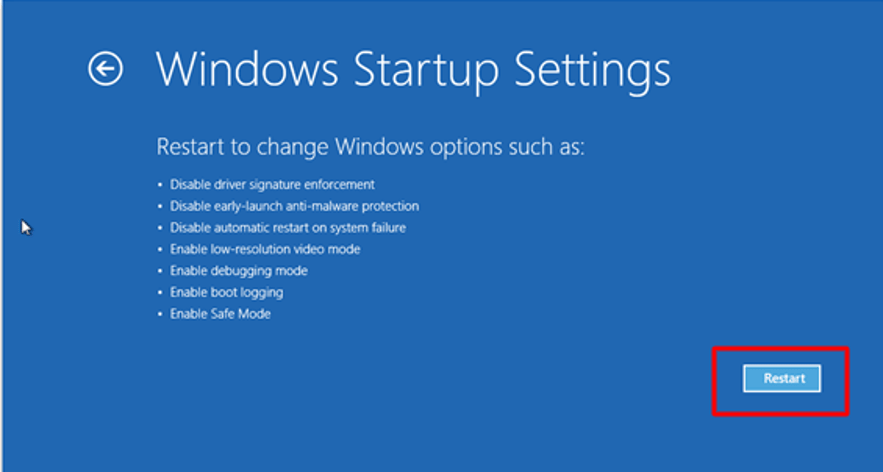
Windows-Startup-Settings-Click-Restart-Minute
You can now check if the login issues on Windows 10 have been resolved. If the problem persists, you can try the solution listed below.
Fix 6: Update the Operating System
This is another ideal method to repair login issues on Windows 10. An outdated operating system can also hinder your device's performance and login capabilities. Since you are already in Safe Mode, the following steps will provide you with more information on how to update the operating system:
Start by pressing the Win key and the I key simultaneously; this will take you to the Windows Settings menu.
Click on the Update & Security button to proceed.
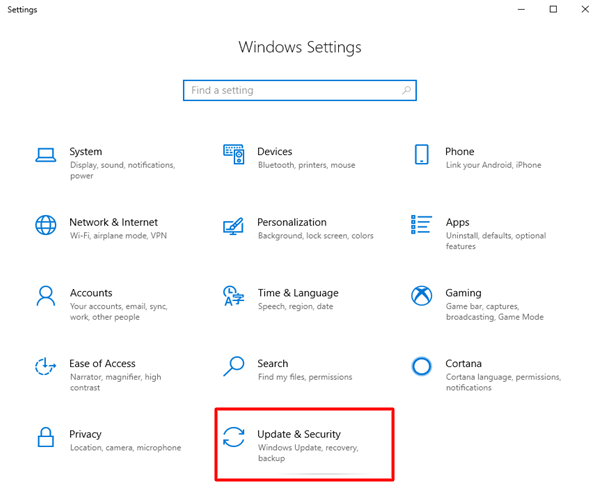
Click on Updates and Security
Immediately after launching the utility, select the option to Check for Updates.
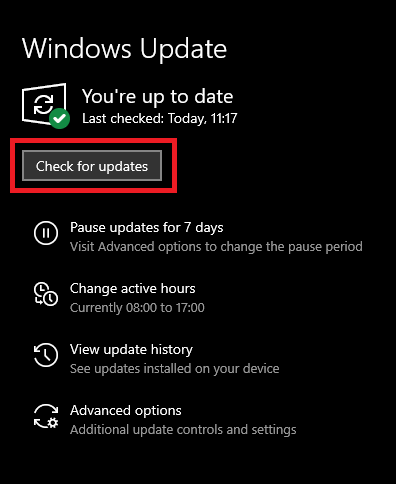
Check for Windows updates to get the latest driver update
The utility will now search for your system along with any available updates. Once updates appear, you should download and install them.
Conclusion
With the help of this article, you can resolve Windows 10 login issues using a variety of different methods. You should try the first option, and then continue experimenting with all other possibilities until the issue is resolved.
On the other hand, if you have any questions or comments regarding Windows 10 login issues, please let us know in the comments section. We always appreciate hearing from you.


