


Fixing DNS Issues in Windows 10 and 11: When Windows users attempt to run certain CMD commands or some Python commands through the terminal, they often encounter the error message "DNS Server Not Authoritative for Zone." This guide aims to address this recurring error and provide the best solutions to resolve it.
Causes of the DNS Server Not Authoritative for Zone Error

This error can occur due to potential damage to your hard drive sector, if your system files are corrupted, or during the execution of a Python command. Additionally, if the DNS settings are misconfigured, the error may persist.
Hard drive damage
Corrupted system files
Incorrectly written commands.
Misconfigured DNS settings.
If you are also receiving the annoying message "DNS Server Not Authoritative for Zone" on your computer screen, here’s a list of solutions to fix this error.
Fixing DNS Issues in Windows 10 and 11
Here are some of the most effective solutions to fix the DNS Server Not Authoritative for Zone error on Windows 10. We recommend following the solutions in order; once completed, you shouldn't see this message again - God willing.
Fix 1: Run an SFC Scan in Safe Mode
Errors on the hard drive or disk damage are two other potential causes of the "DNS Server Not Authoritative for Zone" error. You can perform a full scan of the hard drive and fix issues occurring within the file system.
Therefore, the first thing you need to do to fix the "DNS Server Not Authoritative for Zone" issue is to try running the SFC scannow command in safe mode.
Here are the steps you need to follow to successfully execute CHKDSK on your Windows 10 computer.
1. Pressing the Windows key and R at the same time will bring up the "Run" command prompt.
2. Proceed by typing "msconfig" and clicking OK; enter msconfig in the run tool.
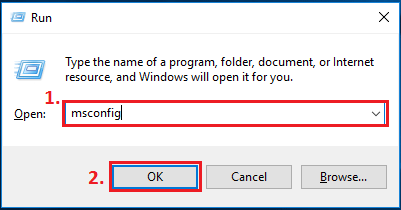
3. Click the "OK" button once you navigate to the "Boot" tab, check the box next to "Safe Boot," and then click the "Exit" button.
4. When the system configuration pop-up appears, you should click the "Restart" option to reboot the system.
5. In the Windows search box located in the bottom left corner of your screen, type "cmd" and then select "Run as Administrator." In the Windows search box, type CMD.
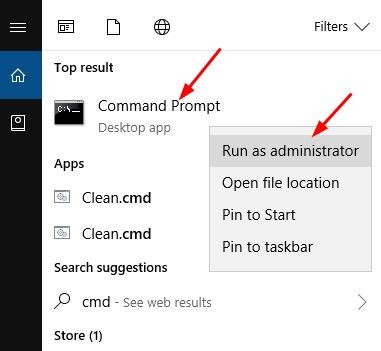
6. When you are in the window displaying the command prompt, enter the command "sfc/scannow" and then press the Enter key on your keyboard; open the command prompt, then enter the SFC-Scannow command and press Enter again.
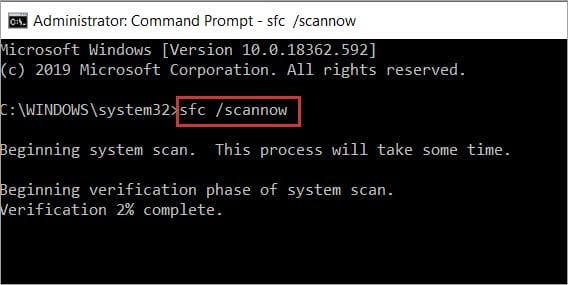
7. Press Enter again after typing Y in response to the prompt to schedule a disk check.
8. Exit the window displaying the command prompt, then restart your computer. Now, the disk check process will begin, and it will automatically fix any hard drive issues it finds.
You should perform another scan to see if the problem has been resolved.
Fix 2: Create a New Shortcut for Command Prompt
Here’s the next solution for the "DNS Server Not Authoritative for Zone" error. Many users have successfully resolved this issue by creating a new shortcut in Command Prompt. To address this problem, you should try this method.
1. To create a shortcut, right-click on the desktop and select the New option.
2. Once done, place %COMSPEC% in the field indicating the location.
3. Click the Next button to proceed.
4. Create a new shortcut and name it Command Prompt.
5. After that, click the "Finish" button to continue.
6. Once completed, restart your computer.
Check to see if the error has been fixed.
If not, follow the next solution for DNS Server Not Authoritative for Zone.
Fix 3: Run a DISM Scan
We strongly recommend running a DISM scan instead of an SFC scan if the problem persists or if you are unable to run the SFC scan correctly. The "DNS Server Not Authoritative for Zone" issue may be resolved by following these steps.
1. In the Windows search box located in the bottom left corner of your screen, type "cmd" and then select "Run as Administrator."
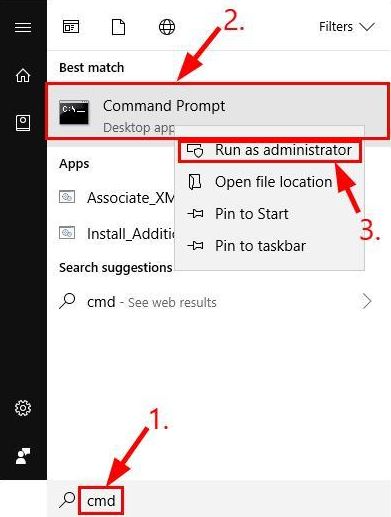
Type cmd in the Start menu search bar.
You need to enter the following command in the command prompt and then press Enter to execute the command:
DISM /Online /Cleanup-Image /RestoreHealth type DISM.exe /Online /Cleanup-image /Restorehealth i
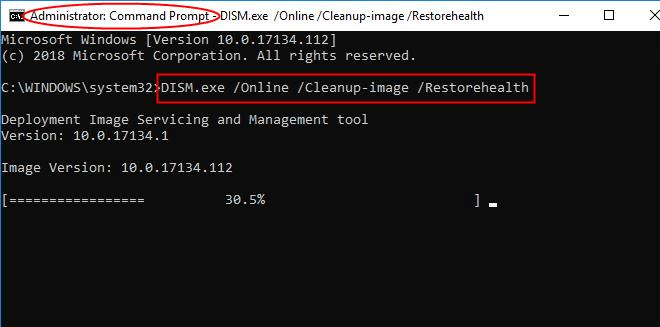
To fix the DNS Server Not Authoritative for Zone error, the DISM scan will take some time, just like the SFC scan; the amount of time taken will vary based on your disk size and computer capabilities. For this reason, you should refrain from interfering until it finishes running.
Once the scan is complete, it is essential to determine whether the problem still exists. If there are any errors, you need to correct them by following the on-screen instructions.
Fix 4: Perform a Windows Update Now
Random system glitches may be the source of the DNS Server Not Authoritative for Zone issue you are currently facing. To resolve this problem, you can update Windows.
Here are detailed instructions on how to execute this command:
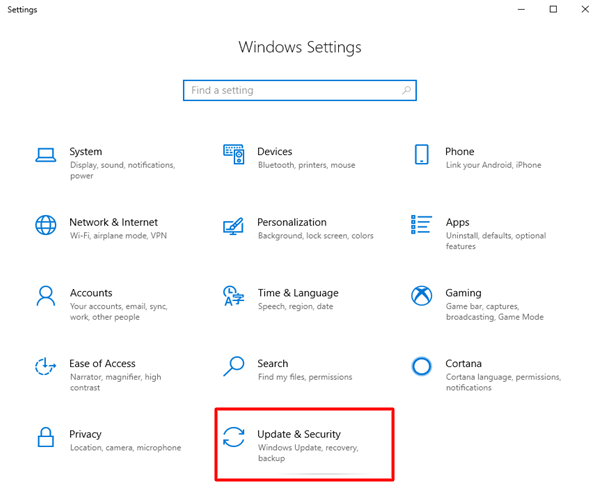
The first step is to use the shortcut command Windows+I to access the Settings panel.
The second step is to select Update & Security from the settings panel that appears on the screen. Click on Updates & Security.
Now select the Check for Updates option by clicking on it. Check for updates button
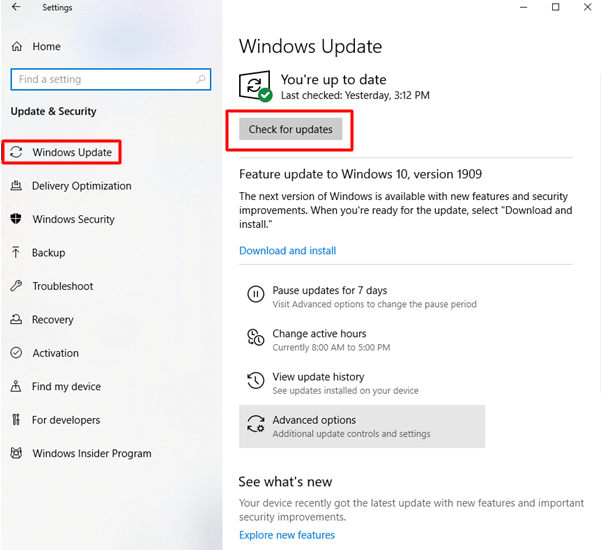
Download and install any currently available updates.
To complete the process of updating your computer, you will need to restart it.
Conclusion
In this article, we discussed how to fix DNS issues in Windows 11 and 10. Generally, reinstalling the operating system can resolve most issues, including the DNS Server Not Authoritative for Zone error. However, if you are still experiencing the same problem, you should try these solutions. Please share your thoughts in the comments section if you have a more effective way to fix this issue.


