


(Solution to the problem of the camera not being able to turn on for Hello Windows) Fixing the issue of the camera not turning on with Hello Windows: Are you frustrated by the error message "Camera cannot be turned on. Please log in using your PIN" when trying to use facial recognition with Windows Hello?
The facial recognition feature in Windows Hello offers a convenient and quick way to log into your Windows account without needing to enter a PIN or authenticate with a fingerprint.
However, there are instances where attempting to log in via Windows Hello Face Recognition results in an error message like "Camera cannot be turned on."
This issue can be particularly annoying, but there are solutions available to address it and restore the functionality of the facial recognition feature in Windows Hello.
In this guide, we will explore some effective troubleshooting steps to help you resolve the "Camera cannot be turned on" error and regain smooth access to your Windows account while using the facial recognition feature.
Causes of the Camera Cannot Be Turned On Error with Hello Windows
In fact, the "Camera cannot be turned on" error for facial recognition in Windows Hello can arise from a variety of underlying causes. These potential triggers include:
Missing DLL files: The absence or corruption of essential Dynamic Link Library (DLL) files necessary for camera functionality can lead to this issue.
Corrupted system files: Damage to important system files related to camera operation can disable the facial recognition feature in Windows Hello.
Incompatible updates: Installing updates that are incompatible with camera drivers on your system or the Windows operating system itself can cause this problem.
Outdated or malfunctioning drivers: If your camera drivers are outdated, malfunctioning, or have stopped working, Windows Hello may be unable to access the camera.
Camera hardware issues: Physical problems related to your computer's camera hardware, such as cable connections or hardware failures, can lead to the error.
Malware or virus infections: Malware can interfere with camera functionality and cause this error, among other issues.
Identifying the specific cause of the error is crucial for implementing the correct solution. We will now explore some troubleshooting steps to address each of these potential causes.
Solutions for the Camera Cannot Be Turned On Issue with Hello Windows
To address this issue, I have compiled a list of effective solutions that can help you resolve the camera login problem on both Windows 11 and Windows 10.
Solution 1: Optimize Your Windows Operating System
To effectively resolve Windows errors, it is essential to start by addressing system errors and optimizing your Windows operating system. Manual optimization can be time-consuming and requires a deep understanding of computer systems. The most effective method is to use a professional PC repair tool designed to fix errors and optimize your Windows 11 environment.
Solution 2: Restart Your Computer
Sometimes, this issue may be temporary and can often be resolved by simply restarting your computer. Give it a try and see if the problem is resolved. If the issue persists or occurs randomly, let's move on to the next solution.
Solution 3: Check Camera Hardware
To check the camera's functionality, open the Camera app on your Windows 11 computer and see if the camera is working properly.
Solution 4: Update Camera Driver
The facial recognition login issue in Windows Hello may occur when the camera driver is outdated.
To resolve this, update the camera driver and then restart your computer for the changes to take effect.
Step 1: Open Device Manager. Right-click on Start → Device Manager.
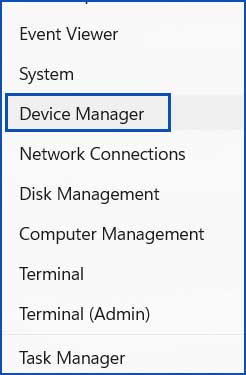
Open Device Manager
Step 2: Expand the camera category. Right-click on the driver → Update Driver.
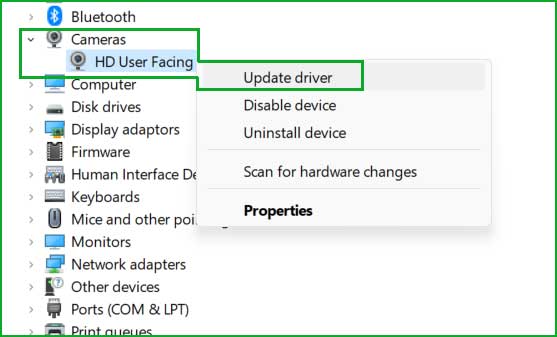
Step 3: Follow the prompts.
Solution 5: Perform Full Windows Updates
Additionally, it is crucial to keep your Windows system fully updated, including installing all available Windows updates, keeping your applications up to date, ensuring your drivers are current, and applying any relevant firmware updates.
This comprehensive approach helps maintain system stability and security while addressing potential issues.
Complete Windows updates- Step by Step
1. Windows Updates
Step 1: Right-click on Start → Settings.
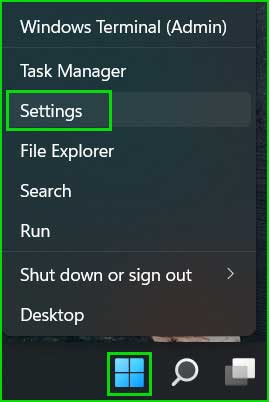
Open Windows 11 Settings
Step 2: Scroll down to find Windows Updates and then click on Check for Updates.
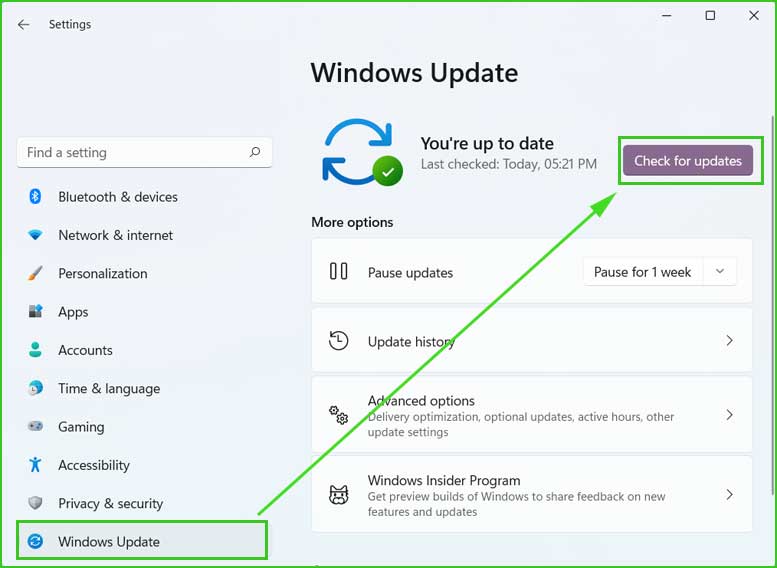
windows_updates
2. Update Applications
To update the applications installed on your computer, you can follow these steps.
Step 1: Open Microsoft Store. Click on your profile picture at the top of the MS Store, then select Settings.
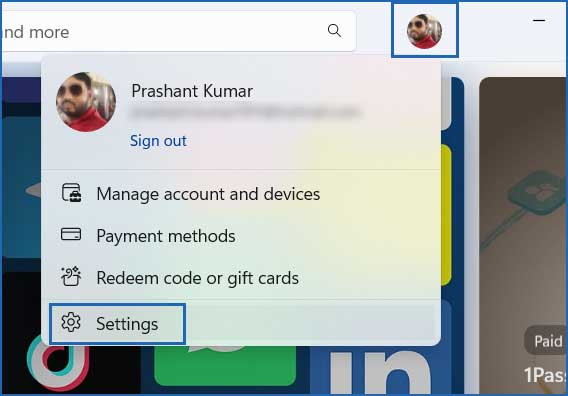
Open MS Store Settings
Step 2: Enable app updates.
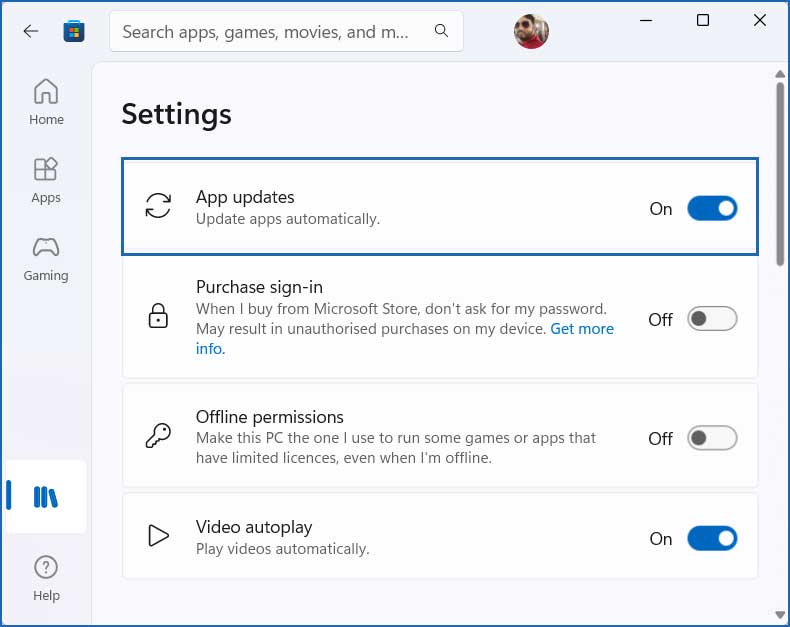
Turn on automatic app updates
Step 3: Open Microsoft Store Library. To access your Microsoft Store library, simply click on the library icon on the left sidebar. Once there, you will find a button called "Get Updates."
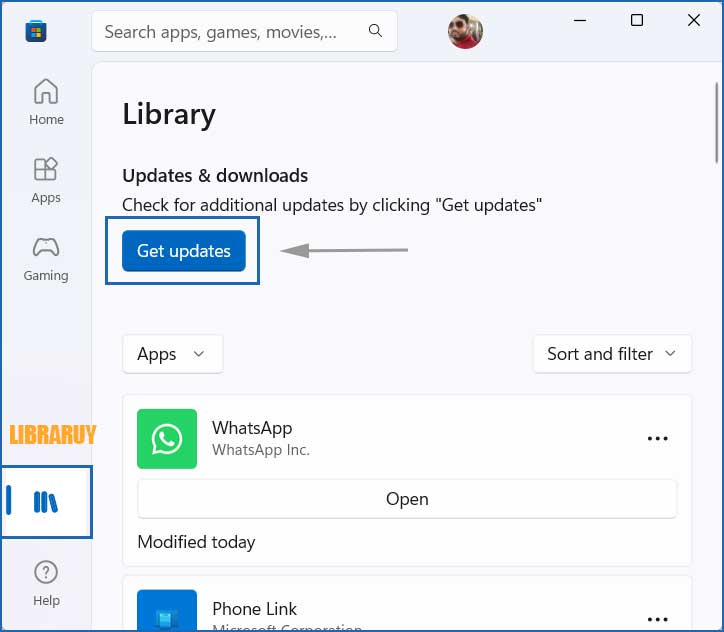
Click this to start searching for the latest updates available for the applications you have installed.
Step 4: For third-party applications, check for the updated version on its official website and install it.
3. Update Driver
Step 1: Open Device Manager. Right-click on the Start menu and select Device Manager.
Open Device Manager
Step 2: Manually expand all drivers and look for a driver with a yellow exclamation mark.
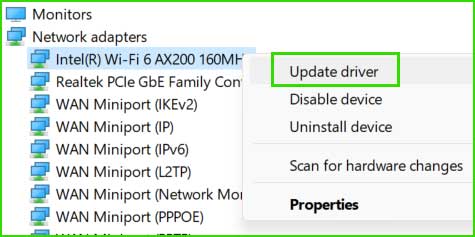
Right-click on it and select Update.
update_driver
Solution 6: Reset Windows Hello Face Recognition
Sometimes, facial recognition issues may arise due to malware or virus infections, or corrupted system files, which can lead to damage to facial recognition data.
In such cases, resetting Windows Hello Face Recognition can be an effective solution to resolve the problem.
Step 1. Go to Settings → Accounts → Sign-in Options.
Step 2. Under "Windows Hello," click "Remove" to delete your existing facial recognition or fingerprint feature.
Step 3. Set up Windows Hello again by following the on-screen instructions.
Solution 7: Download the Latest Camera Driver from the Manufacturer's Website
Downloading the latest camera driver directly from the manufacturer's website is essential.
Default camera drivers may not always support advanced features like facial recognition in Windows Hello.
By obtaining the latest driver from the manufacturer, you ensure compatibility and optimal performance for features like Windows Hello.
Solution 8: Run SFC Command to Repair Corrupted Files
Corrupted system files can indeed be a significant reason for the failure of Windows Hello login.
Running the System File Checker (SFC) command is a crucial step in diagnosing and repairing this corruption.
Use the SFC command to scan and restore Windows system files, which may help resolve Windows Hello issues and improve overall system stability.
System File Checker Tool - Step by Step
Step 1: Open Command Prompt as Administrator.

Open Command Prompt as Administrator in Windows 8, 10, and 11
Step 2: Now run the following command.
sfc /scannow
Step 3: Let the process finish and then exit Command Prompt.
Conclusion
In this article, we discussed how to fix the camera cannot be turned on issue with Hello Windows and the top 8 solutions.
Encountering the error "Camera cannot be turned on. Please log in using your PIN" while trying to use the Windows Hello facial recognition feature can indeed be frustrating.
Fortunately, this article provides various solutions to help you resolve this issue and restore the facial


