


Virtual meeting tools have become essential in our daily lives, whether for education, work, or even social interaction. Among the most prominent and widely used tools is Zoom, the leading platform for remote meetings and conferences. Zoom offers an easy-to-use interface, works across various operating systems, and allows users to share audio, video, files, and text seamlessly and effectively. Whether you're looking to download the full version of Zoom or want to use it for education or meetings, this guide will lead you to everything you need.
Overview of Zoom

Zoom is a visual communication tool that relies on the internet, used for meetings, lessons, webinars, and virtual workshops. The app allows you to create digital meeting rooms that can be joined via a link, ID, or password. Whether you're using a phone or a computer, you can easily download Zoom and get started right away. The app supports up to 100 participants in the free plan, offering more professional options in the paid versions.
Available Versions on All Devices
Zoom is available on Windows, macOS, Android, and iOS, ensuring ease of use across all devices. After downloading the full version of Zoom for your computer or phone, you can join meetings without creating an account. However, to host meetings, you need to register for a free account. This compatibility makes it suitable for everyone, from students to executives.
Zoom's Popularity During the COVID-19 Pandemic
During the COVID-19 crisis, Zoom became the primary tool for remote education and work worldwide. Millions of people downloaded the software to overcome physical distancing barriers and stay connected. Educational institutions adopted it as a key tool for continuing studies, with the ability to host entire classes for free. It can be said that the app effectively contributed to maintaining communication despite global isolation.
How to Use Zoom Step by Step
Once you've downloaded Zoom for your computer or mobile device, you can start using it immediately. Here are the steps to set up a meeting, join one, and manage participants and available options.
Setting Up a Meeting on Zoom
Once you open the app, you can choose "New Meeting" or "Schedule a Meeting." When scheduling, a link, ID, and password are generated that can be shared with attendees. Passwords are enabled by default, enhancing session security. You can share the meeting link that implicitly includes the password, making it easier to join.
Joining Meetings Easily
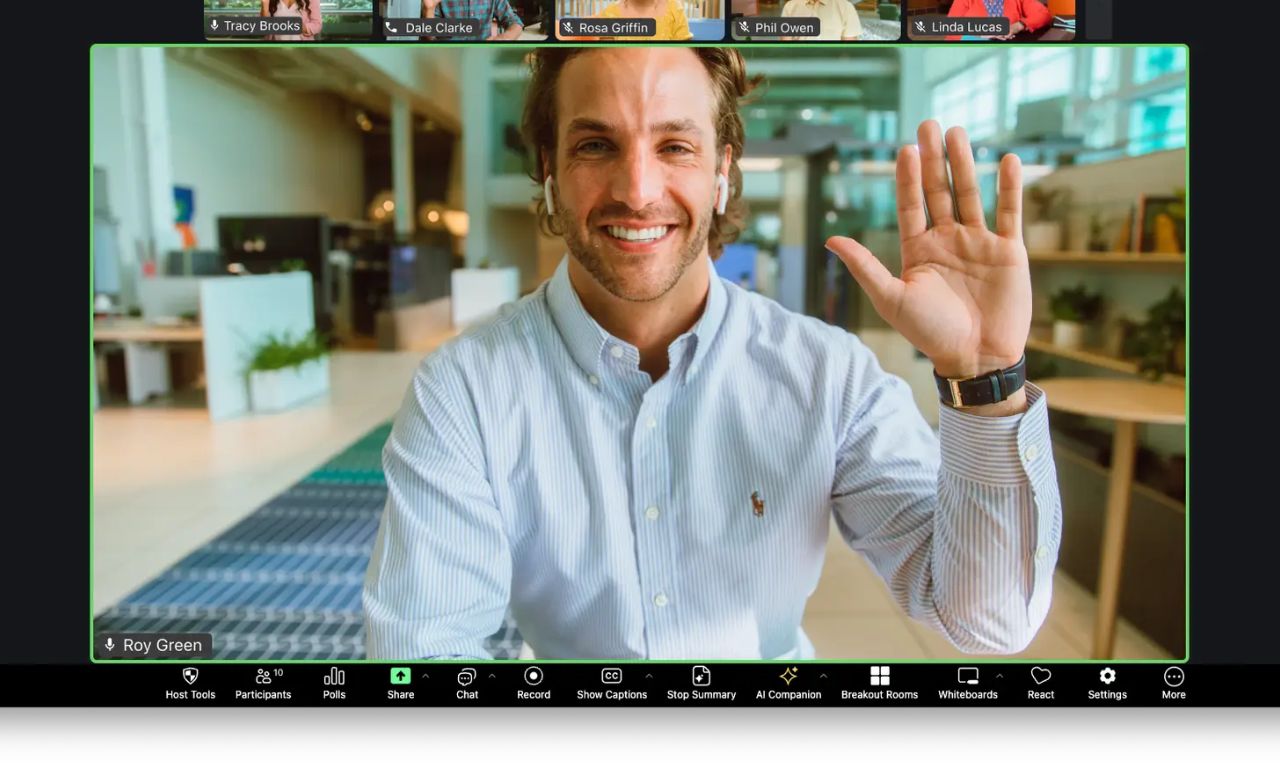
To join a meeting, all you need is the link or meeting number and password. Creating an account is not required to join as a guest. After downloading the software, you can directly enter the session using the ID provided by the host. You can also change your name or video settings before entering the meeting.
Key Features of Zoom
Through the overview of Zoom, we find that it offers powerful features that enhance the user experience and facilitate interaction during meetings. The most important features relate to video, screen sharing, and chat.
Video and Audio Tools
You have full control over the camera and microphone during the meeting. The host has the authority to mute or turn off the camera for any participant to maintain order. After downloading and running the app, you'll notice excellent audio and video quality even on moderate internet connections. Virtual backgrounds can also be used to add a professional touch.
Screen and File Sharing
One of Zoom's standout features is the ability to share your desktop or a specific window with all attendees. This feature is useful for presentations, tutorials, or troubleshooting. Zoom also allows you to share your mobile screen after downloading the app on it. The host can restrict or allow screen sharing for all participants.
Security and Privacy in Zoom
 Security and Privacy in Zoom
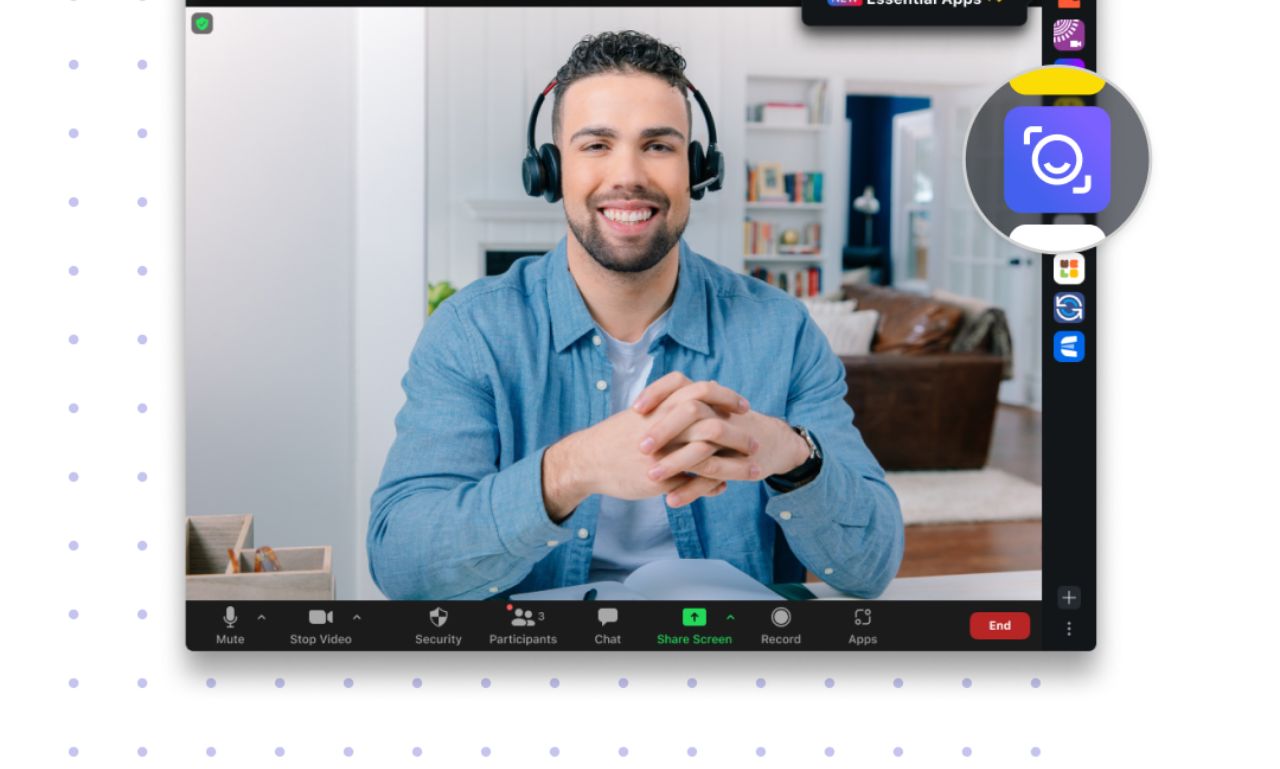
Despite its popularity, Zoom has faced some criticism regarding privacy, but the company has responded quickly with continuous updates. Here’s how to ensure the security of using the app after downloading the full version of Zoom.
Protecting Meetings with Passwords
All new meetings are automatically protected with passwords. This prevents outsiders from sneaking into sessions even if they have the meeting number. It's always best to send meeting links in private groups or via email. This way, access can be controlled precisely.
Waiting Room and Locking the Meeting
By enabling the "Waiting Room," you can filter who enters the meeting and approve them manually. You can also "lock the meeting" after all members have joined, preventing any new users from entering. These features are available immediately after downloading the activated version of Zoom on your computer or mobile device. These settings enhance the privacy of important or confidential meetings.
Zoom in Education and Work
Whether you're a student or a teacher, Zoom provides an interactive and easy environment for remote learning and teaching. For businesses, it is an effective tool for meetings, training, and coordination.
Zoom for Schools and Universities
Many educational institutions have adopted Zoom as their official educational platform. Schools can apply to extend the free time limit through Zoom's official website. After downloading the software, teachers can schedule classes, record them, and share them later with students. The interactive whiteboard and multiple screens can also be utilized.
Zoom for Businesses and Projects
Zoom is widely used in the business sector for team meetings, webinars, and presentations. The program allows the creation of "breakout rooms" for smaller meetings within the main meeting. This option is very useful for projects that require team division. All of this is available once you download the full version of Zoom with direct links.
Zoom Software and Mobile App
The mobile experience is just as efficient, offering a flexible and convenient experience on the go. You can simply download the Zoom app from the Google Play Store or App Store.
Features of the Mobile App
The mobile app provides nearly the same features, from scheduling meetings, screen sharing, to activating the camera. The interface is simplified to fit the smaller phone screen. Invitations and links can also be sent via messages or email directly from the app. You can also easily set a virtual background or change your display name.
Smooth Transition Between Devices
You can start a meeting on your phone and then continue it on your computer without interruption. As long as you're logged in with the same account, all meeting data is saved and synchronized. This integration makes Zoom one of the best activated programs that provide high productivity anytime, anywhere. You can also record meetings directly on your phone or device.
Conclusion
In summary, if you're looking for a powerful, free, and flexible tool for conducting meetings, the overview of Zoom reveals how superior this platform is. With multi-system support, a simple interface, and professional features, it's no wonder that Zoom has become the top choice for millions of users worldwide. Don't hesitate to download the full version of Zoom through direct links now, and start a new experience of effective communication. The future awaits you on the screen, so be ready with your smart choice!


