


Effective ways to fix persistent computer crashes: Whether you're tired of seeing blue screens (blue screen errors) or frustrated by your games unexpectedly closing, we're here to help. This article will explain why your computer and games keep crashing and how to fix it.
What Causes Computer Crashes?
There are many reasons that can lead to computer crashes, causing that dreaded blue screen of death. Here are the most common causes:
Outdated drivers.
Hardware malfunctions.
Blocked CPU fan and airflow issues.
Damaged sectors on the hard drive.
Corrupted registry.
Invalid registry entries.
The computer is infected with malware, spyware, or viruses.
Insufficient RAM.
No space on the system partition.
Effective Ways to Fix Persistent Computer Crashes
Fix 1. Cool Down the Computer
When the motherboard and CPU overheat, you're likely to encounter a blue screen issue. To fix this, check if the CPU fan is working and ensure there's no dust blockage. The system should not overheat, so make sure to keep it in a cool, well-ventilated room.
Fix 2. Clean the Dust
Dust accumulates on computers and laptops or any device after prolonged use. This affects system performance, leading to decreased computer efficiency. If you notice a lot of dust, make sure to clean it off.
Fix 3. Check Device Connections
While moving the system for cleaning or neglecting device maintenance, internal components can become loose, causing the computer to crash. Therefore, check the connections and avoid moving the computer around.
Fix 4: Check for Damaged Sectors
Hard drives can have damaged sectors due to improper handling, long-term use, and random failures. To fix this, check the drive for damaged sectors.
Open an elevated command prompt.
Type “chkdsk /?” and press “Enter” to list all drives on your computer.
Type chkdsk followed by the drive letter you want to check and press Enter.
You will now see a prompt stating that Chkdsk cannot run because the volume is in use by another process. Would you like to schedule this volume to be checked the next time the system restarts? (Yes/No). Type “Yes” to accept.
During the next system restart, the process will run, and the damaged sectors will be repaired.
Fix 5: Upgrade RAM
If your RAM is insufficient to run programs, you may also experience frequent crashes. In such cases, upgrade your RAM to avoid recurring crashes.
Software-related fixes
Fix 6: Update Device Drivers
As discussed, corrupted or outdated drivers can cause computers to crash or freeze. Try updating the drivers to troubleshoot.
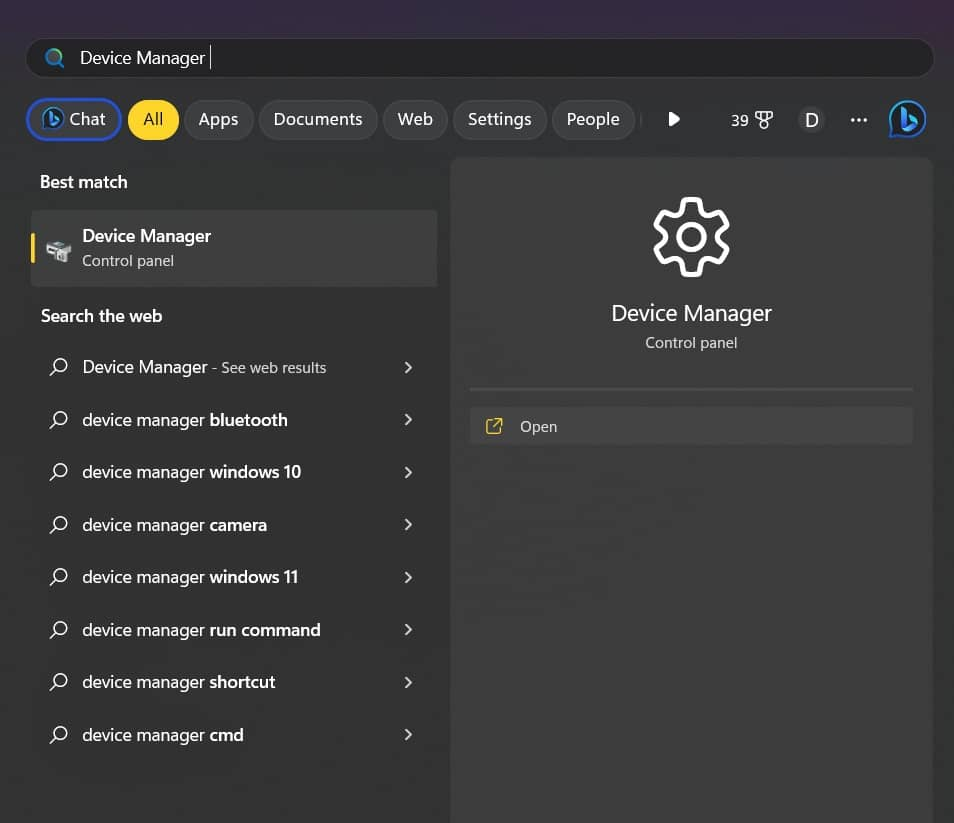
Press Windows + X and select “Device Manager.”
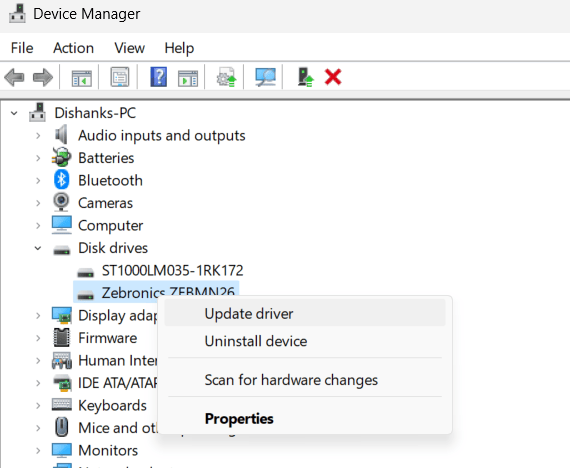
Double-click on “Disk Drives.” Disk Drivers-Update Driver
Right-click on the hard disk and click “Update Driver.”
Select the first option to automatically search for driver updates.
Let the process finish and restart your computer to apply the changes. Now try using your PC, and you likely won’t encounter any issues.
If you have multiple drives, you will need to repeat the process. We understand that this isn't easy, and not everyone will be willing to do it. Therefore, we suggest using an external driver update tool.
Fix 7: Defragment Your Hard Drive
When you use the system for an extended period, the hard drive becomes fragmented, leading to frequent crashes. To fix this, we recommend defragmenting the hard drive. This will improve your PC's performance and also prevent system crashes.
Press Windows + E to open File Explorer.
Right-click on the target drive, select “Properties” > go to the “Tools” tab and click “Optimize” under the Optimize and Defragment Drive section.
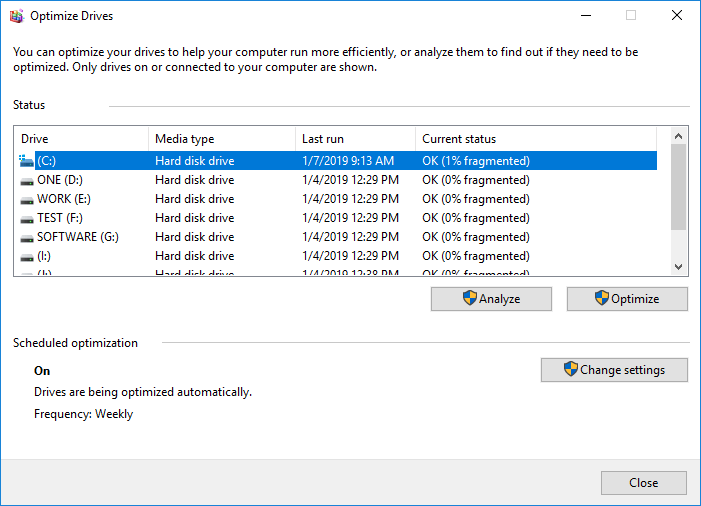
Click “Optimize” to defragment the hard drive.
If you want, you can do this for all drive partitions and enjoy smooth performance.
Fix 8: Scan Your Computer for Malware
A virus or malware can be a reason for computer crashes. We suggest scanning your computer for infections. You can run the security application you use or install a reliable antivirus.
Fix 9: Run the System File Checker Tool
To fix corrupted data files, Windows offers a built-in System File Checker. You can use it to repair corrupted system files.
Run an elevated command prompt (Run as Administrator).
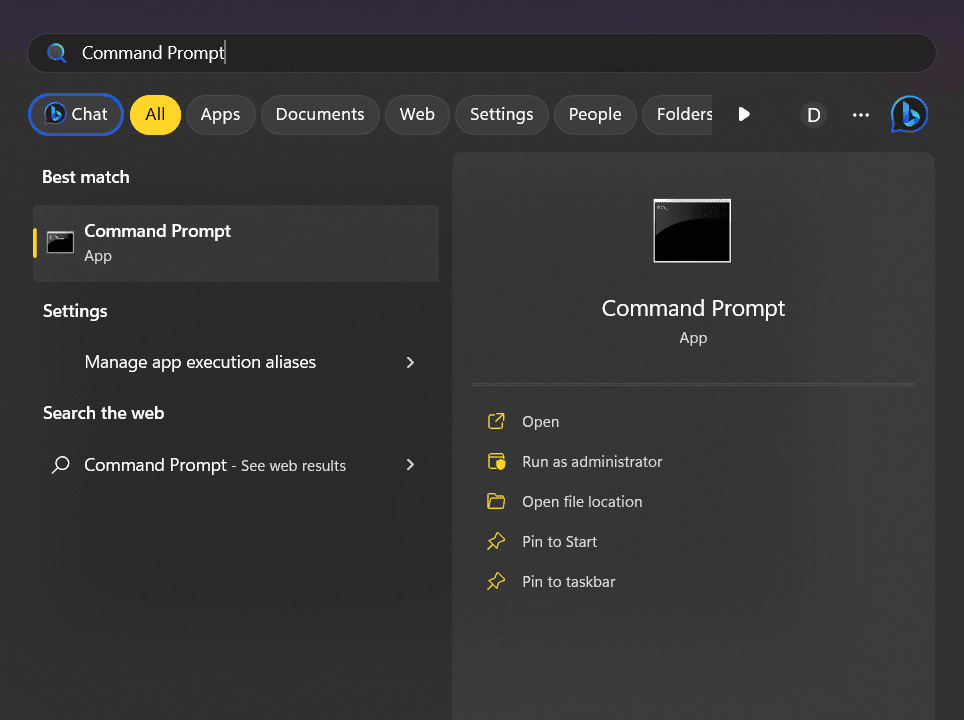
Type sfc /scannow in the command prompt, hit Enter.
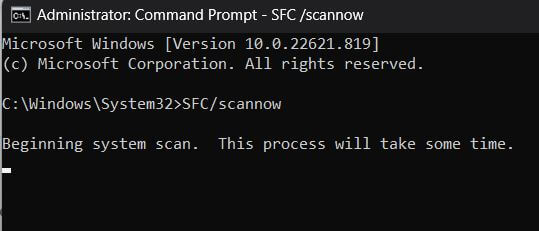
Wait for the command to process.
Exit CMD and restart your computer.
Fix 10: Expand the System Drive
If your system storage is running low, your computer will struggle to run programs and may crash. To resolve this issue, expand the system drive.
Step 1: Press the Windows and R keys together to open the Run window.
Step 2: Enter diskmgmt.msc and hit OK.
Step 3: Once Disk Management loads, right-click on the system drive and choose Expand Volume to extend it.
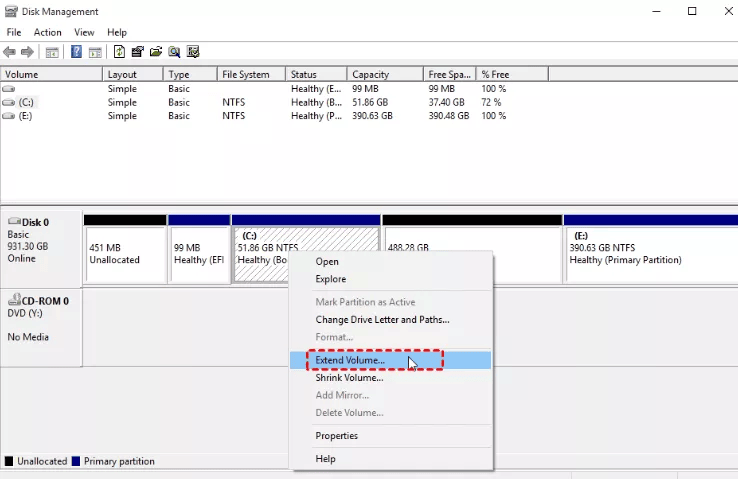
Disk Management


