

“Device setup failed” - printer installation errors: When setting up an HP printer using a USB cable during the software installation, you may encounter frustrating error messages, such as:
“Device setup failed” or “Unknown device”
“Printer driver unknown/driver unavailable/unknown printer”
“HP printer USB device not recognized.”
These issues can occur during the installation of an HP printer or after installing Windows updates or firmware updates. This article will guide you on how to resolve the “device setup failed” error during printer installation.
Most printer installation errors typically arise from driver incompatibility, operating system instabilityWindows, missing DLL files, malware or viruses, outdated drivers, or an outdated Windows operating system. To prevent such issues, it’s essential to keep all your computer drivers updated before installing an HP printer.
The majority of Windows issues stem from corrupted, outdated, missing, or incompatible drivers. However, with DriverEasy, these problems can be easily resolved. The DriverEasy program automatically scans, installs, or updates drivers, ensuring your system remains up-to-date and optimized.
Solution 1: Check the USB cable, USB port, and connection
The most common reason for the HP printer setup failure error is a faulty USB connection cable. To resolve the installation issue, it’s crucial to ensure that the USB cable is functioning correctly. Before installing the printer on Windows 11 or Windows 10, consider the following checklist:
Check the USB cable: Ensure that the USB cable is not damaged and is fully functional. Try using a different USB cable if necessary.
Use a compatible HP USB cable: To ensure a successful connection between the printer and your computer, it’s important to use a USB cable that is compatible with HP. Using other cables may lead to connection issues. We strongly recommend using the original HP cable that came with your printer. This will help ensure a smooth connection and optimal performance.
USB port: Make sure the USB port on your computer is functioning properly. Test the port with other devices to confirm its functionality.
Avoid USB hubs: During printer setup, it’s advisable to bypass USB hubs and connect the printer’s USB cable directly.
Solution 2: Reset the printer
After confirming that the USB cable, USB port, and connection between the printer and computer are fine, you will need to reset the printer before installation. You can simply reset the printers by unplugging the power cable for a minute.
Step 1: Reset your HP printer
Turn on your printer.
Unplug the power cord while the printer is on.
Wait for 60 seconds.
Reconnect the power cord.
Step 2: After resetting the printer, the plug-and-play settings will automatically start to install the printer on your computer.
Step 3: If the installation does not continue automatically, proceed to the next troubleshooting step.
Solution 3: Update or fix the driver issue in Device Manager.
Fixing the “device setup failed” or “unknown device” error during printer installation involves a crucial step of checking Device Manager for faulty or outdated drivers and resolving them. To implement this solution, follow these steps:
Update driver - step by step
Step 1: Open Device Manager. Press Windows key + X and click on “Device Manager.”

Open Device Manager
Step 2: Look for the drive that has a yellow exclamation mark or warning on it.

Open device properties
Step 3: Double-click on the driver to open its properties. Go to the Driver tab and click the Update Driver button.

Update driver
Step 4: Select “Search automatically for drivers.”

Automatically search for drive
Step 5: Follow the prompts and complete the process.
Step 6: If you receive the message “Windows could not install your driver,” use another effective external tool to update/install your driver.

By following these steps and resolving any driver-related issues in Device Manager, you can effectively address the “device setup failed” or “unknown device” error and successfully complete the printer installation.
Solution 4: Reinstall the printer and software
If you are still having trouble connecting the printer to your computer, try the following steps to resolve the issue:
- Reinstall the printer and software: Start by reinstalling the printer and its software. Sometimes, issues can be resolved by re-establishing the connection between the printer and the computer.
- Update printer software: Ensure that you are using the latest compatible version of the printer software. Visit the manufacturer’s website to download and install the latest drivers and software for your specific printer model.
By following these steps, you can increase the likelihood of successfully connecting the printer to your computer and resolving any connection issues.
Solution 5: Run the Printer Troubleshooter.
The Printer Troubleshooter is a built-in tool provided by the Windows operating system to help users diagnose and automatically resolve common printer-related issues. It is designed to be user-friendly and can be accessed through the Control Panel or the Settings app.
Run the Printer Troubleshooter
Step 1: Go to Windows Settings → System → Troubleshoot.

1_settings_system_troubleshoot
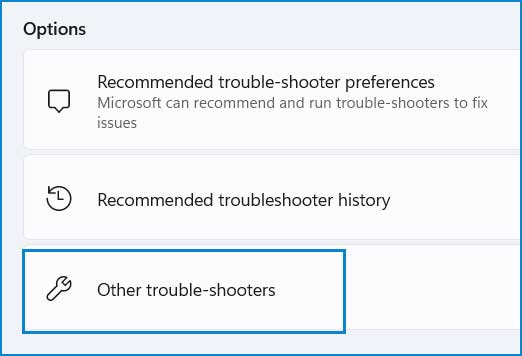
Step 2: Click on Other troubleshooters.

2_other_troubleshooters
Step 3: Click the “Run” button next to the Printer Troubleshooter.

3_run_printer_troubleshooter
Step 4: The next window will ask for your consent to proceed. Click Yes to start the Printer Troubleshooter.

4_troubleshoot_consent
Step 5: The next window will guide you on what to do. If the problem is not resolved by the methods in the troubleshooter window, click No to start diagnosing your issue.

5_follow_printer_guidelines
Step 6: The troubleshooter will begin diagnosing your computer to find issues. It will guide you through the process to fix the printer error.

6_diagnose_your_computer
Solution 6: Disable Firewall/Antivirus
Sometimes, a firewall or antivirus program may block the installation of the printer driver, causing the printer error “driver unknown/driver unavailable/unknown.” To resolve this issue, you can temporarily turn off the firewall/antivirus while installing the printer.
Here’s how to temporarily disable Windows Firewall and antivirus programs.
Solution 7: Repair system file issues, disk errors, and Windows image integrity.
It’s also essential to repair corrupted system files, perform a disk check for bad sectors, and repair the Windows image. You can carry out all these repairs using the built-in Windows tool.
SFC/Chkdsk/Dism - step by step
Step 1: Open Command Prompt as an administrator.

Open Command Prompt as an administrator in Windows 8, 10, and


