


How to fix slow keyboard response in Windows 10 and 11: Here’s a comprehensive guide that will help you fix the error of slow keyboard response on Windows 11/10 using some simple methods and steps.
Whether you’re gaming, completing an office task, journaling, entering data, or doing anything else on your computer, you definitely need a keyboard. Of course, an on-screen keyboard can assist in such tasks, but over time, you’ll need a physical keyboard to meet your needs.
A computer is indispensable, and when errors related to keyboard response delay occur, it can be quite frustrating for users. The issue of slow keyboard response is very common and can be easily fixed, so keep reading this article.
Ways to Fix Slow Keyboard Response on Windows 10/11
We’ll take a look at the most effective methods to fix slow keyboard response on Windows 10. Using the solutions provided here, you can resolve any issue causing your keyboard to lag. Our only suggestion? Follow the methods in order and stop when the issue disappears.
Solution 1: Restart Everything
Before diving into troubleshooting, let’s start simply. Whether you’re using an external keyboard or a built-in one, wired or wireless, the first thing you should do is disconnect the keyboard. Then, turn off your computer, reconnect the device, and restart the machine. Additionally, make sure the adapter is plugged into a working port; try switching ports if necessary.
For wireless keyboards, try replacing the batteries to rule out power-related issues and bring the keyboard closer to the device (or adapter). This method often successfully resolves slow keyboard response issues on Windows 10. However, if this method fails, try the next solution.
Solution 2: Adjust Filter Keys Settings
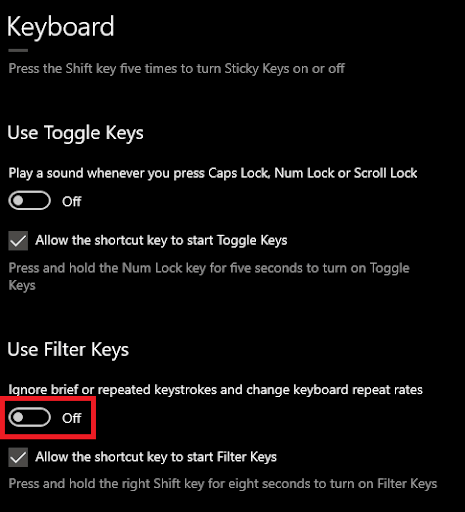
Another effective solution to fix slow keyboard response is to disable Filter Keys settings. Although this feature was introduced in Windows 11/10 to facilitate accurate typing, it can also cause problems for the device. So, try disabling the feature to see if the issue is resolved.
Follow the instructions below to turn off this feature:
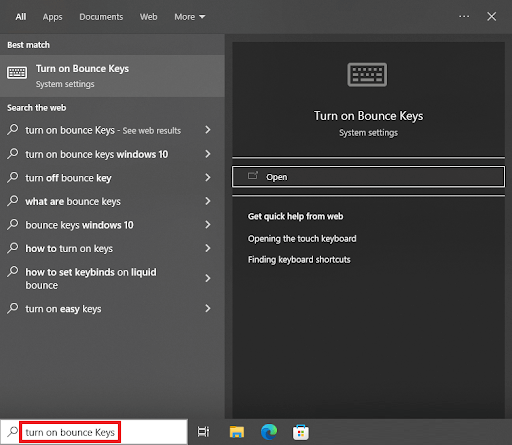
Press Win+S, then type "Turn on Filter Keys," and hit Enter. Turn on Filter Keys
In the keyboard settings that appear, look for the category named "Use Filter Keys," and toggle the feature off. Use Filter Keys, toggle the feature off
This method has proven effective in quickly fixing slow keyboard response in Windows 10. However, if the issue persists, follow the next solution.
Solution 3: Update Keyboard Driver to Fix Slow Keyboard Response
Next, another great solution to fix all issues related to keyboard response delay is to update the keyboard driver. The keyboard driver, just like any other driver for any device, is a supporting package that defines how the keyboard operates on the system. Therefore, if the keyboard driver is outdated or faulty, keyboard-related problems are likely to occur. As a result, the best solution in such cases is to update the driver.
There are several ways to download and update any keyboard driver. Manually, you can either download the driver from the manufacturer’s website or use Device Manager, but both methods can be quite complicated and difficult to follow. Therefore, you can opt to download and use the Bit Driver Updater tool.
This is a fantastic tool that provides automatic updates for all drivers:
It allows you to schedule updates or execute them immediately.
It offers one-click WHQL updates for drivers.
It deeply scans the system for comprehensive results.
It provides features for backing up and restoring drivers.
It features a multilingual interface.
That’s not all; Bit Driver Updater offers many other features for both professional and free version users, which you’ll discover when using it. Let’s see how this can help you fix slow keyboard response in Windows 10.
How to use Bit Driver Updater to update drivers?
Follow the steps below to fix all issues related to slow keyboard response using driver updates:
Download the Bit Driver Updater setup. Windows Download Button
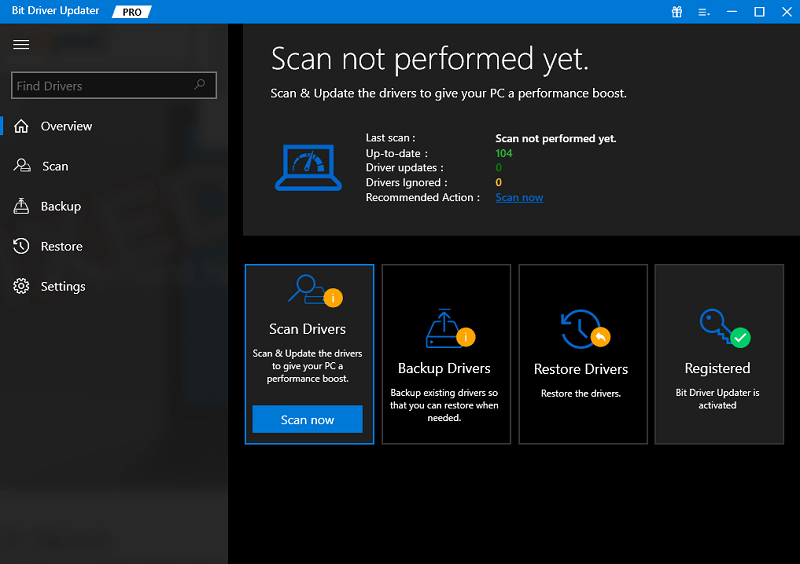
Install the tool and run it to start scanning the system for outdated drivers. Use the Scan Drivers button if necessary; scan for outdated drivers on your Windows PC.
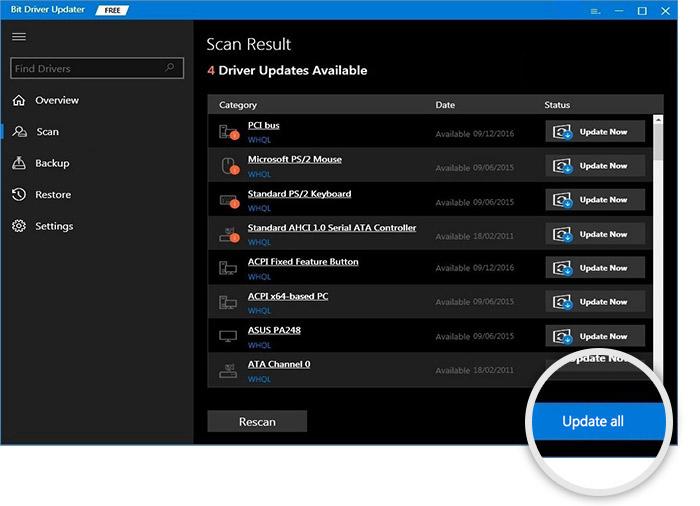
When the list of outdated drivers appears, look for the keyboard driver and click the Update Now button next to it. Alternatively, you can also use the Update All button to update all drivers; update all outdated drivers for your Windows computer.
Once the entire process is complete, restart the system.
This method has successfully fixed keyboard response delay issues in over 80% of cases. However, if the issue persists, follow the next solution.
Solution 4: Modify Keyboard Settings
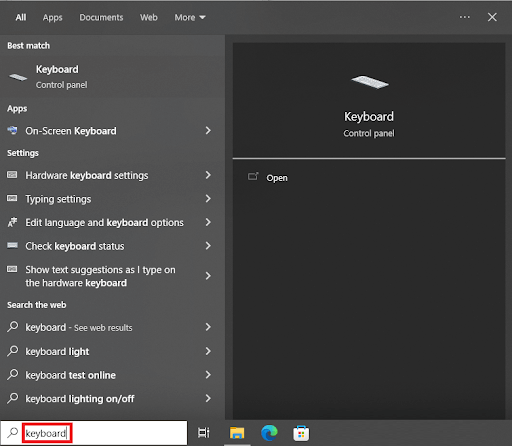
Another solution you can try to fix keyboard issues is to modify the keyboard settings. Sometimes, incorrect configurations of keyboard settings can also affect device performance and lead to delays and other errors. You need to adjust the keyboard settings in a way that allows them to properly adapt to the system. Follow the steps below to understand what you need to do to fix slow keyboard response:
Press Win+S, type "Keyboard," and hit Enter. Search for Keyboard in Windows
Under Device Properties, adjust the repeat delay and repeat rate; set the settings to maximum and click OK. Keyboard Properties
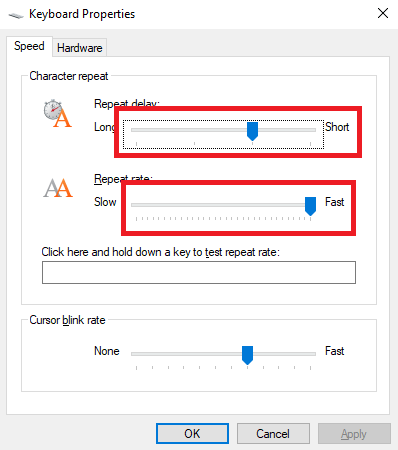
This method is likely to fix the slow keyboard response issue. However, there’s another solution you can try if the problem continues.
Solution 5: Fix Slow Keyboard Response with Troubleshooter
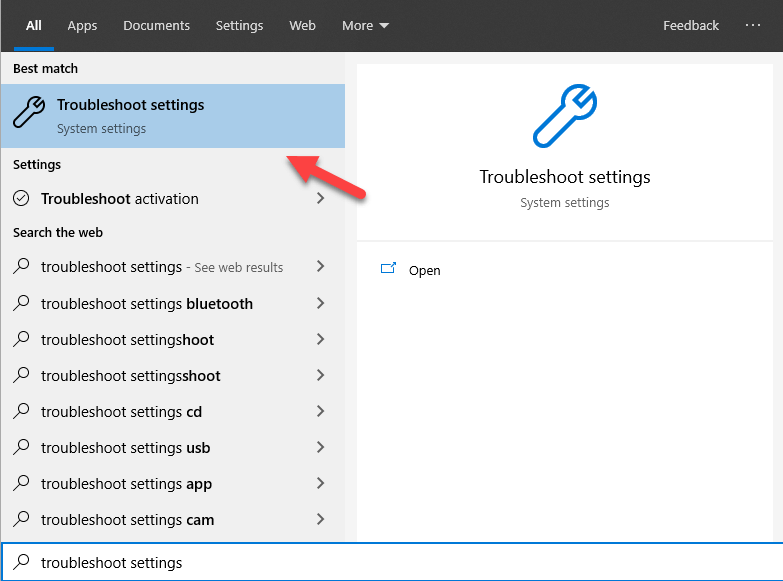
Finally, the last remaining solution to fix slow keyboard response in Windows 10 is to use the built-in Windows Troubleshooter. This tool comes pre-installed with every Windows device and does exactly what it says: troubleshoot. This tool can be used to fix all device-related errors, including keyboards. All you need to do is follow the steps below for accuracy:
Press Win+S, then type "Troubleshoot settings," and hit Enter. Search for Troubleshoot settings
Click on Additional Troubleshooters, Additional Troubleshooters
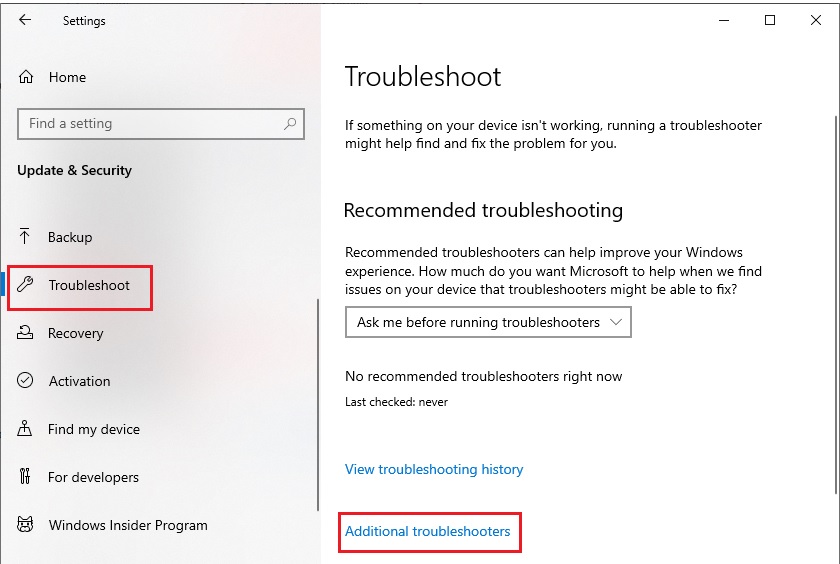
Select Keyboard from the page and click on Run the troubleshooter. Run the troubleshooter for Keyboard settings
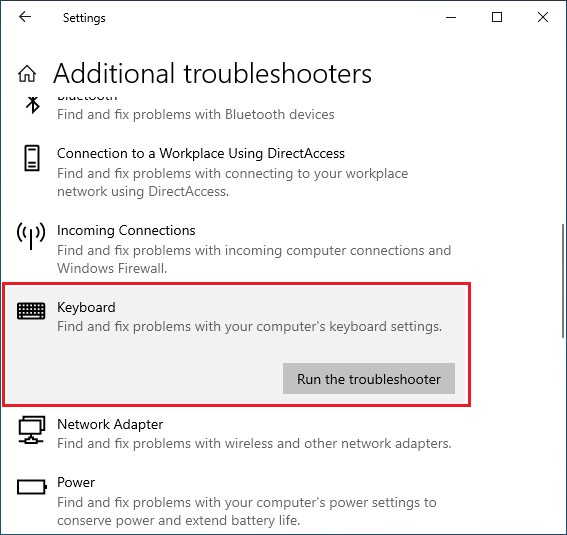
If any errors are found, follow the on-screen instructions to resolve these issues.
Conclusion
This is a complete guide on how to fix slow keyboard response in Windows 10. We are completely confident that all keyboard-related issues will disappear after following the methods outlined in this article. If you have any questions regarding the solutions or steps mentioned above, feel free to ask them in the comments below.


