

How to Fix Voice Search Not Working on YouTube: Don't worry if voice search on YouTube isn't functioning; this article will guide you through easy and simple ways to resolve voice chat issues on YouTube. Just keep reading.
YouTube is well-known, launched in 2005, and is the largest video platform in the world. Features like voice search, which allow you to find any video you want to watch with a simple voice command, have contributed to its immense success globally. However, many users have recently reported frustrating instances where voice search is not working on YouTube.
Are you one of those people? If so, I recommend you continue reading, as this article will help you effectively fix the voice search issue on YouTube with some simple solutions.
But first, let's shed some light on why the problem might be occurring before we attempt to solve it.
Reasons for Voice Search Not Working on YouTube
The following factors may be responsible for voice search issues on YouTube:
There may be internet connectivity problems.
Your modem's firmware might be outdated.
You might have an outdated YouTube app.
Your device may not be enabled for voice search on YouTube.
After reviewing the various reasons that could lead to voice search not working on YouTube on your device, let's look at ways to fix it.
How to Fix Voice Search Not Working on YouTube
You can apply the following solutions to resolve the voice search issue on YouTube:
Fix 1: Check Your Device's Internet Connection
YouTube requires a good internet connection to function properly. If your internet connection is unstable, you may encounter various issues, such as voice search not working on YouTube. Here’s how to check your internet connection on both computer and mobile.
On Computer
First, click the Start button on the taskbar.
Next, click the gear icon (Settings).
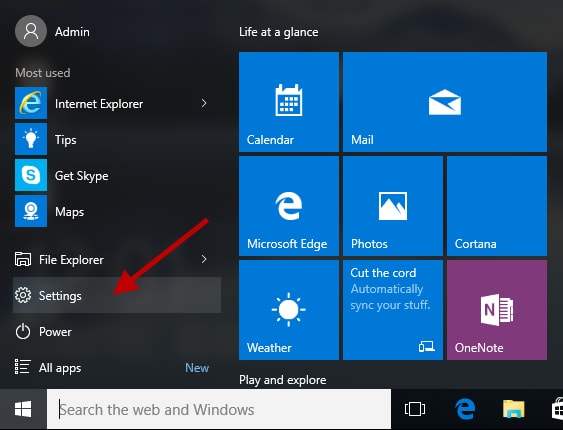
Windows Settings
In this step, select Network & Internet from the settings panel on your screen.
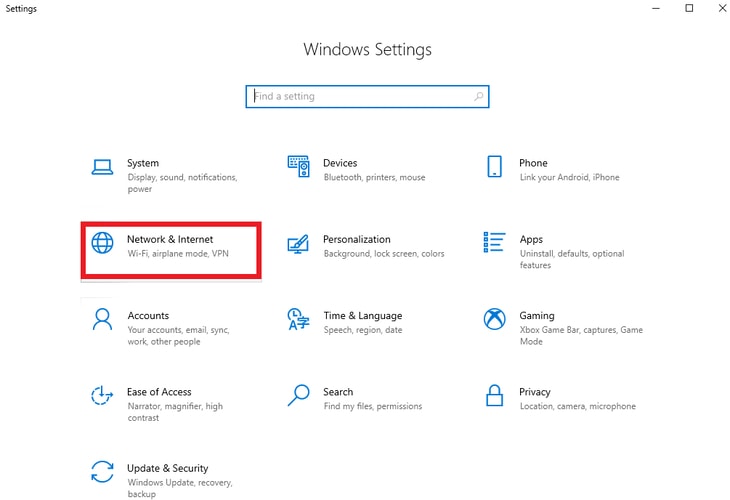
Network & Internet
You can now select Status from the right panel of the Network & Internet settings.
The status of your internet connection will appear on the right side of the settings window on your screen.
On Android Phone
First, open your phone's settings by scrolling down and tapping on the settings icon (gear icon).
Next, you will find the Network & Internet option or a similar option; tap on it.
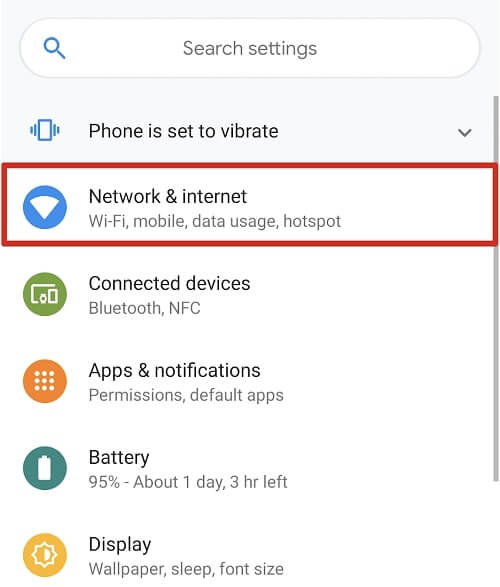
Network & Internet on Android
You can now check your internet connection to see if your phone is connected to the internet.
Note: If you want to check your mobile data connection, you can follow the path Settings > Network & Internet > Mobile Data Status on your phone.
iOS
The first step is to open your phone's settings; you can tap the gear icon on your phone's home screen to access settings.
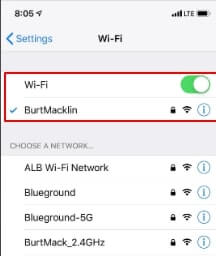
Next, tap on WiFi to view available WiFi networks.
WiFi iOS
You can now ensure that the WiFi switch is turned on and that your device is connected to a network. If there are any internet connection issues, you may see a message or alert icon indicating the problem. You can use another stable connection or switch to cellular data to resolve the issue.
Note: To check cellular connection on your iOS device, you can follow the path Settings > Cellular Data > Cellular Status.
Fix 2: Ensure Your Modem's Firmware is Updated
Updating your modem's firmware is essential for proper transmission signals. Here’s how to update your modem's firmware to fix the voice search issue on YouTube.
Note: You will need a computer to update your modem's firmware. Also, the images in this article may differ slightly from your modem's settings, but the steps remain the same.
First, connect the device to the network via an internet cable connected to your modem or through WiFi.
Next, open a web browser on your computer and enter http://192.168.0.1 in the address bar.
You can now use the admin username and password (printed on the modem label) to log into the modem settings.
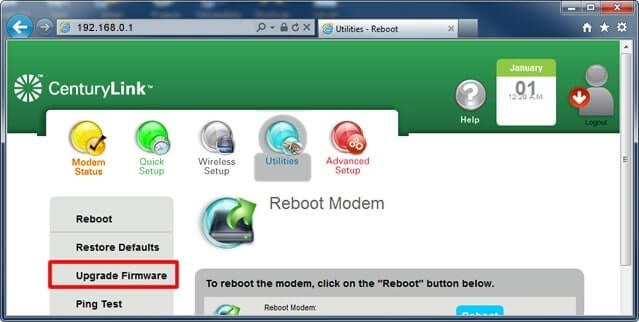
In this step, select the Tools option from the menu that appears on the screen.
Next, choose Firmware Update from the left sidebar.
Firmware Update
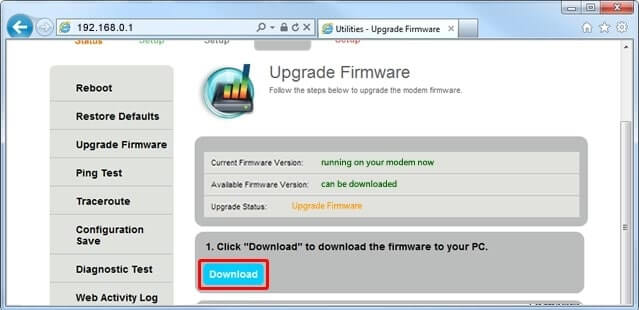
You can now check the upgrade status; if the status indicates a firmware upgrade, download the file to your device by clicking the download button.
Download Button.
Follow the browser prompts to save the downloaded file.
Then, choose Desktop (or another folder where you want to save the file) and click Save.
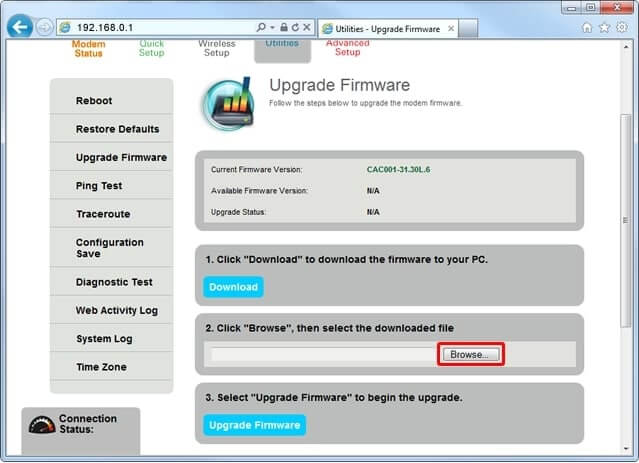
Select Browse from the Firmware Upgrade section.
Select Browse
Locate the folder on your device where you saved the firmware file.
Select the firmware file and click Open.
Click on Upgrade Firmware to start the update process.
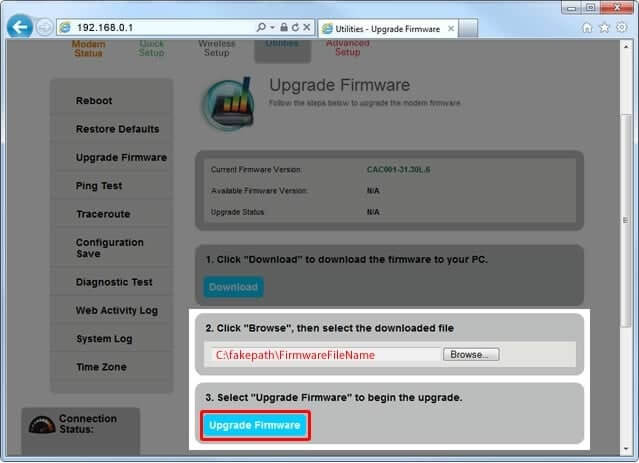
Click on Upgrade Firmware
Finally, let the process complete and wait until the DSL and Internet lights on the modem turn green.
Fix 3: Update the YouTube App
Errors, such as voice chat glitches, may occur in an outdated YouTube app. Therefore, here are the steps to update the app to its latest version to fix the issue.
On Computer
First, go to the Microsoft Store page for YouTube.
Next, check if there is an update available for the app.
If available, download and install the update.
On Android
First, open the Google Play Store app.
Next, tap your profile picture and select Manage apps & device from the available options.
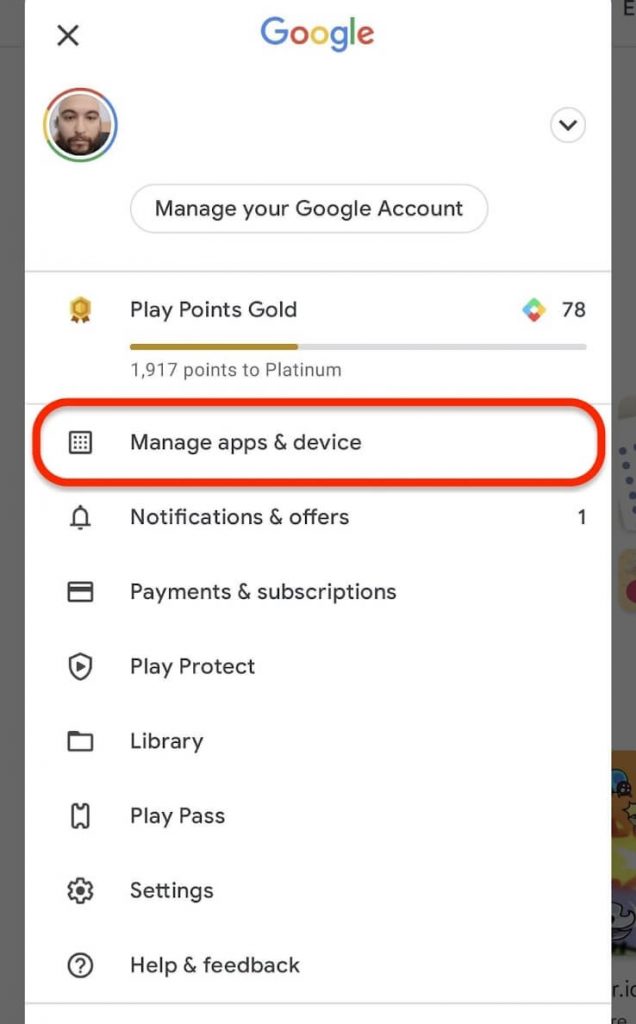
Manage apps & device
You can now find YouTube in the list of apps and click Update to update it.
On iOS
The first step is to go to the App Store on your phone.
Next, tap your profile picture and scroll down to find any pending updates.
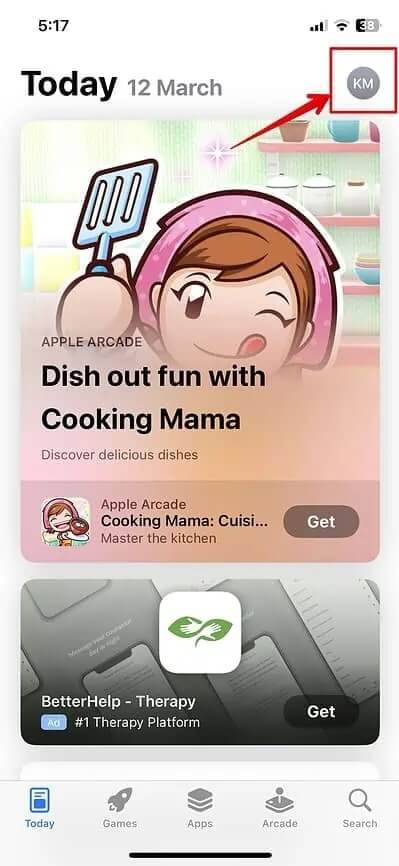
Profile Picture
Locate YouTube in the upcoming automatic updates section and click Update.
Fix 4: Ensure Voice Search is Enabled on YouTube on Your Device
Voice search on YouTube may not work on your device if it is not enabled. Here’s how to enable voice search on YouTube on your computer, Android, or iOS.
On Computer
First, go to https://www.youtube.com/ in your browser.
Next, click on the microphone icon.
You can now click Allow to permit YouTube to use your device's microphone.
On Android
The first step requires you to log into YouTube.
Second, click on the search option.
You can now tap the microphone and allow access to the microphone.
Note: If you previously denied access to the microphone, you may receive a prompt to grant the required permissions. You can open your phone settings, select Apps & Notifications, find the YouTube app, go to YouTube settings, click on Permissions, and toggle the microphone permission.
On iOS
The first step requires you to log into YouTube.
Second, click on Search.
Finally, tap the microphone.
Note: If you found this article searching for how to enable voice search on YouTube on TV, you can simply go to the YouTube app on your TV, select the search icon, and press and hold the microphone icon until voice search is activated.
Fix 5: Uninstall and Reinstall YouTube
The YouTube app on your device may be corrupted or have bugs. Therefore, you can uninstall the app and reinstall it to fix the voice search issue on YouTube if it is not working. Here’s how to do it.
On Computer
First, right-click the Start icon on the taskbar.
Next, select Apps & Features from the available options.
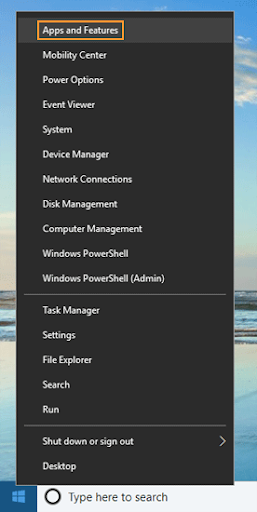
Apps & Features
Find YouTube and click on it in the list of apps.
Click Uninstall and confirm the action you took.
After uninstalling the app, you can reinstall it from the Microsoft Store.
On Android
The first step is to go to the Google Play Store on your device.
Next, search for YouTube and


