


How to Fix Apps and Programs in Windows 10: Want to know how to fix apps and programs in Windows 10 and 11? If so, this article could be helpful for you. We will explain how you can repair programs on Windows operating systems, so keep reading for more details!
It can be frustrating when a program or app on Windows starts to behave erratically, especially when the associated files are not running. Often, you can get the program or app working again simply by restarting it. However, if restarting the app or program doesn’t work, instead of uninstalling it, you should first try to repair it. There are many ways to fix apps and programs in Windows, and here’s everything you need to know about it.
What Causes Apps to Crash in Windows 10?
Here are some of the main reasons why programs or apps crash on Windows 10/11.
- Corrupted app files
- Errors in Windows updates
- Antivirus software interfering with the necessary processes to run the program
- Compatibility issues
- Conflicts with other third-party applications
How to Fix Apps and Programs in Windows 10 and 11
Just because a program stops working doesn’t mean you should uninstall it and then reinstall it. This should be your last resort for fixing the issue. You can try to repair apps on Windows operating systems. Here are some tried-and-true solutions you can use to fix apps and programs in Windows 11/10. Let’s get started!
Solution 1: Install the Latest Windows Update
Errors in Windows updates may be responsible for the app crashing, but don’t worry, these issues can be resolved with new updates. Therefore, before trying more advanced methods, checking for the latest updates and installing any available updates should be your first step to resolve the issue. Here’s how to check for updates:
Step 1: Open the Windows Settings menu by quickly pressing the Windows key + I together.
Step 2: In Windows Settings, look for the Update & Security option and click on it.
Step 3: Make sure to select Windows Update on the left panel.
Step 4: Next, click on the Check for updates option on the right.
Now, Windows will search for updates and automatically install any pending updates. Once the updates are installed, restart your computer and check if the system update resolved the issue. If not, proceed to the other solutions below.
Solution 2: Repair Options in the Settings Page
The Windows Settings menu allows users to manage all their apps and programs from one place. You can use the Settings app to change default apps, control app permissions, and do many other things. If one of the programs or apps isn’t working correctly, you can try to repair the options in the Settings menu. To do this, follow these steps:
Step 1: Use the Windows + I keyboard shortcut to open Windows Settings.
Step 2: In the Settings menu, look for Apps and click on it.
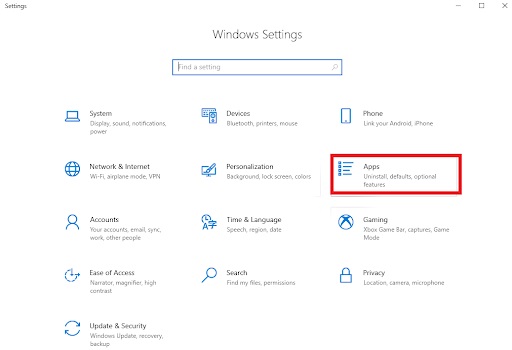
Click on Apps
Step 3: Now, find the app you want to repair in the Apps & features section.
Step 4: Next, locate the app and click on the Advanced options link.
Step 5: Click on the Repair option.
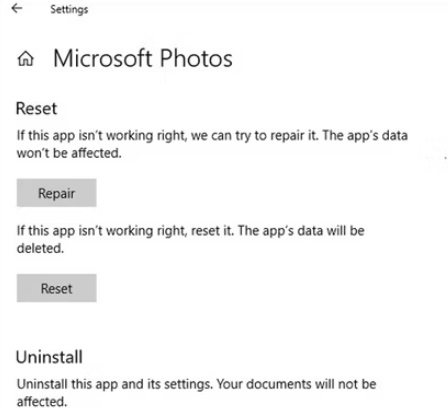
You can use the Windows Settings app to repair both traditional desktop programs and Windows Store apps. However, if you continue to experience issues even after repairing the app, you can try the following solutions to fix programs in Windows 10/11. Additionally, if you prefer not to repair the app or programs manually, you can use the best PC repair software for Windows 10 to get the job done easily and quickly.
Solution 3: Disable Antivirus Software
There are many instances where antivirus software interferes with the functionality of a specific program and disables one or more files of the program on your computer. Some antivirus programs do this in the background without notifying the user, while others alert PC users about it.
It’s also possible that your antivirus is blocking a process used by one of the apps, causing it to crash. Whatever the reason, to avoid such situations, it’s recommended to disable your antivirus software. You can disable your antivirus to fix apps on Windows 10/11, then check if the app works correctly without crashing. If it does, you should add the specific program or app to the exceptions list.
Solution 4: Check Recently Installed Apps
Sometimes, the operations of one app can affect the functionality of other programs installed on your computer. This may happen due to conflicts between them in resource allocation, etc. To be more specific, if you notice a program or app crashing after installing a new app on your computer, consider uninstalling that recently installed program and see if that resolves the issue. Unfortunately, if it doesn’t, move on to the next solution.
Solution 5: Reinstall the App
If all the previous solutions fail, you should try uninstalling the problematic program or app on your computer, then reinstalling it from the official site or the Microsoft Store. This will definitely resolve the issue. To do this, just follow these steps:
Step 1: Go to the Start menu and click on it, then click on the gear icon (Settings) to open Windows Settings.
Step 2: Look for the Apps option and click on it to proceed.
Step 3: Now, locate the problematic app you want to uninstall, then click on the three dots option next to it and select Uninstall from the available options.
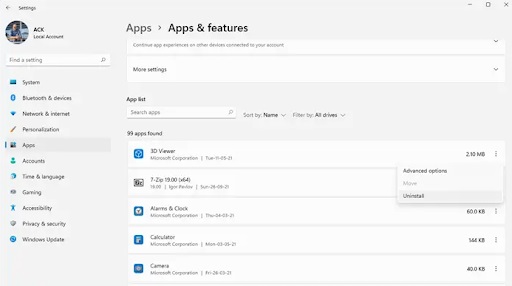
Apps & features
Step 4: Follow the on-screen instructions to successfully uninstall the program.
Once done, go to the official site of the app, then download and install it on your computer.
Conclusion
In this article, we discussed how to fix apps and programs in Windows 10. You can easily repair malfunctioning apps and programs on your Windows system. We hope the troubleshooting tips shared in this article help you get the program working again.
If you have any questions or additional information regarding this, feel free to share it in the comments section below.


