


How to Fix the UNEXPECTED KERNEL MODE TRAP Error in Windows 10 and 11: Here’s a simple, quick, and effective guide to help you resolve one of the most annoying UNEXPECTED_KERNEL_MODE_TRAP BSOD errors.
Kernel mode, also known as system mode, is a CPU operating mode where processes run without restrictions on accessing hardware to ensure a smooth user experience. However, issues in kernel mode can lead to blue screen errors (BSOD), such as UNEXPECTED KERNEL MODE TRAP, causing your system to freeze or shut down unexpectedly.
This error indicates a potential hardware failure, software conflict, or driver-related issue with your computer. Blue screen errors like this can be frustrating and are not always easy to fix.
However, now that you’ve reached this article, you can put your worries about this issue to rest. We’ve conducted thorough research to find reliable methods to fix this error, so keep reading.
Let’s start by shedding some light on the reasons behind this error to help you understand and resolve the issue better.
Causes of the UNEXPECTED KERNEL MODE TRAP Error
The following factors may have contributed to the KERNEL MODE issue on your computer:
Your RAM, motherboard, hard drives, or other hardware components may have issues.
Your system may have been infected by viruses or malware, which may have corrupted system files or processes.
Corrupted or outdated drivers may prevent the system from communicating with hardware components.
There may be software conflicts.
Your system files may have become corrupted.
Now that you’re aware of the potential causes of this error, let’s move on to solutions.
How to Fix the UNEXPECTED KERNEL MODE TRAP Error in Windows 10 and 11
You can apply the following solutions to resolve this error.
Fix 1: Restart Your Computer
Restarting your computer is a simple yet one of the most effective solutions for many complex issues. Therefore, you can restart your computer to check if the problem is resolved before trying other solutions. However, if it doesn’t fix your issue, you can proceed to the other fixes.
Fix 2: Run Hardware Troubleshooter
If you started experiencing the error after adding new devices, the newly added device might be the cause of the problem. Thus, you can remove the new devices to resolve the issue.
However, if you’re unsure which device might be faulty, you can follow these steps to run the hardware troubleshooter to eliminate the error.
First, right-click the "Start" button on the taskbar to access the quick access menu.
Second, select Settings from the available options on your screen.
The next step is to choose Update & Security from the settings menu.
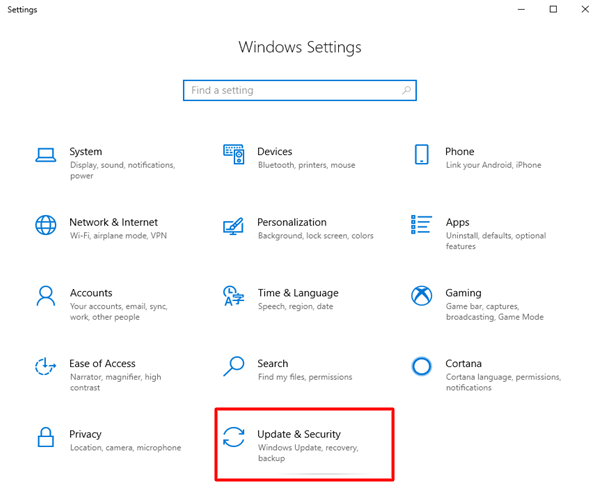
Click on Update & Security
Now, you can select Troubleshoot from the Update & Security settings.
Choose Hardware and Devices from the left pane of the Troubleshoot window.
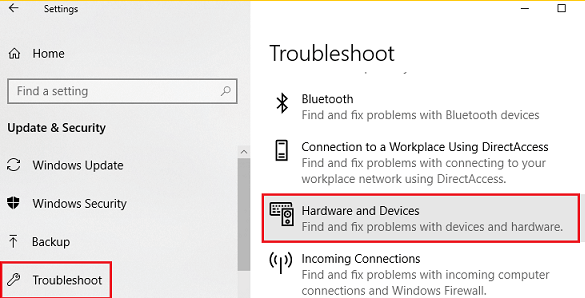
Hardware and Devices in the left pane
Click the Run the troubleshooter button to allow Windows to diagnose hardware issues.
Finally, follow the on-screen instructions to resolve the detected issues and restart your computer.
Fix 3: Scan Your System for Corrupted Files
Corrupted system files are one of the main factors responsible for BSOD issues, such as UNEXPECTED KERNEL MODE TRAP errors. Therefore, you can perform an SFC scan to find and repair corrupted files. Here’s the detailed process to do that.
First, type CMD in the "Type here to search" box on the taskbar.
Second, right-click on Command Prompt and select Run as administrator to open the command prompt with administrative rights.
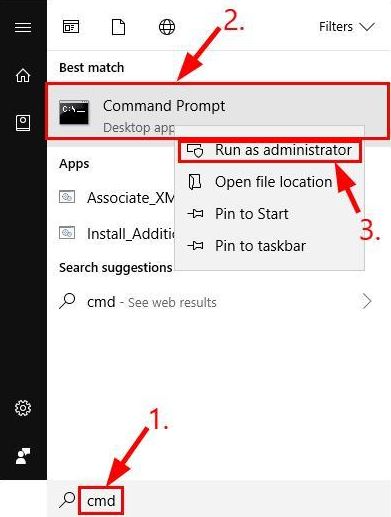
Type cmd in the Start menu search bar
After opening the command prompt, enter the command sfc /scannow and press Enter.
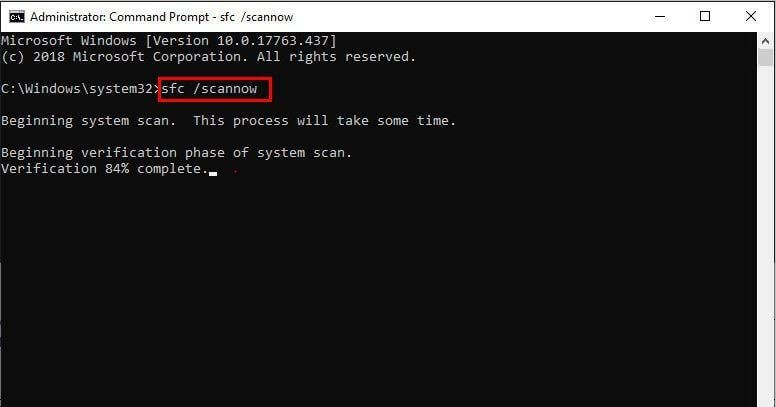
Type SFC-Scannow and press Enter
Be patient while Windows scans for and repairs system file issues.
Finally, restart your computer after the above process is complete.
Fix 4: Run Windows Memory Diagnostic
Memory issues can also cause the UNEXPECTED KERNEL MODE TRAP error, so you can run the Windows Memory Diagnostic to find and fix the problem. Here are the steps to do that.
The first step is to type Memory Diagnostic in the Windows search.
Next, select Windows Memory Diagnostic from the search results that appear on your screen.
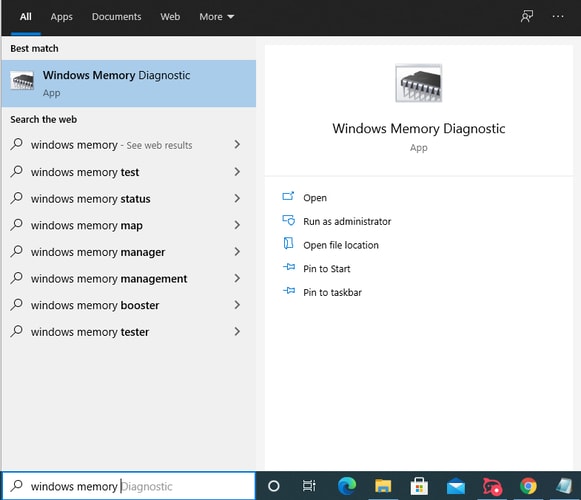
Windows Memory Diagnostic
Select the Restart now and check for problems (recommended) option.
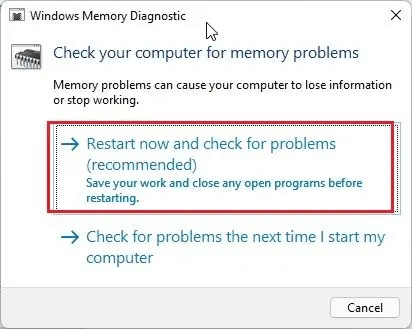
Check your computer for memory issues - Restart now.
Wait for your operating system to detect any memory problems on your computer.
Follow the on-screen instructions to resolve the detected issues.
Finally, restart your computer to complete the above steps.
Fix 5: Disable Antivirus and Windows Defender
Your antivirus or Windows Defender may conflict with computer functions, causing the UNEXPECTED_KERNEL_MODE_TRAP BSOD error. Therefore, you can disable these programs to fix the issue.
The steps to disable third-party antivirus software vary from program to program, so you can refer to the program’s guide on how to deactivate it. Here are the steps to turn off Windows Defender.
To start, use the shortcut key Win+R to open the Run dialog.
Next, type gpedit.msc in the text box that appears on the screen and press Enter to access the Local Group Policy Editor.
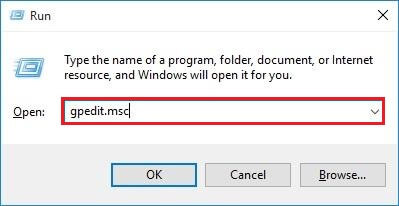
Type gpedit.msc in the Run utility
Now, select Computer Configuration and then Administrative Templates.
At this step, you need to expand Windows Components and then choose Windows Defender Antivirus.
Next, double-click on the option to Turn off Windows Defender Antivirus.
Select the "Enabled" box and click the "Apply" button.
Finally, click "OK" and restart your computer to save the changes you made.
Fix 6: Update Device Drivers
Old drivers disconnect the link between the operating system and connected devices, causing issues like the one you’re experiencing. Therefore, you should update all device drivers.
There are multiple ways to update drivers; however, the safest and easiest method is to automatically update drivers using dedicated driver update software, such as Win Riser. Win Riser is one of the best programs for updating drivers and improving computer performance.
Additionally, Win Riser offers many amazing features, such as the option to roll back drivers to resolve update-related issues, detect and remove malware, clean invalid registry entries, and remove unwanted files. You can follow the simple instructions below to use this program.
First, download the Win Riser setup program.
Second, double-click the setup file you downloaded and follow the quick installation process.
After installation, allow Win Riser to scan your computer for a few seconds.
Go to the outdated drivers and other issues listed on your screen and click Fix issues now to resolve all problems and automatically update the drivers.

Fix 7: Uninstall and Reinstall the Faulty Driver
Did the UNEXPECTED KERNEL MODE TRAP error occur after installing or updating a driver? If yes, the recently installed or updated driver is likely the cause of the problem. Therefore, you can uninstall and reinstall the driver by following the steps below to fix the issue.
First, open the quick access menu using the shortcut key Win+X.
Second, choose "Device Manager" from the options that appear on the screen.
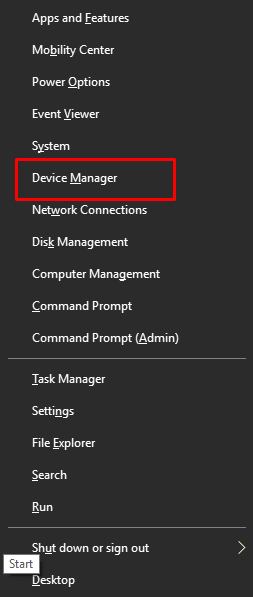
Select Device Manager
After opening Device Manager, double-click on the category of the recently installed/updated driver.
Next, right-click on the problematic driver and select Uninstall device from the available options.
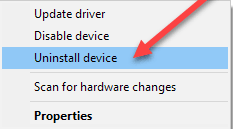
Uninstall device
Select the option to Delete the driver for this device and click the OK/Uninstall button.
Finally, restart your computer to reinstall the driver.
Fix 8: Perform a Windows Update
Windows updates work to fix security vulnerabilities and issues like the one you’re trying to resolve. Therefore, you can follow the instructions below to update Windows.
First, activate your computer settings using the shortcut key Win+I.
Second, select Update & Security and then check for updates.
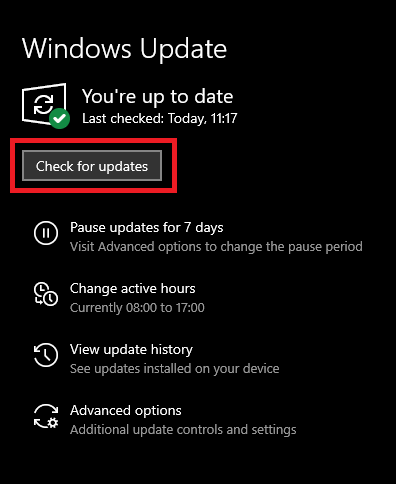
Check for Windows


