


How to Fix the Blue Screen error Win32kbase.sys in Windows 10, 11: Are you encountering the Win32kbase.sys blue screen error in the Windows operating system? Don’t worry, here are some practical solutions you can try to fix this error.
The blue screen of death is a critical error screen displayed by Windows operating systems when a serious system error occurs. Generally, this error indicates a system crash, where the operating system has reached a critical state and can no longer operate safely and correctly.
The Win32kbase.sys failure is one of the BSOD errors, causing the system to crash with a stop code displaying a message like "Your PC ran into a problem and needs to restart." The file known as Win32kbase.sys is the Base Win32 Kernel Driver associated with the Windows operating system, found in the System32 subdirectory. There’s a chance your computer may display a blue screen if it’s corrupted or missing.
Recently, many Windows PC users have encountered this error. Are you also facing this blue screen of death? No need to worry, there are several solutions to this issue.
Solutions to Fix the Win32kbase.sys Blue Screen Error in Windows 11, 10
Here are some tried and tested solutions to resolve the Win32kbase.sys error in Windows 10, 11.
How to Fix the Win32kbase.sys Blue Screen Error in Windows 10, 11
Fix 1: Run SFC Scan
Running the System File Checker (SFC) is one method to consider for fixing the Win32kbase.sys error. The SFC scan allows you to locate missing or corrupted system files. You can run the System File Checker to determine if there are any missing or corrupted system files. To do this, follow these steps:
Step 1: Open Command Prompt with administrative rights.
Step 2: Type "sfc /scannow" in the Command Prompt (Admin), then press Enter.
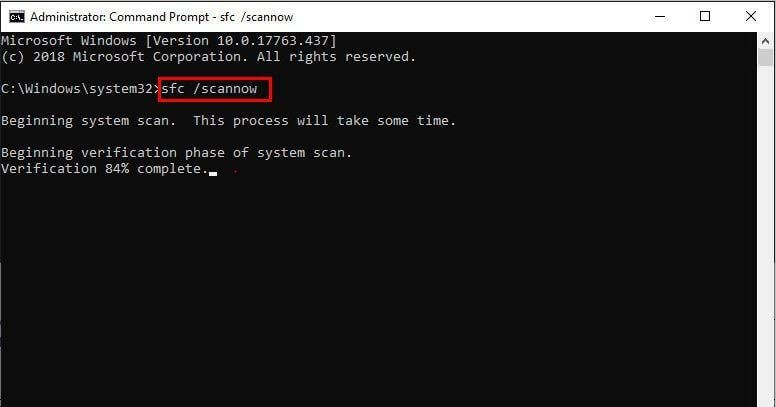
Type SFC-Scannow and press Enter
Step 3: The System File Checker will now start searching for corrupted or missing system files. If any files are found, it will automatically repair the corrupted files. This process may take some time.
Step 4: Once the process is complete, restart your computer.
Now, check to see if the Win32kbase.sys blue screen error has been resolved. If not, proceed to the next solution.
Fix 2: Use DISM Command
The DISM.exe tool is another option you can use to scan your system and resolve your Win32kbase.sys file issue. Follow the steps below to run the DISM Command:
Step 1: Press the Windows logo key on your keyboard, then type Command Prompt in the box that appears. Click on Run as Administrator once you locate Command Prompt from the list.
Step 2: Copy and paste the command below, then press Enter.
DISM.exe /Online /Cleanup-image /Scanhealth
Step 3: If any issues are found, copy and paste the following command and press Enter to fix the problem.
DISM.exe /Online /Cleanup-image /Restorehealth
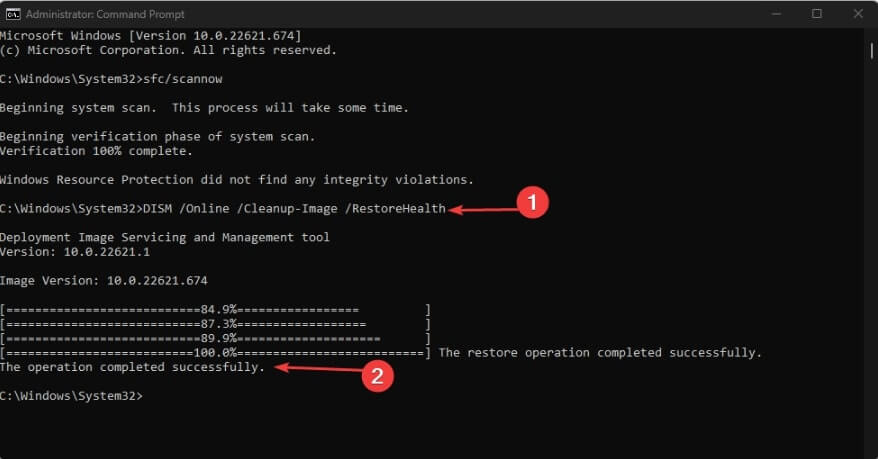
After that, restart your computer and check if the Win32kbase.sys blue screen error has been resolved. Proceed to other solutions if the error persists.
Fix 3: Update Your Device Drivers
If you’ve tried resolving the win32kbase.sys BSOD using the SFC tool and DISM tool without success, the issue may lie with your device driver. You should update your drivers to fix the problem you’re experiencing.
Occasionally, the win32kbase.sys BSOD issue occurs due to drivers that are either outdated, corrupted, incompatible, or completely removed. Therefore, we strongly recommend updating your drivers to the latest versions. Driver updates can be done either manually or automatically, depending on your preference. The manual method can be a bit tedious and may not succeed if you lack adequate knowledge.
You can do this by visiting the manufacturer’s website and searching for the appropriate drivers for your system and device. This is one option available to you, but keep in mind that choosing this alternative can be cumbersome and time-consuming. Moreover, it can be risky because if you install incorrect drivers, it may cause system issues instead of fixing the blue screen error.
Alternatively, you can opt for the automatic method to fix this error without the fear of installing incorrect or incompatible drivers. To do this, you can use the Win Riser application. This is an ideal tool that will allow you to install drivers, fix registry entries, clean up unwanted files, and remove malware from the system easily. All of this will help improve system performance while also resolving the win32kbase.sys BSOD issue. To do this, follow the steps below:
Step 1: Download and install the Win Riser tool.
Step 2: Once the installation is complete, allow the tool to scan your system, which should start automatically. Wait for the scan to finish, then click on Fix the Problem Now to eliminate all the mentioned errors.

Win Riser Driver Updater for Epson LQ310 Driver for Windows 10, 11
Step 3: Once the errors are resolved, restart the system to apply the mentioned fixes.
Fix 4: Check for System Updates
According to many users, the Win32kbase.sys BSOD issue is more likely to occur in older Windows versions. Although the Windows update process is self-executing, there are times when the system fails to download a patch or delays installing the patch. It’s also possible that the Windows security system incorrectly identifies these files as errors and blocks them. Therefore, you should make an effort to regularly check for and install updates.
Here’s how to check for system updates:
Step 1: Press the Win Logo key + I together to open Windows Settings.
Step 2: Click on Update & Security.
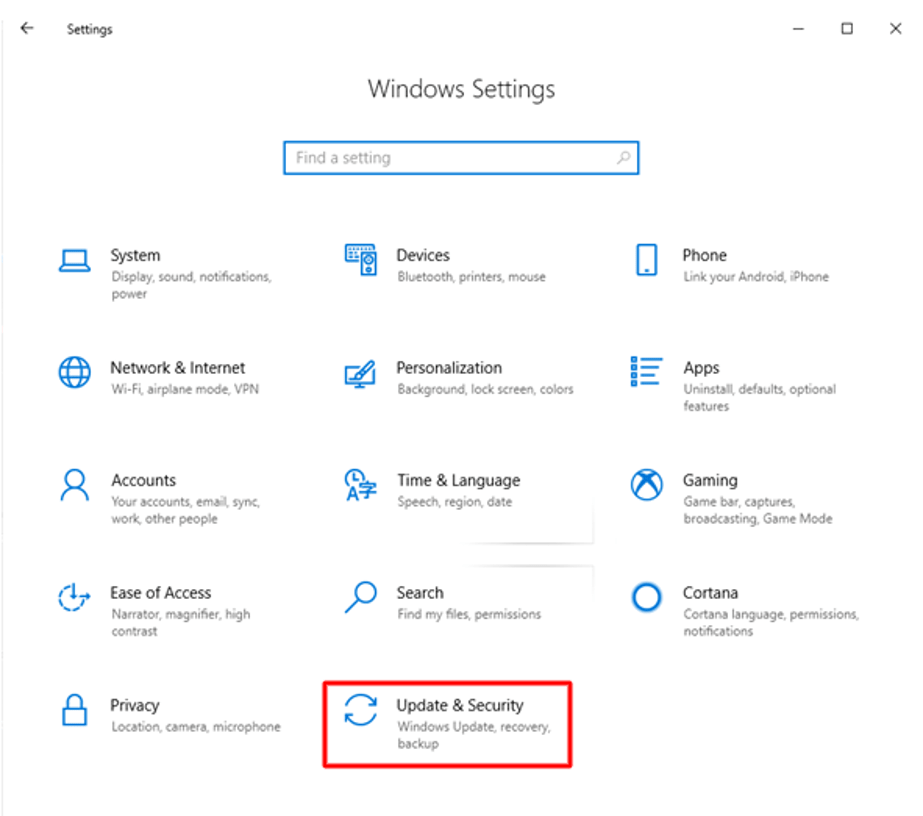
Click on Update & Security
Step 3: Ensure Windows Update is selected from the right pane, then click on Check for Updates on the right.
If a new security patch and system updates are available, the download process will start automatically. To implement these updates, simply restart your computer. This will definitely help you resolve the Win32kbase.sys error in Windows 11, 10.
Conclusion
The Win32kbase.sys error is common, and by using any of the solutions provided in this troubleshooting guide, you can resolve this blue screen error in Windows 10, 11. We hope this article has been helpful to you. If you have any questions or suggestions, please let us know in the comments section below.


