


How to Fix the Server IP Address Could Not Be Found Error: If you're also encountering the "Server IP Address Could Not Be Found" error on your Windows PC, try the solutions provided in this guide to fix the issue immediately.
When we want to search for anything online, the first thing that comes to mind is to use a web browser. There are many web browsers you can try. However, most users believe that Google Chrome is one of the best web browsers for Windows, macOS, and other operating systems.
The browser is highly customizable and easy to use, which are two main reasons why people choose it over any other browser. The browser's performance is incredibly impressive, but sometimes errors may occur, one of which is the inability to find the server's IP address on Google Chrome.
What is the Server IP Address Could Not Be Found Error?
As the phrase suggests, the server IP address error is related to your internet connection. When the browser cannot access your internet connection, it displays this error. There are many reasons behind this error, but in any case, fixing this issue is straightforward, and we will present all the solutions related to this error in this article, so just follow along.
Ways to Fix the Server IP Address Could Not Be Found Error
The sections below will help you fix the "Server IP Address Could Not Be Found" error instantly. Whether you're facing this error on a Windows, Mac, or macOS device, these easy solutions will help you run Chrome perfectly. Follow the solutions in order as outlined until the issue is resolved.
Solution 1: Ensure You're Connected to the Internet
This may seem obvious, but since the "Server IP Address Could Not Be Found" error is related to the internet, the first solution to fix it is to ensure optimal internet connectivity. Check if the internet is working on other platforms and applications, etc. Check the Ethernet cable to see if it's loose, and fix it if necessary. Additionally, if you're using Wifi, turn off the router for 5 minutes and check again. If nothing works, try the next solution.
Solution 2: Clear Chrome's Cache and Restart the Browser
When too much data accumulates in the cache or the browser's history becomes cluttered, it can also cause issues. These reasons can lead to the "Server IP Address Could Not Be Found" error. Therefore, to fix the error, you need to clear the browser's history and restart Chrome. This will help you visit different websites without any errors. Follow the steps below to see what you can do:
Open a new tab in the browser and press the Ctrl+Shift+Esc key combination. This will take you to your device's history.
Go to the Advanced options tab and set the time range to All time.
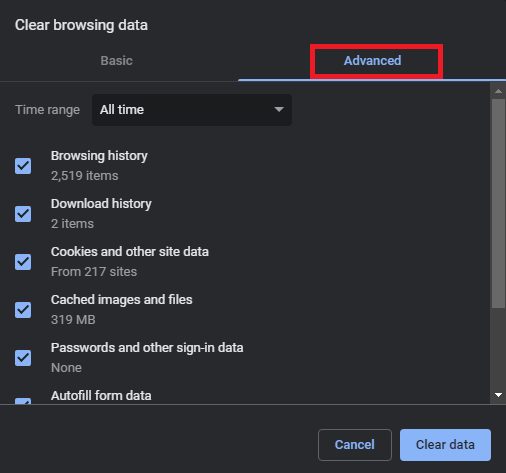
Click on Advanced options.
Select all the boxes and click the Clear data button.
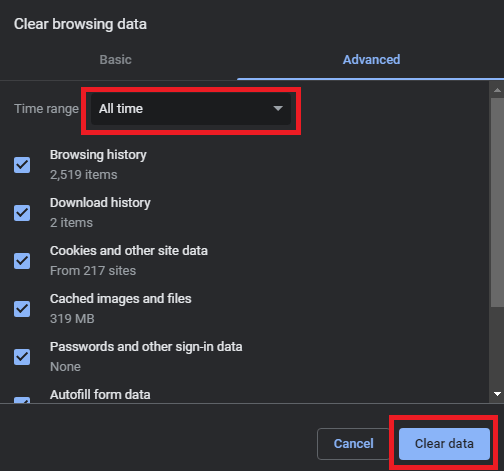
All time, and click Clear data browsing.
Clearing the history may take a minute or two, so wait. After that, close the browser and reopen it.
If this method fails, try the next method to fix this error.
Solution 3: Restart the VPN or Proxy
We tend to use a VPN or proxy tool for added security, which allows you to gain extra protection against online threats. However, when the VPN or proxy connection is interrupted or restarted, the browser may not be able to access the internet. Therefore, in such cases, you need to turn off the VPN tool and turn it back on. This method also works if the server IP address could not be found on a Mac. You may even need to restart the entire device to get the browser running smoothly. This will give the browser a fresh start and allow it to operate seamlessly.
Solution 4: Update the Network Driver
The next solution to use if the "Server IP Address Could Not Be Found" error persists is to update the driver. If the network adapter driver is outdated, faulty, missing, or corrupted in any way, such issues may arise.
For this task, you can use several solutions; however, not all solutions may be helpful. Therefore, it's best to use an automated tool for this task. Bit Driver Updater is the best way to update the network driver, and the tool also works with other driver updates as well. You can use the program to update any type of driver for any type of device.
Moreover, Bit Driver Updater also provides you with other features such as a multilingual interface, backup and restore options, ignoring updates, one-click updates, effective scheduling, and much more. You will find all these features when using the tool.
How to Fix the Server IP Address Could Not Be Found Error Using Bit Driver Updater?
The steps below will allow you to fix the error by updating the network adapter drivers using Bit Driver Updater:
Download the Bit Driver Updater setup. Windows-Download-Button
Once the setup is downloaded, run it and install the tool.
Launch the updater and click the Scan Now button to start scanning the system for outdated or faulty drivers.
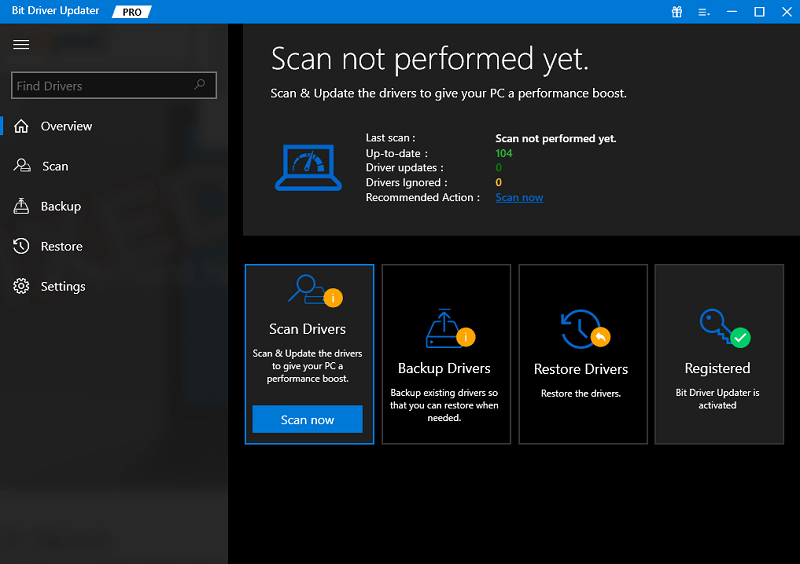
You may see a list of outdated drivers on the tool after the scan stops. Use the Update Now or Update All button to install the required drivers or all drivers easily.
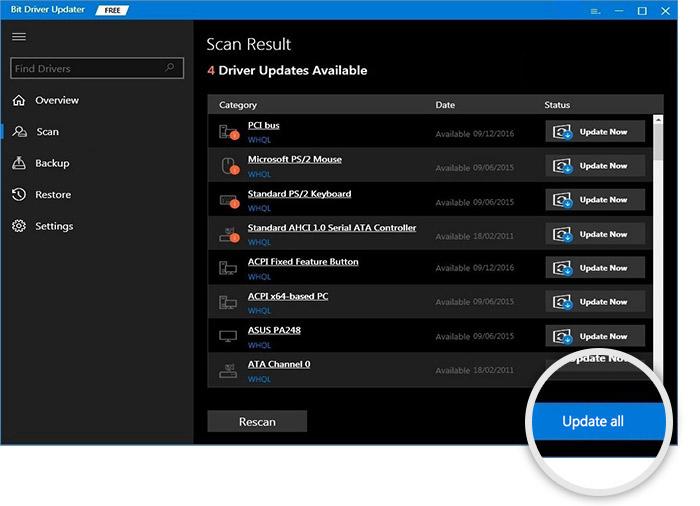
Once the required updates are installed on the system, restart it.
Solution 5: Reset the Network
If you're still unable to fix the "Server IP Address Could Not Be Found" error, you can try resetting the network address. Sometimes, incorrect network settings can also lead to this error, so you should try resetting the network and then use it to fix the error. Follow the steps below to see what you need to do:
First, press the Win+S key combination, then type cmd, run the command prompt as an administrator, and type cmd in the Start menu search bar.
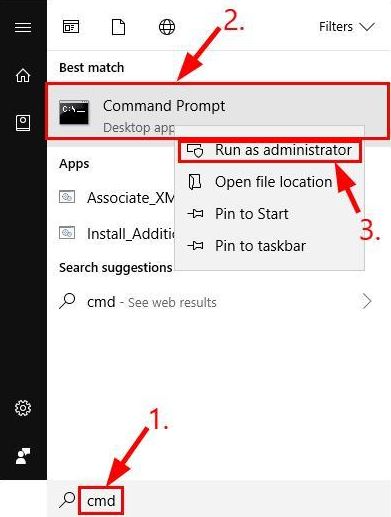
Copy and paste or type the command below followed by the Enter key.
ipconfig
Now, copy and paste or type the commands below followed by the Enter key individually to reset the network.
netsh int ip reset
network reset
Now that you've reset the network, the "Server IP Address Could Not Be Found" error should no longer appear.
Conclusion
In this article, we discussed how to fix the "Server IP Address Could Not Be Found" error. These were some helpful methods that allow you to resolve this error. All the fixes or solutions mentioned above are very easy to follow to fix the error immediately. However, if you encounter any issues or have any questions, feel free to write to us in the comments section below; we are here to help you.


