

How to Fix Error Code 0xc00000e5 on Windows: The Windows 0xc00000000e5 issue can be easily resolved with the best solutions outlined in this article.
Not being able to open applications on your computer can be frustrating, especially when you urgently need to access a specific app. Many users have reported encountering error code 0xc00000000e5 on the Windows operating system, preventing them from accessing the necessary applications on their devices.
Since you are reading this article, we assume you are one of those users. You can now set aside your worries, as this article contains the best possible solutions for your problem.
Before discussing these solutions, let's highlight the potential causes of the issue.
Causes of Error Code 0xc0000e5 on Windows
The following factors may have contributed to the error you are experiencing on your computer.
Your antivirus software may be blocking the application you are trying to open.
The application may require administrative privileges to run smoothly.
System files may be corrupted, missing, or inaccessible.
Your system drivers may be outdated.
Your computer may be infected with viruses.
Now that you know the possible cause of the error you are trying to resolve, let's discuss how to fix it.
How to Fix Error Code 0xc00000e5 on Windows
You can fix the Windows error you are facing using the following methods:
Fix 1: Ensure Your Antivirus is Not Blocking the Application
If you started encountering the error shortly after installing third-party antivirus software, it may be responsible for the issue. Some programs, like AVG and Comodo, are known to block applications, mistakenly believing they are harmful files.
Therefore, you can add the required application to your antivirus exclusion list. Since the method for doing this varies between antivirus programs, you can refer to your antivirus software's guide for instructions on how to perform this action.
Fix 2: Run the Required Application as Administrator
Some applications require access to important system files to run smoothly. If these permissions are not granted, you may encounter issues like error code 0xc00000000e5 on Windows. Therefore, you can follow these steps to run the application as an administrator with all the necessary privileges.
First, navigate to the location where the application is installed.
Next, right-click on the application file.
You can now select "Run as administrator" from the options available in the right-click menu.
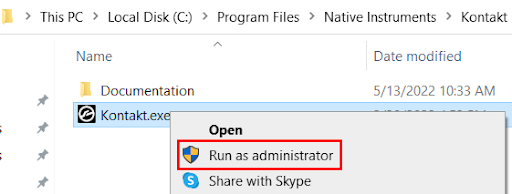
Run as Administrator
Finally, click "Yes" when prompted to confirm opening the application as an administrator.
Fix 3: Check and Repair System Files
You may encounter Windows error 0xc00000000e5 if the required system files are corrupted, missing, or inaccessible. Therefore, you can take the following steps to scan and repair the files to resolve the issue.
The first step is to open an elevated command prompt on your computer. You can do this by searching for cmd in the Windows search, right-clicking on Command Prompt, and selecting "Run as administrator" from the menu that appears.
After opening the command prompt as an administrator, type SFC /scannow in the window that appears and press Enter.
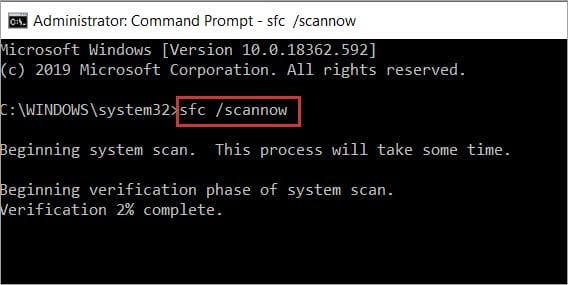
Open the command prompt and then enter the command SFC /scannow and press Enter again.
Once the above process is complete, type chkdsk /r c: in the command prompt window, remembering to replace c: with your drive letter.
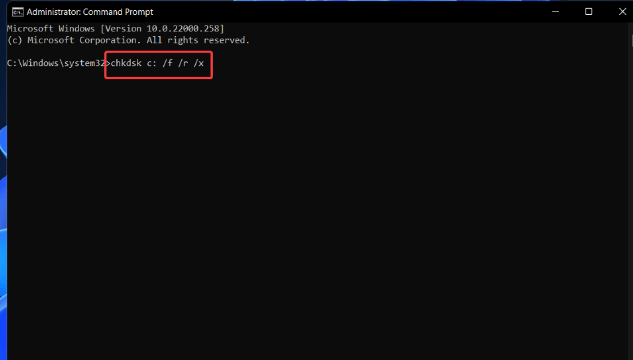
Chkdsk C frx
Next, press Enter and wait for the process to complete.
Finally, you can exit the command prompt and check if the issue has been resolved. If the problem persists, you can try the following fixes.
Fix 4: Scan Your Computer for Viruses
Malware or virus infections may be another reason you are having trouble opening applications on your computer. Therefore, you can perform a thorough scan using malware removal tools.
Fix 5: Update Device Drivers
Outdated drivers can hinder system performance and cause error code 0xc00000000e5 and other errors by disrupting the connection between the computer and connected peripherals. Therefore, updating device drivers is among the most recommended fixes for your issue.
You can automatically update drivers with just a few clicks using Win Riser. It updates drivers with one click, removes invalid registry entries, cleans up unwanted files, detects and removes malware, backs up existing drivers, and restores them, along with many other benefits.
After installing the program, you can follow these simple steps to update drivers and resolve various issues.
First, let Win Riser perform a comprehensive system scan for a few seconds.
After that, you can review the results and click "Fix Issues Now" to resolve all problems and update drivers immediately.

Win Riser Driver Update Program for Epson LQ310 Driver for Windows 10,11
Fix 6: Update Windows
Windows updates can fix random operating system errors that may be responsible for the issue you are trying to resolve. Therefore, you can follow these instructions to update your operating system.
The first step requires you to open your computer's settings. You can open the settings using the shortcut key Win+I.
After opening the settings panel, you can select "Update & Security" from the options available on your screen.
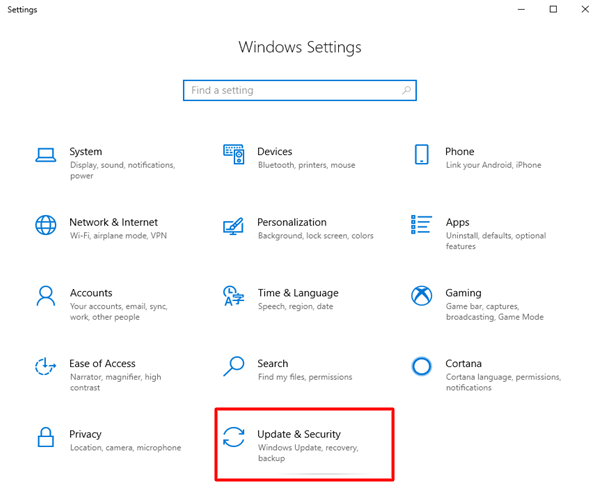
Click on "Update & Security"
Next, choose Windows Update from the left panel of the Update & Security window and check for updates.
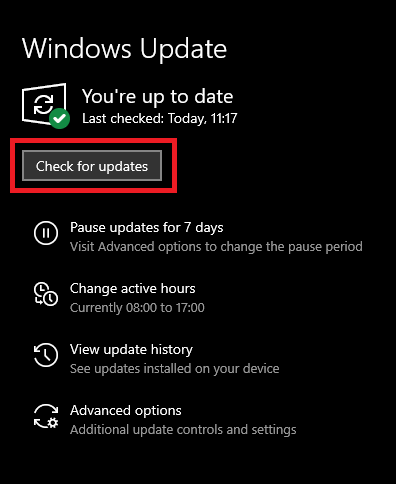
Check for Windows updates to get the latest driver update.
At this step, you will be prompted to download and install the recommended updates.
Finally, you can restart your computer after completing the download and installation of the update to save the changes.
Conclusion
In this article, we discussed how to fix error code 0xc00000e5 on Windows. We explored multiple methods to resolve the issue of accessing applications on your computer. One of the solutions mentioned above is sure to fix the error you are experiencing. If you have any questions or suggestions, feel free to leave a comment in the comments section.
Frequently Asked Questions
What does error code 0xc00000000e5 mean?
This error typically indicates a memory access issue, often caused by hardware malfunctions, corrupted system files, or incompatible software.
What if none of the above solutions work?
If you have tried all the steps mentioned above and the error persists, it may indicate a more serious underlying issue with the hardware or operating system. In this case, it may be necessary to seek help from a professional technician or contact Microsoft support.
Can I prevent error code 0xc00000000e5 from occurring in the future?
While some causes of this error are beyond your control, you can reduce the risks by regularly updating your system, keeping your drivers up to date, using reliable antivirus software, and being cautious when installing new software or hardware.


