


How to Fix USB Stick/Pen Drive Not Appearing in Computer: Today, when I plugged my pen drive into the computer, it didn't show up in File Explorer. I disconnected and reconnected it, restarted my computer, and even tried accessing the pen drive in safe mode, but nothing worked.
How to fix the issue of USB Stick/Pen Drive not appearing in the computer?
I read several articles on Google, but none of them helped me as they required me to perform many tasks. Finally, I decided to troubleshoot and fix the issue myself, and after spending half an hour, I managed to resolve it.
Therefore, I decided to share this solution with others so they can also fix the USB stick not showing up in File Explorer.
Method 1: Use Advanced System Repair Tool
If File Explorer is not recognizing your USB drive, it indicates that something is wrong with your computer, preventing it from detecting your USB device.
Missing system files, outdated drivers, registry issues, malware/viruses, and incorrect system settings are common reasons why USB devices may not be recognized. You should use an advanced system repair tool to fix these Windows issues.
Windows consists of numerous dll files, exe files, sys files, various types of services, databases, and more, making it impossible to constantly monitor all files. A great PC optimization tool repairs damages, fixes errors, updates Windows and drivers, and silently removes various types of bugs.
The Outbyte PC Repair Tool performs all the above tasks effortlessly, providing you with a smooth and error-free Windows environment so you can focus solely on your work.
3 Steps to Fix This Error
Step 1. Download the Outbyte PC Repair Tool [File Size: 16.4 MB]
Step 2. Scan your Windows computer
Step 3. Click the "Repair" button to fix the error
Method 2: Assign Drive Letter and Path
Often, for unknown reasons, Windows fails to assign a drive letter to the external USB device or pen drive. This is why the USB unit cannot be listed in File Explorer.
Step 1: Open Disk Management. Right-click on the "Start" menu and select "Disk Management".
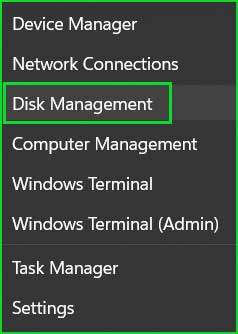
Open the Disk Management tool in Windows 10 and 11
Step 2: Click on Disk Management under the Storage section.
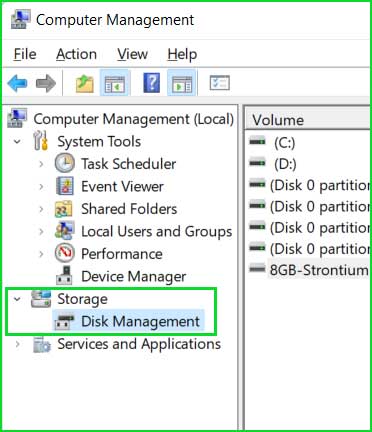
Storage section in Disk Management for Windows 10 and 11
Step 3: Right-click on your USB storage device and select "Change Drive Letter and Paths".
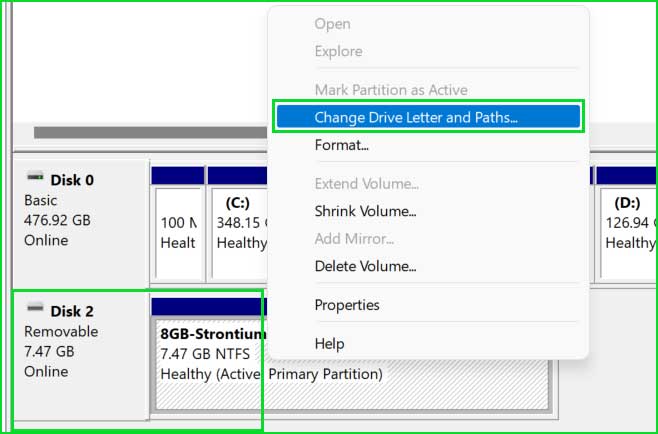
Drive properties in Disk Management tool for Windows 10 and 11
Step 4: Click the Add button. Just click OK in the next window.
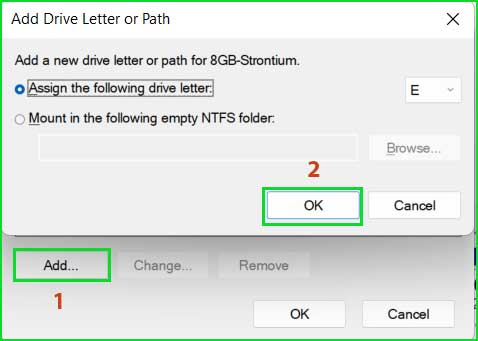
Assign a drive letter to the USB storage device in Disk Management
Step 5: Now open File Explorer and check for the USB device.
Method 3: Reinstall USB Driver
If the problem persists, you may need to reinstall the driver again. You can do this using Device Manager.
Step 1: Open Device Manager. Right-click on the "Start" menu and select "Device Manager".
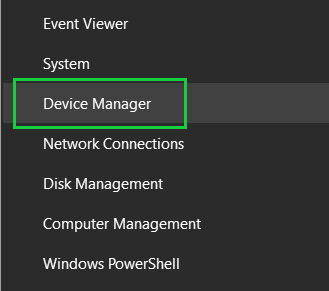
Open Device Manager in Windows 10 and 11
Step 2: Expand Disk Drives and right-click on your USB device. Select Uninstall Device.
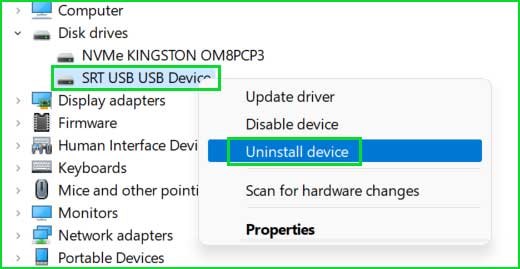
Uninstall device in Device Manager for Windows 10 and 11
Step 3: Disconnect the pen drive from your computer and reconnect it. The appropriate driver will be installed again, and you will be able to access this drive.
Method 4: Format the Pen Drive Using Command Prompt
You may need to format your USB drive using an elevated Command Prompt. After formatting the USB device, a new file system will be automatically installed.
Step 1: Open an elevated Command Prompt.
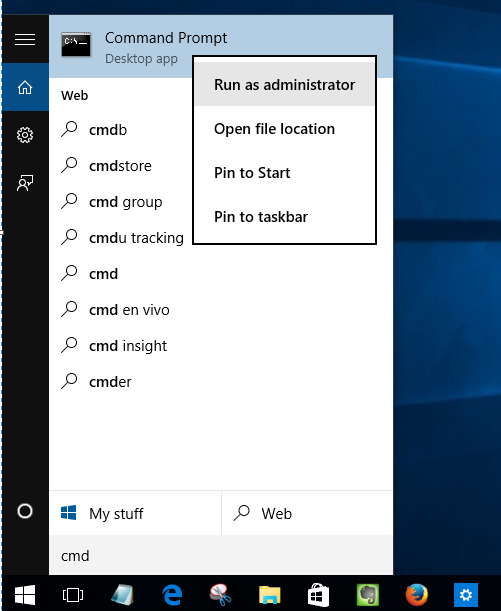
Open CMD as administrator in Windows 10
Step 2: Execute the following command step by step. Be careful when selecting options.⛔ Caution: A wrong selection may delete your entire primary drive.
Step 3: Open diskpart to start the disk.
diskpart
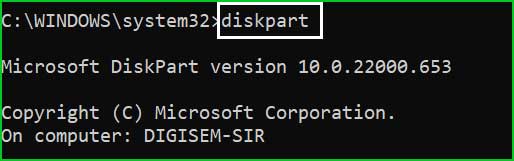
diskpart commands in Windows 10 and 11
Step 4: List the disks and then select your USB device.
list disk
select disk 2
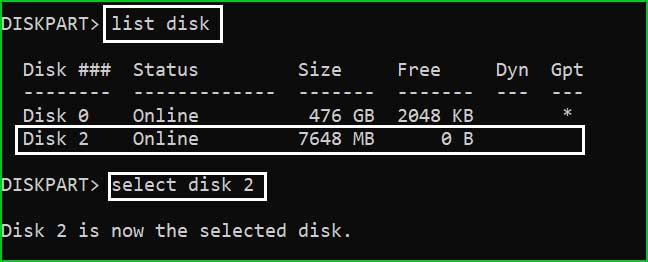
List disk commands in Windows 10
Step 5: List all available volumes and then select the desired volume.
list volume
select volume 6
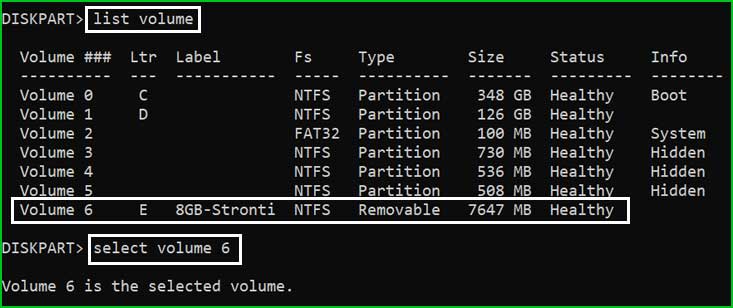
Volume list command in diskpart
Step 6: Format your USB drive using the following command.
format fs=ntfs quick
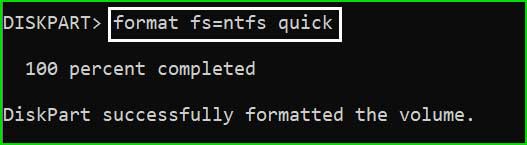
format fs=ntfs quick command in diskpart is used to format storage devices.
Step 7: Exit diskpart by running the exit command. Go to File Explorer, and you will see your USB drive listed.
Conclusion
This article addresses the issue of USB Stick/Pen Drive not appearing on the computer in File Explorer. Several methods outlined in this article will help you troubleshoot this problem.


