

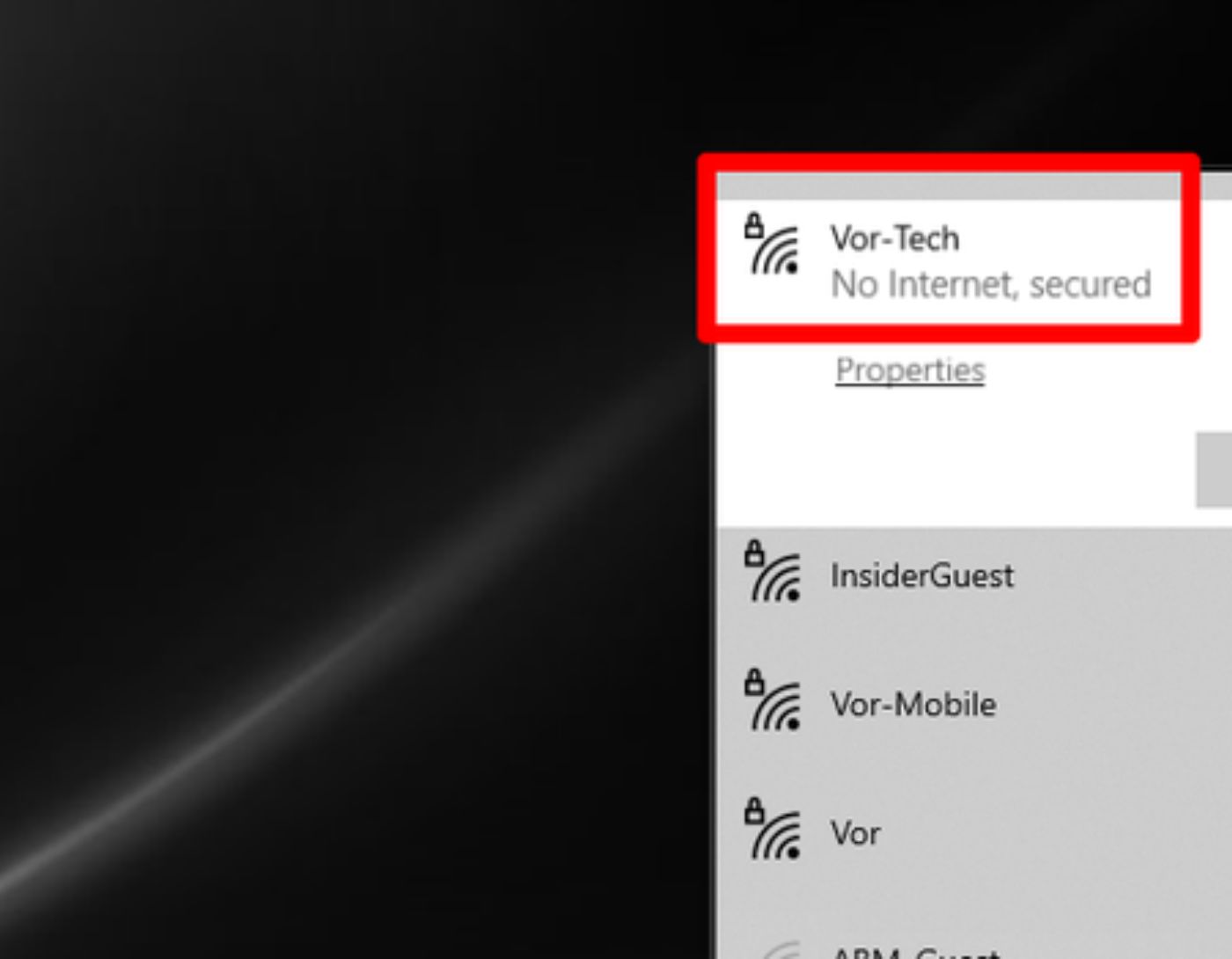
(How to Fix No Secure Internet Connection for Windows 10 and 11) How to resolve the "No Internet, Secure" issue on Windows 10 and 11: Sometimes, your Windows device may display a message saying "No Internet, Secure." To eliminate this problem, refer to the simple solutions provided in this article.
We use the internet for many tasks, whether you need to download a video, browse various websites and search engines, watch online content, play games online, and much more. Therefore, when any issue arises that affects the internet in any way, it can be quite frustrating.
The "No Secure Internet" issue is one of these errors. Due to this error, you won't be able to use the internet for any task. While this error may seem significant, it is not as serious as it appears.
Let’s explore some easy solutions you can try to fix this problem, so let's get started!
How to Fix No Secure Internet Connection for Windows 10 and 11
Get help from the following solutions, and try them one by one until the issue is resolved.
Fix 1: Disconnect and Reconnect
The first and most effective solution to fix "No Internet, Secure" is to disconnect the network and then reconnect. This action will provide a fresh start for the device, allowing you to use the internet properly. Resetting the network connection may resolve this frustrating issue, and here’s what you need to do:
This is how you can reconnect to the network. If you still encounter the error, try the next solution.
Fix 2: Disable VPN
If you are using a Virtual Private Network (VPN), the built-in security mechanisms in the VPN client may be causing this issue. Specifically, the kill switch may be programmed to disconnect your internet if a VPN server is unavailable VPN.
To determine if this is the cause of the problem, you can try disabling your VPN (using the disconnect feature) or even completely exiting the program. After that, reconnect to the internet.
If the secure online fix for Windows 10 works and you connect successfully, the issue should be with the VPN server.
First, ensure you have the latest version of your VPN software, then connect to a different VPN server. If all connections work as expected, you have successfully resolved the issue.
Fix 3: Use Windows Troubleshooters
Both Windows 10 and Windows 11 are complex operating systems. Microsoft recognizes this, which is why both versions come equipped with a comprehensive set of diagnostic and repair tools.
Given the widespread nature of internet-related issues, Microsoft’s Windows operating system includes not just one but two troubleshooting tools specifically designed to address them. These tools will review a checklist of common problems and attempt to resolve any difficulties you may encounter.
To locate the Internet Troubleshooter for Windows, please follow these steps:
Open Settings on your PC. (Press the Win+I keys to bring up Settings).
Go to Update & Security (Windows 10) or System (Windows 11).
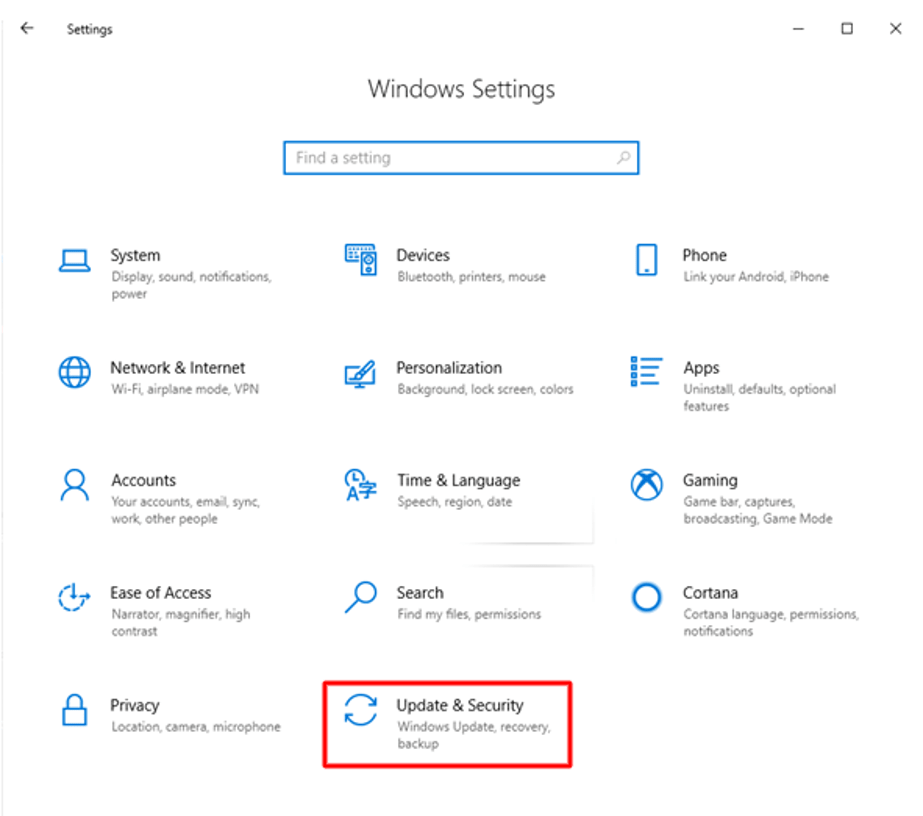
Click on Update & Security
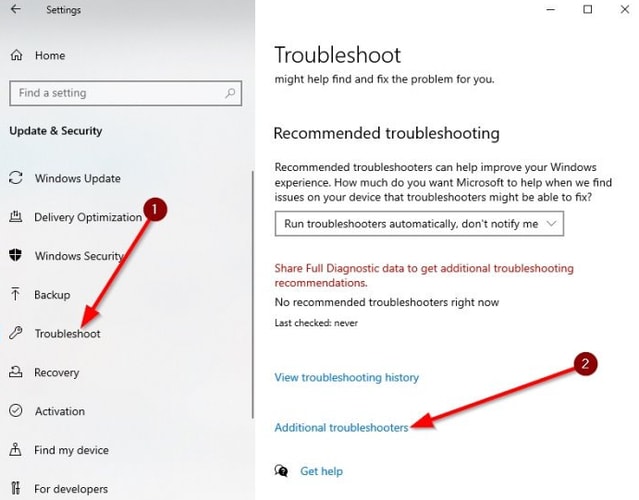
Scroll down the list of available options and click on the Troubleshoot button, then select either the Additional Troubleshooters option (Windows 10) or the Troubleshooters option (Windows 11).
Fix 4: Renew IP Configurations
Are you still facing the "No Internet, Secure" issue? One of the most straightforward methods is to refresh the IP settings in Windows 10, which will assign your device a new IP address; as a result, the problem will be fixed if it was due to incorrect IP assignment. Here’s the procedure to follow:
To open the Run window, press the Windows key and the R key simultaneously.
After typing cmd, press the Enter key on your keyboard.
The command prompt will then open; type the following commands followed by the Enter key.
ipconfig /release
ipconfig /renew
After executing these commands correctly, hopefully, the issue will no longer persist. If it does, move on to the next solution.
Fix 5: Check Internet Connection
If other devices can connect to the internet, ensure that your computer is connected to the correct network. Before searching for another solution, you should check if you are connected to the right Wi-Fi network. This may seem like a simple task, but it is crucial for fixing the insecure internet issue on Windows 11.
You may have also accidentally connected to an unsecured Wi-Fi network, or you might have a mobile device without a SIM card or a GoPro camera that you forgot to turn off. So, check all of this, and if everything seems fine, use the next and final solution.
Fix 6: Update Network Adapter Driver Using Win Riser
The above remedies may not be sufficient to fix the "No Secure Internet" issue on Windows 10 if the problem is due to outdated drivers. You will continue to face the issue. Drivers are programs that enable your computer to connect to devices, so you must ensure that your drivers are always up to date.
You can update your network driver with the help of Win Riser. This tool is highly effective, allowing you to update all drivers already installed on the system with just one click. The tool scans the system for unsupported drivers and attempts to update them.
Additionally, the program comes with a host of advanced additional features that you can enjoy exclusively, including driver backup and restore options, driver update scheduling, a bilingual user interface, and many more. Furthermore, there is a large database of drivers, allowing you to update drivers for a variety of additional devices, including printers, scanners, mice, touchpads, USB devices, and network adapters, with the help of the program.
You can quickly and easily resolve the issue using Win Riser:
To start, select the download option now to begin downloading the Win Riser package. Download button
Next, you will need to install the program on your device and then run it to proceed.
The program should automatically start searching for driver updates.
As the program compiles a list of all existing errors on the device.
Click "Fix Issues Now" to eliminate all problems.

Update Win Riser for all outdated drivers, and click on Fixes Now.
To effectively complete the process, you will need to restart the system once the necessary updates are installed.
Now, it's time to wrap up this simple guide on how to fix the "No Secure Internet Connection" issue for Windows 10 and 11. In this article, we explored some amazing methods to resolve this problem that limits your internet usage, and after following all the solutions, you should not face any issues.
You might also like
How to Fix Files Stopping from Copying
Photo Slideshow Programs for Windows 10
How to Enlarge Thumbnail Images in Windows 10
<a href="https://3almalt9nia.com/%


