

How to Fix Discord Update Failure on Windows 10: Discord is well-known as one of the most popular social platforms that helps you connect with others through video/audio calls, media, files, and text messages. Additionally, it allows you to interact with your friends while gaming on your computer. However, some users have reported getting stuck in a failed update process for the Discord app, preventing them from using it.
Are you one of those users? If so, this article is for you. We have researched the entire issue to find the best solutions. First, let’s understand why the problem occurs to address it more effectively.
What Causes Discord Update Failure
The following factors may be responsible for the Discord update stopping on Windows 10/11.
- There may be an issue with the Discord server.
- You might be experiencing internet connectivity problems.
- The Discord app may have some technical glitches.
- Discord may not have the necessary permissions on your computer.
- The Windows firewall might be interfering with the Discord update.
- There could be a buildup of cached data in the Discord app.
After identifying the potential causes of the issue you are facing, let’s guide you through the most suitable fixes.
How to Fix Discord Update Failure on Windows 10
You can apply the solutions below if the Discord update has failed on your Windows 11/Windows 10 device.
Fix 1: Check Your Internet Connection
Discord requires a stable and active internet connection to download and install app updates. Therefore, you might be experiencing a Discord update failure due to a network connectivity issue. You can follow this guide to check and fix your internet connection on Windows to resolve the problem. However, you can proceed to the next solutions if the issue persists.
Fix 2: Ensure Discord Server is Not Down
Sometimes, the issue may lie with the Discord server, which could be experiencing outages. You can visit the Discord server status page to check for any server issues. If there is a problem with the server, wait for a while before trying to use Discord again. If all server systems are operational, you can try the following solutions for your issue.
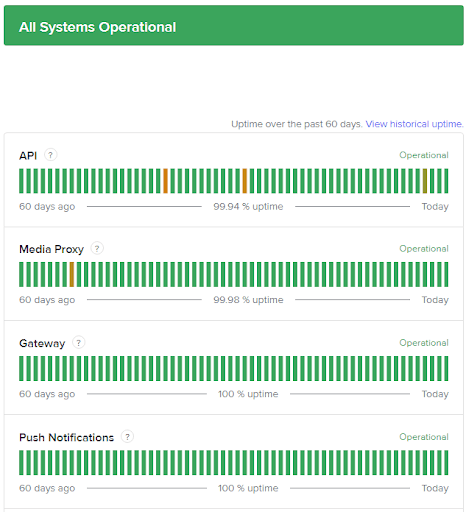
Check if the Discord server is down
Fix 3: Run Discord as Administrator
The Discord app may lack permission to access certain important files and make changes to your computer, leading to update failures and other issues. Therefore, running Discord as an administrator can resolve the problem. You can do this by following these steps.
The first step is to access the search tool using the shortcut key Win+S.
Next, type Discord in the search box on your screen.
Then, right-click on Discord when it appears in the search results.
You can now select "Run as Administrator" from the menu that appears on the screen, or alternatively, you can choose "Run as Administrator" from the Discord options on the right pane.
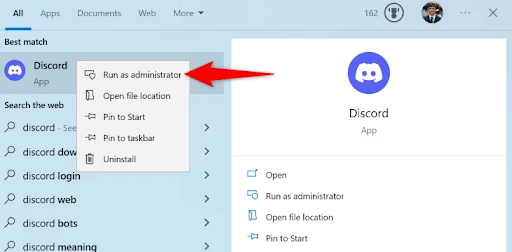
Run Discord as Administrator
Finally, select Yes when the User Account Control prompt appears to confirm your action.
Fix 4: Clear Discord Cache
Cache files enhance user experience by allowing the Discord app to run and perform various actions quickly. However, corrupted cached data could be the reason behind the Discord update failure. Therefore, clearing the cache by following the instructions below is one way to resolve the issue.
To start the cache clearing process, you need to open the AppData folder. To do this, run the Run tool using the shortcut key Win+R.
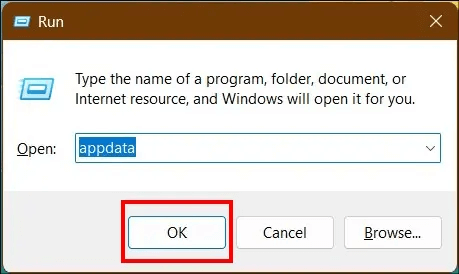
Type appdata in the text box that appears on the screen and click OK to open the AppData folder.
Next, select the Roaming folder from the AppData folder.
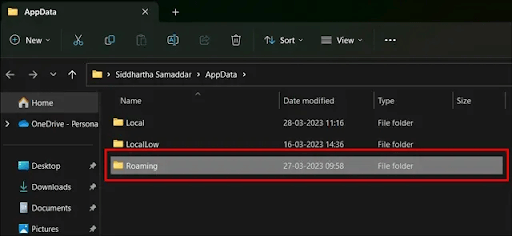
Open the Roaming folder
You can now click on Discord to open this folder.
The Discord folder should now appear on your screen, and you can select the Cache folder from the displayed folder.
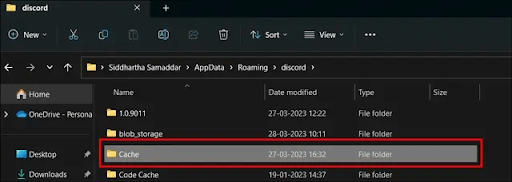
Open the Cache folder in the Discord folder
Now what you have on your screen is a folder containing all the Discord cache files. You can select all these files using the shortcut key CTRL+A.
After selecting all the cache files, press the Delete key on your keyboard.
Finally, click Yes when prompted to confirm the deletion of the cache.
Fix 5: Disable Windows Firewall
The Windows Firewall is responsible for ensuring the security of your computer by checking and blocking harmful incoming/outgoing network connections. Therefore, this firewall may have prevented Discord from accessing the internet, causing the Discord update to fail. Thus, temporarily disabling the firewall by following these steps can help unblock the Discord app and allow you to update it.
First, use the shortcut key Win+I to access Windows Settings.
Second, select Privacy & Security from the settings menu.
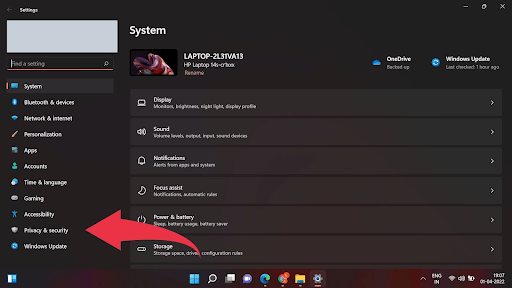
Open Privacy & Security
The Privacy & Security settings should now appear on your screen, and you can select Windows Security from the available options.
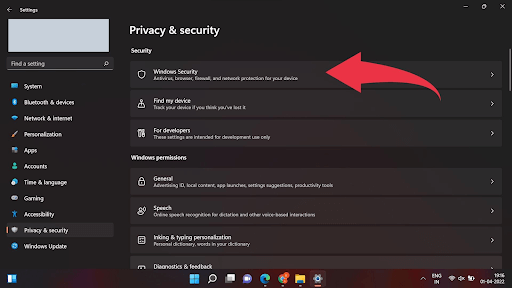
Open Windows Security
You can now turn off Virus & Threat Protection to disable the Windows Firewall. However, if any antivirus program controls your firewall, you also need to disable the firewall in that application by following the instructions in the program guide.
Fix 6: Try Disabling Antivirus Software
If you are using any third-party antivirus program, it may be blocking Discord updates. Therefore, you can temporarily disable the antivirus software to fix the issue. Since the steps to disable the program vary from one software to another, you can refer to the program guide for instructions on how to do this.
Fix 7: Rename the Discord Update File
A corrupted update file could be another reason for the Discord update failure. Renaming the file may fix this issue. Therefore, you can follow these steps to rename the file.
First, use the Win + R keyboard shortcut to open the Run box.
Next, type appdata in the box that appears on the screen and click OK to open the AppData folder.
Once the AppData folder appears, click on the Local folder to open it.
You can now select Discord from the local folders.
Open the Discord folder
Next, look for the update file, right-click on the update file, and select Rename from the context menu that appears.
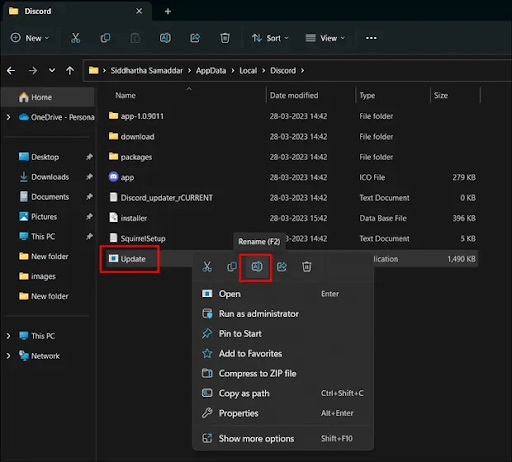
Update file and select Rename
Finally, type the new name for the update file and press the Enter key on your keyboard.
Fix 8: Uninstall and Reinstall Discord
Uninstalling Discord removes all corrupted data that may have caused the issue you are trying to resolve. Therefore, you can follow the instructions below to uninstall and reinstall Discord.
The first step requires you to open Settings using the Win+I keyboard shortcut.
After opening Settings, select Apps from the available list.
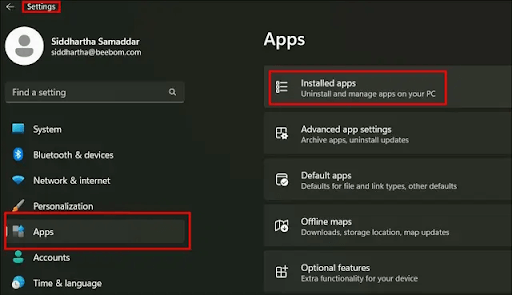
Installed apps to view all applications on your computer
You can now go to Installed Apps to view all applications on your computer.
Next, search for Discord in the available apps and select Uninstall this app from your device.
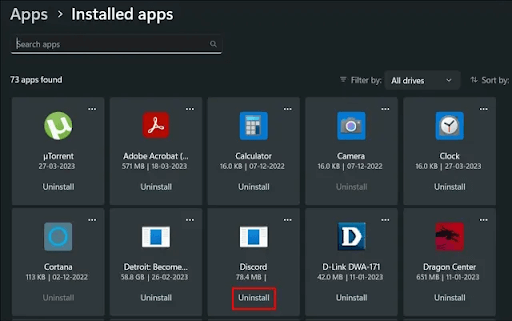
Select Discord from the available apps and choose Uninstall.
After uninstalling Discord, you can reinstall it from the official website.
Conclusion
In this article, we discussed how to fix Discord update failure on Windows 10. We hope you find the above guide helpful in resolving Discord issues if the Discord update has failed or is stuck in a failed update process on Windows 10/11. One of these fixes is sure to resolve your problem.


