


How to fix the Astro A10 microphone not working on Windows 11 and 10: Is your Astro A10 microphone not functioning on your Windows computer? Don't worry, you'll find practical solutions to this issue here. Keep reading this article for more information!
One of the most common problems when using the microphone on the Astro A10 headset is that it doesn't work properly. The microphone on your Astro A10 may not function because the operating system on your device or console is too outdated. Additionally, if the Astro A10 is not set as the default microphone on your console or system, it may not work effectively as it should.
Often, outdated audio drivers on a Windows computer are the primary cause of this problem. Furthermore, you need to check the audio settings to see if the Astro microphone is enabled. Whatever the reason, you can easily and quickly resolve the issue with the following solutions.
In this article, we highlight several effective methods to fix the Astro A10 microphone not working on your computer.
Before we begin:
Before proceeding with troubleshooting your Astro A10 headset, it's important to determine whether the Astro A10 is directly connected to your console or system. Additionally, ensure that the plugs are connected to the appropriate ports. Also, try unplugging the Astro A10 microphone and then plugging it back in to test the issue.
In your console or system settings, make sure the microphone or headset volume level is set to the highest level. Moreover, you can also try enabling/disabling your microphone. Check to ensure that the headphone jack is properly inserted into the port, and it may also be helpful to use the Astro A10 headset with another device to determine if the headset is functioning correctly.
How to Fix the Astro A10 Microphone Not Working on Windows 11 and 10
Here are some tried and tested solutions you can consider to resolve the issue of the Astro A10 microphone not working on your computer. Let's get started!
Solution 1: Restart Your System or Console
There’s a chance that the microphone issue is caused by a temporary glitch in your system or console's communication or application. Restarting your device or system may be all that's needed to clear the error and resolve the issue. To do this, follow these steps:
Turn off all programs running on your PlayStation 4 and open the quick menu.
Now select the power option on the left side of the window.
On the right side of the window, choose Turn Off the PlayStation 4.
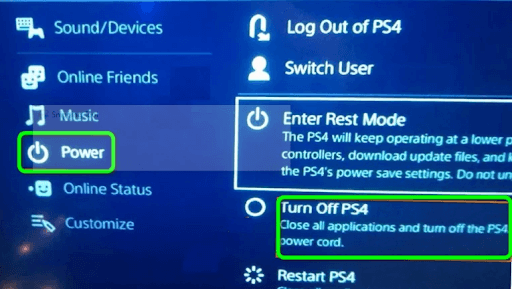
Turn off the PlayStation 4
Immediately, unplug the power cable from the console and wait for three minutes.
After that, reconnect the cable and turn on the PlayStation 4.
Now, check to see if the issue with the Astro A10 microphone has been resolved. If the problem persists, continue with the solutions below.
Solution 2: Check Audio Settings
The Astro A10 microphone may not work properly on your computer if it is not set as the default device on the Windows operating system. To resolve the issue, you need to check the audio settings. Here’s how to do that:
In the search box, type Control and select the Control Panel app.
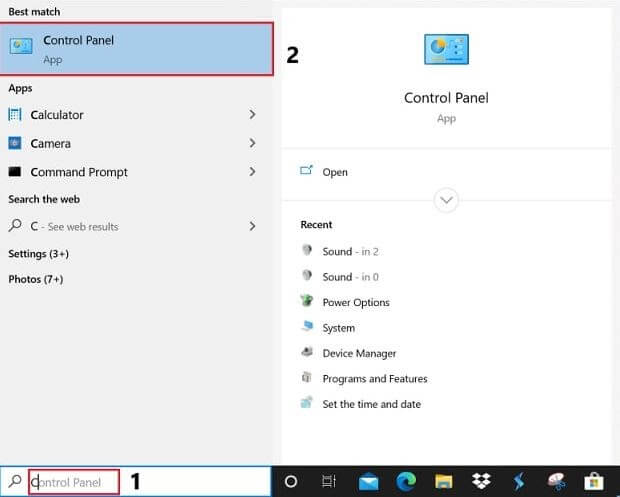
In the search box, type Control Panel and press the first result.
Then select Sound from the Control Panel and adjust the view by type to Large icons.
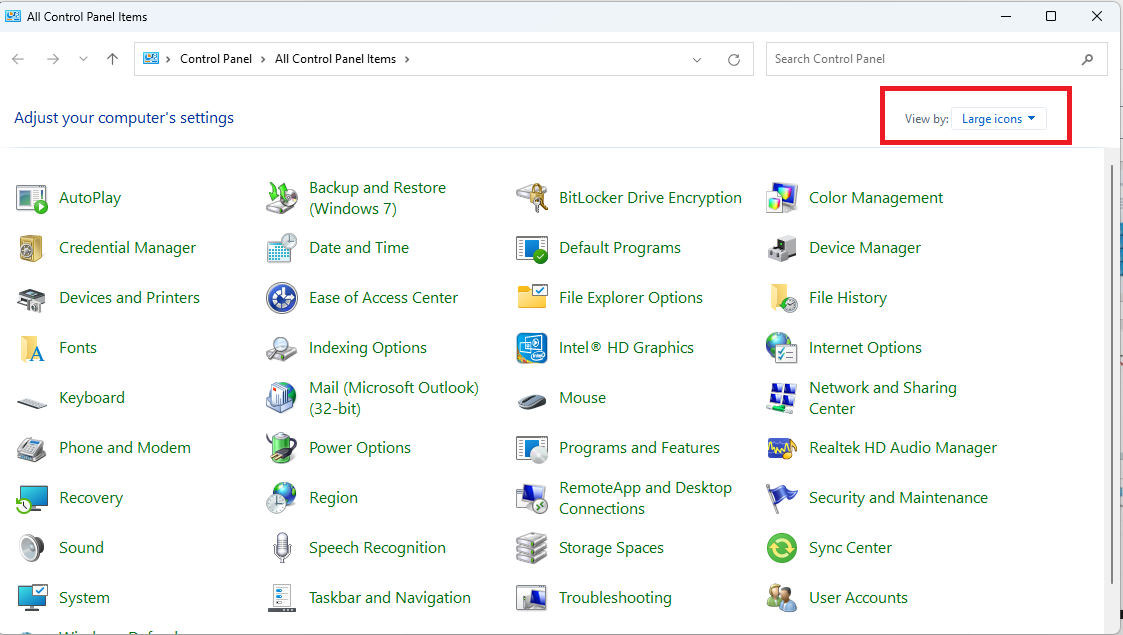 Click on Large Icons
Switch to the "Recording" tab, then right-click on any empty area within the window to select "Show Disabled Devices" from the context menu that appears.
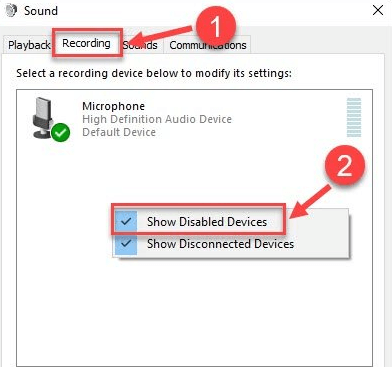
Show Disabled Devices
To enable the headset microphone, right-click on it and select the Enable option.
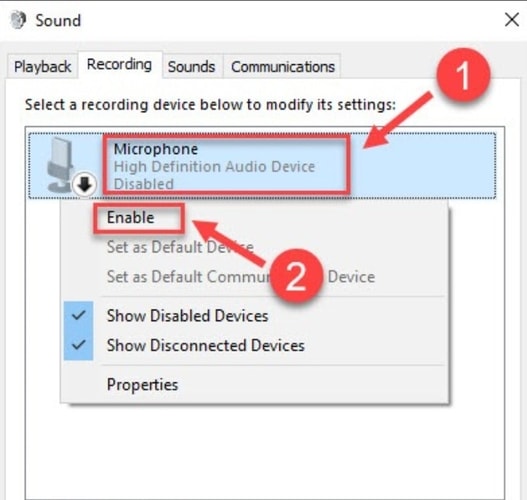
Enable the Microphone
Right-click on the headset microphone again, then choose the Set as Default Device option to proceed.
Right-click on the headset microphone again, then select Properties from the context menu.
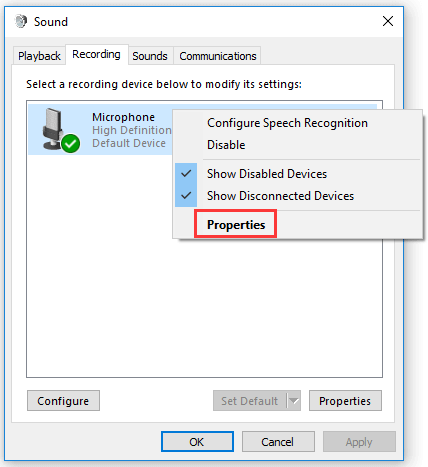
Microphone Properties
Go to the "Levels" tab and move the volume slider to the right until it reaches the highest possible setting. To save the changes, click the "OK" button.
Now, use the headset again and check if the issue with the Astro A10 headset has been resolved. Try another fix if this one doesn't work for you.
Solution 3: Update Outdated Audio Drivers
The Astro A10 microphone not functioning properly may be due to an incorrect or outdated audio driver. Updating the audio driver on your Windows computer is one way to resolve the issue.
Therefore, you can go to the official website of your sound card manufacturer, find the latest version of the audio driver, and download it according to your Windows operating system. This process can be time-consuming and prone to errors, especially for beginners.
If you can't find the appropriate audio driver for your device, you can use the best driver update software from third-party sources like Win Riser Driver Updater to quickly and automatically find the most compatible drivers for your device.
Win Riser Driver Updater is one of the most popular programs among millions of Windows computer users worldwide. With Win Riser, you can quickly search for available drivers and install them with just a few mouse clicks. Once installed, the utility automatically scans your computer for disabled, outdated, or missing drivers and provides you with new drivers. The program only offers drivers that have been tested and certified by WHQL.
Here’s how to automatically update drivers using Win Riser:
Download and install Win Riser for free.
After installation, run the utility on your computer and wait for it to scan your device for faulty or outdated drivers.
The scanning process takes a few minutes. After scanning, check the results and click the Fix Issues Now button. This will replace all outdated drivers with new ones. Win Riser
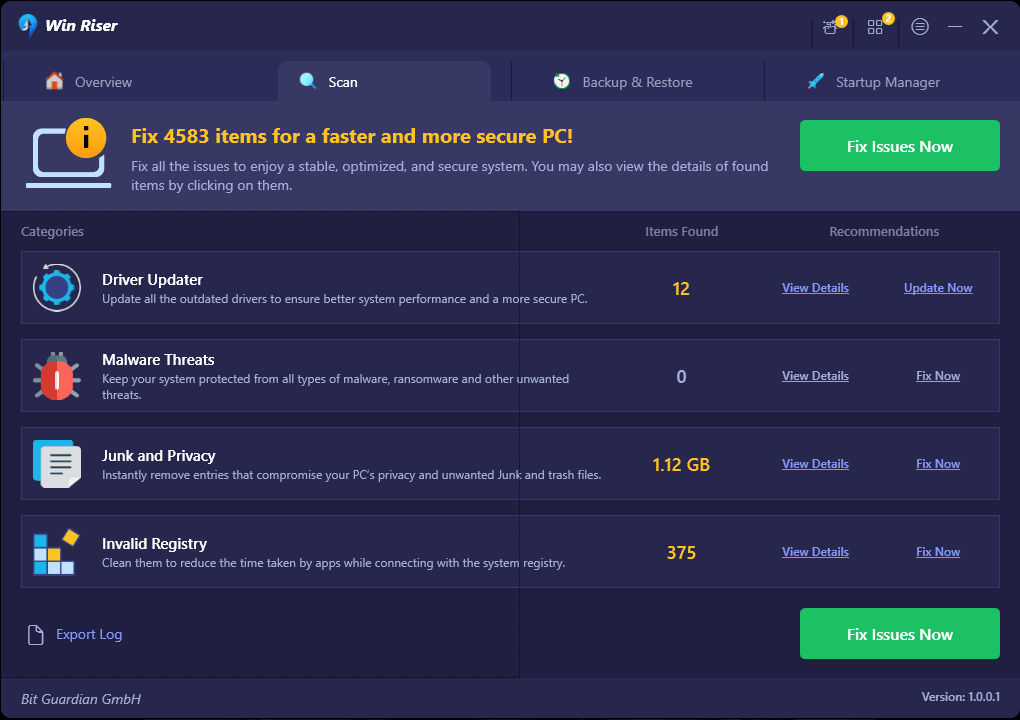
Scan for Old Drivers
To apply the new drivers, restart your computer.
After installing the latest version of the audio driver and microphone driver along with other computer drivers, check if the Astro A10 microphone issue has been resolved. If not, proceed to the next fix.
Solution 4: Run the Hardware and Devices Troubleshooter
If none of the above solutions work to resolve the Astro A10 microphone issue on your computer, you can try connecting your headset to a different port on your computer or using it on a different computer.
Additionally, you can resolve the issue using the Hardware and Devices Troubleshooter on your computer. Here’s how to do that:
To open the Windows Settings app, press the Win + I keys simultaneously on your computer.
Go to the Update & Security menu and select the Troubleshoot section.
Double-click on the item in the devices list, then choose the Run the Troubleshooter option.
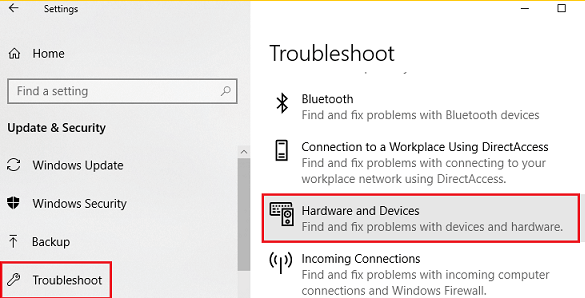
Devices on the left panel
At this point, the troubleshooter will identify any hardware issues and attempt to fix them automatically. After the process is complete, restart your device and check if the Astro A10 microphone is working correctly.
Conclusion
The solutions mentioned above are some hassle-free ways you can use to resolve issues related to your Astro A10 headset. However, you may not need to apply all of them; just try one solution after another until you find the best one for you.
We hope you find these tips helpful. If you have any questions, let us know in the comments section below. Stay healthy!


