

How to fix slow Google Chrome on Windows 11/10? Google Chrome is a widely used browser that is very popular among people around the world. However, this browser may be running slower than usual. How can you make Google Chrome faster? If your Google Chrome is currently slow, this article will provide you with satisfactory solutions.
Why is Google Chrome running so slowly on Windows 10/11?
Google Chrome is such a powerful browser that it allows you to do almost anything you want, like browsing web pages, writing emails, publishing documents, or streaming videos on social media, and so on. There’s nothing more frustrating than a slow Google Chrome on Windows 10/11, as it affects your online browsing experience.
Why is your Chrome suddenly slow? Here, we’ve gathered some potential reasons for you:
- Poor internet connection
- Outdated application version
- Extensions
- Corrupted or accumulated cache files
How to fix slow Google Chrome on Windows 11/10?
Fix 1: Check your internet connection
For a smooth browsing experience, ensure that your internet connection is stable. If your internet connection is weak, the Windows Internet Connection Troubleshooter can help you find and fix any detected issues. Here’s how to troubleshoot your internet connection:
Step 1. Press Win + I to open Windows Settings.
Step 2. Go to Update & Security > Troubleshoot > Additional troubleshooters.
Step 3. Scroll down to find Internet Connection > click on it > click on Run the troubleshooter.
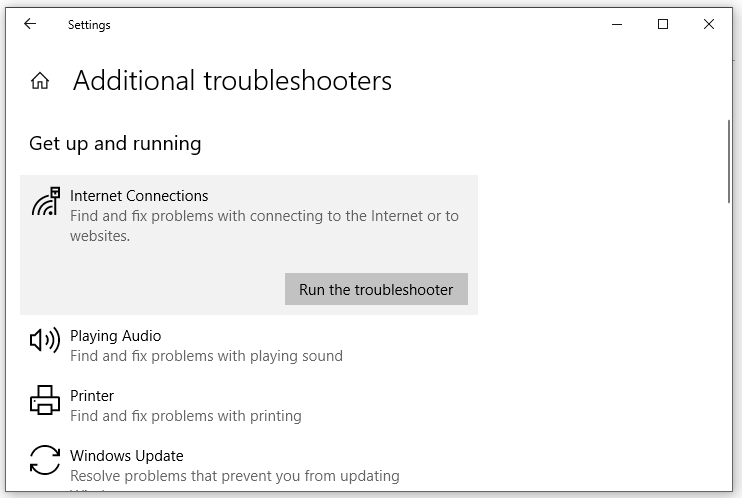
Click on Run the troubleshooter
Fix 2: Clear the cache
The cache allows you to quickly open a page you’ve previously visited. However, cached files can take up a lot of space on your system or may become corrupted for some reason. To make Google Chrome run faster, you should regularly clear your browsing cache by following these steps:
Step 1. Launch Google Chrome.
Step 2. Click on the three dots icon and select Settings from the dropdown menu.
Step 3. Under the Privacy and security section, click on Clear browsing data.
Step 4. Select the time range, check Cached images and files, and click Clear data to proceed.
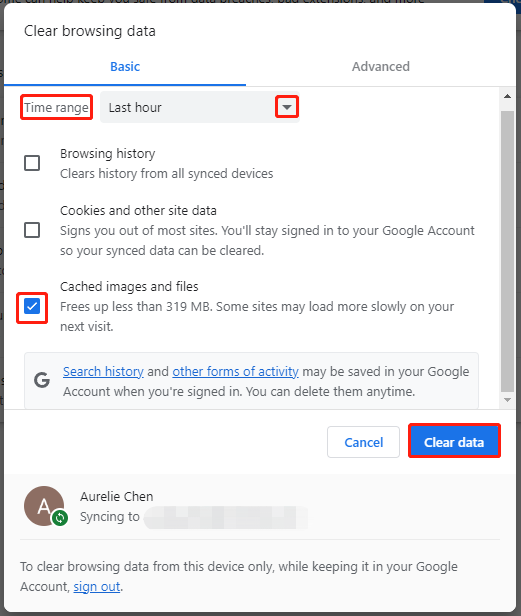
Click on Clear data
Fix 3: Remove unnecessary extensions
While extensions can enhance your browsing experience, they can consume a lot of resources when browsing web pages, leading to slow Google Chrome. To make Google Chrome run faster, you can disable some extensions that you don’t need.
Follow these steps:
Step 1. Open Google Chrome settings.
Step 2. Click on Extensions, toggle off unnecessary extensions, and click Remove.
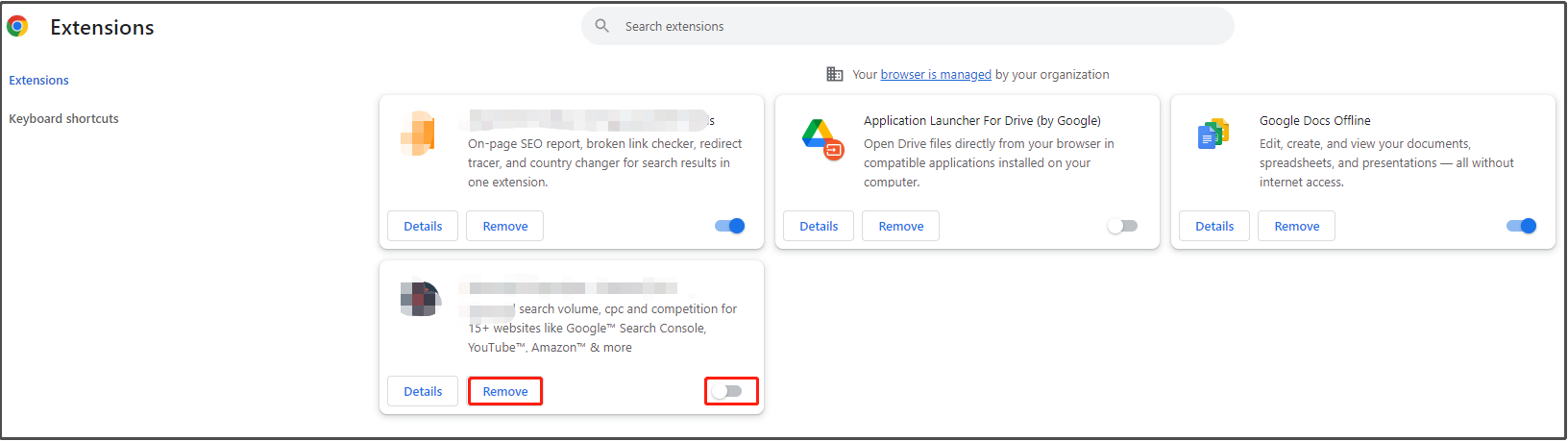
Click on Remove
Fix 4: Update Google Chrome
Google Chrome regularly releases new versions that include new features, security fixes, performance improvements, and more. Therefore, updating this browser to the latest version can also help resolve many issues, including slow Chrome performance. To do this:
Step 1. Open Google Chrome settings.
Step 2. Go to About Chrome, and your Chrome browser will automatically check for available updates and update to the latest version.
Step 3. After the update is complete, restart Google Chrome to see if it runs faster.
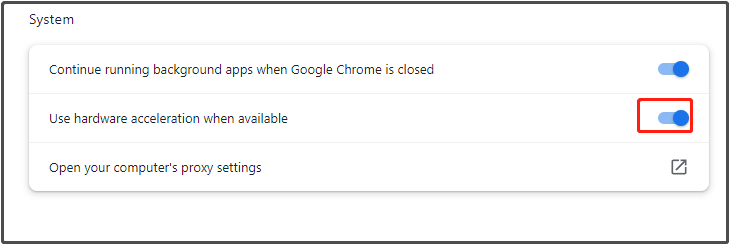
Fix 5: Enable hardware acceleration
Enabling this feature on Google Chrome is another way to speed it up. Follow these steps:
Step 1. Launch Google Chrome and go to settings.
Step 2. Under System, toggle on Use hardware acceleration when available and restart the browser to see if Google Chrome is still slow.
Fix 6: Reset Chrome settings to default
If Chrome is still slow after applying all the other fixes, consider resetting the browser to its default settings. This will disable extensions, clear temporary data, and restore Chrome to its original state. To reset:
Go to settings and scroll down to Reset and clean up.
Click on Restore settings to their original defaults and confirm by clicking Reset settings.
Fix 7: Disable unnecessary tabs on startup
Chrome may open multiple tabs on startup, causing it to slow down. To prevent this, adjust your startup settings:
Go to settings and navigate to On startup.
Select Open a new tab page or Continue where you left off and close unnecessary startup tabs.
Fix 8: Close unused tabs and use tab groups
Leaving many tabs open can increase your system's resource load. Use tab grouping to organize tabs and close those you no longer need. Right-click on a tab and select Add tab to group. This helps Chrome run smoothly by reducing clutter.
Fix 9: Run a malware scan
Malware can slow down Chrome by injecting harmful scripts. Use Chrome's built-in malware scanner to check for malware:
Go to settings > Reset and clean up > Clean up computer.
Click on "Find" to scan for and remove malware.
Fix 10: Optimize Chrome flags
Chrome flags offer experimental features that can enhance performance. To enable them:
Type chrome://flags in the address bar.
Look for flags like Override software rendering list and Smooth Scrolling.
Enable these features and then restart Chrome.
Frequently Asked Questions
Q1: Why does Google Chrome consume a lot of RAM?
Chrome creates separate processes for each tab, extension, and plugin to enhance stability. This isolates crashes but increases RAM usage. Closing unused tabs and disabling extensions can help reduce memory consumption.
Q2: How often should I clear Chrome's cache?
Clear Chrome's cache every few weeks or whenever you notice a slowdown in performance. Accumulated cached files can lead to slow browsing.
Q3: Does resetting Chrome delete bookmarks and saved passwords?
No, resetting Chrome only affects extensions, settings, and temporary files. Bookmarks and saved passwords will remain intact.
Q4: Can having too many bookmarks slow down Chrome?
While bookmarks typically don’t slow down Chrome, having too many bookmark folders may increase loading times. Organize or periodically delete unused bookmarks.
Q5: How can I check if an extension is causing Chrome to slow down?
Open Chrome and type chrome://extensions/ in the address bar. Disable extensions one by one and monitor performance. If Chrome speeds up after disabling an extension, that extension may be the culprit.
Q6: Why is Chrome slow even after reinstalling?
Old settings persist during reinstallation. Perform a complete reset by deleting the AppData folder in Chrome:
Press Win + R, type %appdata%, and delete the Google folder under Local.
Q7: Does hardware acceleration always improve Chrome's speed?
Not always. Hardware acceleration can enhance performance, but on older graphics cards, it may cause issues. If Chrome slows down after enabling it, try turning it off.
Q8: Can VPNs slow down Chrome?
Yes, VPNs encrypt data, which can affect browsing speed. If Chrome is slow, try temporarily disabling your VPN to see if performance improves.
Q9: Is there a lightweight alternative to Chrome?
Yes, browsers like Microsoft Edge (Chromium-based), Brave, and Opera offer faster performance with lower resource usage. Consider switching if Chrome continues to slow down.
Q10: How can I prevent Chrome from auto-updating?
Disabling automatic updates may affect security, but if necessary, you can block updates by disabling the Google Update service:
Press Win + R, type msconfig, and disable the Google Update service under the Services tab.
Conclusion
How to fix slow Google Chrome on Windows 11/10? I believe that is now clear. At the same time, if you are patient enough, you can also follow the five solutions mentioned one by one to find the exact cause of Google Chrome's slow performance. We hope we were able to help you!


