

How to Use FileZilla FTP to Upload Files to a WordPress Server: FileZilla offers a quick and easy way to upload files to your WordPress server. It's the perfect alternative to using the WordPress dashboard.
In this article, we will cover the basics of setting up FileZilla FTP and using it to upload files from your computer.
What is FileZilla FTP?

FileZilla is an open-source file transfer program (FTP) that simplifies the transfer of files between your desktop and a web-based server. It consists of two programs: FileZilla Client and FileZilla Server. There is a free version called FileZilla and a paid version known as FileZilla Pro for professional use.
Key Features of FileZilla Pro
- Connects to third-party storage providers like Amazon S3, Microsoft OneDrive, WebDAV, Google Drive, Backblaze B2, and Microsoft Azure Blob.
- Both versions of FileZilla allow you to upload files to your WordPress server, but this guide focuses on the free version.
Features of FileZilla FTP
FileZilla comes with a robust set of features that enhance its functionality:
- Directory Comparison: Compares files between the local directory and the server directory.
- File and Folder View: Allows for editing and transferring files via drag-and-drop between local directories and the server.
- Site Manager: Stores FTP server information and connections.
- VPN Connection: Protects your IP address while transferring files.
- Fast Transfer and Resume: Ensures large files are transferred quickly and resumes interrupted transfers.
- Remote File Search and Edit: Searches for and edits files remotely.
- Simultaneous Transfers: Runs multiple connections across different servers at the same time.
- Supports SFTP: Provides encrypted file transfers.
- User-Friendly Interface: A graphical user interface that is easy to use, even for beginners.
- Bookmarking: Quickly reconnects to frequently accessed sites.
- Data Comparison: Ensures you have the latest versions of files.
- Bandwidth Management: Configures bandwidth to optimize data transfer speeds.
- Secure Proxy Setup: Supports single sign-on for WordPress.
Benefits of FileZilla FTP
FileZilla is a reliable FTP client for securely transferring files between a computer and a WordPress server. Here’s why:
- Free and open-source.
- FileZilla is licensed under GNU, allowing for free use and customization to meet specific needs.
- Easy to use.
- Unlike complex FTP programs, FileZilla features a simple interface that is easy to configure, even for beginners.
- Supports multiple languages.
- FileZilla supports major languages like English, French, Spanish, German, and Japanese for user convenience.
- Cross-platform compatibility.
- Available for Windows, Linux, and Mac OS. This wide compatibility is a rare feature among FTP tools.
Using FileZilla FTP to Upload Files to a WordPress Server
Typically, you don’t need to use FTP to upload files to WordPress. However, it becomes necessary in situations such as:
- Losing access to the admin dashboard due to hacking or error.
- Installing themes or plugins that cannot be uploaded via the dashboard.
- Manually deactivating themes or plugins that are causing issues.
- Uploading files in bulk.
- Editing core files like WP-config or .htaccess.
- Diagnosing and fixing server errors.
- Backing up your WordPress site.
- Moving WordPress installations to the root directory.
- Activating/deactivating features like XML-RPC.
Prerequisites for FileZilla
Before proceeding, ensure your system meets the following requirements:
- Minimum 2 GB of RAM.
- Internet bandwidth of 1 Mbps.
- Disk space of 100 MB or more.
- 1 core processor.
- Windows 7 or later, or Mac OS X 10.9, or Linux (Debian 10.0).
How to Install FileZilla Client on Windows
A) Download the Installer
Visit the FileZilla website and download the installer for Windows. You can choose a version with or without the directory.
B) Start the Installation
Once downloaded, double-click the installer. FileZilla will display the license agreement. Click "I Agree" to proceed.
C) Follow the Setup Wizard
The wizard will guide you through the setup process. Choose the default settings or customize them as needed. Click "Next" until the "Install" button appears.
D) Installation
Click "Install" and wait for the process to complete. This may take a few seconds.
E) Finish the Installation
Click "Finish." FileZilla is now ready to use.
How to Install FileZilla Client on macOS
Download FileZilla for macOS (requires OS X 10.5 or later).
Double-click the extracted package to run FileZilla Client.
How to Use FileZilla FTP to Upload Files to a WordPress Server
Uploading files with FileZilla is very straightforward. Follow these steps:
1. Launch FileZilla
Open the FileZilla Client and go to "Site Manager" under "File." Click "New Site" to add your WordPress site.
2. Enter Site Details
Name the site and enter the host/IP address and port number. Input the login credentials found in your hosting provider's control panel or contact your host for assistance.
3. Connect
Click "Connect." If this is your first time connecting, a pop-up will appear to verify the certificate. Click "OK" to proceed.
4. Locate Files
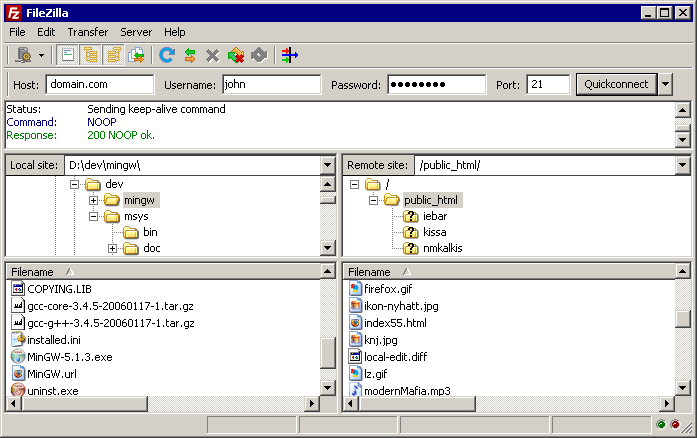
On the main screen, the remote site pane (on the left) displays the files on the WordPress server. The local site pane (on the right) shows the files on your local computer.
5. Upload Files
To upload, right-click a file in the local site pane and select upload, or drag and drop the file into the remote site pane.
6. Transfer Complete
Your files will be uploaded to the WordPress server. Task accomplished!
Frequently Asked Questions
1. What is FileZilla, and why should I use it to upload files to my WordPress server?
FileZilla is a popular and free FTP (File Transfer Protocol) client that allows users to transfer files between their local computer and a web server. It is especially useful for WordPress users who need to upload themes, plugins, or other files directly to their server. Its intuitive interface and reliable performance make it a favorite tool among developers and website owners alike.
2. How can I download and install FileZilla? Visit the official FileZilla website and download the appropriate client version for your operating system (Windows, macOS, or Linux). Run the installation file and follow the setup instructions. Once installed, open the FileZilla application to get started.
3. What login details do I need to connect FileZilla to my WordPress server? To connect to your WordPress server using FileZilla, you will need:
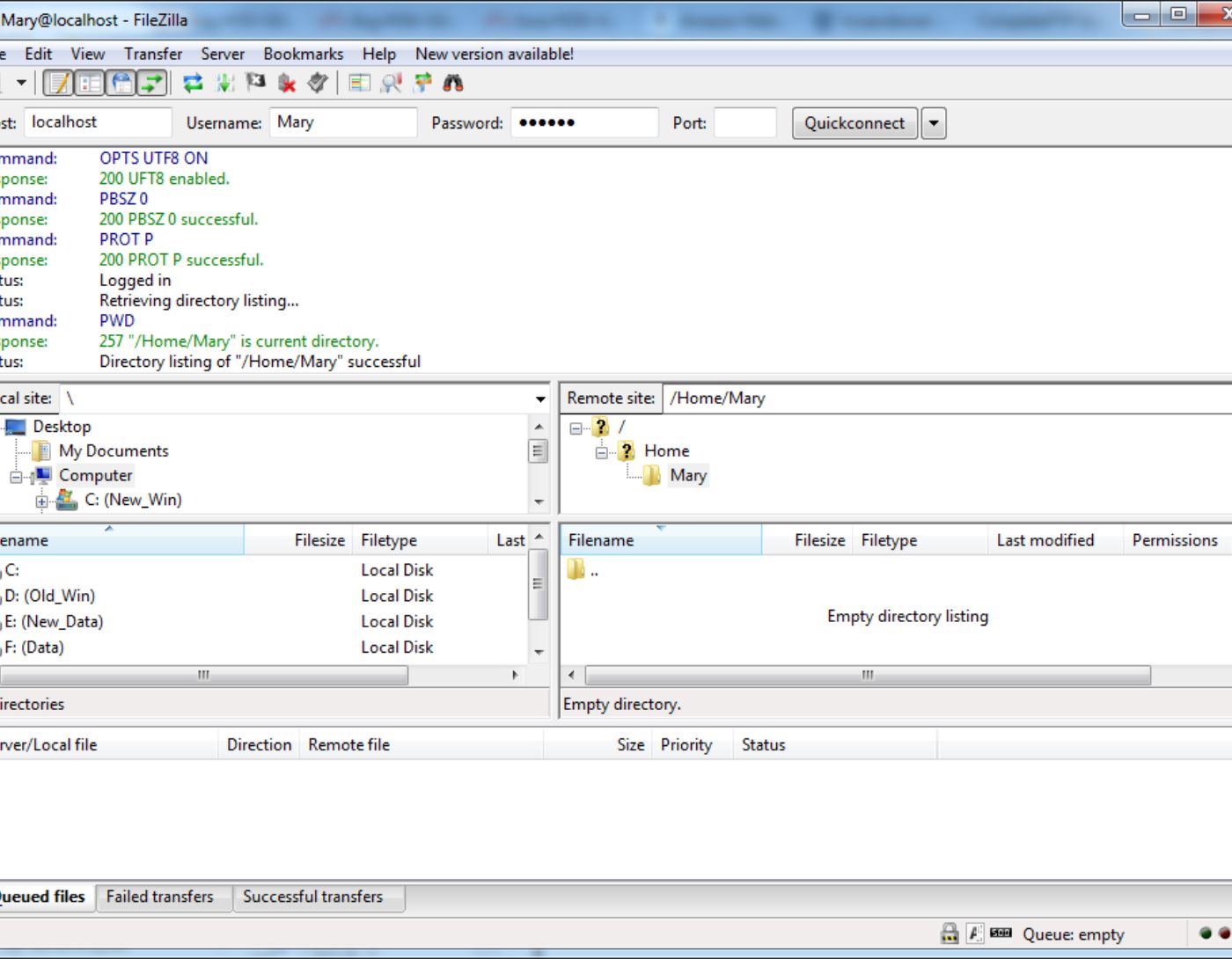
Host name: usually in the format ftp.yourdomain.com or your server's IP address.
Username and password: provided to you by your hosting provider.
Port number: FTP typically uses port 21. However, for secure SFTP connections, the port is usually 22. Check with your host for details.
4. How do I set up a connection in FileZilla?
Open FileZilla and go to File > Site Manager.
Click on New Site and enter a name for easy identification.
Enter the host and port number, then set the protocol to FTP or SFTP as needed.
Under Login Type, select Normal and enter your username and password.
Click "Connect" to save and create the connection.
5. What should I do if I encounter connection errors when trying to connect? If FileZilla shows errors like "Could not connect to server," try the following:
- Ensure your credentials (host, username, password, port) are correct.
- Make sure your firewall settings or antivirus antivirus software is not blocking FileZilla.
- If you are using SFTP, ensure your host supports it and that you are using the correct port.
6. How can I navigate the FileZilla interface after connecting? The FileZilla interface is divided into two main panes:
- The left pane (local site): displays the files and directories on your local computer.
- The right pane (remote site): displays the contents of your WordPress server. To upload a file, simply drag it from the left pane and drop it into the desired directory in the right pane.
7. Which folder should I use to upload


