


How to recover deleted photos from Windows 11, 10: Did you accidentally delete an important image or file? Don't worry, in this article, you will learn about several methods that will help you, God willing, recover deleted photos from Windows 11 and 10.
Like all previous versions of Windows, Windows 11 is also susceptible to data loss for various reasons, including system crashes, virus or malware attacks, as well as accidentally deleting some files yourself. Fortunately, there are many methods you can use to recover your lost data.
Undoubtedly, using the best free photo recovery software for Windows is the best option for this purpose. However, the built-in File History feature in Windows and the undo delete feature can also help you recover lost data in just a few minutes. In this guide, we will walk you through the most effective ways to recover deleted photos or other data in Windows 11.
How to recover deleted photos from Windows 11, 10
Here, we will explain the most practical methods to help you recover deleted photos on Windows 11 or 10, or even older versions. Let's get started:
Method 1: Recover deleted photos via Recycle Bin
This method for recovering lost files has been known for a long time, hasn't it? As you know, when you delete or remove a folder/file from your Windows computer, it goes to the Recycle Bin and stays there until you permanently delete the data from there. So, if you haven't emptied your Recycle Bin, you can recover deleted photos with just a few simple clicks. All you need to do is follow these instructions:
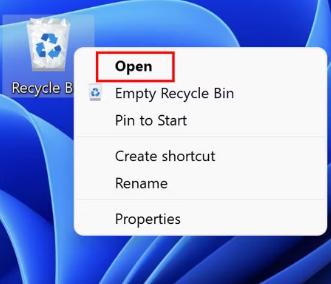
Step 1: On your desktop, look for the Recycle Bin icon and right-click on it.
Step 2: From the menu, select Open. Open Recycle Bin
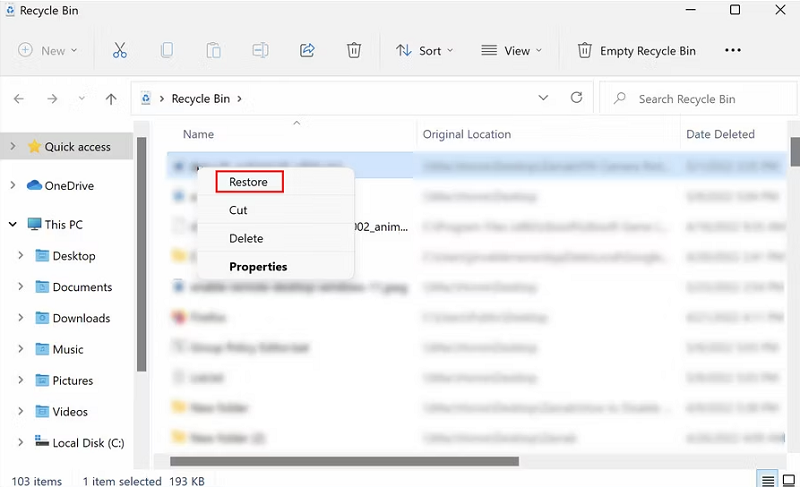
Step 3: In the next window, look for the file or folder you want to recover. You can use the search list to find the target file.
Step 4: Once you find the file, right-click on it and select Restore to proceed. Restore Recycle Bin
Step 5: If you want to restore multiple files at once, select them all.
Step 6: Next, click on the Manage option in the toolbar and choose either Restore selected items or Restore all items. Restore selected items or Restore all items
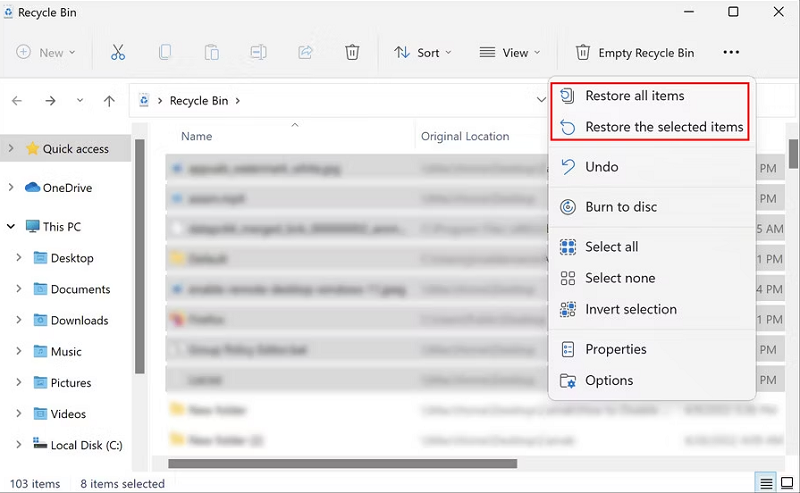
Now, you can recover your files again. However, if you cannot recover deleted photos through the Recycle Bin, try the other solutions mentioned below.
Method 2: Recover deleted files using the UNDO feature
Did you know that whenever you perform any action on your Windows PC, you can undo that action? Yes, you heard that right. With the undo feature, you can revert your last action. This feature is useful when you accidentally remove a file/folder from your Windows computer that you actually wanted to keep. Let's say you accidentally deleted a photo from your photo library and now want to recover it. Follow these steps to do so:
Step 1: Before proceeding, just make sure that the folder where your photos were saved is in the main area.
Step 2: Then, press the CTRL + Z keys on your keyboard. Alternatively, you can right-click anywhere in that selected folder and select the undo delete option from the menu.
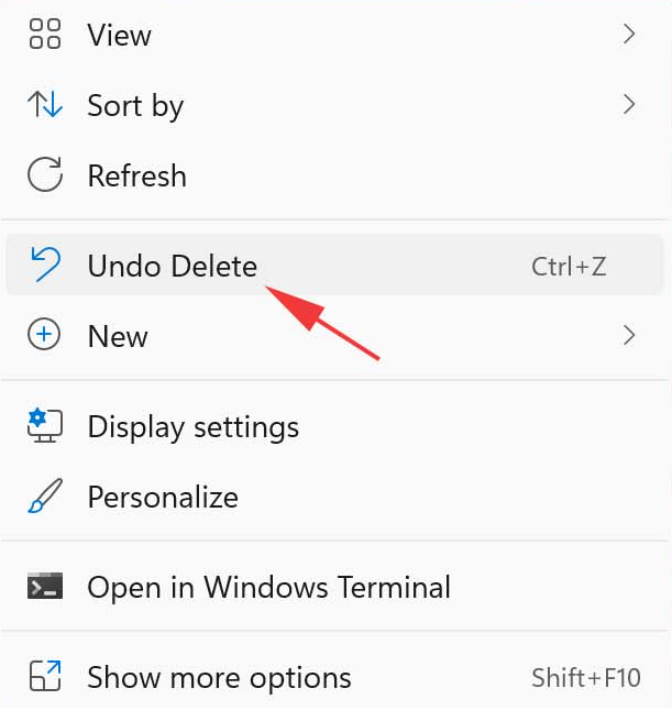
Note: The main drawback of this undo feature is that the history of previous actions is cleared when you restart the computer. Additionally, you cannot go back to just one action at a time, so recovering files that were deleted a long time ago is nearly impossible.
Method 3: Recover deleted photos using File History feature
Here’s how to recover permanently deleted photos from the gallery in Windows 11 using the File History feature.
Step 1: Press the Win and R keys on your keyboard to open the Run Terminal window.
Step 2: In the Run Terminal window, type Control and press Enter. Type Control in the run box
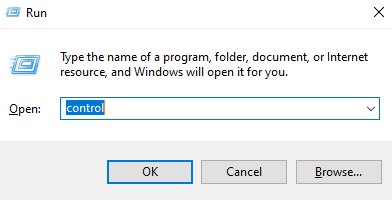
Step 3: This will open the Control Panel window, where you need to find File History and click on it.
Step 4: Next, click on the option to Restore personal files from the right menu pane. Restore personal files
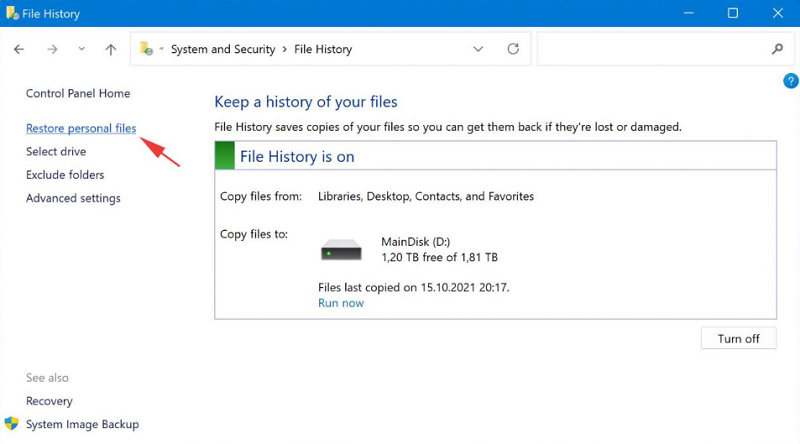 Step 5: Look for a backup that includes the files you want to recover.
Step 6: Select the files you want.
Step 7: Click on the green restore button. Click on the green restore button
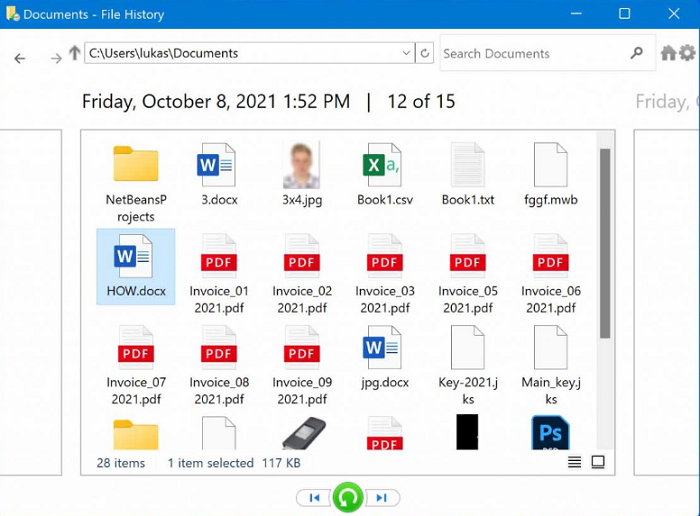
Remember that File History only backs up files or folders saved in Documents, Pictures, Desktop folders, and Videos. If you want to recover files located in different locations, your best option is to use another recovery method.
Method 4: Recover files using third-party data recovery software
There are many third-party data recovery programs available, with both free and paid solutions on the market. You can choose the solution that suits you best. This is one of the simplest and fastest ways to recover photos on a Windows computer.
Third-party applications are ideal tools for photo recovery. With the help of these tools, you can recover deleted or lost photos, files, videos, and emails. Surprisingly, some can even recover call logs and contacts. Here are some of the most popular and best data recovery programs you can use:
Stellar Data Recovery
Recoverit by Wondershare
Disk Drill
Glarysoft File Recovery
EaseUS Data Recovery
Method 5: Use Windows File Recovery Tool to recover files
The Windows File Recovery tool from Microsoft can be a great way to recover deleted photos on Windows 10 and 11. The tool helps you recover accidentally deleted photos or other files from various storage media, such as hard drives and even USB drives. Here’s how to use it:
Step 1: Launch Microsoft by clicking on the Windows Store icon on the taskbar.
Step 2: In the next window, go to the search bar and type Windows File Recovery. Then press Enter on your keyboard.
Step 3: Click on the option and wait for the download process to complete. Use Windows File Recovery Tool
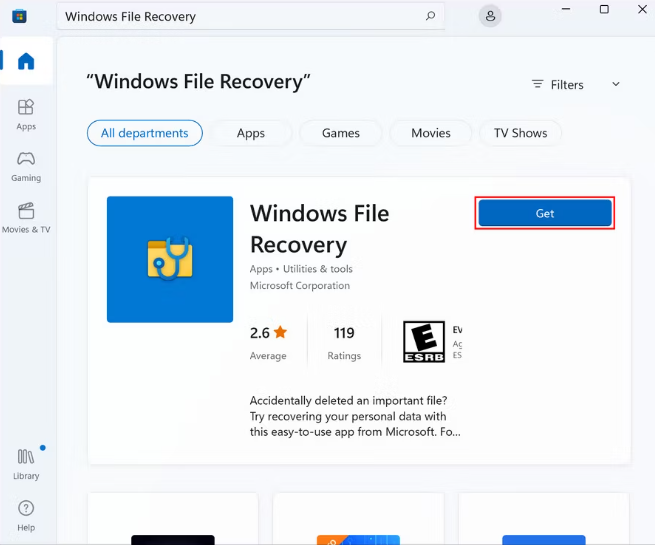
Step 4: Once installed, right-click on the Windows icon and select Windows Terminal (Admin) from the available options.
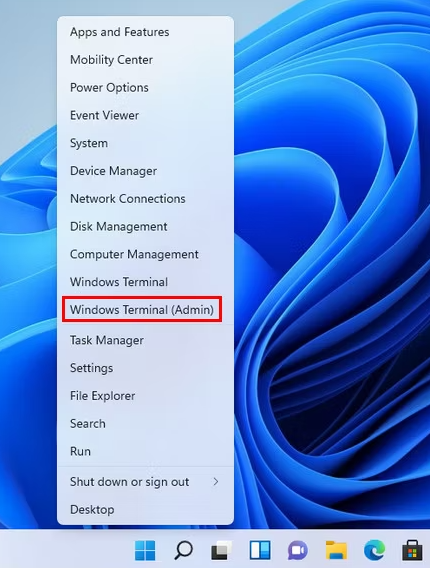
Step 5: Next, copy the following command and paste it into the terminal window.
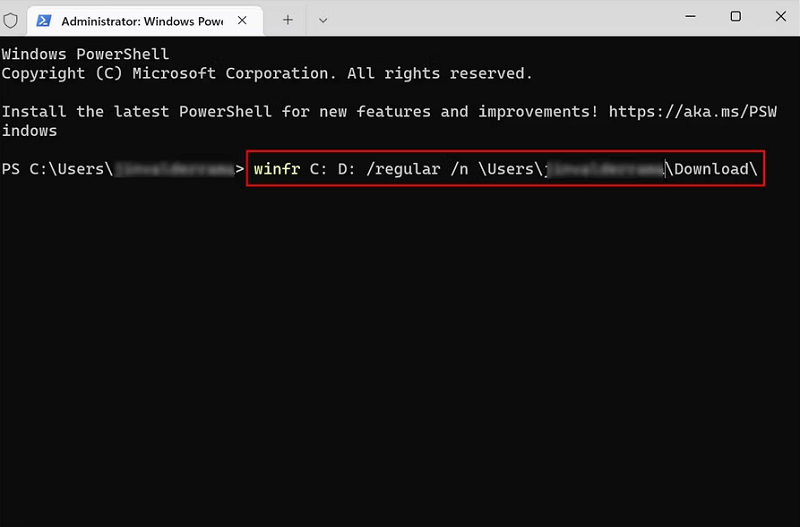
winfr C: D: /regular /n \Users\<username>\Download\winfr command in cmd admin
The above command will recover photos from drive C to drive D. You can even try replacing file and folder names with the names you want. Once you finish everything, close the Terminal window.
Method 6: Recover deleted photos from a cloud backup
Last but not least, you can also use Microsoft’s cloud backup service, OneDrive, to recover all your lost data in no time. OneDrive allows you to back up your data or files to cloud storage so you can recover them from any device. To do this, simply follow these steps:
Step 1: Go to the OneDrive page.
Step 2: Next, just enter your Microsoft email address and password to log in.
Step 3: Select the files you want to recover and click the download button. Recover deleted photos from cloud backup
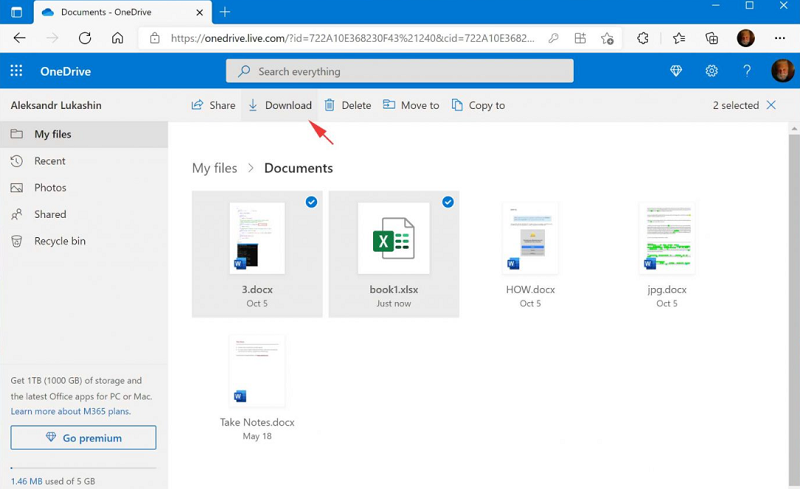
If you haven't done so, we recommend taking advantage of this useful application that comes with Windows 11 by default. This means you can access all your cloud files directly from File History and enjoy the automatic data backup feature. Here’s how to do it:
Step 1: From the system tray, click on the OneDrive icon.
Step 2: Click on Sign in.
Step 3: Enter your Microsoft login credentials.

Step 4: Choose the OneDrive folder location.
Step 5: Complete the setup process.
Keep in mind that OneDrive can only back up your files and folders if you have an active and stable internet connection.
Conclusion
In this article, we discussed how to recover deleted photos from Windows 11, 10. Data loss will always be a serious issue for all Windows computer users, but don't worry, we mentioned some effective methods here that will help you recover deleted photos on Windows 11 and 10 computers, external storage devices, and laptops. These methods can also be applied to run file recovery on Windows 7, 8,


