

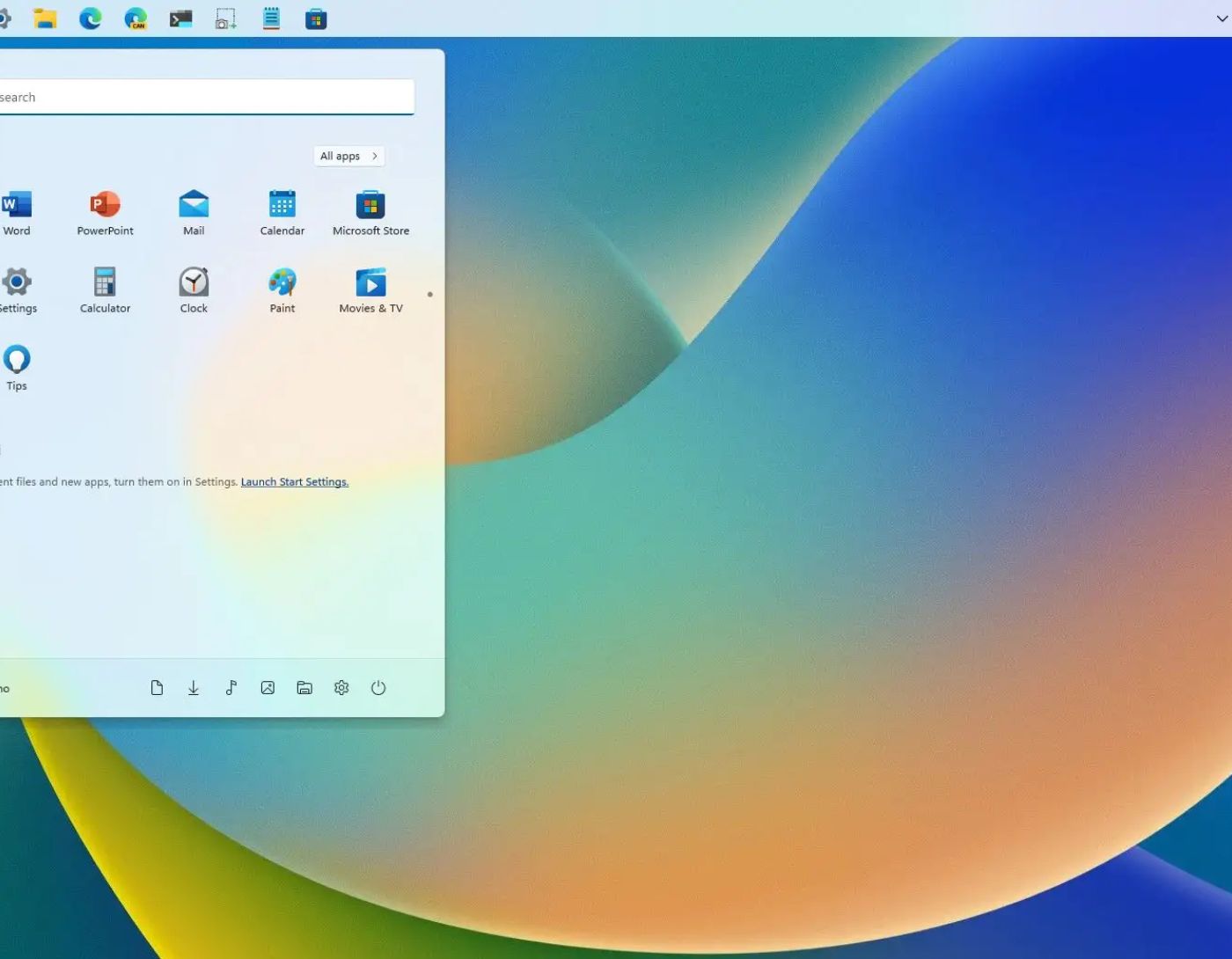
How can you restore the taskbar on a Windows computer? The taskbar is a fundamental component of the Windows desktop, featuring the Start menu, Cortana search icon, currently open programs, system tray, notification area, date, and time. Sometimes, it disappears. Do you know why this happens and how to get it back? If your answer is no, you don't need to look any further. We've created this guide to help you resolve the issue of the missing taskbar in Windows 10.
Why Did the Windows Taskbar Disappear?
Several factors can lead to the taskbar disappearing.
Here are some possible reasons:
The taskbar may be set to auto-hide, making it invisible on the desktop.
File Explorer might be experiencing issues or could have crashed.
The display resolution settings may exceed your computer screen's native dimensions.
Corrupted system files.
A malware attack.
How to Restore the Taskbar on a Windows Computer?
Method 1: Disable Full-Screen Mode
Windows allows users to view their PC screen in full-screen mode, which removes any obstructions, including the taskbar. This mode can be activated by pressing the F11 key on your keyboard. Remember to hold down the Fn key in the bottom row along with the F11 key to enable full-screen mode. Pressing the same keys again will disable full-screen mode.

So, if you can't find the taskbar on your desktop, press the Fn + F11 keys to check if full-screen mode was accidentally turned on.
Method 2: Show Your Taskbar
Did you know that you can hide the taskbar on a Windows computer? Once hidden, it only appears when you move the mouse pointer to the bottom of the screen. However, sometimes it can malfunction and not show up due to an unknown error. In this case, you can turn off the auto-hide feature and keep it locked at the bottom of the screen. Here are the steps:
Step 1: Press Win + I to open Windows Settings, then click on the Personalization tab on the left pane.
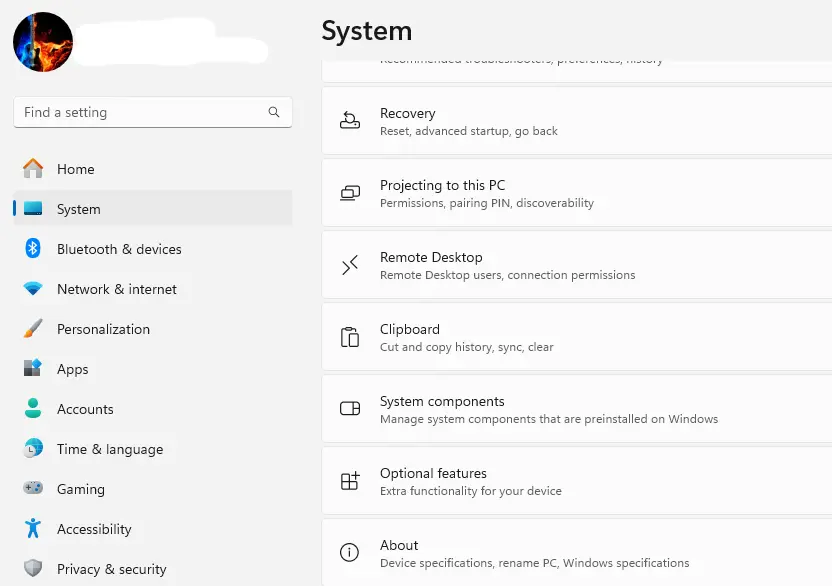
Step 2: Scroll down on the right side and click on Taskbar.
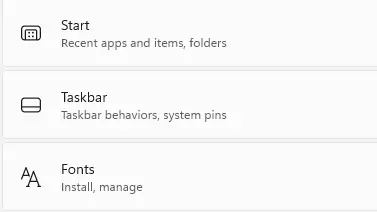
Step 3: Next, locate and click on Taskbar behaviors.
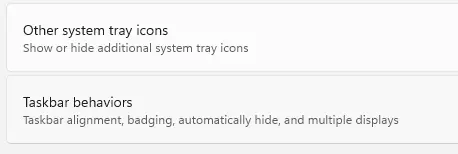
Step 4: Finally, uncheck the box next to the Auto-hide the taskbar option.
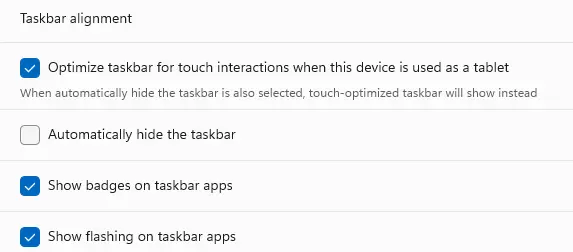
Auto-hide the taskbar checkbox
If the checkbox is unchecked, the issue may be more serious than initially thought. To fix this problem, follow the next method.
Method 3: Reset Display Resolution
An incorrect resolution can cause the taskbar to disappear on a Windows computer. Therefore, it's important to select the optimal resolution for your computer screen. Here are the steps:
Step 1: Press Win + I to open Settings.
Step 2: Click on the System tab on the left pane, then click on Display on the right side.
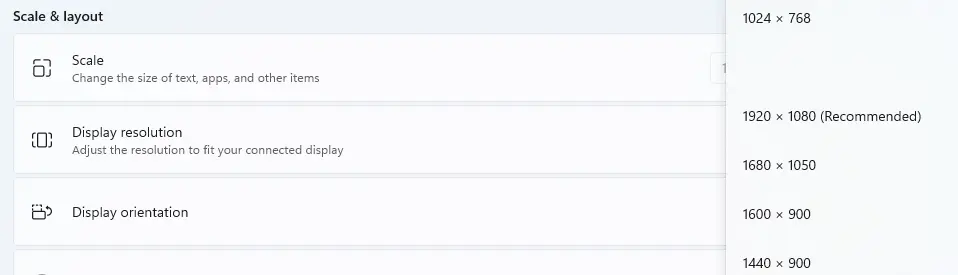
Scale and layout
Step 3: Now, click on the drop-down menu next to Display resolution and select the recommended resolution.
Method 4: Change Screen Display Settings
If you've connected your computer to larger screens and are displaying your laptop screen through external displays, there's a chance that the taskbar may disappear. Here's what you need to do:
Step 1: Press Win + P and select the PC screen only option.
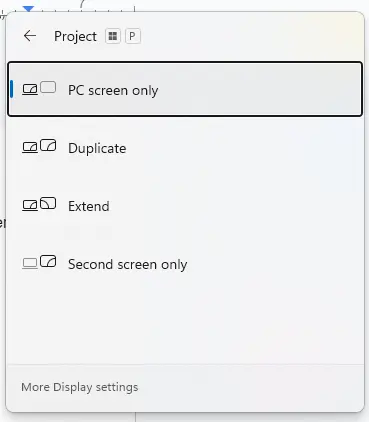
PC screen only
That's it! This should resolve the issue and restore the taskbar display on your computer screen.
Method 5: Restart Windows Explorer
If you're still unable to view the taskbar, you should restart Explorer. It's very easy to follow these steps:
Step 1: Press Ctrl + Shift + Esc to open Task Manager.
Step 2: At the top, locate the search bar and type "Explorer".
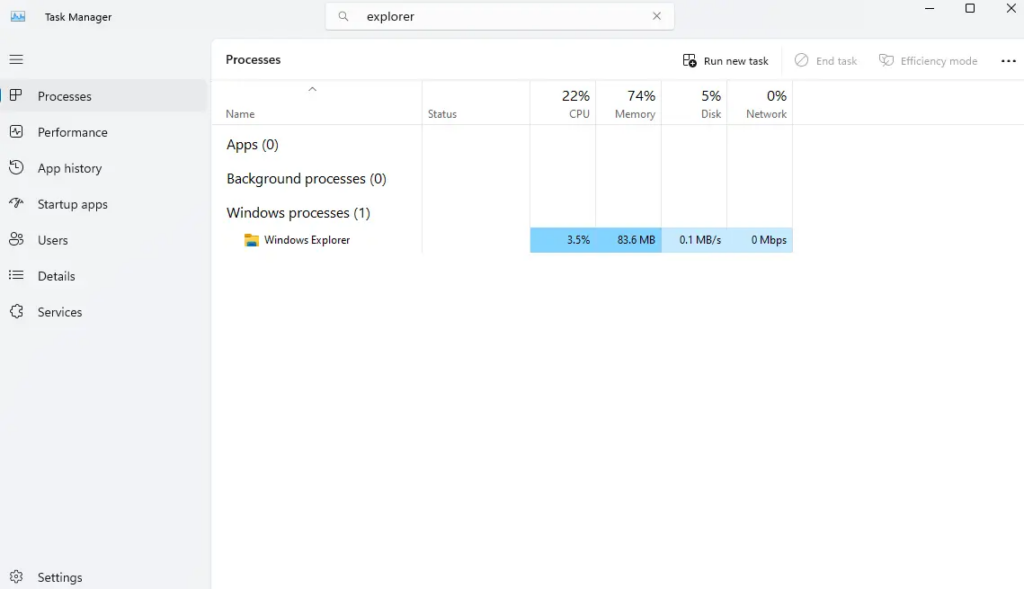
Type in the Task Manager search bar
Step 3: The Windows Explorer process will be highlighted as a search result.
Step 4: Right-click on this process and click on the Restart option from the context menu.
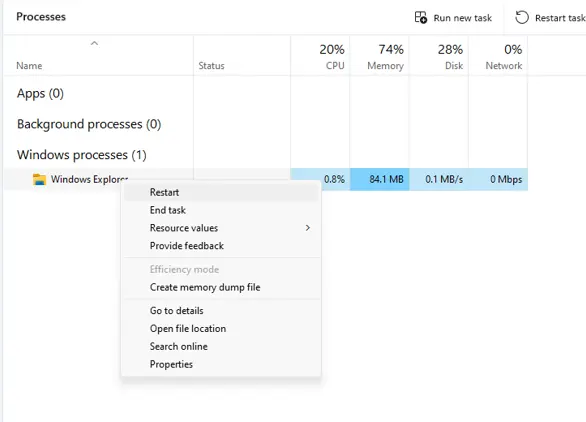
Context menu - Task Manager
The taskbar area may suddenly turn black, and you might notice some strange changes. If the computer doesn't return to normal, follow the next step.
Step 5: Look for the "Run new task" option below the search bar and click on it.
Step 6: A small box will appear. Type "explorer.exe" in it and click the OK button.
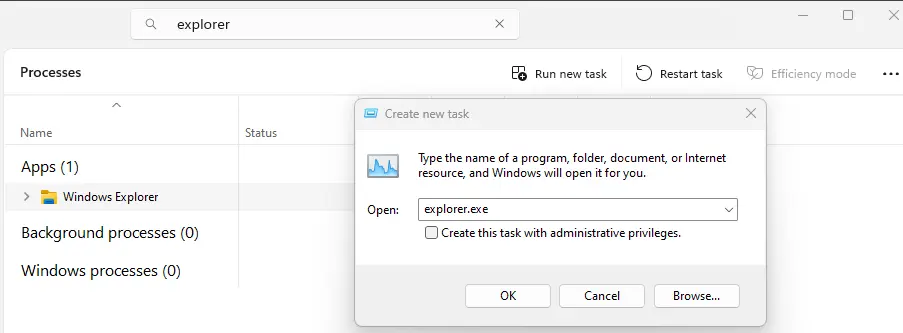
Explorer.exe command in the small box
Your taskbar will be restored, and everything will return to normal. If you get stuck in the middle of these steps, just press the power button on your computer to restart it.
Method 6: Update Graphics Driver
Drivers are essential for the smooth operation of your system, ensuring proper communication between hardware and software. In this case, the issue may lie with the graphics driver, which can be updated in three different ways:
1. Update via the Original Equipment Manufacturer's website
Visit the official website of your hardware manufacturer. Enter your model number to find and download compatible drivers for your device.
2. Update via Device Manager
Access Device Manager by pressing Win + X and selecting Device Manager from the power menu. In Device Manager, expand the Display adapters section to locate your graphics card. Right-click on it and choose Update Driver.
3. Update via a third-party program
This is a program designed to help users update all drivers on their computers with just a few clicks.
Method 7: Perform a System Restore
If this issue has recently appeared, you can use System Restore to revert your computer to the state it was in before the problem started. Here's how to proceed:
Press Win + R to open the RUN dialog and type "rstrui.exe".
Click "OK" to run the System Restore utility.
Select a restore point before the problem began, then click "Next" and "Finish".
Note: Your data will remain intact, but


