


How to Obtain a PayPal Debit Card
Note: This card is currently not available in the Middle East.
Did you know that PayPal offers a debit card for instant access to your PayPal income online? Using the PayPal Debit MasterCard is convenient for PayPal account holders with either Premier or Business accounts. You can use the PayPal debit card anywhere MasterCard is accepted worldwide, including ATMs, stores, and online.
Having this card at your disposal is beneficial, and signing up for one is not difficult.
Create Your Business Account on PayPal.
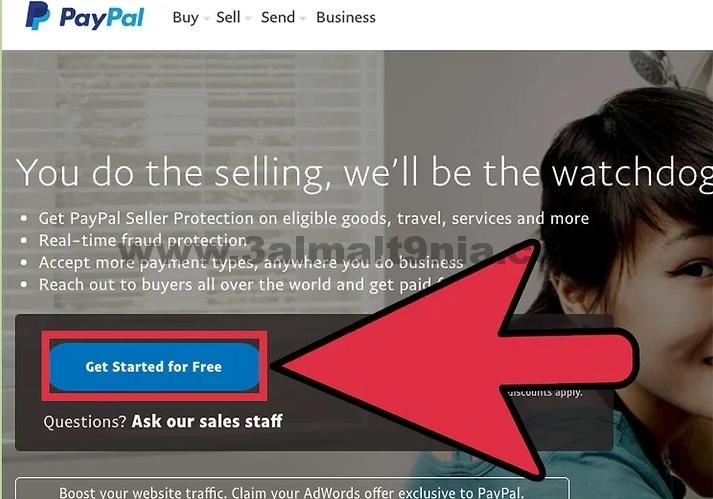
Switch to a Business Account. If you have a personal PayPal account, you cannot apply for this debit card as it is only available for Premier and Business PayPal accounts. You can upgrade to one of these accounts. A Business account is maintained by business owners. [1]
Switch to a Business account from your personal account by selecting the 'Upgrade to Business account' link in the lower left corner of the main screen after logging into your personal account, then follow the prompts.
You can either 'Upgrade' your current account to keep the same profile name and email address, or you can 'Create a new account' to have a separate account with a different email address.
You can also find the 'Upgrade to Business account' link by clicking the gear icon in the upper left corner after logging into PayPal, next to the 'Log Out' button, and scrolling down.
You will find the link under 'Account Options'.

Switch to a Premier Account. Although you can switch to a Premier account to use the debit card, it is not widely advertised. The Premier PayPal account is designed for users who want a higher level of transactions or to accept personal credit card payments. It is essentially a business account, but useful if you do not officially own a business; it has all the features of a business account. [2]
The only way to get a Premier account is to upgrade from within your personal PayPal account. You cannot open a Premier account from the main PayPal page.
Follow the same steps to upgrade to Premier as you would to upgrade to Business.
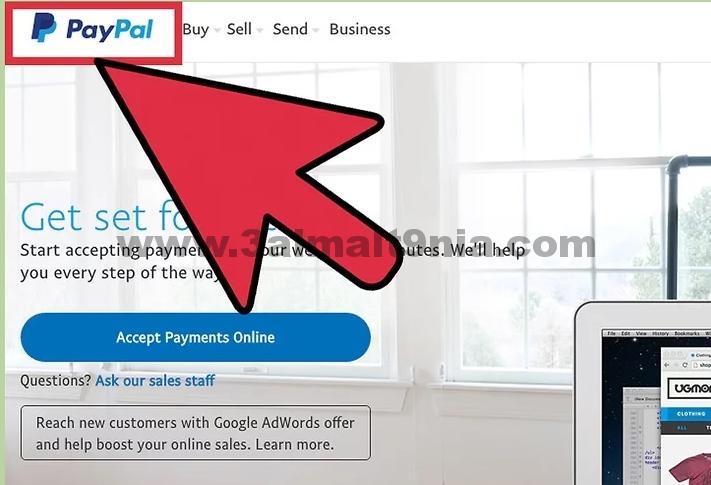
Visit PayPal's website or app. If you do not have a PayPal account yet, or if you know you want to use a different email address than your current personal PayPal account, go directly to the PayPal homepage.
Once on the PayPal website, select the 'Sign Up' button in the upper right corner.

4
Select the button next to 'Business Account'. After choosing to sign up, a screen will appear giving you two options. You can select the bubble next to 'Personal Account' or next to 'Business Account'. Click the radio button next to 'Business Account'.
A Business account must be opened by the business owner. There is no verification process for this, so you can technically open this type of account even if you do not own a business, but that is the nature of this account. There are many additional features in a Business account that are useful for businesses, such as invoicing services and the ability to accept credit card payments.
It is advisable to use your Employer Identification Number instead of your Social Security Number for your PayPal Business account so you can keep this income separate from your personal income for tax purposes.
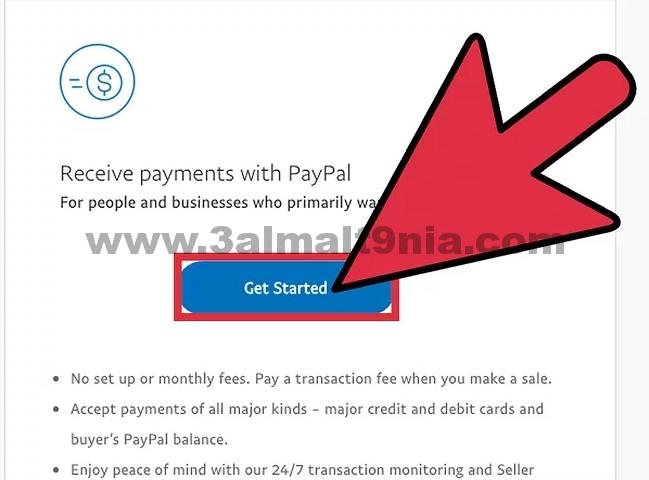
5
Choose either Standard or Pro. After selecting 'Business Account' and clicking the 'Next' button or tapping it, another screen will appear with two options. Choose between 'Standard' or 'Pro' accounts. The Standard is free, and Pro is $30 per month.
Pro offers customization for the checkout page on your business website.
Click the link that says 'Learn More' to see what the checkout screen will look like on your business site with Pro.
6
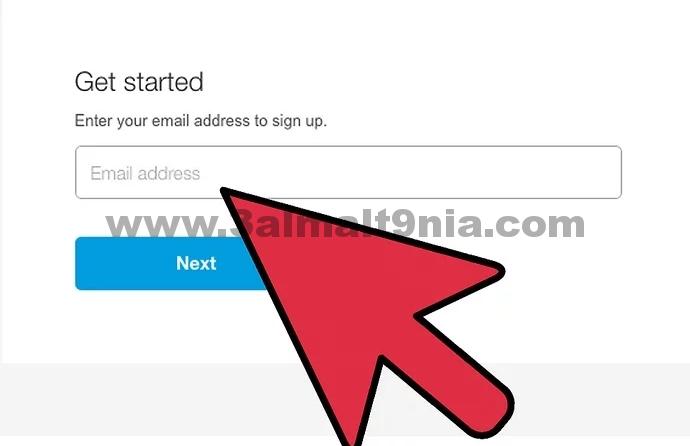
Enter your personal information. After selecting the type of Business account on PayPal, you will need to provide PayPal with your email address.
Make sure this is the email address you want to use for your Business account as it becomes your profile name and PayPal identity.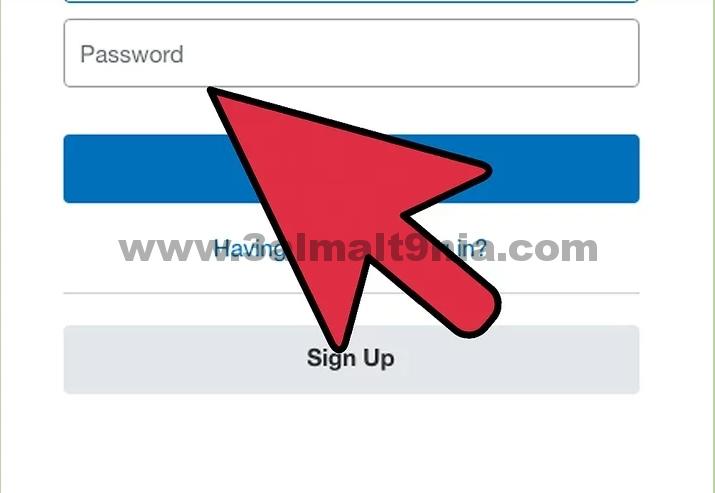
7
Create a password. After entering your email address, you will create a password. To keep your account secure, it is wise to use a combination of all functions (lowercase and uppercase letters, numbers, and special characters) and then copy and paste the password into a document saved on your hard drive or phone so you do not lose it or need to remember it.
After creating a password, you will be prompted to enter personal information so PayPal can track your identity in future transactions.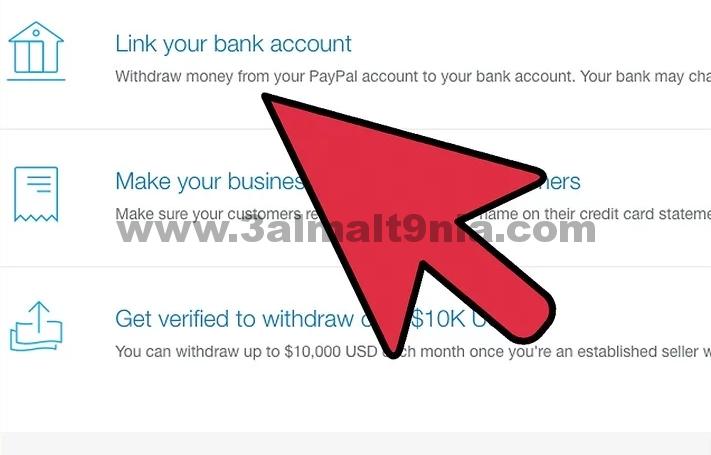
8
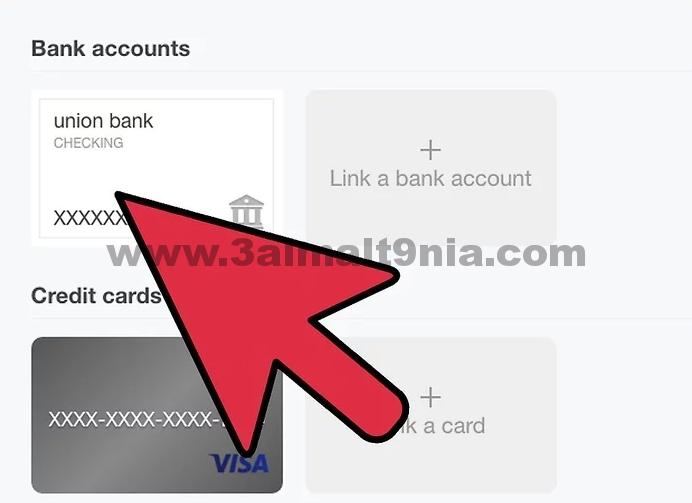
Link a credit card, debit card, or bank account. Once your account is open, you can accept money or receive payments immediately. However, you cannot pay for anything until you link a card or bank account, so it is wise to go ahead and choose either a debit card or bank account, or a credit card, to attach to this PayPal account.
This is in case your PayPal balance runs low. [3]
9
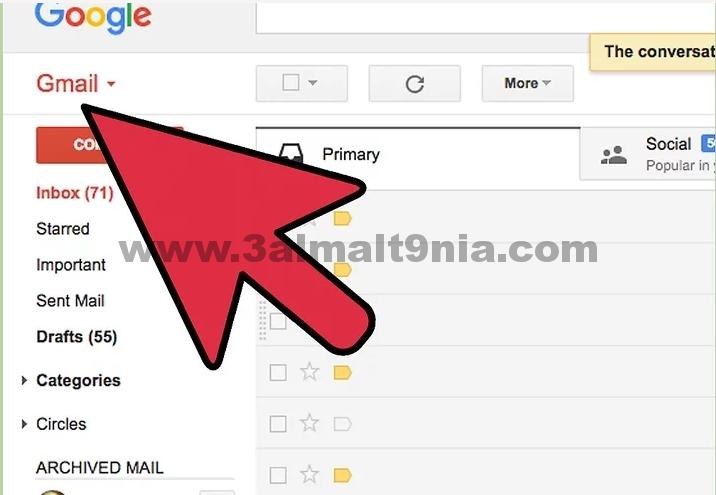
Verify your PayPal account. Your account will not be activated until you check your personal email and open the verification message sent by PayPal. Inside this email, you will find the verification tool.
10
Confirm your bank account or debit/credit card. Once you verify your account via email, you will need to confirm your alternative payment method. If you linked your bank account to PayPal, PayPal will provide you with three options to confirm the account. Your card may need to be verified.
Sometimes the card can be confirmed instantly.
If you choose only one confirmation method for your bank account, you will have a monthly limit on the amount you can transfer to your checking account. If you use two forms of verification, the limit will be removed, and you can transfer as much as you want monthly to your checking account from PayPal.
2. Step Two.
Register for a PayPal Card
1
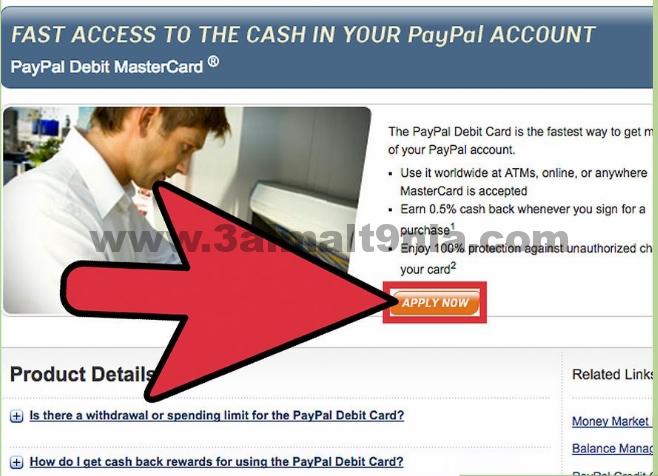
Request the debit card. Once your PayPal account is set up, you can apply for the PayPal Business Debit Card. Within the main PayPal screen, select the 'Tools' menu option at the top of the screen. Select the 'All Tools' option. You will see many different sections, so scroll down until you see one for 'PayPal Debit Card' on the left side (in row 4).
Clicking or tapping this box will take you to the debit card application.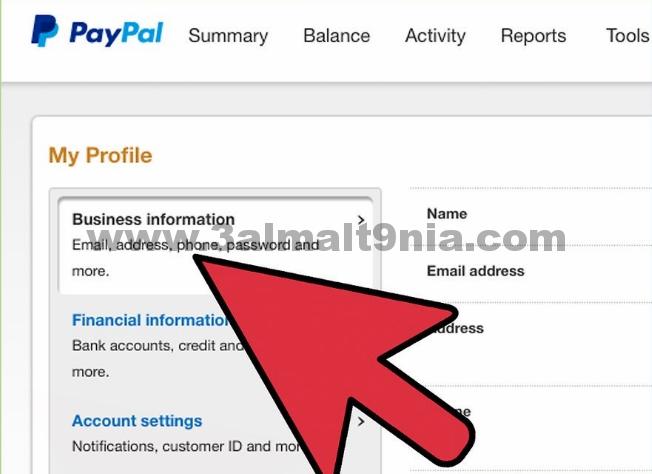
2
Fill in your personal information. On the application screen for the PayPal Business Debit MasterCard, your name should already appear. Confirm your date of birth, enter your Social Security number, then confirm your address and phone number. This is all the information you need to apply. Just having a PayPal Business account is enough to bypass your personal details.
Keep in mind that PayPal has a strict online security reputation. If you still wish to enter your Social Security number, you can read PayPal's explanation. [4] PayPal requests your personal details to comply with federal laws aimed at protecting America from terrorism and money laundering activities.
3
Wait for your approval. After submitting your application through your PayPal account by clicking the 'Agree and Continue' button or tapping it, you will need to wait for your debit card to be approved. Approval should be quick.
You can reapply after 30 days if your application is denied. [5]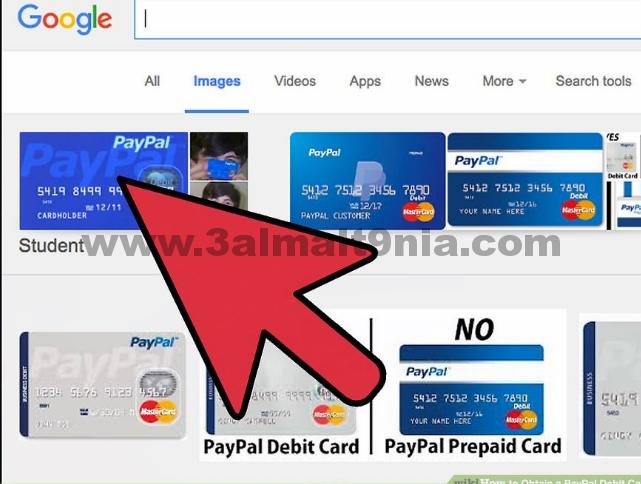
4
Wait for your card in the mail. After receiving approval for the debit card, you will need to wait for the card to arrive in the mail. It should be at your doorstep or mailbox within seven to ten business days. [6]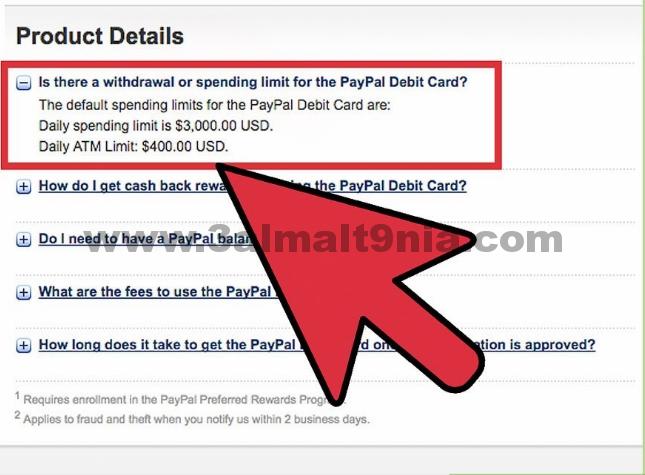
5
Keep daily spending limits in mind. Although it is not widely advertised, there is a standard daily limit for using the PayPal debit card. It allows you to withdraw only $400 per day from an ATM and only spend $3,000 daily on purchases. [7]
Your limits are subject to periodic reviews. As you use the card over time, your limit may increase or decrease based on your account history, activity, and other factors.
3. Step Three.
Consider the Benefits
<


