

How to Update Drivers on Your PC - Windows 11, 10, 8, 7: Device drivers help the system interact with hardware like network adapters, Bluetooth, etc. Without them, your PC or laptop won't function properly. Therefore, when you encounter issues with your display, USB, graphics, printer, or other installed devices, it's advisable to update the drivers. Additionally, to avoid working on a slow computer, updating the driver is recommended.
To understand this better, we will provide a step-by-step guide on how to update drivers on laptops and desktops in this article.
How to Update Drivers on Your PC - Windows 11, 10, 8, 7?
Generally, when we install Windows updates, device drivers are also updated. However, there's no guarantee that the latest driver update will be installed or that all drivers will be updated. You might end up facing a blue screen (BSOD) and other errors. This makes updating drivers essential.
To learn how to update your computer's drivers, follow the step-by-step instructions provided in the guide.
Updating Drivers on Your PC
Windows 11 and 10 offer several options for updating drivers. We will walk you through these options and help you understand how to update your PC's drivers.
Benefits of Updating Windows Drivers
Once you update old drivers, you can enjoy the following benefits:
Improved system performance by up to 50%.
Operating on a stable, crash-free system.
Utilizing advanced components added to the hardware.
Top 3 Ways to Update Drivers on Windows 10
1. Update drivers via Windows 10 Update
2. Update drivers through Device Manager
3. Automatically update drivers using a third-party tool (recommended)
Tip: Manually updating drivers isn't difficult. However, to do it correctly, you need time, patience, and a bit of technical knowledge. Also, if you download and install the wrong driver, you may encounter issues. Therefore, we recommend using a reliable driver updater for your PC.
Note: You can follow these instructions to update drivers on Windows 11, 10, 8, 7, or XP.
1. Update Drivers via Windows Update in 11, 10, and Other Versions
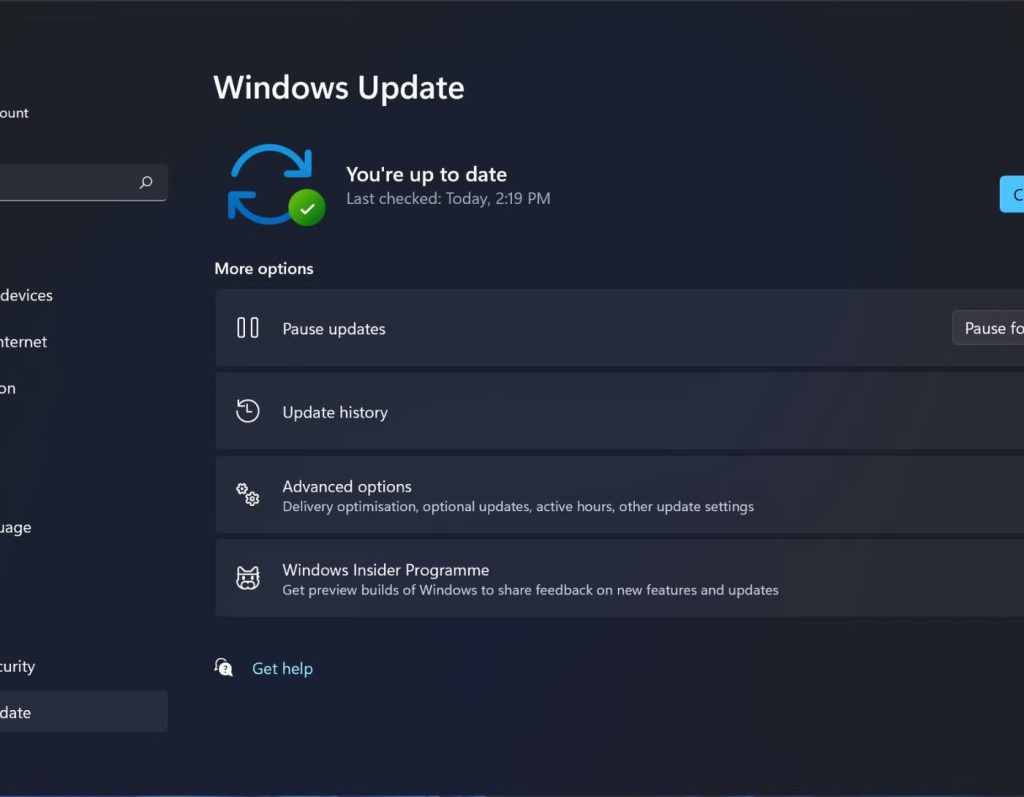
Manufacturers take time to make the latest drivers available through Windows Update. Therefore, most of the time, even when running the latest Windows update, not all drivers are up to date. Additionally, the drivers available through Windows Update are first tested, verified, and signed by Microsoft, which further delays driver updates.
To update drivers for Windows 7 and other versions via Windows Update, follow these steps:
1. Press Windows + I to open the Settings window
2. Select Update & Security
3. Click on Windows Update from the right pane > Check for updates (to see if any updates are available)
4. If you are running an updated version of Windows, click on View optional updates
Windows Update
5. Click the down arrow next to Driver updates and select the latest available update > Download and install.
6. Follow the on-screen instructions to install the driver.
Note: After checking for updates, if you do not see the option to view optional updates, it means that Windows Update currently does not have any new drivers or updates available.
2. Update Drivers via Device Manager
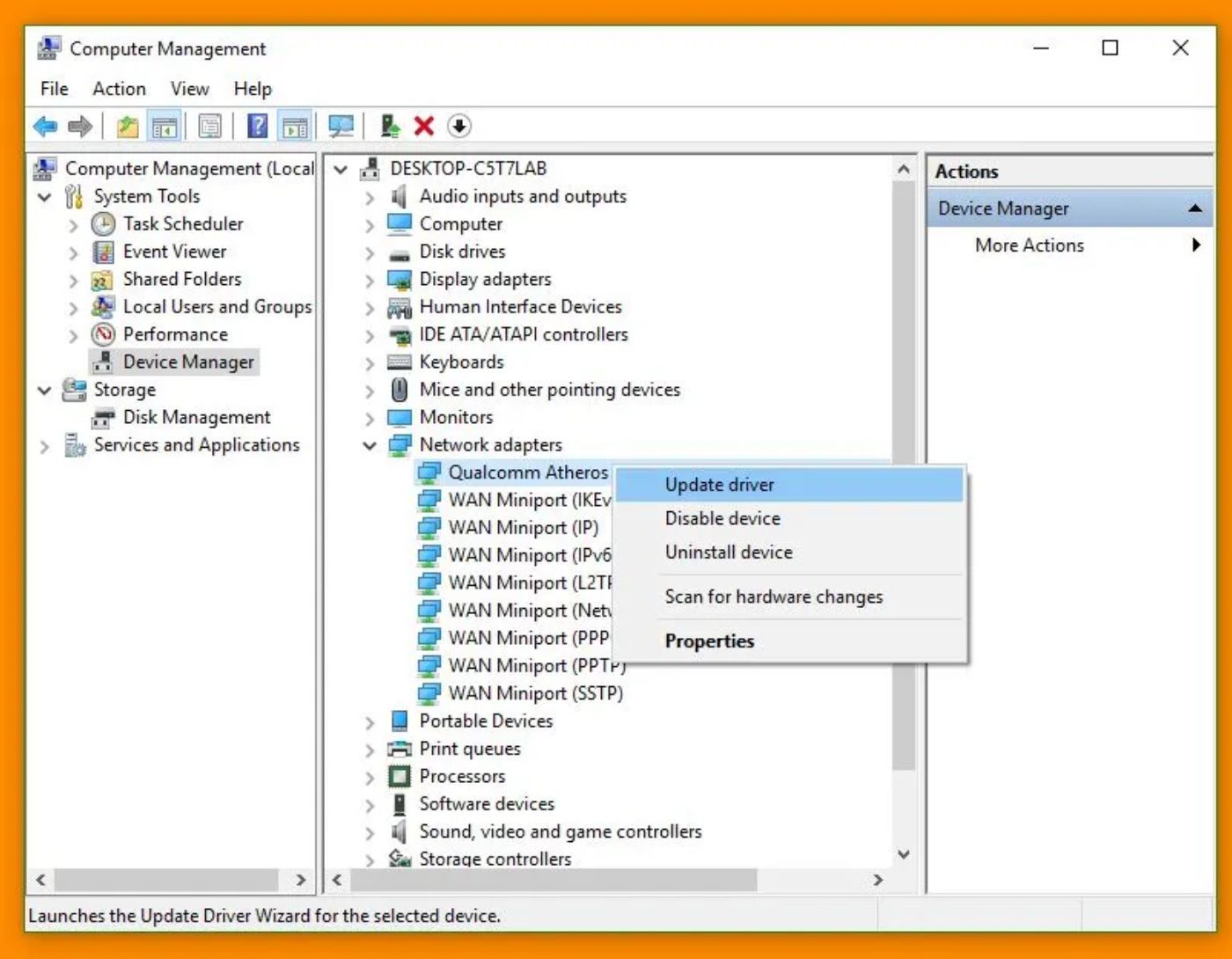
If a driver update is not available on Windows Update, try updating drivers manually through Device Manager. To learn more about this topic and how to update Windows drivers on a laptop or desktop via Device Manager, follow the steps below:
Note: The steps mentioned below can be used by users of Windows 11, Windows 10, Windows 8, or Windows 7, Windows Vista, or Windows XP.
Tip: When you download an update from the manufacturer's website, you will receive instructions for installing the update. However, if the driver update you downloaded is in a compressed file format, you will need to extract it first and then install the driver using the steps outlined below:
1. Press Windows + X > Device Manager
2. Double-click the main category of the driver you want to update.
3. Right-click on the device > Update Driver.
Note: In Windows 8, when you right-click to update the driver, you will get the option to update the driver.
4. In the new window that opens, click Browse my computer for driver software
5. Browse to the location where you saved the driver file.
6. Select the folder where you extracted the driver file > OK
Note: To allow the wizard to find the correct .inf file, make sure to check the option to include subfolders.
7. Click Next
Once you follow the steps step by step, the wizard will scan for the latest driver, detect it, and install it.
3. Automatically Update Drivers Using a Third-Party Tool
If the previous two steps seem to require a lot of work and you don't have the time or patience, move on to the automatic method. Using a third-party tool, you can scan the system for outdated drivers and update them without gathering any information or going to Device Manager.
Frequently Asked Questions
1. Why should I update my drivers?
Updating drivers helps improve system performance, fix bugs, enhance compatibility with new software, and ensure security patches are applied.
2. How do I manually update drivers in Windows?
You can manually update drivers by:
Pressing Win + X and selecting Device Manager.
Expanding the relevant category (e.g., Display adapters, Network adapters).
Right-clicking on the device and then selecting Update Driver.
Selecting Search automatically for updated driver software.
3. Can I automatically update all my drivers?
Yes, Windows Update often installs necessary driver updates. You can also use third-party software like Driver Booster, Driver Easy, or Snappy Driver Installer for automatic updates.
<p


