


How to Enable and Disable Sticky Keys on Operating System Windows 10 and 11: This article not only explains how to enable and disable Sticky Keys on Windows 10 and 11, but also provides a comprehensive guide on using Sticky Keys to simplify certain tasks on your Windows computer. Keep reading for a better understanding!
There are many hidden features in Windows that we didn't know existed,
Sticky Keys is one of those excellent features. If you're a user of computers running Windows, there's a good chance you've seen this prompt at least once.
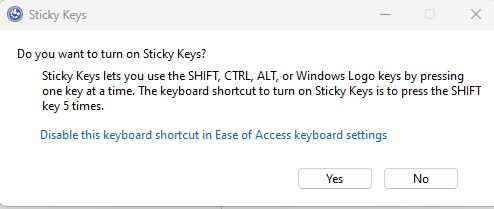
Prompt asking you to enable Sticky Keys
What does Sticky Keys mean?
The Sticky Keys feature allows you to use modifier keys (Ctrl, Alt, Shift, and ⊞) without having to hold them down continuously.
For example, it can help you select all, copy, and paste by pressing A, C, and V, instead of using the shortcuts Ctrl+A, Ctrl+C, and Ctrl+V. More specifically, it creates a specific modifier key that retains its state until you deactivate it. Additionally, you can use shortcuts like Ctrl+Alt+Delete, which allows you to delete multiple items at once.
Moreover, it's very easy to enable and disable Sticky Keys, and you won't have to open the control panel every time, or even once if you're skilled with some keyboard shortcuts.
Step-by-Step Tutorial on How to Enable and Disable Sticky Keys
Now that you know what Sticky Keys are, let's move on to how to enable and disable them on a Windows computer. There are different ways to turn Sticky Keys on or off on Windows 10 or 11 or older versions, so let's get started!
How to Enable and Disable Sticky Keys on the Login Screen
During the Windows login process, you have the option to activate Sticky Keys, which will make the entire computer startup experience much simpler. To do this, follow these steps:
Step 1: To access the accessibility settings, click on the icon in the bottom right corner of the screen after the login screen loads.
Step 2: You will see the option to enable Sticky Keys; all you need to do is set it to "On".
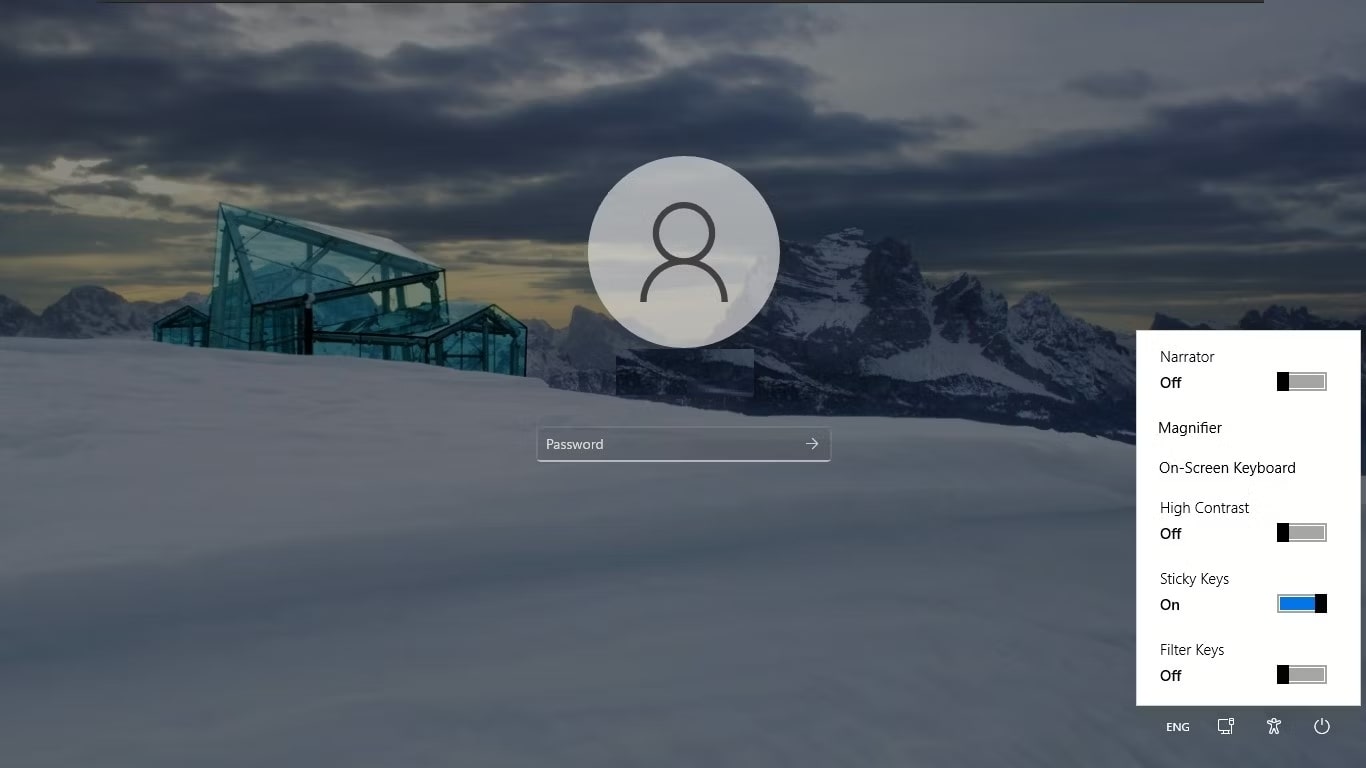
Option to enable Sticky Keys
All you need to do is turn off Sticky Keys if you're logging in after a short break and want to disable them.
How to Enable and Disable Sticky Keys through Settings
Within the quick settings menu on Windows 11 and 10, you will find the option to enable or disable Sticky Keys. Follow the steps below:
Step 1: You can access the quick settings by pressing the Win + A keys simultaneously.
Step 2: Simply open the accessibility menu by clicking on the icon that represents accessibility.
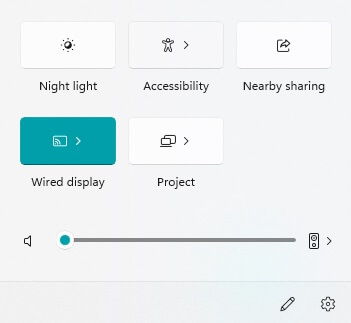
Accessibility
Step 3: Now, you can use the toggle button to enable or disable the Sticky Keys feature. (See the image below)
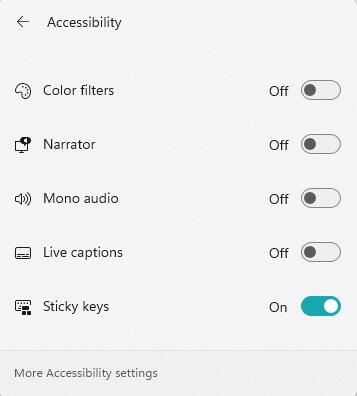
Turning off Sticky Keys
How to Use Control Panel to Turn Sticky Keys On or Off
Another way to activate and deactivate Sticky Keys in Windows 10/11 is by using the Control Panel. Here’s how to do it:
Step 1: Open the Control Panel.
Step 2: Next, select the Ease of Access Center option.
Step 3: Then, scroll down until you see the option to make the keyboard easier to use and click on it.
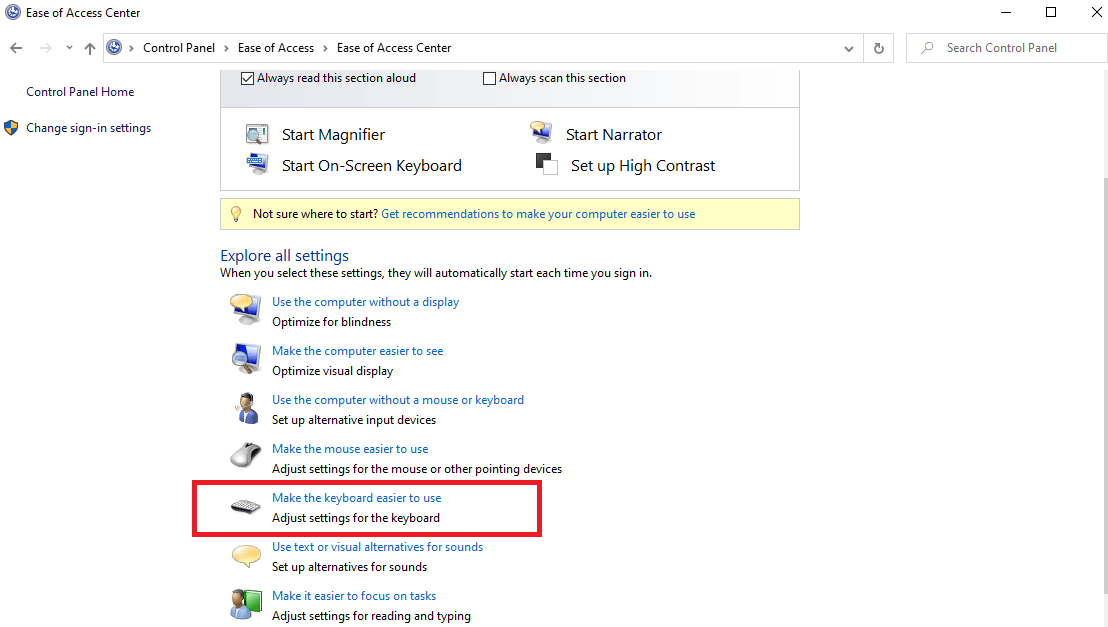
Go to Make the Keyboard Easier to Use
Step 4: Make sure to check the box next to Turn on Sticky Keys to enable the feature. To disable the Sticky Keys option, you can also uncheck the option.
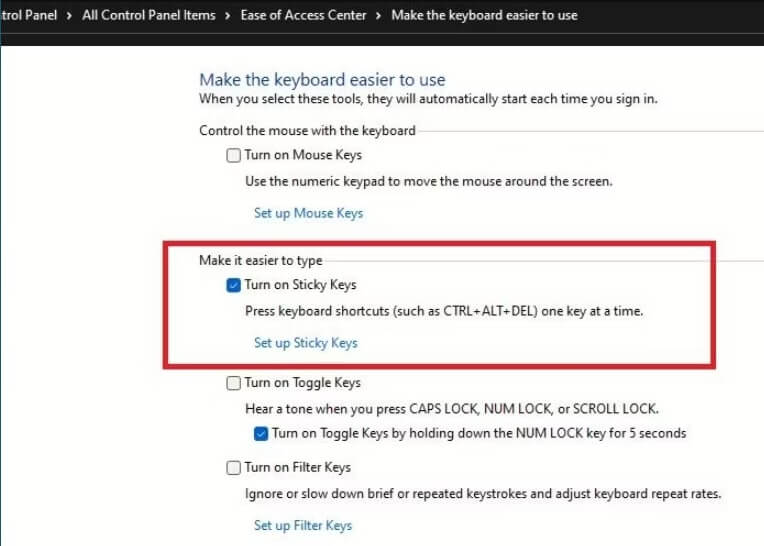
Turn on Sticky Keys
Step 5: Under the Turn on Sticky Keys option, you will also see a link that allows you to start using Sticky Keys. To access the page where you can set your preferences, click on it.
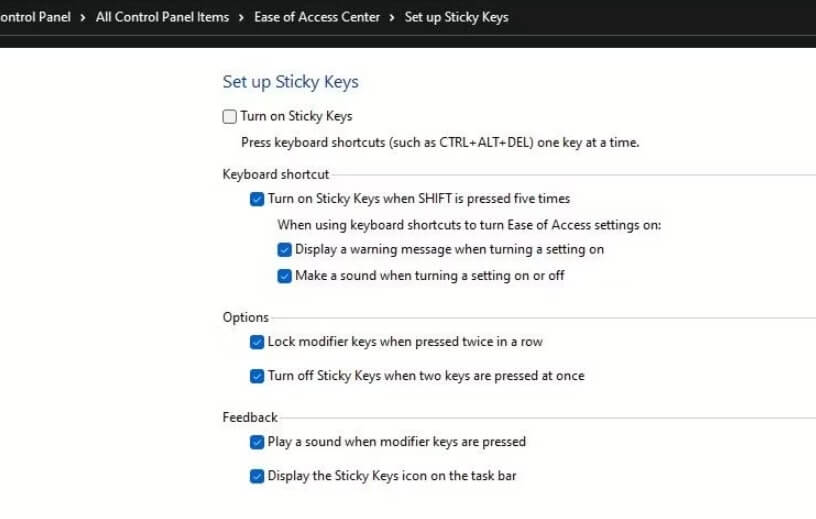
Start Using Sticky Keys
Now, you have the ability to configure settings for keyboard shortcuts, modifier key options, and settings for the sound of modifier keys and the Sticky Keys indicator.
How to Use the Shift Key to Turn Sticky Keys On or Off on a Windows Computer
Using the keyboard on your computer is the simplest way to activate and deactivate Sticky Keys on Windows 10 and 11.
All it takes is pressing the Shift key five times in quick succession. After that, you will receive a notification that Sticky Keys have been activated. Press the Yes button to enable them, and activating Sticky Keys will be accompanied by a high-pitched sound as an alert, and the Sticky Keys icon will also appear on your taskbar.
You will need to press the Shift key five times in a row to turn them off, and Sticky Keys will be disabled, with a sound indicating that.
This shortcut can be disabled by clicking on the link included in the prompt that asks you, "Do you want to turn on Sticky Keys?" If you wish to disable it, you can do so by clicking on the link.
Prompt asking you to enable Sticky Keys
Frequently Asked Questions
1. What are Sticky Keys?
Sticky Keys are a feature designed for users who find it difficult to press multiple keys simultaneously. It allows you to press one key at a time for keyboard shortcuts.
2. How do I turn on Sticky Keys?
You can turn on Sticky Keys by pressing the Shift key five times quickly, which will open the Sticky Keys dialog where you can enable the feature.
3. How can I turn off Sticky Keys?
To turn off Sticky Keys, press the Shift key five times again, or press the Escape key. Alternatively, you can go to Settings > Ease of Access > Keyboard to turn off the Sticky Keys option.
4. Can I customize Sticky Keys settings?
Yes, you can customize Sticky Keys settings such as how long you need to press the key before it is recognized, and whether sound is played when pressing a modifier key (Shift, Ctrl, Alt).
5. Where can I find Sticky Keys settings?
In Windows 10 and 11, you can find Sticky Keys settings by going to Settings > Ease of Access > Keyboard, scroll down to the "Sticky Keys" section to adjust the settings.
6. How can I disable the shortcut to activate Sticky Keys?
If you find that the shortcut (pressing the Shift key five times) accidentally activates Sticky Keys, you can disable this shortcut in the settings. Go to Settings > Ease of Access > Keyboard, then under "Sticky Keys," click on "Sticky Keys Settings," and uncheck the box that says "Turn on Sticky Keys when I press Shift five times."
7. Can I use Sticky Keys temporarily without changing the settings?
Yes, when the Sticky Keys dialog appears after pressing the Shift key five times, you can choose to turn on "Sticky Keys" temporarily without changing the settings.
8. Does turning on Sticky Keys affect my normal keyboard usage?
No, turning on Sticky Keys does not permanently change how your keyboard works; it only modifies the behavior of key combinations (like shortcuts involving Shift, Ctrl, and Alt) when the feature is activated.
Conclusion
If you haven't used Sticky Keys before, you won't be able to appreciate the level of comfort and ease it provides. It's an essential feature for those who find it difficult to use their fingers to type on the keyboard correctly. To have a more powerful experience with your computer, you should try Sticky Keys on Windows operating systems.
We hope the information shared in this article was helpful to you. If you have any additional information regarding Sticky Keys, please mention it in the comments section.


