

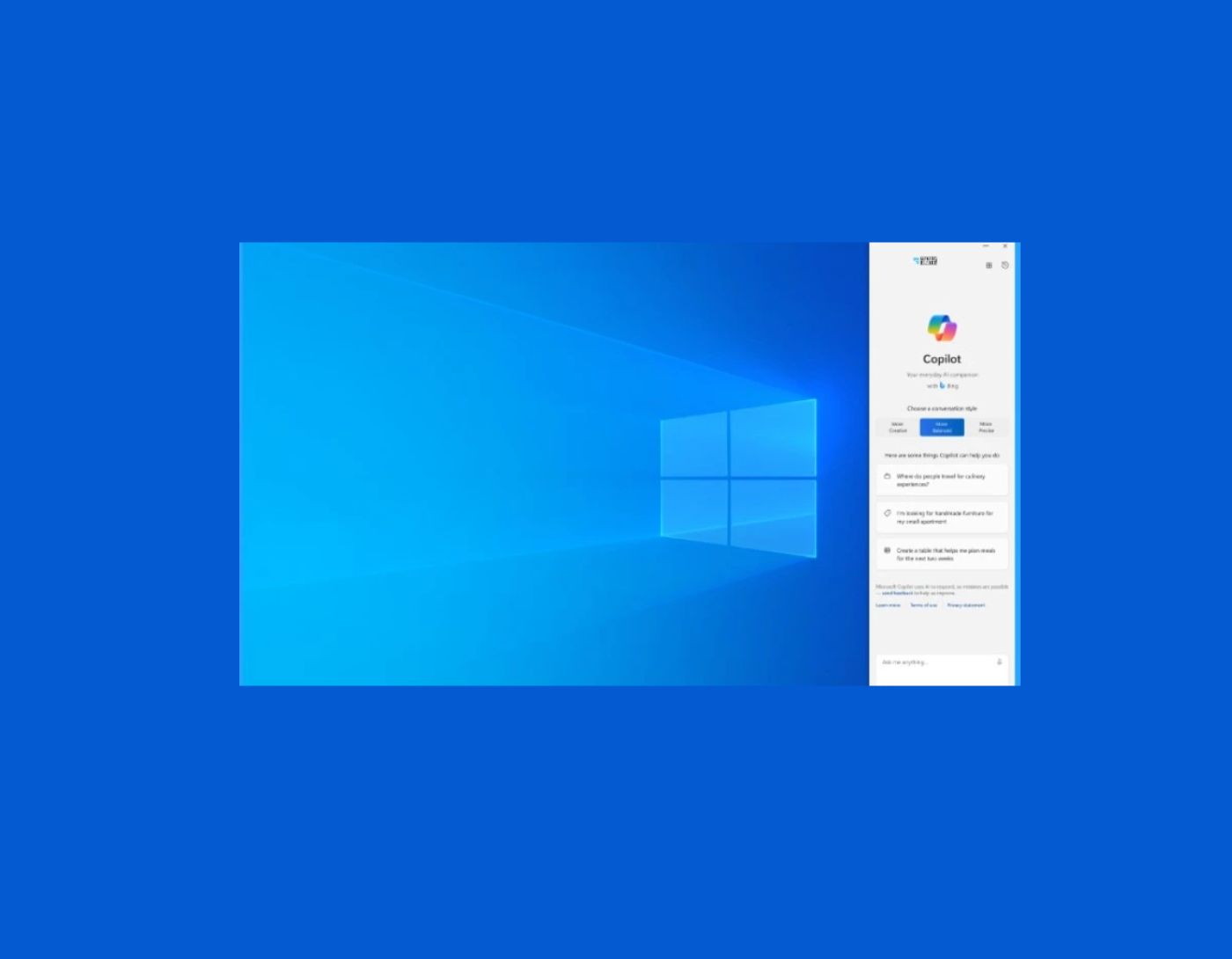
How to disable Copilot on Windows 10, 11: Windows Copilot is fantastic, but it doesn't suit everyone. That's just how it is. If you're one of those who want to disable this AI tool, you might be wondering: how to disable Copilot on Windows 10, 11. This article provides you with a step-by-step guide to help you do it in just three easy and simple ways.
With the rise of artificial intelligence (AI), many features and tools are being released daily, allowing users to experience the power of AI. Copilot is one of the AI features in Windows designed to help you get all the answers you need and assist you in various tasks. However, there are different factors, such as the unpredictability of AI, data safety risks, and high resource consumption, that may lead you to disable Copilot on your Windows 11/10 computer.
However, disabling Microsoft AI isn't as straightforward as deactivating other features. Therefore, many users are looking for a quick and easy guide to help them turn off AI features on their computers.
Are you looking for the same thing? If yes, continue reading this article.
This article guides you on how to disable Copilot on Windows 10, 11. Let's get started.
Why would someone want to disable Windows Copilot?
There are several reasons why some individuals and companies might choose to disable generative AI in general and Windows Copilot specifically.
1. Psychological Reasons
Many people and organizations oppose generative AI platforms like Windows Copilot because they find AI to be dangerous, unpredictable, and ethically questionable. Often, these individuals and organizations prefer to avoid AI altogether for these psychological reasons.
2. Data Protection
Some companies and institutions operate under strict data protection rules and regulations that must be adhered to at all times. For those companies, the current version of AI is unpredictable and highly susceptible to unexpected issues. Additionally, there isn't enough known about how these platforms use sensitive internal data and whether they will share it. The security of the results generated by AI cannot be fully trusted or properly verified. Therefore, AI should be removed from all production systems and primary systems in these organizations, at least for now.
3. Practical Reasons like Computing and Energy Resources
For other individuals and companies, disabling Windows Copilot is simply a matter of practicality. Copilot, like all generative AI platforms, requires a significant amount of resources. These resource demands may be enough to slow down performance to an unacceptable level. In such cases, disabling Windows Copilot is preferred.
How to Disable Copilot on Windows 10, 11
Below, you will find the best possible ways to turn off Copilot on your Windows 11 or 10 computer.
Method 1: Hide Copilot from Your Computer's Taskbar
If a cluttered taskbar is prompting you to disable Copilot, you can hide it from the taskbar.
Here’s a step-by-step process to do that.
First, open the Settings app using the keyboard shortcut Windows+I.
Second, select Personalization from the available Windows settings.
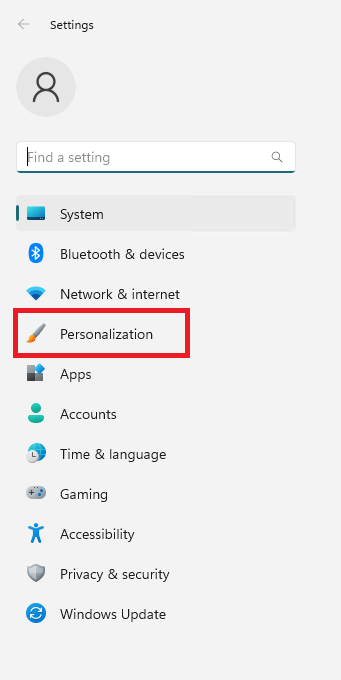
Personalization settings for Windows 11
Once you access the personalization settings, go to the Taskbar option.
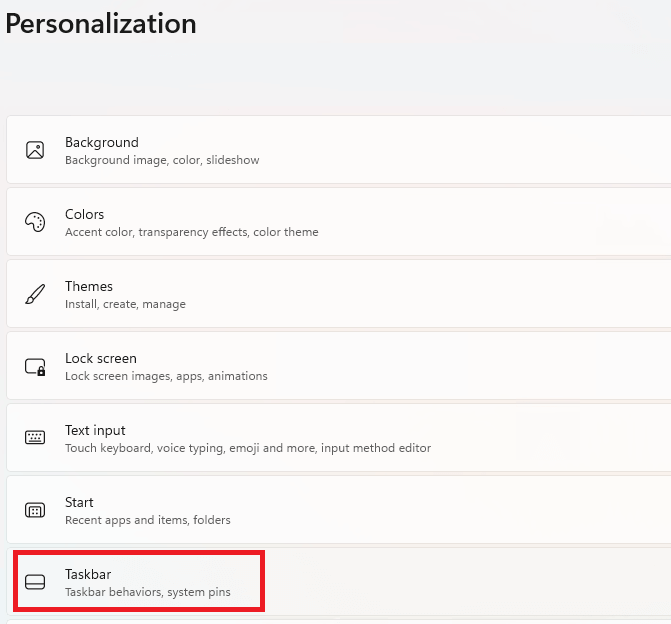
Personalizing the taskbar in Windows.
Finally, you can turn off Copilot (preview).
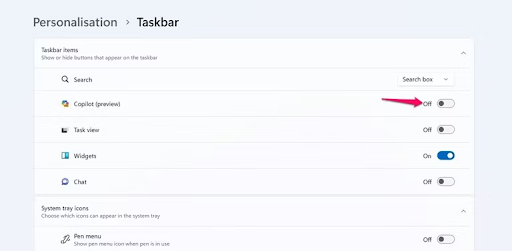
Toggle Copilot (preview)
Please note that the above steps only hide Copilot.
You can still access Copilot using the Windows + C shortcut when you need it.
Method 2: Use the Registry Editor to Disable Copilot on Windows
If you are a Windows 11 user looking for how to disable Copilot, you can do this using the Registry Editor. However, before making any changes to the Windows Registry, you should back it up to prevent potential data loss in case something goes wrong. After creating the backup, you can follow these steps to edit the registry.
First, access Windows Search using the keyboard shortcut Windows+S.
Second, type Registry Editor in the search box that appears on your screen.
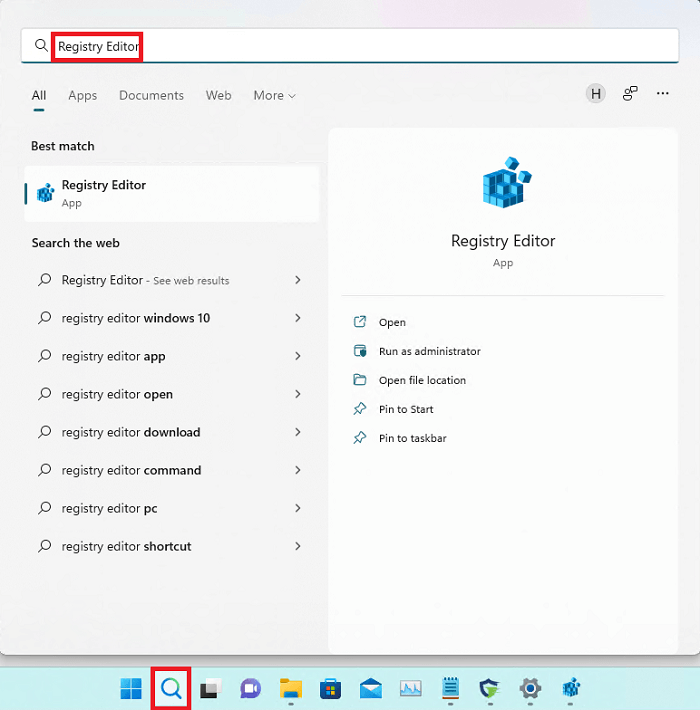
Registry Editor in Windows 11
Now select Registry Editor from the available search results.
Click Open from the left pane to display the Registry Editor.
After opening the Registry Editor, navigate to the Microsoft Windows location.
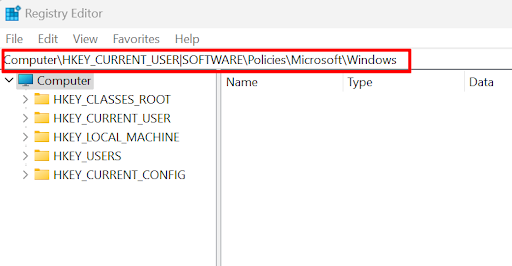
Now, right-click on the Windows key located in the left pane of the Registry Editor.
Select New from the options available on your screen.
Now, name the new key WindowsCopilot.
You can now right-click on the newly created WindowsCopilot key.
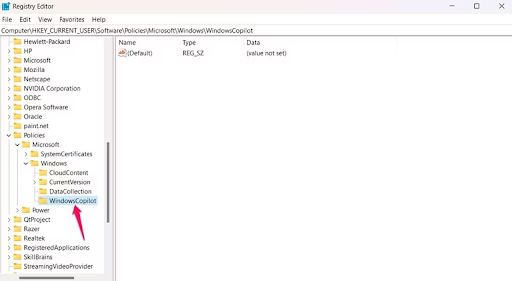
Right-click on WindowsCopilot
Select New from the context menu that appears on your screen.
Now, choose DWORD (32-bit) Value.
Name this newly created subkey TurnOffWindowsCopilot.
Double-click on the TurnOffWindowsCopilot subkey you created in the previous steps.

TurnOffWindowsCopilot
Enter 1 as the value data while keeping the hexadecimal base.
Click the "OK" button to save the changed value.
Finally, quickly restart your computer to complete the process of deactivating Copilot.
Method 3: Disable Copilot on Windows 11 through Group Policy Editor
Are you using the Enterprise version of Windows 11 Pro? If yes, you can use the Group Policy Editor to turn off Copilot.
Here’s the complete process to do that.
First, invoke the Windows Search tool using the shortcut command Windows+S.
Second, type Gpedit in the search box on your screen.
Now, select the item shown as the best match to open the Group Policy Editor.
After opening the Local Group Policy Editor, follow the path User Configuration > Administrative Templates > Windows Components > Windows Copilot.
Right-click on the policy setting to turn off Windows Copilot.
.TurnOffWindowsCopilot
Now, you can choose "Edit" from the context menu available on your screen.
Select Enabled from the options that appear on your screen.
Finally, click Apply and then OK to complete the deactivation of Copilot.
Conclusion
In this article, we discussed how to disable Copilot on Windows 10, 11. We hope you can now successfully disable Copilot on Windows 11/10. However, if you are still confused about how to do it, have any other questions, or have suggestions regarding this guide, feel free to leave us a comment.
You might also like
How to Fix Device Manager Error (45) Devices Not Connected to the Computer


