

Here’s how to enable dark mode in Google Docs on your computer or mobile device, protecting your eyes from strain by activating dark mode in Google Docs.
For those who frequently use smartphones or computers, eye strain or discomfort is a common issue. Their eyes can quickly become dry and fatigued from staring at the computer screen for extended periods. Furthermore, this can also lead to nerve damage in the eyes, nearsightedness, and other eye diseases. This is where the benefit of enabling dark mode comes in; dark mode reduces eye strain and protects our eyes from stress or harmful light rays.
The dark mode feature can be very beneficial for your eyes. Enabling dark mode helps you save battery and makes the text clearer. Additionally, dark mode is available almost everywhere, including in Google Docs. The dark theme in Google Docs helps reduce eye strain and gives your workspace a modern and sleek appearance. You can easily enable dark themes on both iOS and Android, and now Windows also supports dark mode.
However, there is no direct way to turn on dark mode in Google Docs on the desktop. But, we can do this in other easy and quick ways. Google Docs also offers a dark mode option for mobile app versions. Here’s everything you need to know about how to make dark mode available in Google Docs on both desktop and mobile.
How to Enable Dark Mode in Google Docs on Computer or Mobile
There are several ways you can use the dark mode feature in Google Docs on laptops or desktop computers.
Method 1: Use an Extension to Enable Dark Mode in Google Docs
There is a dedicated extension (Dark Mode for Google Docs) available that you can use to switch to dark mode in Google Docs and even Google Sheets. Here’s how:
Step 1: Open the Google Chrome web browser and visit the official Chrome Web Store page.
Step 2: Search for dark mode in Google Docs in the search box and select the best result.
Step 3: Click on the Add to Chrome option.
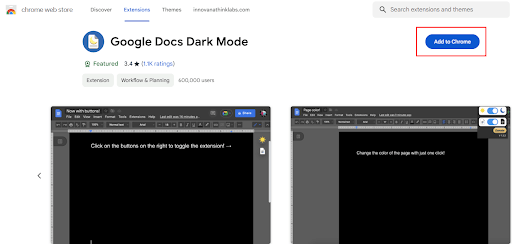
Download the extension to enable dark mode in Google Docs
Step 4: A prompt will appear now, click on the Add Extension option to confirm your action to add the dark mode extension for Google Docs to your web browser.
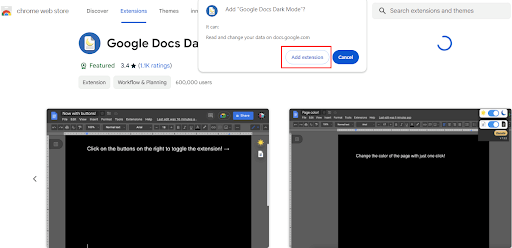
Add the extension to enable dark mode in Google Docs
Step 5: Now, press CTRL + T together to open a new tab, locate and click on the extension icon next to the address bar.
Step 6: Find the dark mode extension for Google Docs and click on the install icon.
Step 7: Next, open Google Docs and go to the top left corner, then click on the dark mode extension for Google Docs, simply toggle both available switches on.
Step 8: Try reloading the document, it will switch to dark mode.
Method 2: Enable Dark Mode in Google Docs Using Chrome Flags
Another way to enable dark mode in the Google Docs version is by using Chrome Flags. To use this method, follow these instructions:
Step 1: Launch Google Chrome and open a new tab by pressing CTRL + T at the same time.
Step 2: Go to the address bar and enter chrome://flags/, then press Enter.
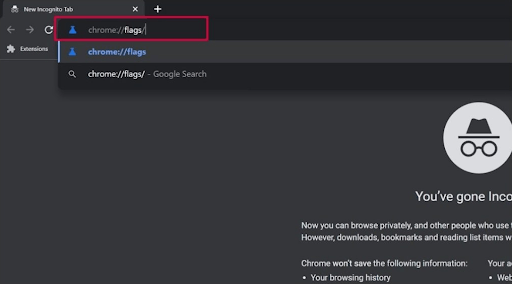
Step 3: Click on the search bar and type dark, then press Enter on your keyboard.
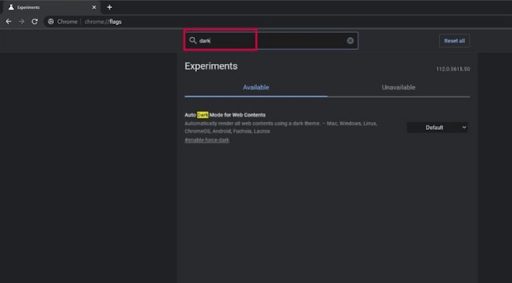
Step 4: Now, go to the section for automatic dark mode for web contents, then expand the dropdown list by clicking on the down arrow icon, after that, select the Enabled option.
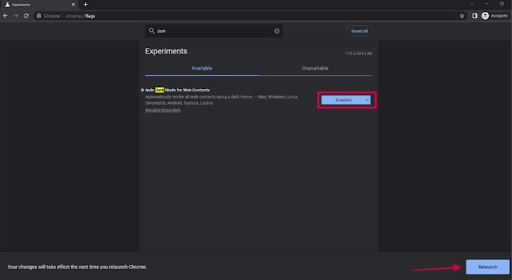
At the bottom of the web browser window, click on Restart
Step 5: A pop-up window will appear at the bottom of the web browser window, click on the Restart button to proceed.
Step 6: This will successfully activate the dark theme.
How to Get Dark Mode in Google Docs on iOS Devices
Follow the steps below to switch to dark mode in Google Docs on iOS devices.
Step 1: Open the Google Docs app on your iOS device.
Step 2: Tap the hamburger icon located in the top left corner.
Step 3: Select Settings from all the options available in the navigation drawer.
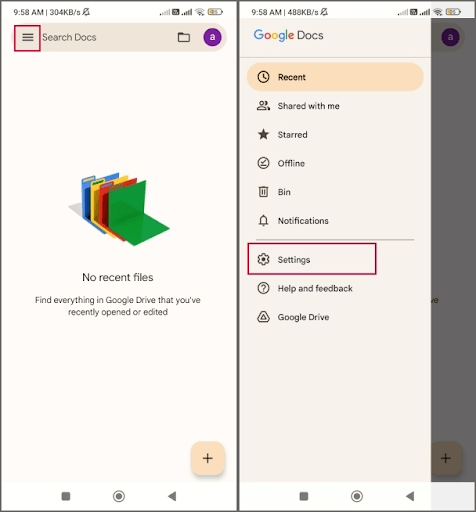
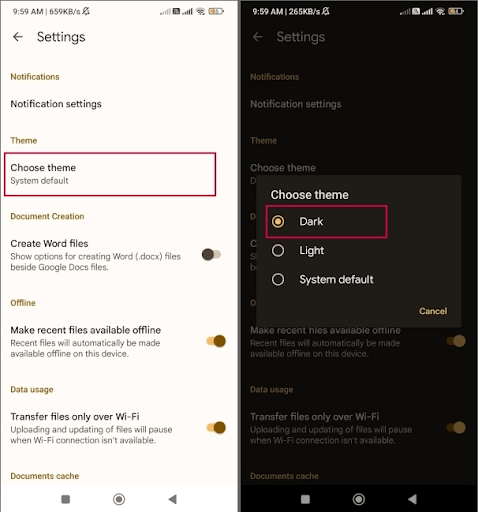
Step 4: Under the Themes section, select the Choose Theme option.
Step 5: Select the Dark option to switch to dark mode effortlessly.
How to Enable Dark Mode for Google Docs on Android Devices
If you have an Android device and want to enable the dark mode feature in Google Docs, follow these steps:
Step 1: On your Android device, launch the Google Docs app.
Step 2: Now, go to the top left corner and click on the hamburger menu icon to open the navigation drawer.
Step 3: Look for and select Settings in the navigation drawer list.
Step 4: Next, choose the Choose Theme option under the Theme section to proceed.
Step 5: A pop-up window will appear, select the Dark option to enable the dark theme.
The Google Docs app will now switch to dark mode. This is how you can enable dark mode in Google Docs on Android devices.
Conclusion
The reason why Google Sheets and Google Docs do not adapt to dark mode settings on desktop computers or laptops remains a mystery. The dark mode feature in the mobile app works well, and to enable dark mode in Google Docs on desktop computers, you can use the methods mentioned above. These strategies will work well with all Chromium-based web browsers like Brave, Microsoft Edge, Vivaldi, and Opera.
So, that’s all about how to enable dark mode in Google Docs on your computer or phone. Switch to the dark mode feature and enjoy the unmatched elegance and comfort!


