


How to download drivers for unknown devices: Have you encountered an unknown device error in Windows 10 and wondered how to fix it? It's simple; you can resolve this by downloading drivers for unknown devices.
The unknown device issue may stem from a malfunction, which is why you need to obtain a driver for the unknown device. The most common way to resolve this problem is to get the appropriate device drivers for your system.
In this article, we will first understand why this error occurs, then learn how to identify the malfunctioning device, and finally look at how to download drivers for unknown devices.
How to identify the malfunctioning device (Unknown device in Device Manager)?
To do this, you need to go to your system's Control Panel and then to Device Manager. Through "Device Manager," you will see all the devices installed on the system.
An unknown device will be listed in "Device Manager" and will be marked with a yellow exclamation mark. You can view the properties of this unknown device to identify it.
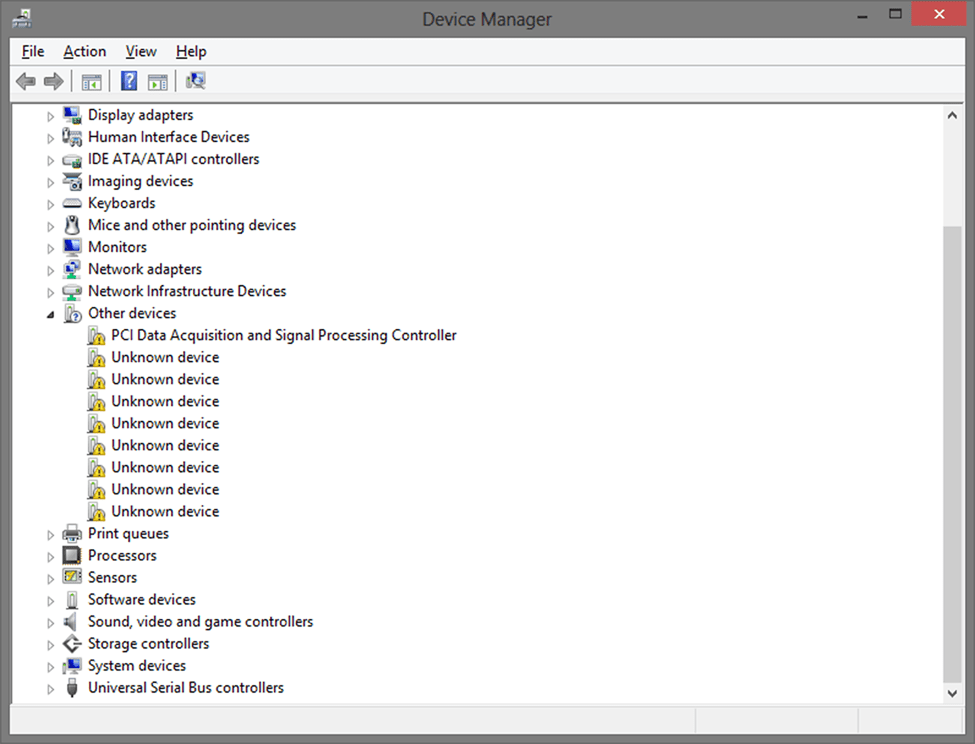
Causes of the unknown device error in Device Manager
- Upgrading the computer to Windows 10.
- Old or corrupted drivers can be another reason.
- When a device driver is unavailable, as in the case of USB devices.
- Incorrect devices or firmware.
- Unknown device ID.
How to download drivers for unknown devices
The issue of unknown devices can be resolved by installing the correct version of device drivers, which can be done either by manually updating the drivers or automatically updating them.
1. Manually update drivers
If you have the right experience, patience, and time, you can manually update and install drivers for unknown devices from the manufacturer's website. However, the main challenge here is that you first need to identify the malfunctioning device.
Each device has a specific device ID. Once you have the device ID, you can easily identify the unknown device on Windows 10 and then obtain the correct driver version.
- You can go to "Device Manager" and right-click on the "unknown device" to select the "Properties" option.
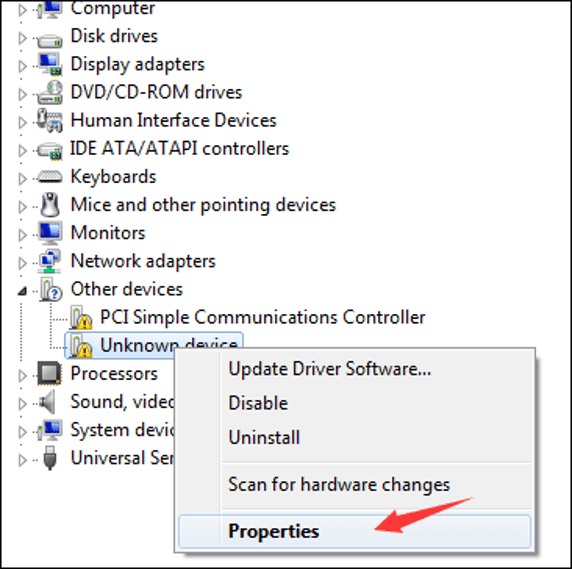
Go to "Device Manager" and right-click on the "unknown device."
- Once the "Unknown Device Properties" window opens, go to the "Details" tab and click on the dropdown menu for the property.
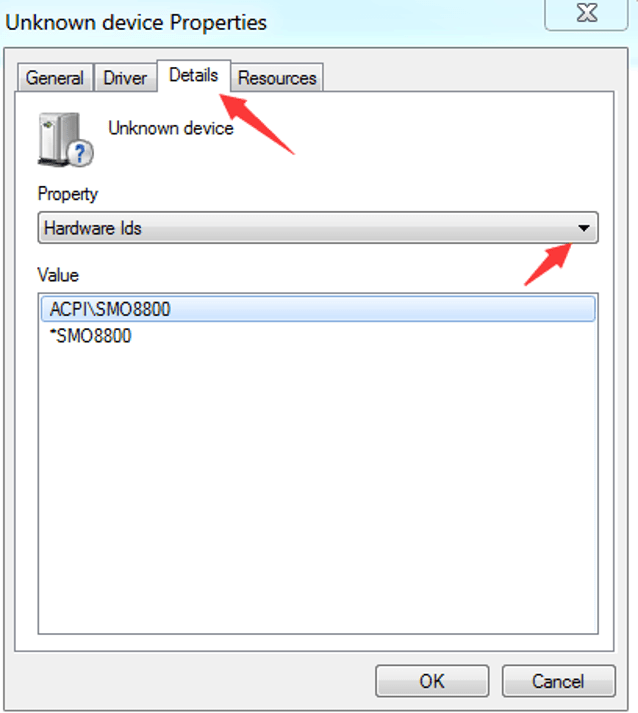
- Open the properties of the unknown device.
- In the value field, you can see a list of device ID values.
- You can copy the top value using the right-click procedure.
- Then, you can paste the unknown device ID into the Windows 10 device ID search engine, which will display the device it belongs to.
- After identifying the device, you can visit the manufacturer's website and download the updated driver version for the device.
- You can then follow the subsequent steps to install it on your system and resolve the unknown device error.
So, this is how you can use the website to download drivers for unknown devices.
Try the following solution if you are looking for an alternative to fix an unknown device in Device Manager.
2. Update drivers via Device Manager
If you do not want to go through all the tedious manual steps, don't worry because the "Update Driver" function can save you from all the hassle. Want to know how? Well, take a look at the following steps to understand how to use "Device Manager" to update drivers for unknown devices.
- In "Device Manager," you first need to right-click on the "unknown device" and select the "Update Driver" option.
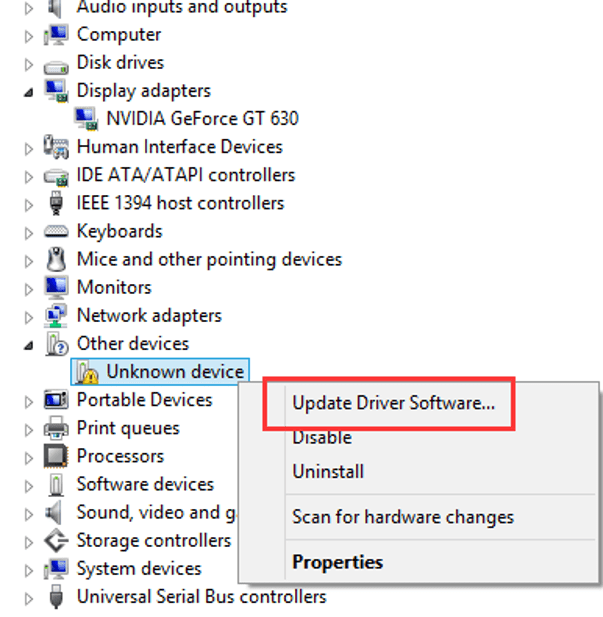
Select the Update Driver option
- Next, you need to select the previous option in the next prompt to allow Windows to automatically search online for the updated driver and install it on your system.
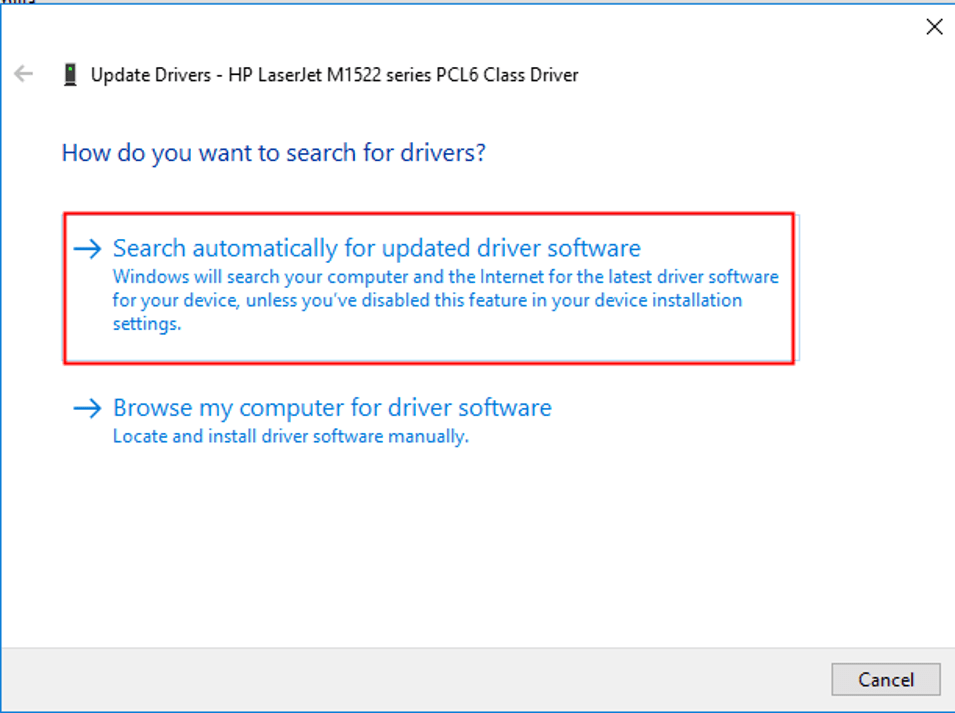
Automatically search for updated driver
If you are tired of the manual methods for downloading and updating drivers for unknown devices, you can try the following automatic solution.
3. Control Panel to fix unknown USB device for Windows 11
Another way to download the driver for an unknown device in Device Manager is to use the Control Panel devices.
- Press the Win + S keys and run the Control Panel after searching for it.
- Set the view settings to Category to proceed.
- Click on View devices and printers.
- Right-click on the unknown devices and select the option to open the device installation settings.
- A pop-up window may appear indicating that you need to select the update method; click on search automatically for driver updates to proceed.
The tool will search for driver updates and install them with the help of some on-screen instructions.
4. Use Windows Updates
You may not know this, but updating the Windows operating system also allows you to update certain drivers, and the same applies to unknown device drivers as well.
- Click on the search section in the taskbar, type check for updates, and then press Enter.
- The Windows Update utility will appear; wait for the tool to load, then click on the check for updates button.
- If any updates appear, download and install them; this method will also fix the unknown device error in Device Manager.
- Allow the system to restart during the entire process as needed.
All the methods mentioned and explained earlier for updating the unknown device ID driver are manual, so for easier updating, you can try the automatic process outlined below.
5. Automatically update drivers for unknown devices
Don't you agree that comprehensive driver update programs can put an end to all issues related to your device drivers at once? They are not only capable of downloading drivers for unknown devices but can also take care of the overall status of all system drivers, making them the ideal tools for enhancing your system's performance.
The Bit Driver Updater tool is undoubtedly the best program for updating drivers, so we recommend it, as this tool can automatically scan your system and quickly detect outdated drivers.
Users can benefit from the trial version before deciding to purchase the professional version of the tool, and the program can be obtained in three quick and easy steps.
What makes this tool user-friendly and special is its ability to scan a Windows computer for outdated drivers and update them to the latest versions with a simple click, in addition to that, you can also get good technical support around the clock.
Last but not least, Bit Driver Updater can also back up your device drivers and help you restore them when needed, thus allowing you to easily fix an unknown device in Device Manager as well.
Conclusion
In conclusion, we discussed in this article how to download drivers for unknown devices, and it has become clear to you that this is a task that can be easily accomplished using a powerful driver update program. Keeping drivers updated ensures that you can use your device smoothly without encountering any glitches or errors.
The advantage of using automated tools over manual methods is that they save you a significant amount of time and are a great solution for those lacking technical skills.
You might like this
How to fix RESULT_CODE_HUNG error in Chrome
How to fix error 0xc00000e9 in Windows 10/8/7
<a href="


