

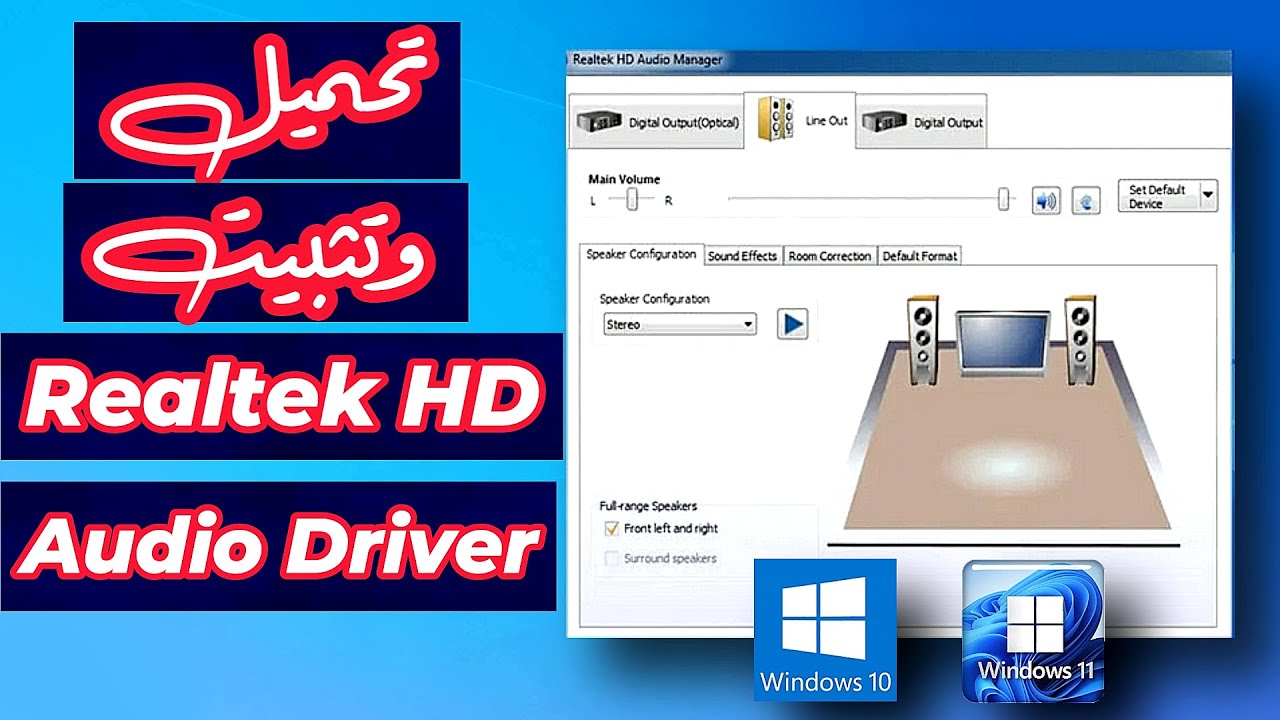
How to download the Realtek audio driver for Windows 11 and 10: Audio drivers like Realtek ensure that your audio devices function properly when connected to your computer. Most of the time, these drivers are pre-installed on Microsoft computers, but you may need to install them manually if something goes wrong.
In this article, we will explain how to download the Realtek audio driver for Windows 11 and 10.
The Realtek HD Audio Driver is the most commonly used audio driver for managing audio settings on Windows.
The Realtek High Definition Audio Manager comes with the Realtek Audio driver, which is the most widely used audio driver packed with amazing features.
Essentially, the audio driver facilitates audio control on the Windows desktop and is known for delivering high-quality sound to your system or headphones through the sound card.
Recently, Windows users have reported difficulties accessing the audio driver, which was not found in the taskbar, system tray, or notification area. The issue may have arisen either after a Windows update or due to a change in the original audio driver or sound card.
How to download the Realtek audio driver for Windows 11 and 10
Before downloading new drivers, uninstall all existing drivers. To avoid conflicts between multiple drivers, you should check the driver version and also uninstall any duplicate audio drivers.
To do this, follow these steps:
- Click the "Start" button and go to "Device Manager"; you can also access it through the Control Panel.
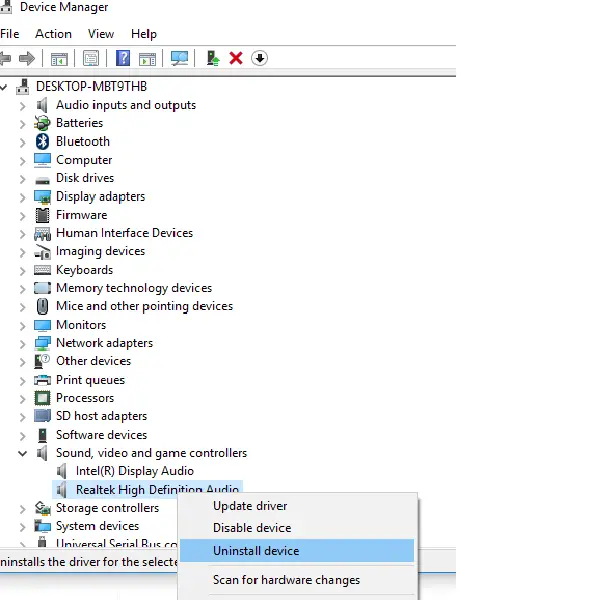
- Expand the Sound, video and game controllers from the list in "Device Manager".
- Under this, locate the Realtek High Definition Audio driver.
- Right-click on it and select Uninstall device from the dropdown menu.
- Download and reinstall the Realtek HD Audio Manager.
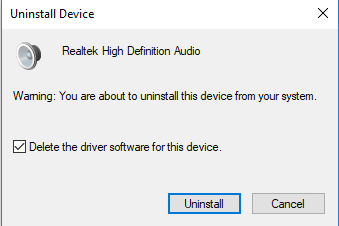
- Select the option to delete the driver for this device and click the Uninstall button.
- Now go to the "View" tab and click on "Show hidden devices" from the dropdown menu.
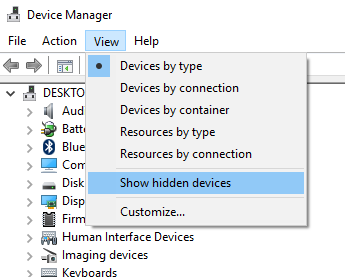
- Now look for any duplicate audio drivers if found. Right-click on it and select the uninstall option.
- Restart the system.
- You can download the Realtek HD Audio Manager from here.
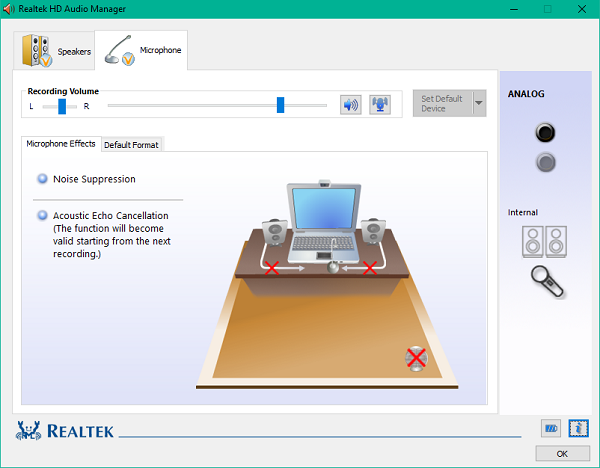
- Click on the executable file to start the installation; if you encounter compatibility issues, you can install it in compatibility mode.
- Download and reinstall the Realtek HD Audio Manager.
Downloading the Realtek audio driver
To manually download the Realtek HD Audio drivers, you need to visit the official website of Realtek.
You should check the following two sites to see if it is available on realtek.com - or visit the dell.com link.
Visit realtek.com here and see if your software is available.
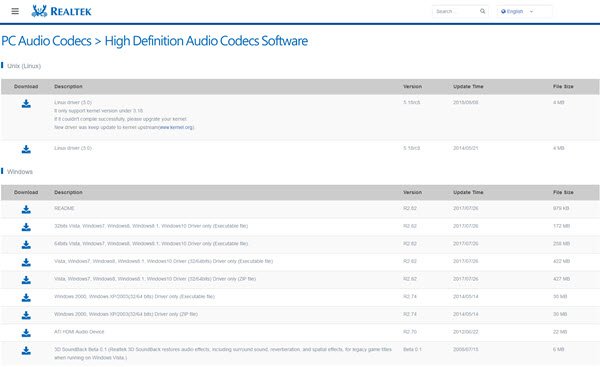
Realtek HD Audio Manager
If it is, download it. If not, look for high-definition audio codecs here on realtek.com/en/downloads; it is important to download the correct drivers.
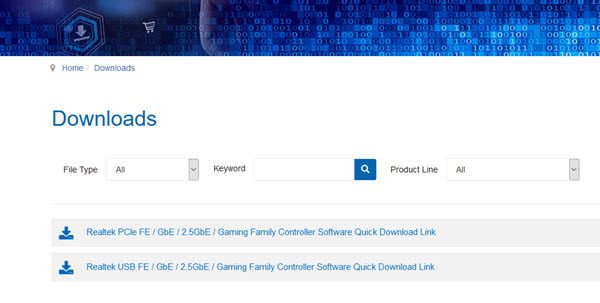
Realtek drivers
The download page will list the available audio drivers for download.
Once the download is complete, double-click the setup files and follow the instructions to complete the installation.
If you still find the component missing, or if there is no speaker icon or display icon, despite reinstalling Realtek HD Audio, or if you have difficulty opening it, follow these suggestions.
How can I reinstall Realtek after uninstalling it?
To reinstall Realtek after uninstalling it, go to "Device Manager" and select the "Action" tab at the top.
Select Scan for hardware changes and let Windows detect and reinstall the Realtek HD Definition Audio driver automatically.
If that doesn't help, download its setup file and install it as described in this article.
Fixing Realtek HD Audio Manager issues
1] Disable the Microsoft UAA Bus Driver for HD Audio and fix driver conflicts
In "Device Manager", expand "System devices".
Locate and select the Microsoft UAA Bus Driver for High Definition Audio.
Right-click on it and click "Disable" from the dropdown menu.
Open Windows Settings and go to Apps & features.
Click on Realtek High Definition Audio Driver and press the option to uninstall the driver.
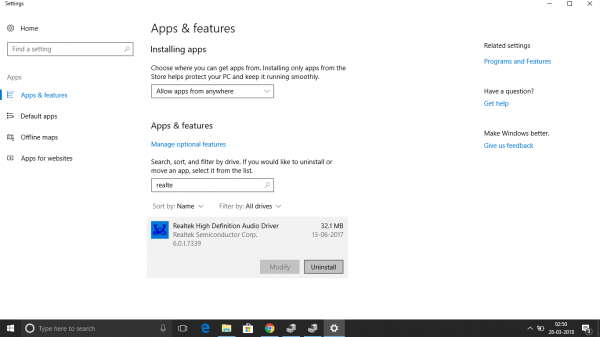
Now go back to "Device Manager" and right-click on the disabled Microsoft driver.
Click Uninstall from the dropdown menu.
After doing this, reinstall the Realtek HD Audio Driver.
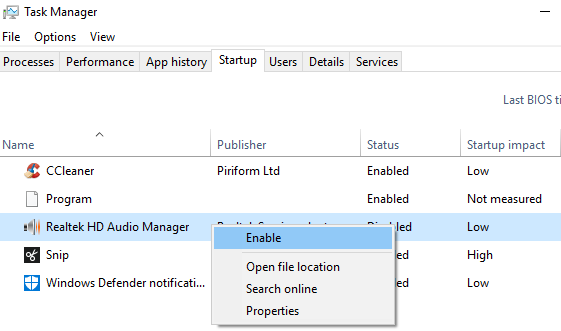
2] Enable startup in Task Manager
Go to Start and open Task Manager.
Go to the Startup tab.
Locate and select Realtek HD Audio Manager.
If the status is disabled, right-click on it and click the Enable option from the dropdown menu.
Restart the system.
Fix: Failed to install Realtek HD audio driver, error 0xC0000374.
3] Update the audio driver
If Realtek HD Audio is still missing, do the following.
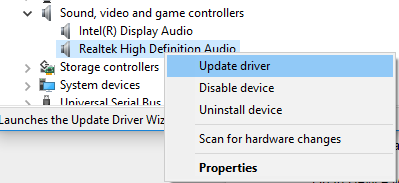
Open Device Manager.
Expand Sound, video and game controllers.
Right-click on Realtek High Definition Audio and click Update driver from the dropdown menu.
Assuming you have the latest driver setup file on your computer, choose Browse my computer for driver software.
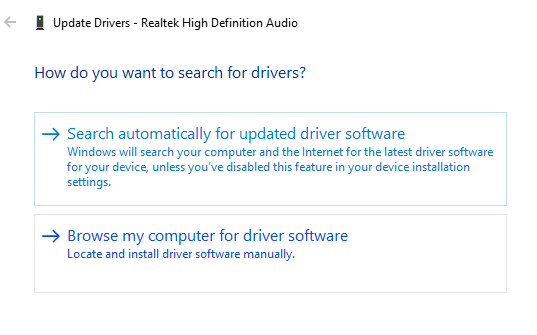
Select and choose Let me pick from a list of available drivers on my computer.
Look for and select the latest driver by date, then click Next to update.
This can also resolve any surround sound issues, if present.
4] Add legacy devices
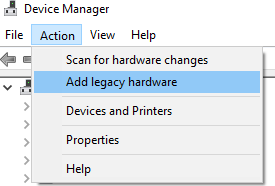
Go to Device Manager.
Look for and click on Sound, video and game controllers.
Click on the "Action" tab.
Look for and click on "Add legacy hardware" from the dropdown menu.
Click the Next button and select the radio button to automatically search for and install the devices (recommended).
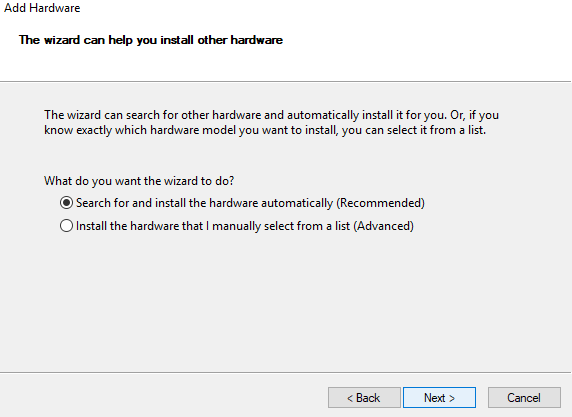
Click "Next" and manually install the driver again.
Why can't I find Realtek HD Audio Manager?
If you cannot find the Realtek HD Audio Manager in the Control Panel, you can find it in File Explorer by navigating to the path C:\Program Files\Realtek\Audio\HDA.
Double-click RtkNGUI64.exe, and you will find the Realtek HD Audio Manager. If you still cannot locate the Realtek audio manager, you may need to reinstall the Realtek audio manager by updating your Realtek HD audio driver.
Do I need Realtek HD Audio Manager?
The Realtek High Definition audio driver is essential for connecting audio systems in a Windows computer to sound cards and speakers. If there are no audio issues, this driver may not be necessary for your computer's sound to function.
How do I add Realtek to Device Manager?
To add Realtek to "Device Manager," go to "Device Manager," then scroll down to "Sound, video and game controllers" and look for "Realtek High Definition Audio."
How can I redownload Realtek Audio Manager?
To redownload the Realtek audio driver for Windows, press the Windows key + X shortcut keys, then select "Device Manager" from the list. Double-click on Sound, video and game controllers to expand this category.
You should also right-click on Realtek High Definition Audio and select the option to uninstall the device. After completing that, restart your Windows computer. After uninstalling the Realtek audio driver, manually reinstall the Realtek audio driver.
This should help fix audio driver issues and improve sound quality.
Conclusion
Here we conclude our


